How To Use Airpods To Answer Calls Effectively

How to Use AirPods to Answer Calls
AirPods are a popular choice for many people who want a wireless and easy way to stay connected. Knowing how to answer calls with your AirPods can make your day much smoother. This guide will walk you through every step to ensure you can handle calls confidently and comfortably.
Understanding AirPods and Their Call Features
AirPods are designed with built-in microphones that allow you to listen and speak clearly during calls. The core feature that helps answer calls is the multi-function button or the force sensor, depending on your AirPods model. These features enable quick call management without needing your phone.
Different AirPods Models and Their Call Controls
| Model | Call Answering Method | Additional Features |
|---|---|---|
| AirPods 1st and 2nd Generation | Double-tap on either earbud to answer or end calls | No force sensor; relies on double-tap gestures |
| AirPods 3rd Generation | Press the force sensor once to answer or end calls | Haptic feedback for gesture confirmation |
| AirPods Pro | Press the force sensor once to answer or end calls | Press and hold for voice assistant or switch between transparency and noise cancellation |
How to Answer Calls with AirPods
Answering calls is straightforward once you know the right gestures or button presses. The method depends on your specific AirPods model, but the process is generally simple and intuitive.
For AirPods 1st and 2nd Generation
- When a call comes in, you will hear the ringtone through your AirPods.
- Double-tap either AirPod to answer the call.
- To end the call, double-tap again on either AirPod.
For AirPods 3rd Generation and AirPods Pro
- When you receive a call, you will be notified through your AirPods.
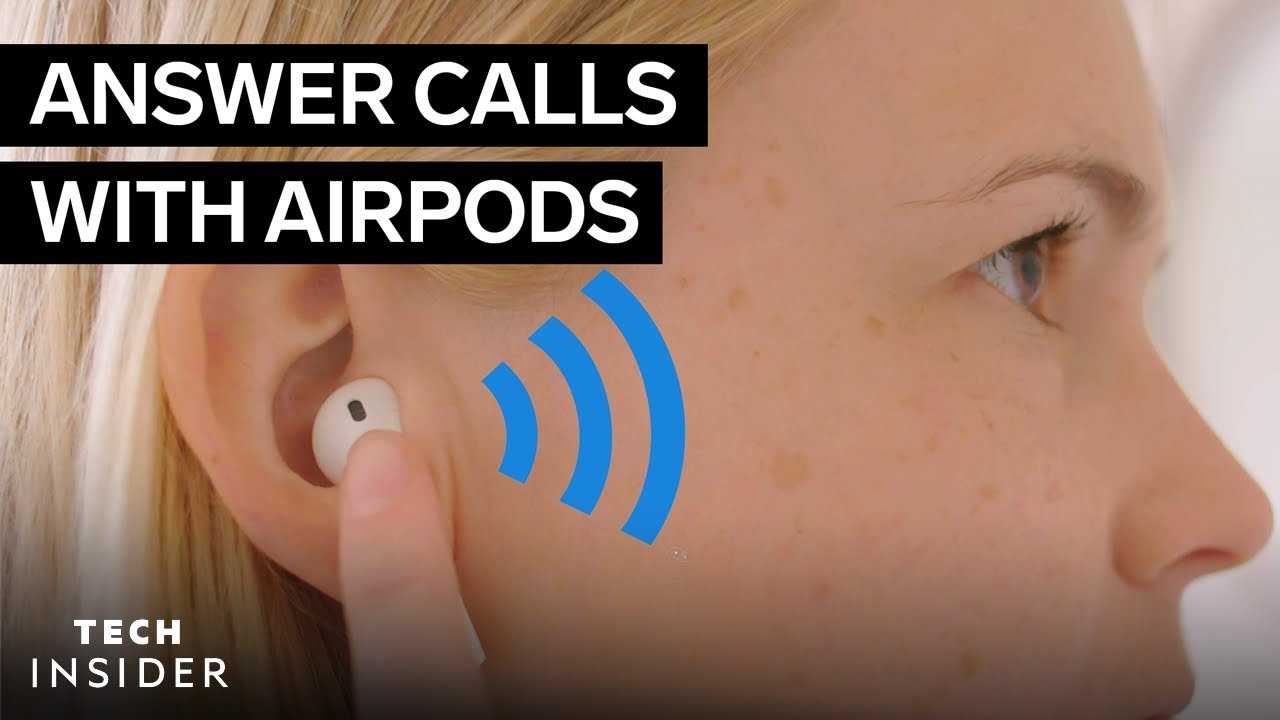
- Press once on the force sensor located on the stem of either AirPod to answer.
- To end the call, press the force sensor again.
Using Automatic Detection for Calls
AirPods can automatically detect when they are in your ears, allowing for seamless call handling. If this feature is enabled, your AirPods will automatically pause audio or answer calls when you put them in your ears.
How to Enable or Disable Automatic Ear Detection
- Open the Settings app on your iPhone.
- Tap on Bluetooth and find your AirPods in the list.
- Tap the info icon (i) next to your AirPods.
- Toggle “Automatic Ear Detection” on or off as needed.
Voice Controls and Siri for Calls
You can also use voice commands to answer calls with Siri, Apple’s voice assistant. This feature works well if you prefer hands-free operation or want to manage calls remotely.
How to Use Siri to Answer Calls
- Activate Siri by saying “Hey Siri” or by pressing and holding the force sensor.
- Say “Answer call” to pick up an incoming call.
- To decline a call, say “Decline call.”
Setting Up Siri for Call Management
- Ensure Siri is enabled in your iPhone’s settings under Siri & Search.
- Enable “Allow Siri When Locked” for quick access.
- Customize voice commands for quick call handling if desired.
Managing Multiple Calls
If you are on a call and receive another, you can handle multiple calls with your AirPods. This feature is called call waiting, and it allows you to switch between calls easily.
How to Switch Between Calls
- When a second call comes in, your AirPods will notify you.
- Press the force sensor once on either AirPod to answer the second call.
- To put the first call on hold, simply answer the second call.
- To switch back to the first call, tap or press the force sensor again.
Muting and Volume Control During Calls
While AirPods don’t have built-in volume buttons, your connected device allows volume adjustment. Muting can be managed via your device or voice commands.
How to Adjust Volume During Calls
- Use the volume buttons on your iPhone, iPad, or Mac.
- Ask Siri to “Turn up the volume” or “Mute the call.”
Muting Calls with Siri
- Activate Siri with “Hey Siri” or the force sensor.
- Say “Mute the call” to mute your microphone.
- To unmute, ask Siri to “Unmute.”
Common Troubleshooting Tips for Call Control
If your AirPods are not responding to call commands, check these quick tips:
- Ensure your AirPods are charged and connected properly.
- Update your device’s software and firmware for compatibility.
- Verify that all relevant settings like Bluetooth and Siri are enabled.
- Restart your device and reconnect your AirPods if needed.
Additional Tips for Better Call Experience
For clearer conversations, ensure your microphone is not blocked and your environment is quiet. You can also customize gesture controls in your device settings to suit your preferences. Using a case or clip that reduces accidental presses can improve call handling accuracy.
Related Topics to Explore
- How to reset AirPods for optimal performance
- Best ways to extend battery life during calls
- Using AirPods with Android devices for calls
- Enhancing call quality with AirPods Pro noise cancellation
By understanding these features and tips, you will be able to answer calls effortlessly using your AirPods. The key is to familiarize yourself with your specific model and customize settings for your comfort and convenience. This way, communication remains smooth, whether you’re on a quick chat or a long call.
Frequently Asked Questions
How can I answer a call using my AirPods when my phone is locked?
When your AirPods are connected to your device, simply double-tap either AirPod (depending on your settings) or use the force sensor to answer an incoming call. If you have enabled automatic ear detection, removing an AirPod will pause audio, and putting it back in will resume playback. Ensure that your AirPods are properly paired and that the default behavior for double-tap or force sensor is set to answer calls in your device’s Bluetooth settings.
What steps should I follow to end a call with AirPods?
To end an ongoing call, double-tap either AirPod or press and hold the force sensor (depending on your AirPods model). This action will disconnect the call. If you are using AirPods Pro or AirPods (2nd generation and newer), you can also use the force sensor to decline an incoming call by pressing and holding or by setting specific controls in your device settings. Make sure your AirPods are within range and actively connected to your device during the call.
Can I switch between answering calls and controlling music playback with my AirPods?
Yes, AirPods allow you to handle calls and music seamlessly. When a call comes in, double-tap or press the force sensor to answer. To switch back to music playback after ending the call, simply tap on your device or use the control options available on your connected device. You can also customize what double-tap or press actions do in your Bluetooth settings, assigning specific functions to each gesture for easier management of calls and audio.
Final Thoughts
To use AirPods to answer calls, simply double-tap either earbud if you’re using the 1st or 2nd generation. For newer models, press the force sensor on the stem to answer or end calls. Ensure your AirPods are connected to your device via Bluetooth before attempting to answer calls. With these simple steps, answering calls becomes quick and effortless. Remember, how to use AirPods to answer calls is straightforward once you get familiar with the controls. Keep your AirPods charged and within reach for seamless call handling throughout your day.
Similar Posts