How To Use Airpods Pro As Hearing Aid For Better Hearing
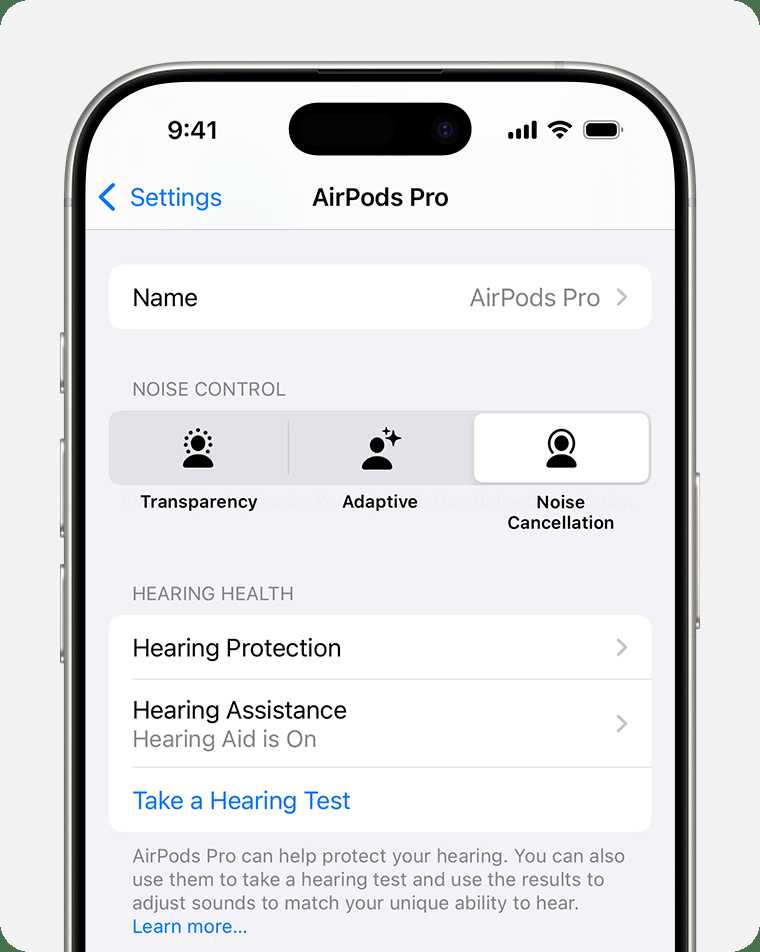
To use AirPods Pro as a hearing aid, activate the Live Listen feature in your iPhone settings and connect your AirPods. Place your AirPods in your ears, enable Live Listen, and adjust the volume for better hearing in noisy environments. This transforms your AirPods Pro into a makeshift hearing device, helping you hear conversations more clearly.
If you want to turn your AirPods Pro into a hearing aid, the key is activating the Live Listen feature on your iPhone. This feature uses the microphone on your iPhone to pick up sounds and transmit them directly to your AirPods. Simply connect your AirPods Pro to your iPhone, enable Live Listen via the Control Center, and position your iPhone close to the sound source. Adjust the volume as needed for clarity. While not a substitute for a medical hearing aid, this quick trick can be incredibly helpful in everyday situations. Keep reading to discover step-by-step instructions and tips to make this solution work smoothly for your listening needs.

How to Use AirPods Pro as Hearing Aid
Understanding the Capabilities of AirPods Pro for Hearing Assistance
AirPods Pro are primarily designed as high-quality wireless earbuds for listening to music and phone calls. However, their advanced features can also help individuals with mild to moderate hearing difficulties. By enabling specific settings and customizing the device, you can use AirPods Pro to better hear conversations and environmental sounds.
Key Features that Support Hearing Assistance
AirPods Pro include active noise cancellation, transparency mode, and customizable ear tips. These features can improve hearing clarity and make sounds more discernible in various environments. Additionally, the integration with iOS settings allows you to optimize audio for hearing needs.
Setting Up AirPods Pro as a Hearing Aid
To use AirPods Pro as a hearing aid, you first need to connect them to an iPhone or iPad. Ensure Bluetooth is active and follow these steps:
- Open the case of your AirPods Pro and put them in your ears.
- Go to Settings on your iOS device.
- Tap Bluetooth and select your AirPods Pro from the device list.
- Adjust the volume to your comfort level.
- Open the Accessibility menu in Settings.
- Select Sound & Haptics then tap Audio/Visual.
- Enable Live Listen.
This setup allows your iPhone to act as a remote microphone that streams sound directly to your AirPods Pro, enhancing your hearing ability.
Using Live Listen to Improve Hearing
Live Listen turns your iPhone into a remote microphone, which sends amplified sound directly to your AirPods Pro. This feature is especially useful in noisy environments or in situations where conversation is difficult.
How to Use Live Listen Effectively
Once enabled:
- Position your iPhone closer to the speaker or sound source.
- Adjust the volume to make sounds clearer without causing discomfort.
- Use in quiet or noisy settings for optimal listening enhancement.
Remember, Live Listen works best when your iPhone microphone can clearly pick up sounds. Keep your device steady for the best experience.
Adjusting Settings for Better Sound Clarity
Customizing your hearing experience involves tweaking settings within your iPhone.
Using Transparency Mode for Environmental Awareness
Transparency mode allows ambient sounds to pass through, helping you stay aware of your surroundings. This is useful when crossing streets or in social settings.
How to Enable Transparency Mode
- Wear your AirPods Pro and go to Control Center.
- Long press the volume slider until additional options appear.
- Tap the Transparency icon.
- Adjust the level of transparency if available through settings.
This mode allows important environmental sounds to come through clearly, aiding in safety and social interactions.
Customizing Ear Tips for Optimal Fit and Sound
Proper fit improves sound quality and comfort. Use the silicone ear tips that come with AirPods Pro or try different sizes to find the best fit.
Steps to Change Ear Tips
- Remove the current ear tip from your AirPods Pro.
- Choose a different size or style for a better fit.
- Align the tip with the stem of the AirPod and press until it clicks into place.
- Test the fit and comfort by wearing and listening.
A snug fit not only enhances noise isolation but also improves the effectiveness of features like transparency mode.
Using Audio Customization for Better Clarity
Your iPhone offers settings to adjust audio frequencies, which can help tailor sound to your hearing needs.
Adjusting Audio Settings
- Go to Settings, then Accessibility.
- Select Audio/Visual.
- Use the Balance slider to adjust sound between ears.
- Enable Mono Audio if you prefer hearing all sounds through a single channel.
- Use the Headphone Accommodations feature to customize treble, midrange, and bass frequencies.
These adjustments help make speech more comprehensible and background noise more manageable.
Maintaining Your AirPods Pro for Consistent Performance
Regular cleaning and proper storage extend the lifespan of your AirPods Pro. Use a soft, dry cloth for cleaning and keep them in the charging case when not in use.
Tips for Maintenance
- Clean the silicone tips regularly for hygiene and fit.
- Avoid exposing your AirPods Pro to extreme temperatures or moisture.
- Update the firmware through your iPhone for the latest features and improvements.
Proper maintenance ensures your device continues to perform optimally as a hearing aid.
Additional Accessories and Tools
Consider using accessories such as ear tip covers or cases for added comfort and protection. Some third-party apps also offer advanced sound customization options compatible with AirPods Pro.
Related Devices and Apps
- Hearing aid-compatible apps that can extend or enhance device functionality.
- Third-party microphone accessories for improved sound pickup.
- Protective cases to prevent damage during daily use.
These tools can augment your experience and make using AirPods Pro as a hearing aid more effective.
Legal and Medical Considerations
While AirPods Pro can help with mild hearing difficulties, they are not a substitute for professional hearing aids. Consult an audiologist for comprehensive hearing assessments and advice.
When to Seek Professional Help
– If you experience significant hearing loss.
– If your hearing difficulties affect daily life.
– If you need customized devices for your specific hearing needs.
Knowing your limits ensures you get the right support and devices for your hearing health.
Using AirPods Pro as a hearing aid can be an effective, affordable solution for mild hearing challenges. By customizing settings, enabling features like Live Listen, and maintaining device care, you can improve your listening experience significantly. Remember, for persistent hearing issues, professional advice remains essential for proper diagnosis and treatment.
How to Set Up your Apple Airpods Pro as Hearing Aids: Guide and Review 2023
Frequently Asked Questions
How can I activate transparency mode on my AirPods Pro to assist with hearing environmental sounds?
To activate transparency mode on your AirPods Pro, open the Control Center on your iPhone or iPad. Press and hold the volume slider until additional options appear, then tap the Transparency mode icon. This mode allows ambient sounds to pass through your earbuds, helping you stay aware of your surroundings while still listening to audio. You can also customize this setting in your device’s Bluetooth settings or through the Accessibility options for more consistent use.
What steps should I take to adjust audio balance settings for better hearing assistance?
Adjust the audio balance by navigating to your device’s Accessibility settings. On an iPhone, go to Settings > Accessibility > Audio/Visual > Balance. Move the slider toward the left or right to increase volume for the ear with hearing difficulties. Fine-tuning this setting helps customize sound delivery, ensuring clearer audio for each ear. Remember to test the adjustments with different sounds to find the most comfortable balance for your needs.
Can I customize the ear tip fit on my AirPods Pro for improved sound clarity and comfort?
Yes, customizing the ear tip fit can significantly improve sound quality and comfort. AirPods Pro come with multiple sizes of ear tips—small, medium, and large. Try each size to find the best fit that creates a secure seal in your ear canal. To change the tips, gently remove the current ones and attach the new size. A proper fit enhances sound clarity and helps reduce external noise, making the hearing aid function more effective.
How do I enable personalized noise control settings to optimize hearing support?
Activate personalized noise control by opening the Settings app on your device, then selecting Bluetooth. Tap the info icon next to your AirPods Pro and choose Noise Control. Here, you can toggle between Noise Cancellation, Transparency mode, and Off. For customized experiences, use the Control Center on your device to switch modes quickly or set automation based on your routines. These settings allow you to adapt the audio environment to suit different situations, improving your overall listening experience.
What precautions should I take to ensure my AirPods Pro function effectively as hearing aids?
Maintain your AirPods Pro by keeping them clean and free of debris that might obstruct sound quality. Regularly check the ear tips for wear and replace them if necessary. Ensure your device’s software is up to date to access the latest features and improvements. Also, keep your device’s volume at safe levels to prevent hearing damage. If you experience persistent sound issues, consult an audiologist or an Apple authorized service provider for professional support to ensure optimal performance.
Final Thoughts
Using AirPods Pro as a hearing aid is simple. Start by enabling Live Listen in your device settings. Place your AirPods Pro comfortably and activate the feature to enhance nearby sounds.
Adjust the volume for clarity and comfort. Regularly update your device to ensure optimal performance.
In summary, knowing how to use AirPods Pro as hearing aid helps improve your hearing experience effortlessly while on the go.

Similar Posts