How To Update Ipad Effectively In 2023
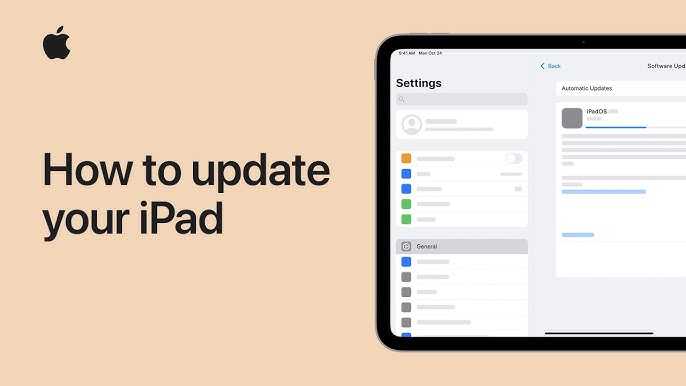

How to Update iPad: A Step-by-Step Guide for Beginners
Updating your iPad is an important task that ensures your device runs smoothly, stays secure, and gains access to new features. Many users hesitate because they are unsure of the process or worry about losing data. Fortunately, updating your iPad is simple and quick with the right guidance. In this section, we will walk you through the entire process, so you can keep your device up to date with confidence.Understanding the Importance of Updating Your iPad
Keeping your iPad updated offers multiple benefits. First, updates fix bugs that could cause apps or the device to crash. Second, they enhance device security by patching vulnerabilities. Third, new updates often introduce exciting features and improvements to existing ones. Finally, updating can improve performance and battery life.Checking Your iPad’s Current Software Version
Before updating, it’s helpful to know which version of iOS or iPadOS your device is running. To do this, follow these simple steps:- Open the Settings app on your iPad.
- Tap General.
- Select About.
- Look for Software Version. This will tell you the current version installed on your device.
How to Check if Your iPad Has the Latest Update
To see if an update is available:- Go to Settings.
- Tap General.
- Choose Software Update.
- Your iPad will check for updates automatically. If one is available, a message will appear.
Preparing Your iPad for an Update
Before starting an update, prepare your device to avoid interruptions. Here are some tips:- Ensure your iPad is connected to a stable Wi-Fi network. Updates cannot be downloaded over cellular data or unstable connections.
- Make sure your device has sufficient storage. Updates typically require a certain amount of free space.
- Charge your iPad to at least 50% or connect it to a power source. This prevents your device from shutting down during the update.
- Back up your data. Use iCloud or iTunes backup options to save important files.
How to Update Your iPad Wirelessly (Over-the-Air Update)
The easiest way to update your iPad is through Wi-Fi using the over-the-air (OTA) method:- Open Settings.
- Tap General.
- Select Software Update.
- If an update is available, tap Download and Install.
- Enter your device passcode if prompted.
- Agree to the Terms and Conditions.
- The download will begin, and once completed, your iPad will install the update automatically.
How to Update Your iPad via iTunes or Finder
If you prefer updating through a computer, follow these steps:Using a Mac with macOS Catalina or Later
- Connect your iPad to your Mac using a Lightning or USB-C cable.
- Open Finder.
- Select your iPad from the sidebar.
- Click Check for Update.
- If an update is available, click Download and Update.
- Enter your device passcode if prompted.
- The update will install, and your iPad will restart once done.
Using a Windows PC or macOS Mojave or Earlier
- Open iTunes on your computer.
- Connect your iPad to the computer with a cable.
- Locate your device in iTunes.
- Click Check for Update.
- If an update is available, select Download and Update.
- Enter the passcode on your device if asked.
- Follow the on-screen instructions to complete the update.
Troubleshooting Common Update Issues
Sometimes, updates don’t go smoothly. Here are solutions for common problems:Update Stuck or Failing
If the update gets stuck or fails to install, try restarting your iPad and attempting the process again. Ensure your internet connection is stable.
Insufficient Storage Space
If you see a message about low storage, delete unused apps, photos, or videos to free space. You can also uninstall large files temporarily and reinstall them later.
Update Not Available
If your device does not show an available update, it may be incompatible or already updated. Check Apple’s website for compatibility details.
Updating Your iPad Using a Public or Private Wi-Fi Network
Ensure the network is secure and stable before downloading updates. Avoid public Wi-Fi if possible, or use a VPN to secure your connection. This protects your data and prevents interruptions during the update.Other Tips for a Successful iPad Update
Here are additional tips to ensure a smooth update experience:- Perform updates during a time when your device is not needed immediately. Updates can take some time depending on size and internet speed.
- Keep your device connected to Wi-Fi and power until the process is complete.
- Stay patient. Do not disconnect or turn off your iPad during installation.
- Check for software updates regularly—Apple releases new versions to improve security and add features.
Understanding Update Notifications and Settings
You can set your iPad to automatically install updates or notify you when they are available:- Go to Settings.
- Tap General.
- Choose Software Update.
- Tap Automatic Updates.
- Toggle on Download iOS Updates and Install iOS Updates.
Keeping Your iPad Updated: Best Practices
Regularly check for updates rather than waiting for notifications. Installing new updates promptly secures your device against threats and benefits from improvements. Always back up your data before proceeding with significant updates.Summary of Key Points for Updating Your iPad
| Step | Description |
|---|---|
| Check current version | Go to Settings > General > About |
| Verify update availability | Go to Settings > General > Software Update |
| Prepare your device | Charge, connect to Wi-Fi, and back up data |
| Perform the update | Choose Download and Install or use iTunes/Finder |
| Troubleshoot issues | Restart, free storage, check network |
Frequently Asked Questions
What are the steps to check if my iPad has the latest software update?
To verify if your iPad runs the latest software, open the Settings app, tap on ‘General,’ then select ‘Software Update.’ If an update is available, your iPad will display details about it and prompt you to download and install. If no update appears, your device is already up-to-date.
How can I update my iPad manually without using Wi-Fi?
Updating your iPad without Wi-Fi is not possible through standard methods, as iOS updates require an internet connection. However, you can connect your iPad to a computer via a USB cable and use iTunes (on Windows or older macOS) or Finder (on macOS Catalina and later) to perform the update. Launch the relevant application, select your device, and click on ‘Check for Update’ or ‘Update’ to initiate the process.
What should I do if my iPad update fails during installation?
If the update process stops or fails, first ensure your device is connected to a stable Wi-Fi network and has sufficient battery life or is plugged into power. Restart your iPad and try the update again. If problems persist, try updating through a computer using iTunes or Finder. You may also consider resetting your network settings or performing a factory reset after backing up your data, then attempt the update once more.
Final Thoughts
To update your iPad, start by checking your current software version in Settings > General > Software Update. Ensure your device is connected to Wi-Fi and has sufficient battery life or is plugged in. Tap “Download and Install” to begin the process. Regular updates improve security and introduce new features, making your device more efficient. Remember, knowing how to update iPad keeps it running smoothly and securely.
Similar Posts































