How To Unsync Photos From Iphone For A Clutter-Free Gallery
 “`html
 How to Unsync Photos from iPhone?
Unsyncing photos from your iPhone can seem tricky, but with the right steps and guidance, it can be done easily. Whether you want to free up storage or simply keep your photos organized, knowing how to unsync photos is crucial. This section will guide you through various methods to help you manage your photo library effectively.Understanding Photo Syncing on iPhone
Before diving into the unsyncing process, it’s essential to understand how photo syncing works on your iPhone. By default, your iPhone may sync photos through iCloud, iTunes, or other cloud services. Syncing allows you to keep your photos updated across devices. Here are key points to remember about syncing:- iCloud Photos automatically syncs your library across devices.
- iTunes syncs photos when you connect your iPhone to a computer.
- Third-party applications can also sync your photos.
How to Unsync Photos from iCloud
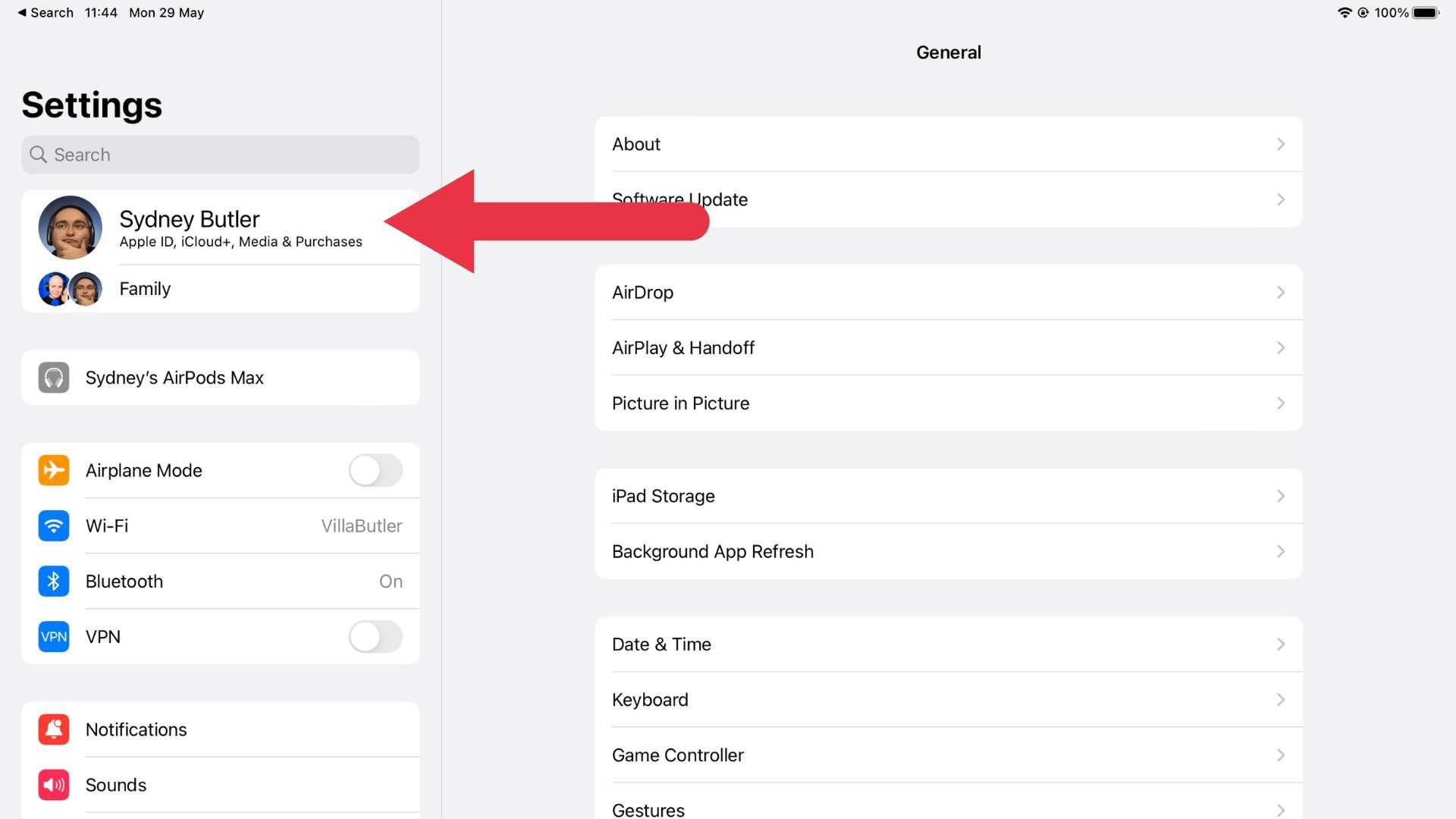
If you’re using iCloud to sync photos, you can easily unsync them by adjusting your settings. Here’s how: 1. **Open Settings**: Launch the Settings app on your iPhone. 2. **Tap on Your Name**: This is at the top of the Settings menu. 3. **Select iCloud**: Tap on the iCloud option to access iCloud settings. 4. **Go to Photos**: Tap on the Photos option. 5. **Turn Off iCloud Photos**: Toggle the switch for iCloud Photos to off. When you turn off iCloud Photos, your iPhone will stop uploading new photos to iCloud. You will still have access to your photos already stored in iCloud.What Happens When You Unsync iCloud Photos?
Unsyncing from iCloud can have various effects on your photo library. Here’s what to expect:- Photos will no longer update on your iPhone when taken on other devices.
- You will also not see new uploads from other devices.
- Existing photos from iCloud remain on your iPhone unless manually deleted.
How to Unsync Photos from iTunes
If you sync your photos through iTunes, the process is slightly different. Follow these steps to unsync your photos: 1. **Connect Your iPhone**: Use a USB cable to connect your iPhone to your computer. 2. **Open iTunes**: Launch iTunes on your computer. 3. **Select Your Device**: Click on the device icon that appears in iTunes. 4. **Click on Photos**: Navigate to the Photos tab in the left sidebar. 5. **Uncheck Sync Photos**: Uncheck the box that says “Sync Photos.” Once you uncheck this option, your iPhone will stop syncing photos from your computer.Important Considerations for Unsyncing from iTunes
When unsyncing photos from iTunes, there are some important points to bear in mind:- Unsyncing will remove any photos that were synced from your computer.
- Your iPhone will not receive new photo updates from iTunes.
- You can manually add photos in the future if needed.
How to Unsync Photos from Third-Party Apps
Third-party apps can also sync photos, which might complicate your library further. Here’s how to unsync from these applications: 1. **Check App Settings**: Open the third-party app you use (such as Google Photos). 2. **Explore Sync Options**: Look for photo sync options or settings. 3. **Disable Sync**: Toggle off the syncing option. Most third-party apps have a clear toggle for photos syncing.Key Tips for Managing Third-Party Photo Syncing
To keep your photos organized, consider these tips:- Regularly check app permissions and syncing options.
- Backup important photos before making changes.
- Uninstall apps you no longer use to prevent unwanted syncing.
Deleting Photos After Unsyncing
After you’ve unsynced your photos, you might want to delete some to free up space. Here’s a simple way to delete photos on your iPhone: 1. **Open Photos App**: Launch the Photos application on your device. 2. **Select Photos**: Browse and choose the photos you wish to delete. 3. **Tap on the Trash Icon**: This is usually located at the bottom right corner. 4. **Confirm Deletion**: Confirm that you want to delete the selected photos. Deleting photos will remove them from your iPhone but remember that if they were synced from iCloud, those photos may remain in iCloud unless you delete them there too.How to Recover Deleted Photos
If you accidentally deleted any photos, you might still be able to recover them. Follow these steps: 1. **Go to the Albums Tab**: In the Photos app, select the Albums tab at the bottom. 2. **Open Recently Deleted**: Scroll down and find the Recently Deleted album. 3. **Select Photos to Recover**: Tap “Select,” then choose the photos you want. 4. **Tap Recover**: After selecting, tap on “Recover” to restore them. This method only works for photos deleted within the last 30 days.How to Manage Storage After Unsyncing
Managing storage is crucial after unsyncing your photos. Here’s how to check and clear up space on your iPhone: 1. **Open Settings**: Go to the Settings app on your iPhone. 2. **Tap on General**: Select General from the list. 3. **Select iPhone Storage**: This option shows how much space you have left. You can also explore which apps take up the most space and decide to delete those that aren’t necessary.Tips for Extending Your iPhone Storage
To make the most of your storage, consider the following tips:- Regularly clear out old photos and videos.
- Use cloud services for storage, like iCloud or Google Drive.
- Uninstall apps that are not in use.
Final Thoughts on Unsyncing Photos from iPhone
Unsyncing photos from your iPhone doesn’t have to be complicated. By understanding iCloud, iTunes, and third-party app syncs, you can easily manage your photo library. Remember to delete any unwanted photos to maintain optimal storage. Readjusting settings now can prevent future confusion and helps you stay organized. Whether to create more space or keep your uploads in check, following these steps ensures your photos are exactly where you need them. Managing your smartphone effectively can make your digital life smoother. Remember, you have the control to manage where your pictures are stored. “`How To Stop Sharing Photos Between iPhone And iPad, Mac, Or iPhone
Frequently Asked Questions
What steps should I follow to stop syncing photos from iCloud?
To stop syncing photos from iCloud on your iPhone, go to the Settings app and tap on your name at the top. Then, select ‘iCloud’ and tap on ‘Photos.’ Toggle off the ‘iCloud Photos’ option. This action will disable photo syncing between your iPhone and iCloud, ensuring that your device no longer receives any new photos from the cloud.
How can I remove synced photos from my iPhone?
If you want to remove photos that have already synced to your iPhone, open the Photos app and select the albums containing those pictures. You can then tap ‘Select,’ choose the photos you wish to delete, and hit the trash can icon. This will remove the photos from your device, but keep in mind that if you have iCloud Photos enabled, these photos may reappear if they are still stored in iCloud.
Is it possible to manually manage photo storage instead of using syncing?
Yes, you can manage your photo storage manually instead of using a sync feature. To do this, go to the Settings app, tap on ‘Photos,’ and ensure that ‘iCloud Photos’ is turned off. Then, you can import photos directly from your computer using iTunes or Finder, allowing you to select which photos to add to your iPhone without automatic syncing.
Will turning off photo syncing affect my other devices?
Turning off photo syncing on your iPhone will only affect that specific device. If you have other devices connected to the same iCloud account with photo syncing enabled, they will continue to sync photos with iCloud. To prevent syncing on those devices, you will need to individually turn off the photo syncing feature in their settings as well.
Can I delete photos from iTunes without impacting my iPhone?
Yes, deleting photos from iTunes will not automatically delete them from your iPhone if you do not sync your device with iTunes afterward. You can manage your photo library on your computer separately. Just remember that changes you make in iTunes will only apply to your iPhone during the next synchronization, so ensure that syncing is off if you don’t want those changes to reflect on your device.
Final Thoughts
To unsync photos from your iPhone, begin by going to the Settings app and selecting your Apple ID. From there, navigate to iCloud and then Photos. Here, you can turn off the “iCloud Photos” option. Next, if you’re using the Photos app, you can manually manage the photos stored on your device. Deleting unwanted photos will help free up space and prevent syncing. In summary, follow these steps to effectively manage your photo library. Understanding “How to unsync photos from iPhone?” ensures a clean and organized experience with your images.
Similar Posts































