How To Take Control Of Notifications On Macbook Efficiently
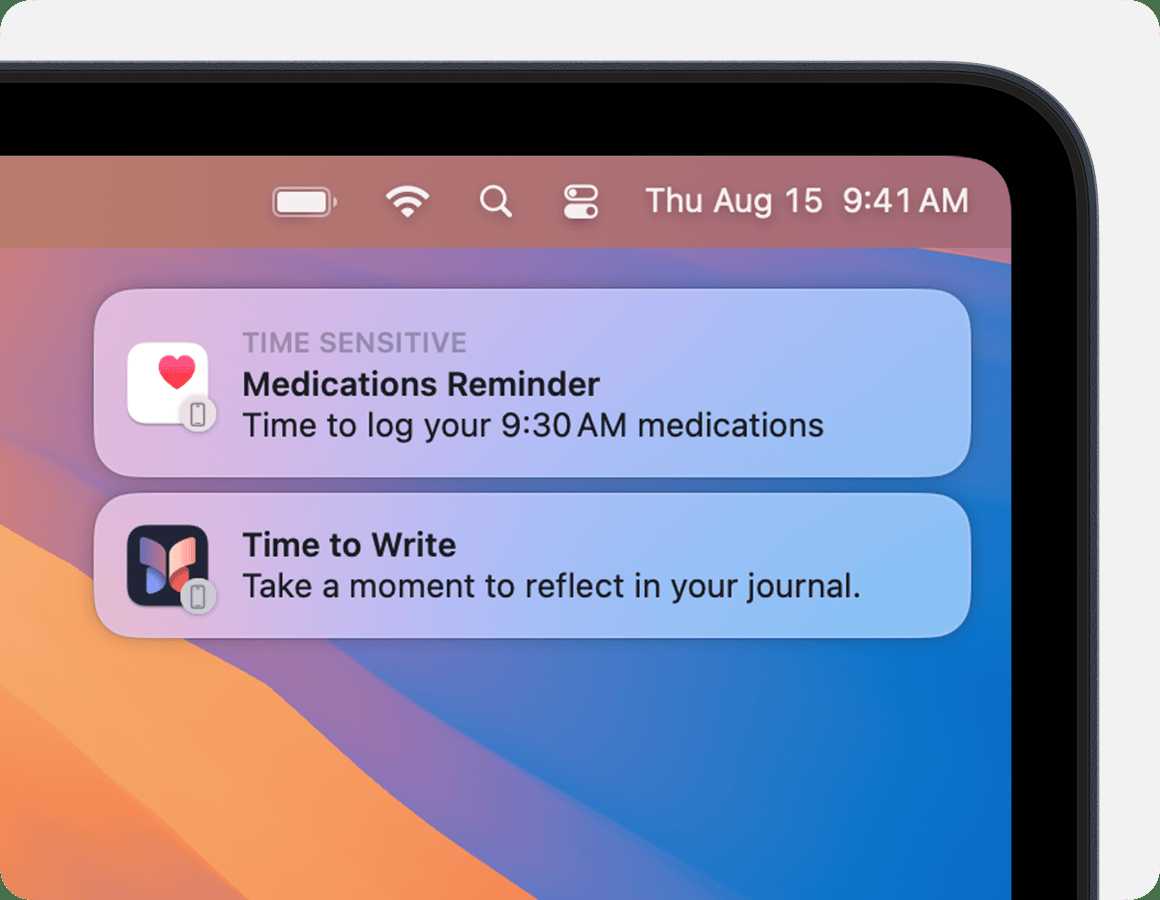
To manage your notifications on a MacBook effectively, start by customizing notification settings for each app through System Preferences. You can also choose whether to receive banners, alerts, or silence notifications altogether. With these simple adjustments, you regain control over your alert system, ensuring you stay focused without missing important updates.
In short, you can take control of notifications on your MacBook by customizing app-specific settings and using Do Not Disturb to silence interruptions when needed. Managing notifications allows you to stay informed without feeling overwhelmed, enhancing your productivity and focus.
Getting a handle on notifications might seem daunting, but it’s actually quite straightforward. Notifications are essential for staying updated, but they can quickly become intrusive if not managed properly. Whether you’re working, relaxing, or in a crucial meeting, knowing how to control what alerts you see helps you create a distraction-free environment. On your MacBook, you have a variety of options—from adjusting how and when notifications pop up to setting specific Do Not Disturb schedules. This way, you can customize your alert system to suit your lifestyle and work habits, making sure you’re always in control of your digital environment.

How to Take Control of Notifications on MacBook
Managing notifications on your MacBook is essential for staying focused and organized. Notifications can be helpful, but they can also become overwhelming if not properly controlled. Learning how to customize and control notifications helps you decide what alerts you want to see and hear.
Understanding Notifications on MacBook
Notifications on MacBook appear as banners, alerts, or in the Notification Center. They come from apps, messages, reminders, and system alerts. Knowing how these notifications work is the first step to managing them effectively.
Each notification can be customized based on its source and the type of alert. This control helps prevent unwanted interruptions during work or leisure time.
Notifications can be categorized into three styles: banners drop down briefly, alerts stay until dismissed, and none, which disables notifications.
Accessing Notification Settings on MacBook
To gain full control, open your MacBook’s Notification preferences. Click the Apple menu at the top left corner of your screen and select System Preferences.
In the System Preferences window, find and click Notifications. This opens a list of all apps and system services that can send notifications.
From here, you can customize notification styles, sounds, and other settings for each app individually.
Customizing Notifications for Individual Apps
One of the most effective ways to control notifications is by customizing settings per app. Select the app from the list in Notification preferences.
You can choose whether notifications appear as banners, alerts, or are turned off. Additionally, you can decide if previews are shown on the lock screen or when the screen is asleep.
Turning off notifications for distracting apps helps you focus without missing important alerts from essential apps like Messages or Calendar.
Managing Notification Styles
Notification styles include banners, alerts, or none. Banners appear temporarily at the top of the screen. Alerts stay until you dismiss them. Select the style that suits your needs for each app.
For critical notifications, alerts are better as they demand acknowledgment. For less urgent alerts, banners are less disruptive.
You can change styles in the Notification preferences by selecting the desired option next to each app.
Controlling Notification Sounds and Badges
Many notifications include sounds or badge icons that appear on app icons. To manage these, check the options in Notification settings.
Use the checkbox to turn sounds on or off for each app. Similarly, toggle badges to display notification counts on app icons.
Disabling sounds and badges reduces noise and visual clutter, making notifications less intrusive.
Enabling or Disabling Notification Previews
Notification previews show a snippet of the message or alert content. Control preview visibility based on your privacy needs.
In Notification preferences, click Show Previews and choose from Always, When Unlocked, or Never.
This feature helps restrict sensitive information from appearing on the screen when sharing your Mac or in public spaces.
Using Do Not Disturb Mode on MacBook
Do Not Disturb is a quick way to silence all notifications temporarily. Access it from the Control Center or Notification Center.
Click the icon at the top right corner of your screen or swipe down with two fingers from the top right to open Control Center. Then, click Do Not Disturb.
You can set scheduled times or turn it on manually. During Do Not Disturb mode, notifications won’t appear or make sounds.
Scheduling Do Not Disturb for Automation
If you want notifications to be muted during certain hours, schedule Do Not Disturb. In System Preferences, click Focus.
Select Do Not Disturb and set specific hours for it to activate automatically. This feature helps you avoid interruptions during meetings, sleep, or focused work.
You can also allow exceptions for urgent notifications during scheduled Do Not Disturb periods.
Using Focus Modes to Better Manage Notifications
Focus modes are customizable profiles that control notifications based on activities. Create a focus profile for work, personal time, or other activities.
Go to System Preferences and click Focus. Here, you can add new profiles, each with specific notification settings.
Enable or disable notifications for apps depending on your current activity. Focus modes help reduce distractions without turning off essential alerts completely.
Controlling Notifications via the Notification Center
The Notification Center displays recent alerts and allows quick access to settings. To customize what’s shown here, click the date and time at the top right of your screen.
Use the Notification Center to clear notifications or interact with specific alerts, such as replying to messages directly.
Personalize Notification Center by adjusting the widgets and notifications displayed for quick access.
Using Accessibility Features to Limit Notifications
For users needing extra control, macOS offers accessibility features like VoiceOver and Reduce Motion. These can help limit visual or auditory notifications.
Explore Accessibility options in System Preferences to configure notification behaviors for better comfort and focus.
This can be particularly useful for users with specific needs or sensitivities to alerts.
Tips for Staying In Control of Notifications
- Regularly review your notification settings to remove or adjust unnecessary app alerts.
- Use scheduled Do Not Disturb and Focus modes during busy or quiet times.
- Prioritize notifications from critical apps and turn off non-essential alerts.
- Customize notification styles to suit your workflow and environment.
- Periodically check notification badges and clear outdated alerts.
Additional Tools and Apps for Notification Management
Several third-party apps can help manage notifications more effectively. These tools provide extra features like detailed scheduling, filtering, or grouping alerts.
Popular options include MacNotificationTools and Notification Center Enhancers. Always ensure compatibility with your macOS version before installation.
Using these tools can elevate your notification control beyond default macOS options.
By understanding and customizing your notification settings, you can maintain better focus, reduce interruptions, and stay organized on your MacBook. It’s all about tailoring alerts to your needs and environment for a more comfortable digital experience.
How To Get Notifications Under Control On Your Mac
Frequently Asked Questions
How can I customize notification styles on my MacBook?
To customize notification styles, open the System Preferences and select ‘Notifications & Focus.’ Choose the app you want to modify and select the preferred alert style, such as banners or alerts. You can also decide whether notifications display on the lock screen or play sounds, tailoring the appearance to suit your preferences.
What steps should I take to temporarily silence notifications during meetings?
To mute notifications during meetings, activate ‘Focus Mode’ or ‘Do Not Disturb.’ You can do this by clicking the Control Center icon in the menu bar, then selecting ‘Focus’ or ‘Do Not Disturb.’ Customize the duration or set automatic rules so notifications do not interrupt you during specified times.
How do I restrict notifications for specific apps or contacts?
Open System Preferences and navigate to ‘Notifications & Focus.’ Select the app or contact you wish to limit, then disable ‘Allow Notifications’ or adjust the notification settings to restrict alerts. This helps you stay focused by receiving only essential notifications.
How can I prioritize notifications from important contacts?
Use the ‘Contacts’ app or Messages settings to assign priority levels to contacts. Within ‘Notifications & Focus,’ you can set specific rules or create custom Focus modes that allow alerts only from trusted contacts. This ensures you don’t miss vital notifications while filtering out less important ones.
What is the best way to manage notification banners and pop-ups effectively?
Adjust notification preferences in ‘Notifications & Focus’ by choosing ‘Banners’ or ‘Alerts’ for each app. Banners appear temporarily, while alerts stay until dismissed. If you prefer minimal interruptions, opt for banners and disable sounds or previews, keeping your workspace clean and focused.
Final Thoughts
Taking control of Notifications on MacBook empowers you to manage distractions effectively. Adjust your notification settings in System Preferences to choose which alerts to receive. Customize each app’s notifications to suit your needs, ensuring only important messages get through. By doing so, you keep your focus sharp and your workflow smooth. Remember, understanding how to take control of Notifications on MacBook helps you create a more personalized and efficient experience.

Similar Posts