How To Make Your Volume Louder Than Max On Android

How to Make Your Volume Louder Than Max on Android
When you want to enjoy your music, videos, or calls at higher volumes on your Android device, sometimes the maximum volume just isn’t enough. Maybe you’re in a loud environment, or perhaps your audio isn’t loud enough for your preferences. Don’t worry—there are several ways to increase the sound beyond the default max limit. In this guide, we’ll walk through step-by-step methods, tools, and tips to make your Android volume louder than the maximum setting, so you can hear everything clearly and at higher levels.Understanding the Android Volume System
Before jumping into ways to boost your volume, it’s essential to understand how Android manages sound.Volume Settings and Limitations
Android devices control volume through different sliders:- Media volume: Controls music, videos, and other media playback sounds.
- Ringtone volume: Manages ringer sounds and notifications.
- Alarm volume: Adjusts alarm sounds.
- Notification volume: Controls notification alert sounds.
Why Max Volume Sometimes Isn’t Enough
Some reasons users want louder sound include:- Wearing headphones or earphones that don’t produce enough volume.
- Loud environments like crowded streets or parties.
- Audio from videos or apps that aren’t loud enough.
- Hearing difficulties or personal preference for louder sounds.
Method 1: Using Built-in Developer Options
One of the easiest ways to increase your Android’s volume beyond the default maximum is through developer options. These settings are hidden but can be enabled with a few taps.Enabling Developer Options
Follow these steps:- Go to your device’s Settings.
- Scroll down and tap on About phone.
- Find the Build number.
- Tap on Build number seven times. You will see a message confirming developer options are enabled.
- Go back to Settings, then open System, and tap on Developer options.
Adjusting Audio Settings
Once developer options are active:- Scroll down to find Absolute volume and toggle it off. This allows more control over volume levels.
- Enable Disable absolute volume (if available). This helps in increasing volume when connected to Bluetooth devices.
Method 2: Installing Third-Party Volume Booster Apps
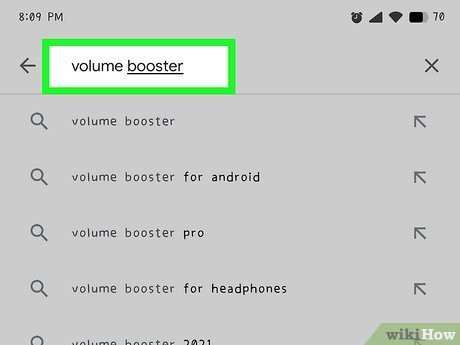
Apps designed to boost volume can be effective. These apps work by amplifying audio output beyond Android’s default limits.Popular Volume Booster Apps
Some reliable options include:- Volume Booster GOODEV: A simple app that increases volume with a slider. Use it cautiously to avoid damage.
- Super Volume Booster: Uses audio amplification and equalizer controls.
- Precise Volume: Provides detailed control over volume settings, including boosting beyond max limits.
Using Volume Booster Apps Safely
While these apps can increase loudness:- Start with small boosts to prevent speaker damage.
- Limit extended use at high volumes to protect your hearing.
- Ensure apps are downloaded from reputable sources like Google Play Store.
- Avoid apps with overly aggressive advertising or unclear permissions.
How to Use These Apps Effectively
Most apps have a simple interface:- Download and open the app.
- Use the volume or boost slider to increase sound beyond normal max.
- Test the sound at lower boosts first to check clarity and safety.
- Adjust the equalizer and sound effects if available for better sound quality.
Method 3: Modifying System Files (Root Method)
For those comfortable with technical changes and willing to root their devices, modifying system files offers a way to increase maximum volume limits.Understanding Rooting
Rooting your Android device grants full access to system files, allowing advanced modifications. However, it carries risks such as voiding warranties and potential bricking if done incorrectly.Steps to Root Your Device
Rooting procedures differ based on device models. Research your specific device model and follow trusted guides. Typically, it involves:- Enabling Developer Options and OEM unlocking.
- Using tools like Magisk or SuperSU for rooting.
- Creating backups before modifications.
Modifying the Max Volume Limit
After rooting:- Use a root file explorer app (e.g., ES File Explorer, Solid Explorer).
- Navigate to the system folder where audio configurations are stored (usually /system or /vendor).
- Edit the file that controls audio limits, such as audio_effects.conf.
- Increase the maximum volume values, being cautious not to go too high.
- Save changes and reboot your device.
Method 4: Using Custom ROMs and Kernels
Another technical avenue involves installing custom ROMs or kernels that support higher audio limits.What Are Custom ROMs and Kernels?
– Custom ROMs are modified versions of Android OS that can include additional features and tweaks. – Kernels control hardware functions, including audio processing capabilities.Advantages of Custom ROMs/Kernels
– Increased maximum volume. – Better audio management. – Additional audio settings and customizations.Installing Custom ROMs or Kernels Safely
– Research compatible ROMs or kernels for your device model. – Follow trusted guides for installation. – Backup your data before flashing new files. – Be prepared for potential issues like boot loops; follow instructions carefully.Additional Tips for Maximizing Your Audio Experience
Besides technical methods, simple tips can help improve your listening experience:- Use quality headphones or speakers designed for higher volume outputs.
- Keep your device’s software updated for optimal performance.
- Clean your headphone jack and speakers regularly for clear sound.
- Place your device in a position that optimizes sound projection.
- Adjust equalizer settings within your music app for richer sound profiles.
Safety Considerations When Increasing Volume
While higher volume levels can enhance listening, exceeding safe limits can harm your hearing and damage your device’s speakers.- Limit prolonged exposure at maximum or boosted volumes.
- Use protective ear gear if listening at very high volumes regularly.
- Monitor your device’s temperature to prevent overheating when boosting audio.
- Always start with small increases to assess impact on sound quality and device safety.
Summary
Getting your Android device to produce sound louder than the maximum setting is achievable through various methods. Whether you prefer simple apps, tweaking settings, or venturing into system modifications, each method has its pros and cons. Always prioritize safety and device health when trying to boost volume levels. Remember, the best approach depends on your comfort with technical procedures and your specific device model. Making your Android louder than the default maximum can greatly improve your media experience, especially in loud environments or for those with hearing preferences. Just be cautious and enjoy your enhanced audio!Frequently Asked Questions
How can I increase my Android device’s volume beyond the maximum limit?
To make your volume louder than the default maximum, you can use third-party volume booster apps available on the Google Play Store. These apps amplify your device’s audio output, allowing for higher volume levels. Additionally, enabling developer options and adjusting certain audio settings may help improve overall loudness, but be cautious not to damage your speakers.
What settings should I modify on my Android to enhance sound volume?
Navigate to your device’s settings and access the sound or audio section. Some Android models include an equalizer or sound enhancement feature. Increasing bass and treble levels can sometimes make audio feel louder. If available, enable any “volume boost” or “sound enhancement” options to improve loudness without installing third-party apps.
Are there hardware limitations that prevent my volume from surpassing the maximum?
Yes, the hardware of your device’s speakers limits how loud the sound can get. Speakers are designed to operate within certain power and safety margins. Even if you amplify the audio digitally, the physical speakers cannot produce louder sound beyond their maximum capacity. Therefore, software solutions can only increase volume to a certain extent before risking damage or distortion.
Can adjusting the audio balance help increase perceived loudness?
Adjusting the left and right channel balance can sometimes make the overall sound feel louder, especially if one speaker is stronger than the other. Access your device’s sound settings and fine-tune the balance to improve listening experience. Keep in mind, this method mainly affects sound distribution rather than actual volume increase.
Is it safe to use third-party volume booster apps to increase my Android volume?
Using volume booster apps can enhance loudness temporarily, but they may also cause distortion or damage your device’s speakers if used excessively. Always choose reputable apps with positive reviews and avoid setting volume levels too high. Regular usage at increased volumes might also degrade your device’s hardware over time.
Final Thoughts
To make your volume louder than max on Android, use third-party apps or modify your device settings. Apps like Volume Booster or SoundEnhancer can amplify the sound beyond the default limit. Adjust the equalizer settings to boost frequencies for clearer, louder audio. Be cautious not to set the volume too high, as it can damage your device or harm your hearing. Follow safe practices when increasing your volume beyond the maximum. Overall, these methods help you achieve higher volume levels effectively while maintaining sound quality.
Similar Posts































