How To Make Youtube Louder On Android
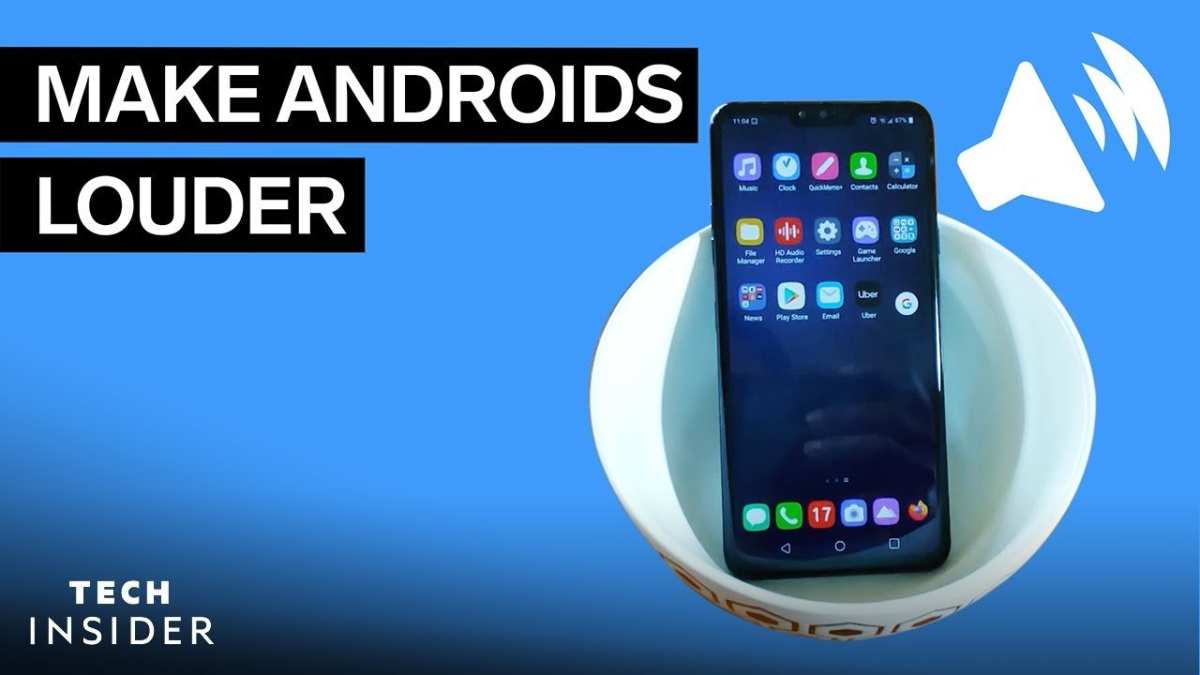
To make YouTube louder on Android, boosting the volume using built-in settings and third-party apps is essential. **Adjust your device’s volume levels and enable audio enhancements.** Sometimes, the default volume limits are the issue, and tweaking these can significantly increase sound output.
You can also explore settings within YouTube or install apps that amplify audio. This quick fix helps you enjoy videos at a louder, more engaging level without additional hardware.

How to Make YouTube Louder on Android
Many Android users find themselves struggling to hear YouTube videos clearly, especially in noisy environments or when their device’s volume isn’t loud enough. Whether you want to boost your audio for better clarity or to enjoy videos without headphones, there are several effective ways to increase the volume of YouTube on your Android device. This guide explores the most practical methods, from adjusting built-in settings to utilizing third-party apps, ensuring you get the loudness you need for a better viewing experience.
Understanding Your Android Device’s Volume Settings
Before diving into advanced techniques, it’s important to get familiar with your device’s default sound controls.
Using Physical Volume Buttons
Your Android phone likely has dedicated volume buttons on the side. Pressing these will change the media volume, which controls in-app sounds like YouTube videos. Make sure to:
- Press the volume up button to increase sound
- Check if the volume indicator reaches the maximum level
- Ensure the “Media volume” is not muted or set too low
Sometimes, the volume slider might be limited by your current device settings or app-specific volume controls.
Accessing Volume Settings in the Device Menu
Tapping the volume icon on your screen usually opens a menu with more options. Here, you can:
- Adjust the media, ringtone, and alarm volumes separately
- Tap on the settings icon within the volume control to access more detailed adjustments
- Enable or disable “Absolute volume” if available, which synchronizes Bluetooth and device volume levels
Make sure your media volume slider is set to its highest level for maximum loudness.
Maximize YouTube Volume Using Built-in App Settings
YouTube itself includes volume controls that can be adjusted independently of device settings.
Using the On-Screen Volume Slider
While watching a video:
- Tap the video to bring up controls
- Use the volume icon to gradually raise sound to the maximum
If you notice that the maximum volume is still not loud enough, consider the following methods.
Playing Videos in the Desktop Mode
Switching to desktop mode can sometimes unlock higher audio quality and volume:
- Open your browser and navigate to YouTube
- Access the menu (usually three dots or lines)
- Select “Desktop site”
Playing videos in desktop mode may provide more precise controls or enable certain browser extensions.
Using System Equalizer and Sound Enhancement Features
Many Android devices include built-in sound enhancement options that can significantly boost audio output.
Activating Equalizer Settings
To access the equalizer:
- Go to your device’s Settings app
- Navigate to “Sound & Vibration” or a similar option
- Look for “Sound effects,” “Equalizer,” or “Audio enhancements”
- Enable the feature and select a preset like “Bass Boost” or “Loudness”
Adjust the sliders to increase the bass, treble, and volume levels, which can make YouTube videos sound much louder.
Using the “Loudness Equalizer” Feature
Some devices have a dedicated “Loudness” or “Volume Booster” setting that amplifies sounds beyond the normal maximum:
- Enable this feature if available
- Test different levels to find a safe loudness that doesn’t distort audio quality
Be cautious: excessive boosting can cause audio distortion or damage to your speakers.
Applying Third-Party Volume Boost Apps
If built-in options aren’t enough, third-party apps offer more aggressive volume boosting capabilities.
Popular Volume Booster Apps for Android
Some well-rated apps include:
- Volume Booster GOODEV
- Perfect Volume
- SoundAbout
These apps generally:
- Increase your media volume beyond the default max
- Allow custom sound profiles for different apps
- Provide quick toggles for ease of use
How to Use a Volume Booster App
Follow these simple steps:
- Download and install your preferred volume booster app from Google Play Store
- Open the app and grant necessary permissions
- Adjust the booster slider to the desired loudness
- Test YouTube videos to check if the sound level improves
- Use the app’s widget or notification panel for quick access
Remember to use booster apps responsibly. Pushing volume levels too high can damage your device’s speakers or cause discomfort.
Using External Hardware for Louder Audio
Sometimes, software solutions aren’t enough, and hardware can make a big difference.
Connecting External Speakers or Headphones
High-quality speakers and headphones can significantly amplify sound:
- Choose speakers with higher wattage output for louder volume
- Use wired or Bluetooth headphones designed for high volume levels
- Ensure your device’s Bluetooth settings are optimized for maximum sound transfer
Using a Portable Amplifier
For even louder audio, consider portable headphone amplifiers:
- Plug your headphones into the amplifier first
- Connect the amplifier to your device via Bluetooth or AUX cable
- Adjust the amplifier’s volume for louder, clearer sound
This setup is perfect for outdoor use or larger gatherings where loud audio makes a difference.
Ensuring Safety While Increasing YouTube Volume
While turning up your device’s volume can improve your listening experience, it’s essential to stay safe:
- Keep volume levels within a safe range to protect your hearing
- Avoid prolonged exposure to very loud sounds which can cause hearing damage
- Use hardware or apps that prevent accidental maximum volume spikes
Always listen at a comfortable level to avoid potential hearing issues.
Summary of Key Tips to Make YouTube Louder on Android
| Method | Description | Best For |
|---|---|---|
| Adjusting device volume | Use physical buttons and sound settings to maximize volume | All users |
| In-app volume controls | Use YouTube’s on-screen volume slider | Quick adjustments |
| Sound enhancements and equalizer | Activate built-in sound features or EQ presets | Enhanced sound quality |
| Third-party volume booster apps | Install apps that amplify maximum volume | Significant loudness boost |
| External hardware | Use external speakers or amplifiers for louder sound | Ultimate loudness in public or outdoor settings |
Armed with these techniques, you can enjoy YouTube videos at a volume that suits your needs, whether you’re relaxing at home or on the go. Always remember to balance loudness with safety to protect your ears and your device’s speakers. With a little effort, turning up the volume on YouTube for Android becomes simple and effective, giving you a better sound experience every time.
Frequently Asked Questions
Why is the sound on YouTube videos so low on my Android device?
If your YouTube videos sound quieter than expected, check the volume settings both within the app and on your device. Sometimes, the media volume slider may be set low, or the device’s overall volume limit may restrict loudness. Ensuring the media volume is at maximum and disabling any sound limiters can help increase the audio output.
How can I boost the volume for YouTube directly on my Android phone?
You can enhance audio output by adjusting the volume settings on your device. Increase the media volume to the highest level through the volume buttons or sound settings. Additionally, enabling sound enhancement features or using third-party apps that amplify audio can help make YouTube videos louder.
Are there any apps that can help make YouTube videos louder on Android?
Yes, several third-party apps are designed to amplify audio playback on Android devices. Apps like volume booster or equalizer apps can increase the sound output beyond the default limits. Use these apps cautiously to avoid distortion or damage to your speakers. Always choose reputable apps from trusted sources.
Can adjusting the equalizer settings improve YouTube volume on Android?
Adjusting the equalizer settings within your device’s sound settings or using a dedicated equalizer app can significantly enhance audio volume and quality. Increasing the bass or mid-range frequencies may make the sound appear louder and clearer during YouTube playback.
Is there a way to increase YouTube volume through the browser on Android?
If you’re using YouTube via a mobile browser, make sure the browser’s volume controls are turned up fully. Some browsers may have their own sound settings or volume limits. Testing different browsers or updating them can also help achieve better audio levels while watching YouTube videos.
Final Thoughts
To make YouTube louder on Android, start by increasing the volume with your device’s hardware buttons. Check the app’s volume slider and ensure it’s turned all the way up. Additionally, disable any volume limit settings in your phone’s accessibility options.
Using third-party apps or equalizers can boost sound quality and volume further. Always test your settings to find the perfect balance.
In conclusion, to make YouTube louder on Android, adjust both your device’s main volume and app settings. Applying these simple steps ensures clear, louder audio during your videos.

Similar Posts































