How To Make Youtube Videos Louder On Android
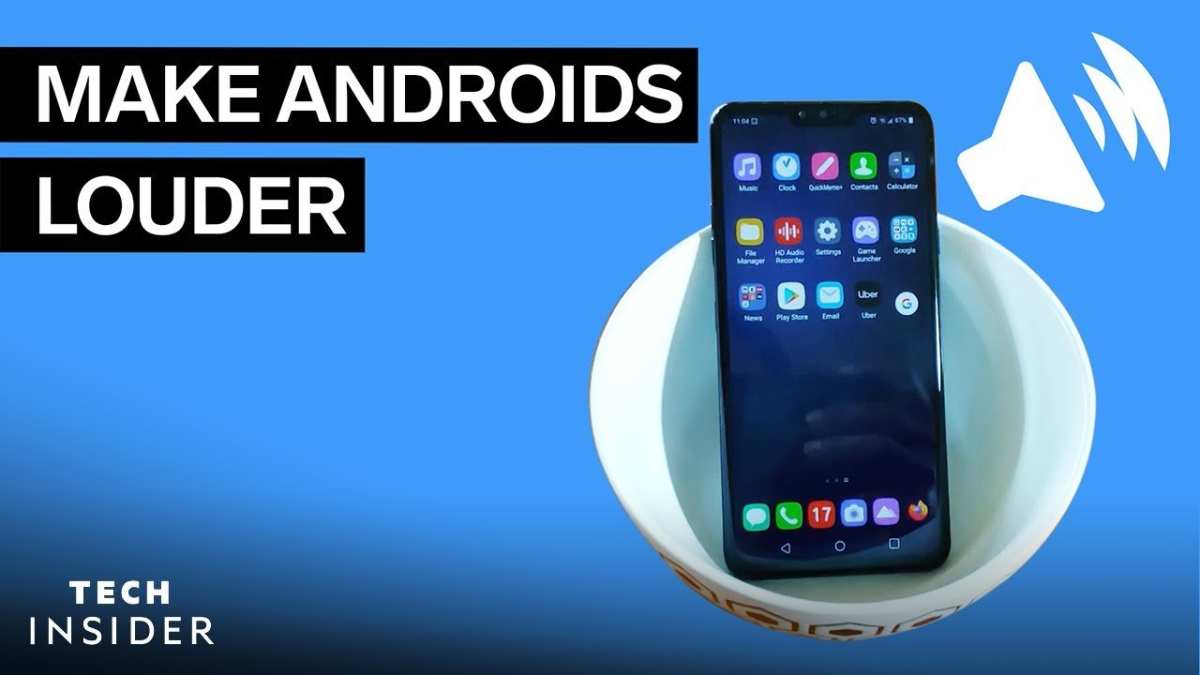

How to Make YouTube Videos Louder on Android
Creating a louder and clearer sound from YouTube videos on your Android device can make a huge difference, especially if you often find the audio too soft or muffled. Whether you’re trying to enjoy music, tutorials, or funny clips, boosting sound improves your overall experience. In this guide, we’ll explore various ways you can increase the volume of YouTube videos on your Android device, including built-in settings, third-party apps, and hardware tips.Adjusting Volume Settings on Your Android Device
Before diving into specialized apps or tweaks, it’s important to check your device’s basic volume settings. Sometimes, the problem is as simple as the volume being set too low or muted.Using the Physical Volume Buttons
– Locate the volume up and down buttons on the side of your Android phone. – Press the volume up button several times to increase the sound. – Make sure the volume is turned up to the maximum level for media playback, not just ring or notification sounds. – Some Android devices have separate volume controls for different functions. Tap on the volume icon or go into settings to ensure media volume is at its highest.Accessing the Volume Settings Menu
– Tap on the volume icon that appears when you press the volume buttons or swipe down from the top of the screen to access quick settings. – Tap the gear icon or “Settings” option if available, or directly tap “Sound” or “Volume.” – Adjust the “Media Volume” slider to the maximum level. – Check if “Silent” or “Do Not Disturb” modes are enabled; disable them if needed, as they can restrict audio output.Utilizing In-App Volume Controls on YouTube
– Open the YouTube app on your Android device. – Find the video you want to watch. – While the video plays, tap on the video screen to reveal playback controls. – Look for the speaker icon or volume slider. – Drag the slider to the right or press the volume icon to increase volume. Sometimes, the app’s volume is independent of the system volume. – Ensure the mute icon is not activated; if it is, tap it to unmute.Boosting YouTube Volume with Built-In Equalizer Settings
Many Android devices come with a built-in equalizer that can enhance audio output beyond regular volume controls. Using the equalizer allows you to amplify certain frequencies, making the audio sound louder and clearer.Accessing the Equalizer Settings
– Open your device’s “Settings” menu. – Navigate to “Sound & Vibration” or similar options. – Look for “Sound Effects” or “Equalizer” (note: not all devices have this feature pre-installed). – If available, open the equalizer app or menu.Adjusting the Equalizer for Louder Sound
– Increase the gain or bass boost sliders carefully to avoid distortion. – Experiment by raising mid and high frequencies to make speech and music sound louder. – Save your settings and play a video on YouTube to check if the sound is louder and clearer.Alternative: Using Third-Party Equalizer Apps
If your device lacks a built-in equalizer, you can download one from the Google Play Store: – Search for “Music Equalizer,” “Volume Booster,” or “Audio Enhancer.” – Popular options include “Wavelet,” “Equalizer FX,” or “Volume Booster GOODEV.” – Install your chosen app and grant necessary permissions. – Open the app and adjust settings to boost overall volume and sound quality. – Some apps provide a “loudness” feature that can amplify the volume of playback across apps, including YouTube.Using Volume Booster Apps for Android
Volume booster apps specifically target increasing the maximum volume output. These apps can make YouTube videos sound louder without changing the app itself.Popular Volume Booster Apps
- Volume Booster GOODEV
- Super Loud Volume Booster
- Precise Volume
How to Use Volume Booster Apps Effectively
– Download and install the app from the Google Play Store. – Launch the app and grant all required permissions. – Adjust the slider or preset for maximum volume. – Be cautious not to set the volume too high, as it may cause distortion or damage your speakers. – Play a YouTube video to test if the sound has increased to your liking.Enhancing Audio with External Hardware
Sometimes, software adjustments alone aren’t enough, especially on lower-quality speakers. Connecting your Android device to external audio devices can significantly boost sound levels.Using External Speakers
– Choose portable Bluetooth speakers or wired speakers compatible with your device. – Connect via Bluetooth or audio jack. – Adjust the volume on the speaker itself for louder output. – Play YouTube videos and enjoy amplified sound.Using Headphones or Earbuds with Amplifiers
– Invest in headphones with built-in amplifiers designed to increase sound output. – Connect to your Android device and adjust volume accordingly. – Some high-end headphones have controls to boost bass and overall volume.Additional Tips for Louder and Better Audio
To optimize your experience further, consider these practical tips:- Clean your device’s speakers: Sometimes, dust and debris can muffle sound. Use a soft brush or compressed air to clean speaker grills.
- Avoid low-quality or damaged speakers: Faulty speakers reduce sound output and clarity.
- Use equalizer apps with presets: Many apps offer presets like “Bass Boost” or “Loudness” that can enhance your audio instantly.
- Adjust audio settings in your media player: Some third-party media players have their own volume and sound enhancement features.
Common Troubleshooting for Low Volume on YouTube
– Ensure your device isn’t muted or on silent mode. – Confirm that your app and device are updated to the latest version. – Restart your device if you experience inconsistent volume. – Check if other apps output sound correctly; if not, your device may need a reset or repair. – Use different headphones or speakers to identify if hardware is an issue. With these tips, you can enjoy louder, clearer audio from YouTube videos on your Android device. Whether you prefer simple adjustments or using external equipment, boosting sound levels is achievable and can improve your viewing experience. Remember to always listen at safe volume levels to protect your hearing and device speakers from damage.Frequently Asked Questions
How can I increase the volume of YouTube videos on my Android device without external apps?
To increase the volume without using additional apps, simply press the volume up button on your Android device while the video is playing. Ensure that your device’s volume settings are turned up to the maximum in the sound settings menu. Additionally, check if the media volume is set high enough, and avoid muting the device or lowering the volume during playback.
Is there a way to boost YouTube audio using the device’s built-in equalizer?
Yes, many Android devices have a built-in equalizer feature that allows you to enhance audio output. To access it, go to your device’s sound settings or music settings. Once there, enable the equalizer and increase the volume levels of the different frequency bands, especially the mid and high ranges, to make YouTube videos sound louder and clearer.
Can adjusting the app or system settings help increase YouTube video volume?
Absolutely. Check your device’s sound settings to ensure that the media volume is at its highest level. Also, verify if your device has any sound enhancement options, like Dolby Atmos or similar features, and enable them to amplify the audio output. Some devices allow you to customize volume levels for specific apps, so make sure YouTube is set to maximum output.
Are there special headphones or speakers that can make YouTube videos louder on Android?
Using quality headphones or external speakers with higher volume capabilities can significantly boost your audio experience. Look for headphones that offer built-in amplifiers or speakers with higher wattage ratings. This can help increase the loudness and clarity of YouTube videos, especially if your device’s built-in speakers aren’t loud enough.
Can adjusting the YouTube app settings improve the sound volume?
While YouTube doesn’t have an in-app volume booster, ensuring that the app’s volume is turned up and that the device volume is at maximum helps. Additionally, some devices offer audio enhancement features within the app settings. Make sure these features are enabled if available, and disable any volume limiters or restrictions that could reduce playback loudness.
Final Thoughts
To make YouTube videos louder on Android, start by increasing the volume through your device’s volume controls. Adjust the in-app volume settings or enable audio enhancer features if available. You can also try using third-party apps designed to boost sound output. Ensure your headphones or speakers are functioning correctly and are capable of higher volume levels. Be mindful not to set the volume too high, as it may cause distortion or damage your hearing. In conclusion, knowing how to make YouTube videos louder on Android involves adjusting device and app settings or using audio booster apps. These simple steps help improve your listening experience effortlessly.
Similar Posts































