How To Make Your Volume Louder Android Tips
To make your volume louder on Android, try adjusting the volume settings and enabling any available sound enhancements. **Increasing the volume can often be achieved through simple settings adjustments or third-party apps designed for this purpose.** If you’re still not satisfied, you can access hidden settings or install apps that boost your device’s loudness further. Understanding these quick steps can help you enjoy louder audio without needing additional devices. Whether for calls, music, or videos, boosting your Android’s volume is easier than it seems with a few straightforward tweaks.

How to Make Your Volume Louder on Android
Many Android users want their device’s sound to be louder. Whether you’re trying to hear your favorite song better, catch every word in a movie, or make sure your notifications are heard, increasing your volume can make a big difference. Luckily, Android phones offer numerous ways to boost your sound. In this guide, we’ll walk through all the methods you can use to make your Android device’s volume louder. From built-in settings to third-party apps, we’ll cover everything so that your device sounds as loud as you want.
Understanding Your Android Volume Settings
Before diving into ways to boost volume, it’s important to understand how Android handles sound. Your device typically has separate controls for different types of volume:
- Media volume: This controls the loudness of music, videos, and games.
- Ringtone volume: This adjusts the volume of incoming call sounds.
- Notification volume: This controls the sounds for notifications, alerts, and messages.
- Alarm volume: This manages the volume of your alarms.
You can adjust these settings individually using the volume buttons on the side of your phone or through the settings menu. To access detailed controls:
- Press the volume button on your device.
- Tap the settings icon (gear) or “Advanced” option to see all sound controls.
- Adjust each slider to your preferred loudness level.
If your volume is maxed out but still not loud enough, the built-in controls might not be enough, and that’s where additional techniques come into play.
Using Your Device’s Built-in Equalizer to Boost Volume
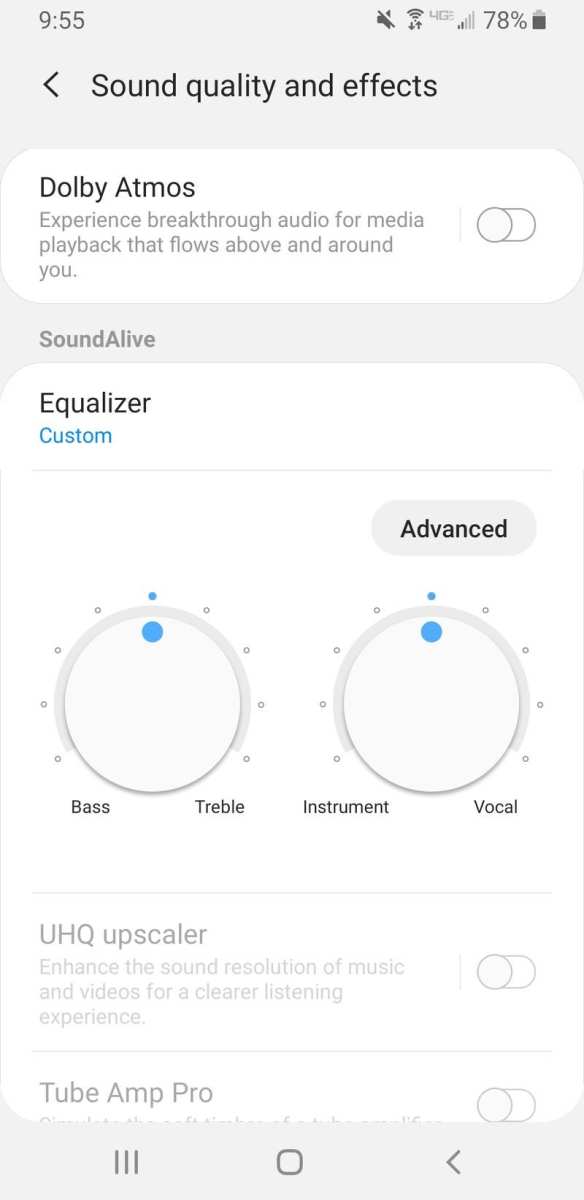
Many Android phones feature an equalizer, a tool that adjusts the balance of different sound frequencies. While its primary purpose is to improve sound quality, boosting certain frequencies can make your audio feel louder.
Accessing the Equalizer Settings
Depending on your device brand and Android version, you can find the equalizer in different places:
- Through your music app, like Google Play Music or Samsung Music.
- In the device’s Settings, under Sound & Vibration or Sound Quality & Effects.
- Using a dedicated sound enhancement app.
Once inside the equalizer:
- Increase the bass and treble sliders to amplify the overall sound.
- Try boosting the volume of specific frequency ranges to make audio feel louder without distortion.
- Save your settings, and test the sound to see if it’s sufficiently louder.
Note: Over-boosting can cause distortion, so tweak the settings carefully for the best balance.
Enabling Volume Booster Features on Your Device
Some Android phones come with built-in volume booster features designed to increase loudness beyond the default maximum. Check your device’s sound settings:
- Navigate to Settings >Sound & Vibration.
- Look for options like Increase volume, Sound effects, or Enhancement.
- If available, enable these options.
For devices lacking these features, you might need third-party apps to achieve similar results.
Third-Party Apps to Amplify Your Android Volume
Third-party apps can safely boost your device’s volume beyond manufacturer limits. However, always choose reputable apps to protect your device.
Popular Volume Boosting Apps
- Volume Booster GOODEV: Simple to use, this app increases volume with a single tap. It’s compatible with most devices and doesn’t require root access.
- Super Volume Booster: Offers quick volume amplification and includes an equalizer. Use cautiously to prevent distortion.
- Precise Volume: Provides detailed control over each sound category, allowing for fine-tuned adjustments.
How to Use These Apps Safely
- Download the app from a trusted source like Google Play Store.
- Open the app and grant necessary permissions.
- Increase the volume gradually and test each level to avoid damaging your speakers or ears.
- Be cautious not to push volume levels too high, as this can cause distortion or hardware damage.
Remember, frequently using loud volume can harm your hearing over time, so always stay within safe limits.
Physical Methods to Increase Android Volume
Sometimes, physical adjustments can help you get louder sound:
- Use External Speakers: Connecting your phone to external speakers or Bluetooth devices can significantly boost sound output.
- Adjust Speaker Placement: Position your device’s speaker towards an open space or a surface that amplifies sound, like a table or wall.
- Clean Your Speakers: Dust, dirt, or debris block sound. Carefully clean your speaker grilles with a soft brush or compressed air.
External speakers often provide much louder and clearer audio, making them perfect if your phone speakers aren’t loud enough.
Ensure Your Device Isn’t Limiting Volume for Safety
Some Android devices have safety features that limit maximum volume to protect your ears:
- Check if a Volume Limiter is turned on in your settings and turn it off if you want more loudness.
- This option might be under Sound & Vibration >Volume >Volume Limit.
- Be cautious with this setting; increasing volume too much can damage your hearing.
Once turned off, you can push your volume to higher levels, especially when using external devices.
Using Developer Options to Increase Maximum Volume
If you’re comfortable with more advanced settings, you can unlock Developer Options:
- Go to Settings >About Phone.
- Tap the Build Number seven times until you see a message that Developer Options are enabled.
- Navigate to Settings >Developer Options.
- Look for settings related to sound or volume, though not all devices have these options.
This method can sometimes allow you to raise the maximum volume limit but proceed with caution.
Important Tips for Hearing Safety and Speaker Care
Boosting your volume is useful, but safety should always come first:
- Don’t listen at maximum volume for extended periods to avoid hearing damage.
- If you notice distortion or crackling, reduce the volume immediately.
- Consider using external speakers for louder sound without stressing your phone’s built-in speakers.
- Regularly clean your speakers to maintain sound quality and volume.
Keeping your device’s speakers and software in good condition ensures you get loud and clear sound whenever needed.
Summary
Getting your Android device’s volume louder can be achieved through multiple methods. Start by adjusting the built-in sound and equalizer settings. If more loudness is needed, explore available device features or consider safe usage of reputable third-party apps. External speakers, proper placement, and cleaning your speakers can also make a big difference. Always remember to protect your hearing and device health by avoiding excessive volume levels and keeping your equipment clean.
With these tips, you should now have a clear path to making your Android device as loud as you need it to be. Whether for music, videos, or notifications, boosting your sound can improve your overall experience.
Frequently Asked Questions
How can I increase the volume of my Android device beyond the maximum level?
To boost your Android device’s volume beyond its standard maximum, you can use third-party volume booster apps available on the Google Play Store. These apps work by adjusting your device’s audio settings and amplifying sound output. Additionally, enabling the ‘Increase volume’ option in your device’s accessibility settings or adjusting the equalizer settings can help enhance loudness. However, be cautious, as excessive volume might damage your speakers or harm your hearing.
What steps can I take to improve sound quality and loudness on my Android phone?
Improving sound quality and loudness involves adjusting your device’s sound settings. Navigate to the ‘Settings’ app, then select ‘Sound’ or ‘Sound & Vibration.’ Use the built-in equalizer to boost bass and treble frequencies, which can make audio sound louder and clearer. You can also turn on ‘Dolby Atmos’ or similar sound enhancement features if your device supports them. Using a high-quality pair of headphones or external speakers can further improve volume and sound clarity.
Are there hardware options to increase volume on my Android device?
Yes, hardware solutions like external speakers or portable amplifiers can significantly increase your device’s audio output. Connecting your Android phone to Bluetooth-enabled speakers or plugging into wired speakers with built-in amplifiers can provide louder sound. Additionally, replacing your device’s internal speakers with higher-quality, louder ones—though more complex—can also enhance overall volume. Always ensure compatibility and consult a professional if considering hardware modifications.
How can I adjust the volume settings for different apps on my Android device?
Many Android devices allow you to set individual volume levels for specific apps. To do this, access the ‘Sound’ settings in your device, then select ‘Volume.’ From there, you can see separate sliders for media, calls, notifications, and alarms. Some devices also offer app-specific volume controls within their sound management options or through third-party apps. Adjust these sliders to ensure your preferred apps have the desired loudness level without affecting others.
Is it safe to use volume booster apps to make my Android device louder?
Using volume booster apps can increase your device’s loudness, but they come with risks. Over-amplifying sound may cause damage to your speakers or lead to hearing impairment if used at high volumes for extended periods. Make sure to select reputable apps with positive reviews and avoid setting the volume too high. Always prioritize your device’s health and your hearing safety by avoiding excessive volume levels.
Final Thoughts
To make your volume louder Android, start by checking your device’s volume settings and ensure all sliders are at maximum. Use a volume booster app to increase sound output beyond the default limit. Adjust the equalizer settings to enhance bass and treble for a clearer and louder sound. Remember, applying these methods can significantly improve your audio experience.

Similar Posts































