How To Make Your Volume Louder On Android For Better Sound
How to Make Your Volume Louder on Android
When your Android device’s sound isn’t loud enough, it can be frustrating, especially when you’re trying to enjoy music, watch videos, or take calls in noisy environments. Luckily, there are several ways to increase the volume on your Android phone or tablet beyond the default settings. In this guide, we will explore practical methods to boost your device’s volume, step by step, so you can enjoy a louder, clearer sound experience.Understanding Your Android Volume Controls
Before we dive into ways to make your volume louder, it’s helpful to understand how Android manages sound. Most Android devices have multiple volume controls for different functions:- Media Volume: Controls sound for music, videos, games, and streaming apps.
- Call Volume: Adjusts the volume during phone calls.
- Alarm Volume: Sets the loudness of alarm notifications.
- Notification Volume: Controls notification sounds like messages or app alerts.
Adjusting Volume Settings for Maximum Sound
The first step to making your sound louder is to make sure your volume settings are set to their maximum levels:Using Physical Buttons
– Press the volume up button while in any app or on the home screen. – A volume slider will appear on the screen. – Drag the slider all the way to the right to max out the volume.Through Settings Menu
– Open the Settings app. – Tap on “Sound & Vibration” or similar options depending on your device. – Locate the “Media volume” slider. – Slide it to the maximum position. – Repeat for “Notification” and “Alarm” volumes if needed. Remember, increasing volume to maximum can sometimes cause distortion. If you notice crackling or poor audio quality, consider using alternative methods or accessories to boost sound without sacrificing clarity.Using Volume Booster Apps
If adjusting your device’s native settings still doesn’t give you enough volume, third-party apps can help. These apps work by amplifying audio output beyond the limits set by your Android system.Popular Volume Booster Apps
– Sound Amplifier: Developed by Google, it enhances sound quality and volume for media content. – Volume Booster GOODEV: Simple app that increases your device’s output volume. – Precise Volume: Offers fine control over various sound levels in one interface.How to Use Volume Booster Apps
– Download and install the app from Google Play Store. – Open the app and grant necessary permissions. – Use the sliders or buttons within the app to increase the volume. – Be cautious not to push the volume too high, as it can damage your speakers or hearing. Note: These apps work best with devices that support audio boosting and may not work on all Android versions or devices due to system limitations.Enabling Developer Options for Extra Volume Control
Android’s Developer Options provide advanced controls that can help in increasing audio output. To enable Developer Options:- Go to Settings.
- Find and tap on “About Phone” or “About Device.”
- Tap on “Build Number” seven times until you see a message confirming Developer Options are enabled.
- Go back to Settings and open “Developer Options.”
- Scroll down to find options related to audio or system settings. Depending on your device, some settings may allow for tweaking audio parameters or permissions that influence volume levels.
Using Equalizer Settings to Improve Sound Quality and Volume
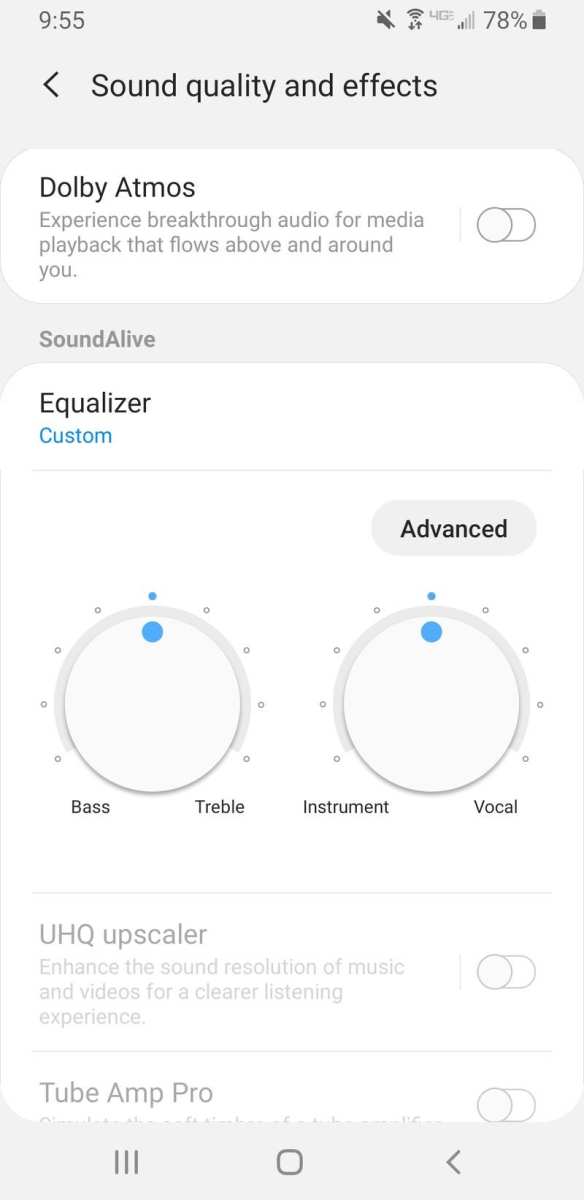
Many Android devices come with built-in equalizers or sound enhancement features. These can help make the sound clearer and slightly louder by adjusting certain sound frequencies.Accessing Equalizer Settings
– Open the Settings app. – Tap on “Sound & Vibration” or “Sound.” – Look for an option labeled “Equalizer” or “Sound Enhancements.” – Adjust the sliders to boost bass, treble, or mid-range frequencies as needed.Third-Party Equalizer Apps
If your device lacks a built-in equalizer, apps like “Equalizer FX” or “Music Player Equalizer” can be downloaded. These apps allow more granular control over sound, helping you boost volume and improve overall audio clarity.Using Wired and Wireless Accessories to Increase Volume
Sometimes, the best way to get louder sound is through external hardware:- External Speakers: Connect your device to Bluetooth or wired external speakers that have their own volume controls.
- Headphone Amplifiers: Use headphone amplifiers or earbuds with built-in amplifiers for louder, richer sound.
- Soundbars and Docking Stations: These can significantly amplify audio output if you are watching videos or listening to music.
Preventing Damage When Increasing Volume
While boosting your device’s volume can improve listening experiences, it’s important to keep safety in mind:- Don’t set the volume too high for prolonged periods; it can cause hearing loss.
- Avoid forcing the volume beyond what your device supports, which may lead to speaker damage.
- If you notice distortion or crackling, reduce the volume immediately.
Additional Tips for Better Sound on Android
– Keep your device’s software updated to ensure you have the latest sound features. – Clean your device’s speakers regularly to prevent dust and debris from muffling sound. – Use apps that optimize audio output for different environments, such as noise-canceling features. – Consider replacing your device’s speakers if they are old or damaged, as hardware degradation can reduce volume output. By following these methods, you can maximize your Android device’s volume and enjoy better sound clarity across all your media. Whether through adjusting system settings, using apps, or connecting external hardware, you’ll find the perfect solution to make your audio louder and more vibrant.Frequently Asked Questions
How can I increase the volume of notifications on my Android device?
To boost notification volume, go to your device’s Settings and select Sound & Vibration or Sound. Find the Notification Volume slider and slide it to the right to increase the volume. If your notifications still sound quiet, check if Do Not Disturb mode is enabled, as it can limit notification sounds, and disable it if necessary.
What steps can I take to improve audio clarity during calls on Android?
Improving call audio clarity involves cleaning the microphone and speaker areas to ensure no debris or dust obstructs sound. You can also access your dialer settings to enable noise reduction options. If you experience persistent issues, consider using a wired or Bluetooth headset to enhance call quality.
How do I ensure my media volume is at its maximum on Android?
Press the volume up button while playing media to increase the volume. Additionally, go to Settings > Sound & Vibration > Media Volume and slide the control to the highest level. Make sure that your device’s mute or do not disturb modes are disabled, as these can prevent media sounds from playing loudly.
What can I do if my device’s volume buttons don’t work properly?
If your volume buttons are unresponsive, restart your device to see if that resolves the issue. Check for any software updates, as updates can fix bugs related to hardware controls. If the problem persists, consider using on-screen volume controls through accessibility settings or seek professional repair assistance.
Are there any third-party apps that can help increase volume beyond default limits?
Yes, several apps available on the Play Store can boost your device’s volume levels. However, use these apps cautiously, as increasing volume beyond recommended levels might damage your speakers or hearing. Always read reviews and choose reputable apps to ensure safety and effectiveness.
Final Thoughts
To make your volume louder on android, start by checking the phone’s volume settings and increasing the media volume. Use the volume buttons or go to Settings > Sound to adjust levels precisely. Next, install a volume booster app that enhances audio output without harming your device. Ensure the app is reputable to avoid security risks. Lastly, remove any obstructions over speakers and keep your device updated for optimal performance. In conclusion, to make your volume louder on android, follow these simple steps and ensure your device’s audio settings are maximized.
Similar Posts































