How To Make Your Own Stickers For Whatsapp Android Easily
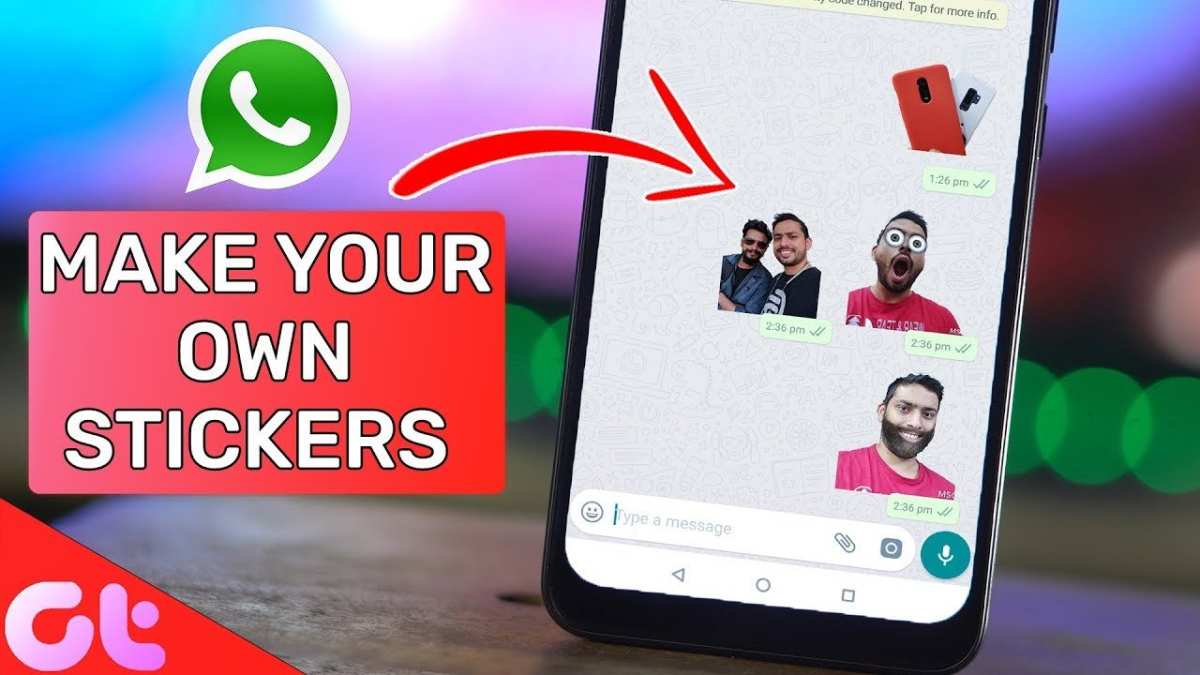
To make your own stickers for WhatsApp Android, you simply need a photo editing app and a little creativity. **You can create custom stickers directly on your device by cropping images and saving them in the right format.** Knowing how to craft unique stickers makes your chats more personal and fun. With just a few steps, you can design stickers that truly represent your style and mood. Let’s walk through the easy process of making your own stickers for WhatsApp Android and start customizing your conversations today.

How to Make Your Own Stickers for WhatsApp Android
Creating your own stickers for WhatsApp on Android is a fun and creative way to personalize your chats. Instead of using pre-made packs, you can design stickers that reflect your personality, favorite quotes, or specific memories. This process may sound complicated at first, but once you get the hang of it, making custom stickers becomes an enjoyable activity. In this guide, we’ll walk through each step in detail, from creating the images to importing them into WhatsApp. Let’s start with understanding what makes a good sticker and how you can prepare your images for maximum impact.
Understanding WhatsApp Stickers and Why You Should Make Your Own
Before diving into the creation process, it’s helpful to know what makes a WhatsApp sticker stand out. Good stickers are usually colorful, simple, and expressive. They are small images that convey emotions or messages instantly. Custom stickers allow you to:
- Express your unique personality
- Share inside jokes with friends
- Create themed packs for special occasions
- Make conversations more lively and fun
Creating your own stickers also means you aren’t limited to existing options. You have full control over the design, message, and style. Plus, WhatsApp supports creating sticker packs that can be shared with others, making your creations more social.
Preparing Your Images for Sticker Creation
The first step involves gathering or designing images suitable for stickers. Here are some key points to consider:
Choosing the Right Images
– Use high-quality photos or illustrations that are clear and simple.
– Stickers should be recognizable at small sizes, so avoid cluttered or complex images.
– Opt for images with transparent backgrounds if possible, as they look cleaner on chats.
Editing Images for Sticker Use
– Remove backgrounds from images using photo editing apps or tools (we’ll cover these later).
– Resize images to fit within 512×512 pixels, the maximum size allowed by WhatsApp.
– Save images in PNG format for transparency support or JPEG if transparency isn’t needed.
Designing Custom Stickers from Scratch
If you want more creative freedom, you can design your own stickers:
– Use drawing apps or graphic design software.
– Keep designs simple and bold.
– Add text or captions if desired.
– Save images with transparent backgrounds for a professional look.
Tools and Apps Needed to Create WhatsApp Stickers on Android
Having the right tools makes the process easier and more fun. Here are some recommended apps for creating stickers:
Photo Editing Apps
- Background Eraser: Free tool for removing backgrounds from images.
- PhotoLayers: Allows you to create and work with multiple layers, perfect for making stickers.
- Pixlr: Offers a suite of editing tools for cropping, retouching, and designing images.
Sticker Maker Apps
– Sticker Maker for WhatsApp: This app simplifies creating sticker packs directly on your phone.
– Personal Stickers for WhatsApp: Lets you import images and create packs easily.
– Sticker Studio: Offers features to cut out images and add text or decorations.
Design Apps for Custom Stickers
– Canva: User-friendly with templates for creating sticker designs.
– Adobe Spark Post: Good for adding effects and text to images.
– Ibis Paint X: Great for drawing and designing stickers from scratch.
Having these apps installed will prepare you to follow along with the creation steps seamlessly.
Creating Your Stickers Step-by-Step
Now, let’s delve into the actual process of making stickers for WhatsApp on Android. We’ll cover the process in stages to keep it simple.
Step 1: Removing Backgrounds from Images
To make your stickers look professional, remove the background:
– Open your chosen background removal app.
– Load the image you want to convert into a sticker.
– Use the auto or manual tools to erase the background neatly.
– Save the image as a PNG file with transparent background.
Step 2: Resizing and Optimizing Images
– Use an image resizer app or built-in editing tools.
– Set the dimensions to 512×512 pixels.
– Make sure the image looks clear and recognizable in small size.
– Save the optimized image.
Step 3: Adding Text or Decorations (Optional)
– Use Canva or similar apps to add fun captions or decorative elements.
– Keep text large and easy to read.
– Save the final design as a PNG or JPEG.
Step 4: Creating a Sticker Pack
Using a dedicated sticker maker app:
– Open the app and select the option to create a new sticker pack.
– Name your pack and give it an author name.
– Import your prepared images one by one.
– For each image, add a name or label if the app allows.
– Confirm and save your pack.
Importing Your Custom Stickers into WhatsApp
Once you have designed your stickers, you’ll need to add them to WhatsApp:
Steps to Import and Use Your Stickers
- Open the sticker maker app and locate your created sticker pack.
- Tap on the option to add or export the pack to WhatsApp.
- Confirm the addition, and the pack will appear in your WhatsApp sticker section.
- Open a chat and tap the emoji icon, then access the sticker tab to find your custom stickers.
Your friends can now see and use your personalized stickers too. Sharing the pack is easy, especially if your app provides export options or if you want to send the sticker pack file directly.
Tips for Making Better WhatsApp Stickers
– Keep your designs simple and expressive.
– Use bright colors to catch the eye.
– Avoid overly intricate details that become blurry at small sizes.
– Try different backgrounds and effects for variety.
– Save a backup of your sticker packs in case you want to edit or recreate them later.
Troubleshooting Common Issues
– If stickers appear blurry or pixelated, make sure they are resized correctly and saved in PNG format.
– For background removal problems, try different apps or manual editing.
– If the sticker pack doesn’t import into WhatsApp, double-check compatibility and file format.
– Remember to update WhatsApp to the latest version for best sticker support.
Making your own stickers for WhatsApp on Android gives you the chance to add a personal touch to your messages. With some creativity and the right tools, you can build packs that stand out and make your chats more fun. Experiment with different styles, themes, and messages, and soon you’ll have a collection all your friends will love to see. Keep practicing, and you’ll become a pro at designing eye-catching stickers that perfectly match your mood and personality.
Frequently Asked Questions
What tools can I use to create custom stickers for WhatsApp on Android?
You can utilize various apps to design your own stickers for WhatsApp on Android devices. Popular options include Sticker Maker for WhatsApp, Personal Stickers for WhatsApp, and Photolamus. These apps provide user-friendly interfaces that allow you to cut, edit, and organize your images into sticker packs easily.
How do I prepare images suitable for creating WhatsApp stickers?
Choose images with a clear subject and a transparent background for best results. Use photo editing apps like Photoshop Express or PicsArt to remove backgrounds and adjust the size to 512×512 pixels, which is the recommended dimension for WhatsApp stickers. Save your images in PNG format to preserve transparency and quality during the creation process.
What steps are involved in adding my custom stickers to WhatsApp after designing them?
First, open your chosen sticker maker app and import your edited images. Arrange and customize your stickers within the app, then create a new sticker pack. Finally, export the pack directly to WhatsApp by tapping the export or add button—your stickers will appear in your WhatsApp sticker section for use in chats.
Can I include animated images in my WhatsApp sticker packs?
WhatsApp currently supports only static stickers for Android devices, so animated images are not compatible. To create engaging stickers, focus on designing high-quality static images with expressive designs. Keep an eye out for future updates, as WhatsApp may introduce support for animated stickers later.
Are there any size restrictions I should be aware of when creating custom stickers?
Yes, each sticker should not exceed 100 KB in size, and the image dimensions should be exactly 512×512 pixels. Staying within these specifications ensures that your stickers load quickly and display correctly in WhatsApp chats without any issues.
Final Thoughts
Making your own stickers for WhatsApp Android is simple and fun. Use photo editing apps to create unique designs that reflect your personality. Once you have your images ready, use sticker maker apps to convert them into WhatsApp-compatible stickers.
Organize your stickers into packs and add them to WhatsApp easily. This way, you personalize your chats and enjoy a creative messaging experience. Overall, knowing how to make your own stickers for WhatsApp Android adds a personal touch to your conversations.

Similar Posts































