How To Make Your Own Ringtone For Android Easily

How to Make Your Own Ringtone for Android
Creating your own ringtone for your Android device is a fun and easy way to personalize your phone. Instead of using generic tones, you can set your favorite song, sound, or recording as your ringtone. This guide will walk you through each step, from choosing the right sound to setting it on your phone. Whether you want a quick custom sound for calls, texts, or notifications, you’ll find everything you need here.Selecting the Perfect Audio for Your Ringtone
Before you make a ringtone, you need to pick the right audio file. Here are some tips to choose the best sound:- Pick a part of a song or sound that is clear and not too long; usually, 20-30 seconds works well.
- Use your favorite song, a funny sound, or a memorable phrase.
- If you’re recording your own sound, make sure it’s loud enough and free of background noise.
Finding the Right Audio Files for Your Ringtone
You can use various sources for audio files, such as:- Your favorite songs stored on your device
- Sound effects or funny recordings you create
- Online sources where you can purchase or download free sound clips
Using Your Phone’s Built-in Ringtone Maker
Many Android phones come with a built-in editor that makes creating ringtones easy. Here’s how to use it:Access the Ringtone Editor
Most devices allow you to access the editor through the Settings menu:- Open the “Settings” app on your Android device.
- Tap on “Sounds” or “Sound & Vibration.”
- Choose “Ringtone” or “Phone Ringtone.”
- Look for an option like “Add” or “Edit” to create a custom ringtone.
Editing the Audio File
Once in the editor:- Select the audio file you want to use.
- Most editors let you trim parts of the audio. Find the section you want as your ringtone.
- Adjust the start and end points to capture the perfect sound clip.
- Save the new clip as your ringtone.
Using Third-Party Apps to Create Ringtones
If your device lacks a built-in editor or you want more features, there are many apps available on the Google Play Store:- Ringdroid
- MP3 Cutter and Ringtone Maker
- Zedge
- Audacity (for desktop editing)
Steps to Create Ringtones with Ringdroid
- Download and install Ringdroid from the Play Store.
- Open the app and select the audio file you want to use.
- Use the sliders to set the start and end points of your ringtone.
- Tap “Save” to create the ringtone file.
- Assign the ringtone to your contacts or set it as the default sound.
Saving and Managing Your Custom Ringtones
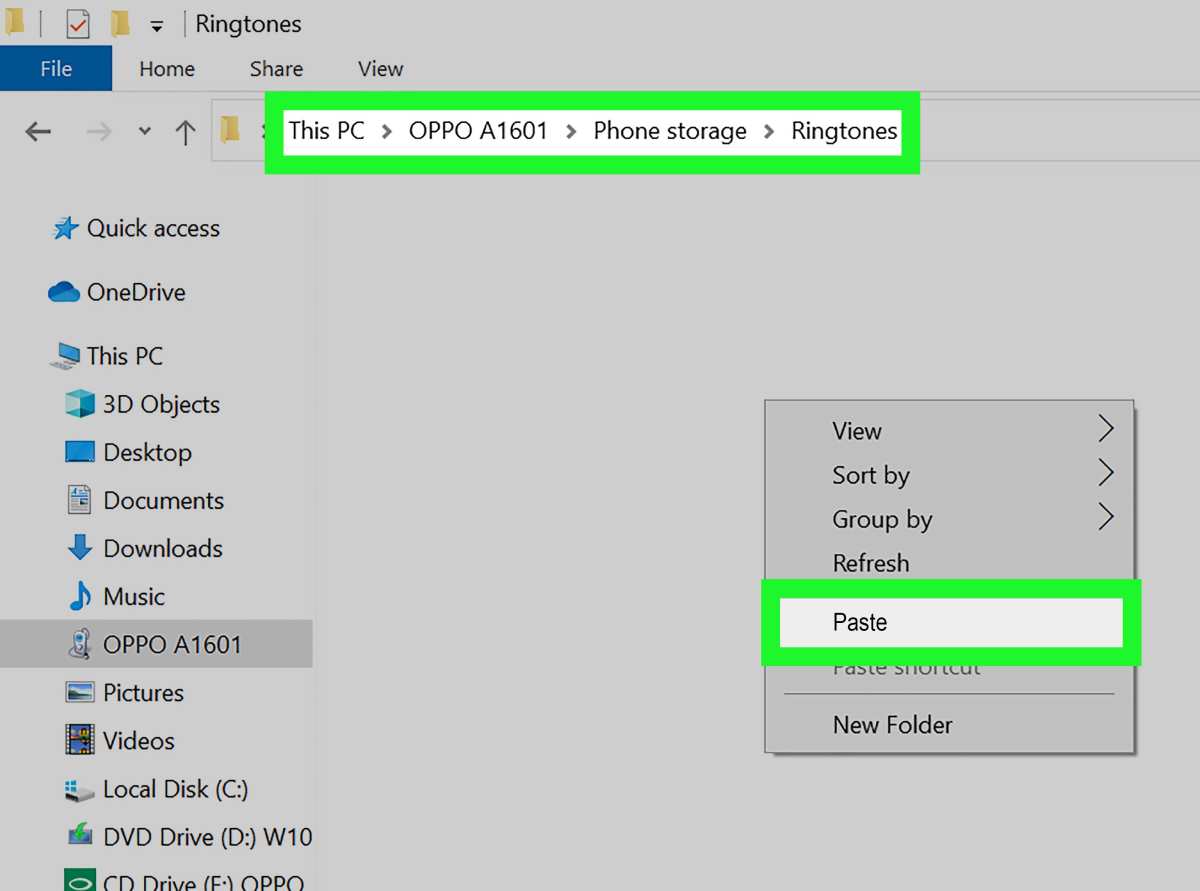
After creating your ringtone, you need to save and organize it:- Save the ringtone in the default folder, typically “Ringtones,” so your phone recognizes it automatically.
- Feel free to create a dedicated folder for all your personalized sounds for easy access later.
- If you use multiple sound files, organize them with clear names reflecting their purpose.
Setting Your Custom Ringtone on Your Android Device
Once your ringtone is ready, follow these steps to set it as your default or assign it to specific contacts:Change the Default Ringtone
- Open “Settings” on your Android phone.
- Select “Sounds” or “Sound & Vibration.”
- Tap “Ringtone” or “Phone Ringtone.”
- Choose your custom ringtone from the list of available sounds.
- Confirm your selection, and your new ringtone is set.
Assign Ringtones to Specific Contacts
If you’d like certain people to have their own unique ringtone:- Open the “Contacts” app.
- Select the contact you want to assign a ringtone to.
- Tap “Edit” or the pencil icon.
- Look for an option called “Ringtone” or “Set Ringtone.”
- Choose your custom ringtone from the list.
- Save the changes, and that contact will now have their own special ringtone.
Tips for Creating the Best Ringtones
For the best experience, consider these tips:- Keep the ringtone short but catchy—about 20 to 30 seconds.
- Avoid overly complex sounds that could be hard to recognize quickly.
- Choose sounds that suit your style and personality.
- Make sure the volume levels are appropriate—you want it loud enough to hear but not too loud or distorted.
- Test your ringtone on your device before finalizing it, ensuring it plays smoothly and sounds clear.
Legal and Ethical Considerations
Never use copyrighted music or sounds without permission. Download sounds legally and ensure they are free for personal use. Respect artists’ rights and only use audio files that you have the right to modify and set as your ringtone. Making your own ringtone for Android might seem intimidating at first, but once you understand the steps, it becomes a quick and rewarding task. Choose your favorite sound, edit it to the perfect length, and set it on your device with just a few taps. By doing this, you add a personal touch to your phone, making every call or notification feel uniquely yours. With the right tools and a little creativity, you can create a collection of custom ringtones that match your mood, style, and personality.Frequently Asked Questions
What app can I use to create custom ringtones on my Android device?
You can use various apps like Ringtone Maker, MP3 Cutter, or GarageBand to create custom ringtones. These apps allow you to trim audio files, add effects, and save your edited clips directly to your device. Choose an app that offers easy-to-navigate features and supports the file formats you want to work with.
How do I set a newly created ringtone as my default on Android?
After creating your ringtone, open the Settings app on your device. Navigate to Sound & Vibration or Sound settings, then select Ringtone. From there, you can browse through your saved audio files and select the one you just made. Confirm your choice, and your custom ringtone will be set as the default for incoming calls.
What should I do if my ringtone doesn’t play properly after editing?
If your ringtone doesn’t play correctly, check the audio file’s format and quality. Convert the file to a compatible format like MP3 or WAV using an audio converter if needed. Ensure the ringtone duration is appropriate, typically under 30 seconds, and that the file is saved in the proper folder on your device, such as the Ringtones folder.
Is there a way to add multiple custom ringtones for different contacts?
Yes, Android allows you to assign specific ringtones to individual contacts. Open your Contacts app, select a contact, then tap Edit. Look for the Ringtone option and choose the custom ringtone you’ve created. Save your changes, and that contact will have a unique ringtone when they call you.
Can I create a ringtone from a YouTube video?
Yes, but you need to first download the audio from the YouTube video using a legal and safe online converter or app. Once you have the audio file, open your preferred editing app to crop and customize it into a ringtone. Remember to respect copyright laws and only use content you have rights to or that is in the public domain.
Final Thoughts
To make your own ringtone for Android, start by selecting a favorite song or sound clip. Use a simple audio editing app to trim the file to your desired section. Save it in a compatible format like MP3 or OGG. Next, transfer the ringtone to your Android device via USB or cloud storage. Finally, set your custom tone through your phone’s sound settings. Making your own ringtone for Android is straightforward and fun. Your personalized alerts reflect your style—enjoy tailoring your sound experience!
Similar Posts































