How To Make Your Own Android Wear Watch Face Easily
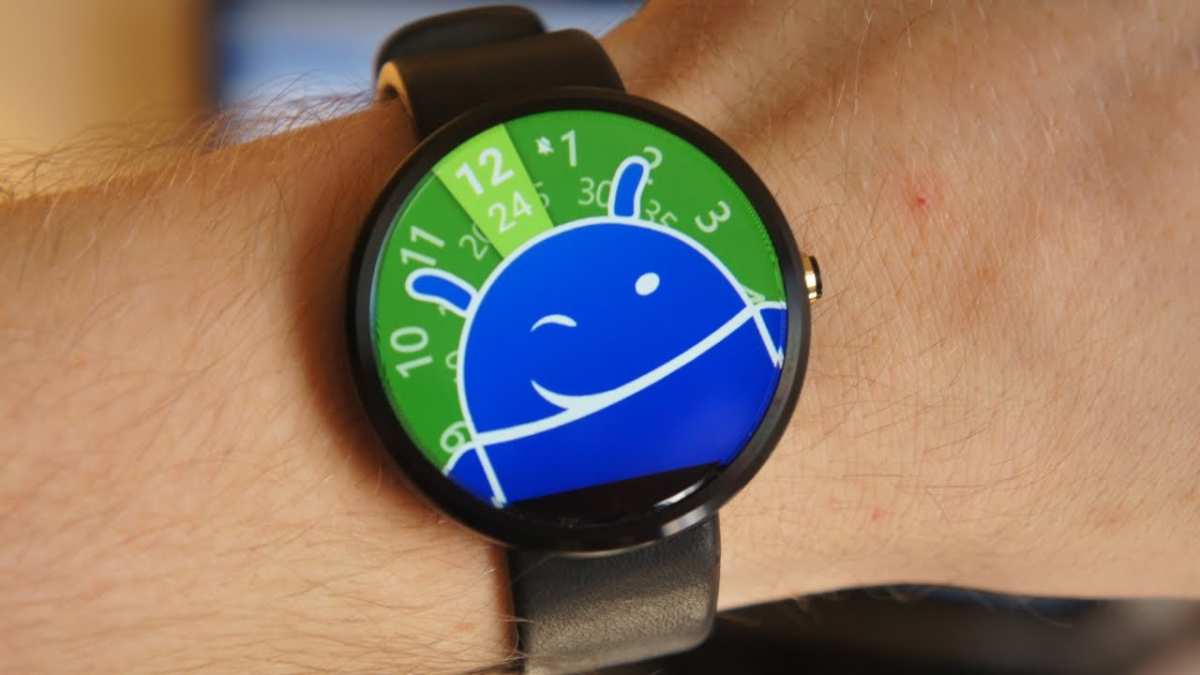

How to Make Your Own Android Wear Watch Face
Creating your own watch face for Android Wear can be an exciting project that lets you showcase your style, personality, or functional needs right on your wrist. Whether you’re interested in designing a simple watch face or developing a complex one with custom features, this guide will walk you through each step in detail. By the end, you’ll have a clear understanding of how to craft a watch face that looks great and works smoothly. Let’s dive into the process from start to finish.Understanding the Basics of Android Wear Watch Faces
Before jumping into design and development, it’s essential to understand what a watch face is and how it functions on Android Wear devices. A watch face is the main screen that displays the time, date, and often additional information like weather, fitness stats, or notifications. Android Wear offers a lot of flexibility, allowing you to create both simple and highly interactive watch faces. These custom faces can be tailored to your preferences, making your smartwatch experience more personal. Key features of Android Wear watch faces include:- Display of time and date
- Background customization
- Adding complications (small info like weather or steps)
- Interactive elements (like tap targets or animations)
- Battery efficiency considerations
Gathering the Necessary Tools and Resources
Creating a watch face requires some specific tools. Here’s what you need:Android Studio
Android Studio is the official IDE (Integrated Development Environment) for Android app development. It provides all the features you need to build, test, and deploy your watch face.Java or Kotlin Programming Language
You can develop your watch face using Java or Kotlin, with Kotlin being the preferred modern language for Android development.Wear OS SDK
This SDK provides APIs specifically designed for creating watch faces, including support for complications and interactive features.Design Software (Optional)
Programs like Adobe Photoshop, Illustrator, or free alternatives like GIMP can help you create custom graphics, backgrounds, and icons.Test Devices or Emulators
You should have access to a physical Wear OS device or use Android Studio’s emulator to test your watch face across different screen sizes and configurations.Designing Your Watch Face
The design phase is where your creativity comes into play. Think about what kind of watch face you want to create—minimalist, informational, artistic, or themed.Decide on the Layout
Determine the placement of key elements:- Time display (analog or digital)
- Date
- Complications (weather, steps, battery)
- Background images or colors
Create Graphics and Assets
Design or select images and icons that match your theme. Save them in appropriate formats (PNG or SVG) for use in your app. Ensure the resolution is suitable for high-density screens, typically at least 320 DPI.Choose Colors and Fonts
Pick a color palette that fits your style. Use contrasting colors for readability, especially for text and complications. Select fonts that are clear and legible at small sizes.Setting Up Your Development Environment
With your designs ready, set up Android Studio and prepare your project:Create a New Project
– Select “Wear OS” as the project template. – Name your project and specify the save location. – Choose “Empty Wear App” to start from scratch.Configure Project Settings
– Set the minimum SDK to API 26 or higher. – Enable necessary permissions like Internet or Location if your watch face includes such features. – Add dependencies for Wear OS, Google Play Services, or other SDKs needed.Organize Your Files
Create folders for images, fonts, and other assets. Design your codebase by separating UI elements from logic as much as possible.Developing Your Watch Face
This phase involves translating your design into code and making your watch face functional.Implement the Watch Face Service
– Extend the `CanvasWatchFaceService.Engine` class. – Override methods like `onDraw()`, which handles rendering graphics on the screen. – Manage the lifecycle events such as `onCreate()`, `onVisibilityChanged()`, and `onTimeTick()` to update the display.Draw Your Layout
Use the Canvas API to draw: – Background images or colors – Time and date text – Complications or widgets Example snippet: “`java @Override public void onDraw(Canvas canvas, Rect bounds) { // Draw background canvas.drawColor(Color.BLACK); // Draw time String timeText = getCurrentTime(); canvas.drawText(timeText, centerX, centerY, paint); } “` Adjust the coordinates, font size, and style to match your design.Handle User Interactions
Wire up touch events or tap gestures to trigger actions, like opening apps or changing modes.Add Complications
Use the `ComplicationDrawable` class to display small pieces of info like weather or steps. Set data providers to supply real-time data.Optimize for Power Consumption
Ensure your watch face updates only when necessary. Use the `Handler` class to schedule updates efficiently and avoid draining the battery.Testing and Debugging
Test your watch face extensively on both emulators and actual devices: – Check for readability and layout consistency. – Validate complications display correct data. – Monitor battery usage and optimize update intervals. – Test on different screen sizes and shapes. Use the Logcat window in Android Studio to track errors or performance issues.Iterate and Improve
Based on your testing, improve the layout, fix bugs, and enhance features. Gather feedback from friends or community forums to refine your design.Publishing Your Custom Watch Face
Once satisfied with your creation, prepare for publication:Build a Signed APK
Generate a signed version of your app following Android’s signing process. This step is necessary for distributing your watch face outside your development environment.Upload to Google Play Store
Create a developer account and upload your watch face as an app. Include detailed descriptions, screenshots, and instructions to help users install and customize your design.Share Your Creation
Alternatively, you can distribute APK files directly or share through other platforms for users to sideload on their devices.Maintaining and Updating Your Watch Face
After publishing, stay engaged with users: – Gather feedback for improvements. – Release updates fixing bugs or adding features. – Keep compatible with new Wear OS versions. Regular updates help keep your watch face fresh and functional. Respond to user reviews and requests to build a reputation for quality.Summary of Key Tips for Making a Great Watch Face
- Keep the design simple and readable.
- Optimize for battery life by limiting frequent updates.
- Use high-quality graphics and clear fonts.
- Test extensively across devices and scenarios.
- Provide customization options if possible.
Frequently Asked Questions
What tools or apps can I use to design my own Android Wear watch face?
You can use applications like WatchMaker, Facelake, or Pujie Black, which offer user-friendly interfaces and customization options. These tools allow you to create watch faces from scratch or modify existing templates, giving you full control over design elements, data display, and layout. Most of these apps are available on the Google Play Store and provide tutorials to help you get started quickly.
How do I add custom images or graphics to my watch face?
Most watch face creation apps enable you to upload your own images or graphics directly into your design. Simply select the upload option within the app, choose your desired image from your device, and position it as needed. Ensure your images are optimized for small screens to maintain clarity. Adjust size, placement, and layering to integrate visuals seamlessly into your watch face design.
What steps should I follow to incorporate real-time data like weather or fitness stats?
To include real-time data, select the data modules available within your chosen app. Grant necessary permissions for the app to access information like weather, steps, or heart rate. Customize the display format and position of each data element on your face. Test the watch face on your device to ensure data updates correctly and remains readable at all times.
Can I set my custom watch face as the default on my Android Wear device?
Yes, once you finish designing your watch face, save it and follow your device’s instructions to set it as the default. Usually, this involves long-pressing the current watch face on your watch, selecting the ‘Custom’ or ‘My Faces’ option, and then choosing your created design. Some apps may also have a dedicated option to directly set your custom face as the default.
Are there any tips to ensure my custom watch face looks good on different watch models?
Optimize your design for various screen sizes by keeping important elements within safe zones and avoiding clutter. Use high-contrast colors for readability, and test your face on different device types if possible. Consider creating multiple versions with slight adjustments to accommodate different resolutions and aspect ratios, ensuring your watch face looks its best across all models.
Final Thoughts
Creating your own Android Wear watch face involves selecting a design platform and customizing elements like background, hands, and complications. Use tools such as WatchMaker or Faceless to simplify this process. Test your design on your device to ensure it functions smoothly. In summary, how to make your own android wear watch face requires choosing the right tools and personalizing your design. With a little effort, you can craft a unique watch face that reflects your style.
Similar Posts































