How To Make Your Own Theme On Android For Personalization
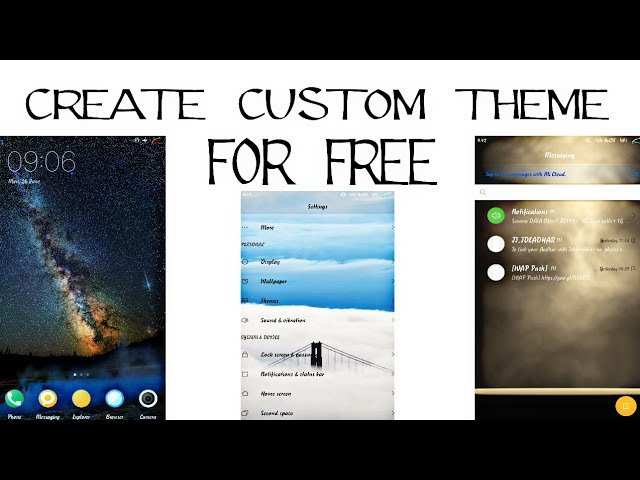

How to Make Your Own Theme on Android
Creating your own Android theme can be a fun way to personalize your device and make it feel uniquely yours. With a little creativity and some basic tools, you can change colors, icons, wallpapers, fonts, and more to craft a theme that matches your style. Whether you’re a beginner or someone who has some experience with customizing Android, this guide offers step-by-step instructions to help you develop a custom theme that stands out. Let’s explore all the important aspects of designing your own Android theme in detail.Understanding the Basics of Android Themes
Before diving into the creation process, it’s helpful to understand what an Android theme is and what it controls on your device. In essence, a theme is a collection of visual elements that alter the appearance of your home screen, app icons, notification bar, widgets, and system fonts. Think of it as a package that modifies the look and feel of your device without affecting its core functionality. Some key points to note about Android themes:- Themes can change wallpaper, icons, colors, fonts, and overall UI style.
- Most Android devices come with default themes, but you can create and install custom ones.
- Theme creation involves modifying system files or using dedicated theme apps, especially on rooted devices.
- On non-rooted devices, you can still create themes using launcher apps that support custom themes.
Choosing the Right Tools for Theme Creation
The tools you select depend on whether your device is rooted or not, and on the complexity of the theme you want to create. Here are the primary options:Theme Maker Apps
– **Customizable launcher apps** like Nova Launcher or Action Launcher allow you to change icons, wallpapers, and color schemes easily. – **Dedicated theme creator apps** such as ThemeDIY or MoTheme offer drag-and-drop interfaces to customize icons, fonts, and colors without rooting.Editing System Files
– For more advanced themes that modify system UI elements (like the notification bar or system fonts), you may need to access system files. – This requires rooting your device and using tools such as **Android SDK**, **Material Theme Editor**, or **APK editors**.Design Software
– Use graphics editors like **Photoshop**, **GIMP**, or **Canva** to create custom icons, wallpapers, and UI elements. – Organize your graphics into folders for easy import into theme packages. Choose the method that matches your experience level and device capabilities. If you’re a beginner, start with launcher-based customization before moving on to system-level modifications.Planning Your Custom Theme
Before jumping into editing files or designing assets, plan what kind of theme you want to create. Think about: – **Color scheme:** Bright, dark, pastel, or vibrant colors. – **Icon style:** Flat, 3D, rounded, or custom icons. – **Wallpaper:** Nature, abstract art, Minimalist, or personal photos. – **Fonts:** Bold, light, or decorative fonts matching your style. – **UI elements:** Buttons, sliders, notification bar styles. Create a sketch or mood board to visualize your final look. Planning helps maintain consistency and ensures a smoother creation process.Designing Custom Graphics and Icons
Creating high-quality graphics forms the core of a unique theme. Follow these tips to produce appealing visuals:- Icons: Design icons that fit your theme’s style, maintaining consistent size and color palette.
- Wallpapers: Choose or create wallpapers that complement your icons and overall color scheme.
- UI elements: Customize buttons, sliders, and notification backgrounds to match your theme aesthetic.
Organizing Your Assets for Theme Development
As you design each element, organize files systematically:- Create folders named after asset types (icons, wallpapers, fonts).
- Keep a master document or spreadsheet listing each asset with its purpose and design notes.
- Use consistent naming conventions for easy referencing.
Applying Your Theme Using Launchers
If you’re starting with launcher-based customization, follow these steps:Using Nova Launcher
- Download and install Nova Launcher from the Google Play Store.
- Set Nova Launcher as your default home app.
- Open Nova Launcher settings.
- Go to “Themes” or “Look & Feel”.
- Change icons by selecting icon packs or individually customizing app icons.
- Set wallpapers by long-pressing on the home screen and choosing wallpapers.
- Adjust app drawer, dock, and grid layout to match your theme.
Creating a Custom Icon Pack
– Use apps like **Icon Pack Studio** or **Pixelforce Icon Pack** to design icons. – Export your icon pack and apply it through the launcher settings. Using launchers provides a quick way to personalize your device without rooting or system modifications.Creating Full System Themes for Rooted Devices
For those comfortable with rooting and more advanced modifications, creating a full system theme involves editing a variety of system files:Root Your Device
– Research how to root your specific device model. – Use trusted tools like Magisk or Odin. – Backup your data before proceeding.Use Theme Frameworks
– Install custom ROMs or frameworks such as **Substratum** or **EdXposed** that support theme overlays. – Download or create theme overlays compatible with your ROM.Editing System Files
– Use tools like **APK Editor** to modify system APK files. – Change color schemes, fonts, and UI elements. – Replace default icons and wallpapers within system files.Testing and Installing Your Theme
– Always test in a safe environment or on a secondary device. – Use custom recovery tools like TWRP for flashing themes. – Be cautious; incorrect modifications can cause system instability. Creating full system themes requires patience and attention to detail but results in a deeply personalized Android experience.Sharing Your Custom Theme
Once you finish designing and applying your theme, you might want to share it:- Export icon packs or theme files as APKs or ZIPs.
- Upload to platforms like XDA Developers or forums dedicated to Android customization.
- Provide clear installation instructions and screenshots to help others enjoy your work.
Final Tips for Successful Theme Creation
– Keep things simple if you’re just starting; focus on one or two elements like icons or wallpapers first. – Watch tutorial videos and read community guides to pick up tips and best practices. – Regularly backup your device before making system modifications. – Experiment with different styles to find what best suits your personality. Customizing your Android device can be as simple or as involved as you like. The most important thing is to enjoy the process and make your device truly reflect your style. By following these steps, using the right tools, and planning your design carefully, you will be well on your way to creating an Android theme that feels perfect for you.Frequently Asked Questions
What are the best tools to customize an Android theme effectively?
Using dedicated theming apps like Substratum, Theme Editor, or KLWP allows you to create personalized themes with ease. These tools offer a variety of customization options for icons, wallpapers, fonts, and interface elements. Ensure your device supports these apps, and follow their instructions closely to develop a seamless theme that matches your style.
How can I change individual UI elements without affecting the entire system?
Many Android customization apps enable you to tweak specific components such as icons, widgets, or wallpaper separately. You can select particular elements to modify, like replacing app icons or changing the notification shade, without altering the overall look of your device. This approach provides a more controlled way to personalize your interface.
What steps should I follow to save and apply my custom theme across my device?
After designing your theme, save your settings within the theme creation app. Most apps provide an option to export or package your theme for easy application. Once saved, select your custom theme and apply it through the app or system settings. Make sure to restart your device if necessary to see all changes fully implemented.
Can I create a theme that includes custom fonts and icons?
Yes, many theming tools support custom fonts and icons. You can import font files and icon packs into your theme editor, then assign them to specific UI elements. This allows you to craft a unique visual style that reflects your preferences and makes your device stand out.
Are there any compatibility concerns I should consider when creating a theme on Android?
Always check your device’s Android version and support for specific theming apps before starting. Some customization features might require root access or specific system permissions. Testing your theme on different devices or Android versions can help ensure it functions correctly and maintains stability across your device ecosystem.
Final Thoughts
Créer votre propre thème sur Android permet d’exprimer votre style unique. Commencez par choisir des éléments visuels comme les couleurs et les icônes qui reflètent votre personnalité. Utilisez des applications de personnalisation pour ajuster ces détails facilement. Ensuite, appliquez votre thème dans les paramètres ou via des launchers compatibles. Testez différentes combinaisons pour obtenir le rendu parfait. Finalement, partagez votre création avec la communauté pour inspirer d’autres utilisateurs. How to make your own theme on android réside dans la sélection soignée des éléments graphiques. En suivant ces étapes, vous pouvez créer un thème personnalisé qui correspond parfaitement à votre style.
Similar Posts































