How To Make Your Own Ringtones For Android Phones?

How to Make Your Own Ringtones for Android Phones
Creating your own custom ringtones for your Android device can be a fun way to personalize your phone and make it truly yours. Instead of sticking to default sounds, you can craft unique tones from your favorite songs, recordings, or sound clips. This guide will walk you through the entire process—covering everything from choosing the right audio files to setting up your custom ringtone on an Android phone. Whether you’re a beginner or just want a refresher, this detailed explanation will help you make amazing ringtones with ease.Understanding Ringtone Basics for Android Devices
Before diving into the how-tos, it’s helpful to understand what makes a good ringtone and how Android handles these sound files. Your Android phone uses audio files that meet certain specifications to function as ringtones. – **Common audio formats**: MP3, M4A, WAV, OGG, and AAC – **Ideal length**: Between 15 and 30 seconds; longer tones may be cut off or cause playback issues – **File size**: Keep the file size small for quick loading and efficient storage – **Placement**: Ringtones need to be stored in specific folders on your phone to be easily selectable Knowing these basics ensures your custom ringtone functions smoothly when you set it up.Selecting the Right Audio Files
Start by choosing a sound that suits your style. You might want a snippet of your favorite song, a funny sound, or a recording of your own voice. **Tips for selecting the perfect audio clip:**- Pick a part of the song or sound that’s clear and loud enough to hear when your phone rings.
- Keep the clip short—around 20 seconds is typically best.
- Use high-quality audio files to avoid distortion or poor sound quality.
- Make sure you have the rights to use the sound if it’s copyrighted.
Editing Audio Files for Ringtone Use
Most raw audio files are longer than ideal for a ringtone, so you’ll need to trim or cut the part you want. You can do this with simple audio editing apps or software. **Popular free editing tools include:** – **Audacity** (Windows, Mac, Linux) – **WaveEditor** (Android) – **MP3 Cutter and Ringtone Maker** (Android) – **Online tools** like Audio Trimmer or Bear Audio Tool **Steps to edit your audio:**- Open your chosen app and load the audio file.
- Use the selection tool to mark the specific part of the audio you want to use as a ringtone.
- Trim or cut the audio to the selected segment.
- Save the new clip in an appropriate format like MP3 or M4A.
Converting Audio Files to the Correct Format
Android phones primarily use MP3, M4A, WAV, or OGG files as ringtones. If your audio isn’t in one of these formats, you need to convert it. **Conversion tips:** – Use free online converters or apps like Audio Converter or MP3 Converter. – Ensure the output format is compatible with Android (preferably MP3). – Keep the bit rate around 128 kbps for good quality without creating a large file. Properly formatted audio files make setting up your ringtone smoother and prevent playback issues.Saving and Organizing Your Ringtone Files
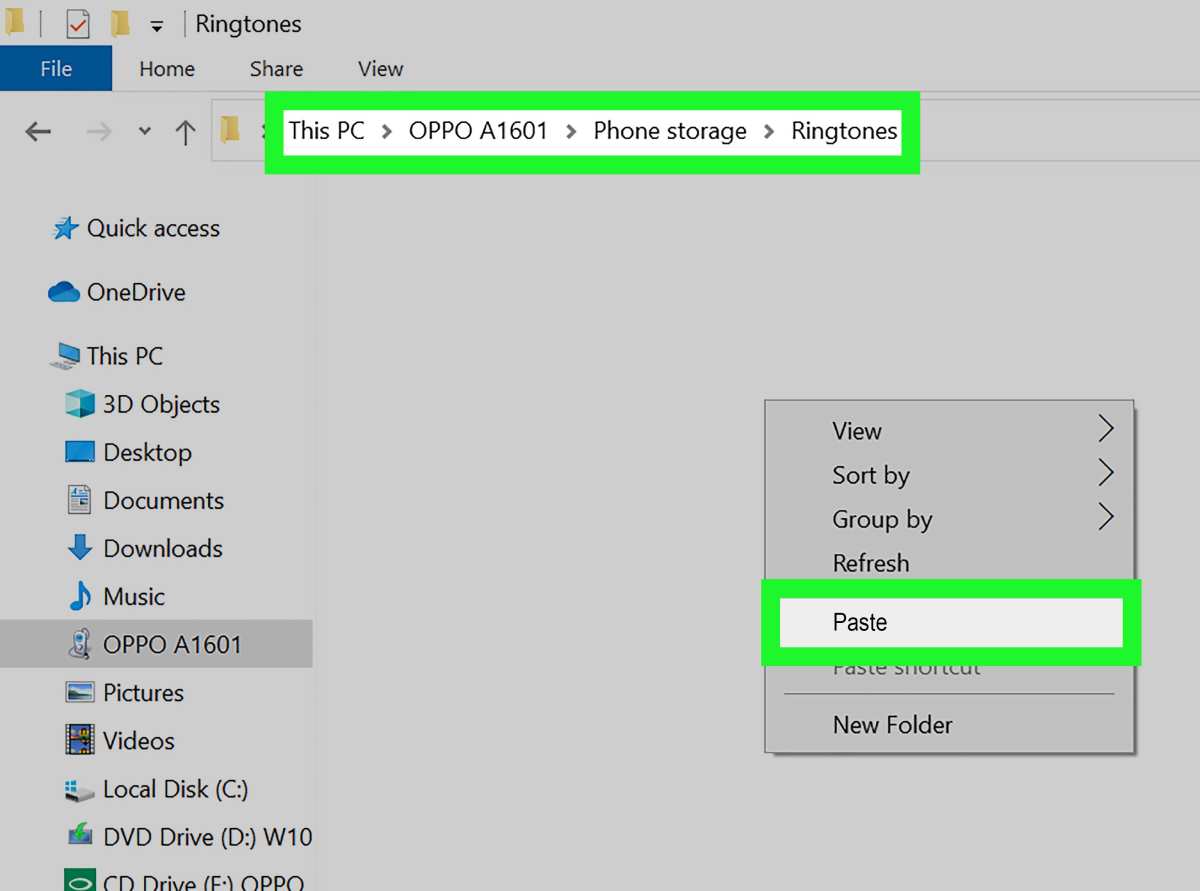
Once you have your ringtone ready in the right format, save it to your Android device in the correct location: – **Default folder location**:/sdcard/Ringtones/ – Use a file manager app (like ES File Explorer or Files by Google). **How to save:** - Connect your phone to a computer via USB or use a file manager app directly on your device.
- Create a folder named “Ringtones” if it doesn’t exist already.
- Move or copy your ringtone file into this folder.
Setting Up Your Custom Ringtone on Android
Now that your ringtone file is saved correctly, it’s time to set it up on your device. **Steps to set your ringtone:**- Open the Settings app on your Android device.
- Tap on Sound & Vibration or similar options.
- Select Ringtone or Phone Ringtone.
- Scroll through the list or tap Add ringtone (if available).
- Choose your custom ringtone from the list or navigate to the Ringtones folder if prompted.
- Tap on your chosen ringtone to select it.
- Confirm by tapping OK or Save.
Using Ringtone Maker Apps for Easy Customization
For those who prefer a more straightforward approach, several apps make creating and setting ringtones simple and quick. **Top ringtone maker apps:** – **Ringdroid**: Allows you to cut, edit, and set ringtones directly in one app. – **Zedge**: Offers a wide selection of free ringtones and the ability to create your own. – **MP3 Cutter**: Focuses on trimming audio files easily. **How these apps work:** 1. Download and install your preferred app from the Google Play Store. 2. Open the app and select your audio file. 3. Use built-in tools to trim or customize the sound. 4. Save the ringtone directly to your device. 5. Set the ringtone within the app or through your device settings. Using these apps saves time since they handle both editing and setting up the ringtone seamlessly.Additional Tips for Creating Great Ringtones
To make your custom ringtone truly stand out, keep these tips in mind:- Choose parts of songs or sounds that are distinctive and recognizable.
- Avoid abrupt starts or ends; try to create smooth transitions.
- Experiment with different clips until you find the perfect sound.
- Trim the ringtone so it doesn’t cut off too early or drag on too long.
- Test the ringtone on your phone to ensure it sounds good and is loud enough.
Troubleshooting Common Issues
Sometimes, things don’t go as planned. Here are common problems and how to fix them: – **Ringtone doesn’t appear in the list**: Make sure it’s saved in the/Ringtones folder and in a supported format. – **Sound is too quiet or distorted**: Check the volume settings and ensure the file’s quality is good. – **Cannot set ringtone from app**: Try restarting your device or setting the ringtone through the device settings menu directly. – **File size too large**: Compress or re-edit your audio clip to reduce the size. Troubleshooting helps ensure your custom ringtones work smoothly without hassle. — Making your own ringtones for Android phones is a simple process that can bring a lot of fun and personality to your device. With some basic tools and a little creativity, you can craft perfect tones from your favorite sounds. Whether you use dedicated apps or manual editing, the key is to select high-quality audio, trim accurately, and store files correctly. Now you’re ready to create, customize, and enjoy personalized ringtones that truly reflect your style. Frequently Asked Questions
What are some easy apps to create custom ringtones for Android devices?
There are several user-friendly apps available for creating personalized ringtones on Android. Apps like Ringtone Maker, MP3 Cutter, and Ringdroid provide intuitive interfaces that allow you to cut, edit, and save audio files directly on your phone. These apps typically support various audio formats and offer preview features so you can ensure your ringtone sounds just right before setting it as your default alert.
How can I trim a song to make a ringtone directly on my Android phone?
Most Android devices come with built-in tools or apps like Gallery or Files that let you trim audio files. Alternatively, you can use a dedicated app like Ringtone Maker, where you import your song, select the specific section you want to use, and save it as a new audio file. Be sure to listen to your selection before finalizing to confirm it plays correctly and starts at the right point.
Are there steps to set a custom ringtone after creating it on Android?
Yes, once you have your custom ringtone file saved, go to your phone’s Settings. Navigate to Sound & Vibration or Sound, then select Ringtone or Phone Ringtone. From there, choose the option to add or select a ringtone from your device’s storage. Locate your custom audio file, select it, and confirm to set it as your default ringtone or assign it to specific contacts.
Can I make a ringtone using online tools and how do I transfer it to my Android phone?
Absolutely. You can use online audio editing tools such as Online Audio Cutter or AudioTrimmer to create your ringtone. After editing, download the file to your computer or directly to your phone. To transfer the file, connect your device via USB, or send it through email or cloud storage. Once the file is on your device, follow the steps to set it as your ringtone.
What file formats work best when creating custom ringtones for Android?
MP3 is the most commonly supported format for Android devices and works well for creating ringtones due to its balance of quality and file size. Other supported formats include WAV and OGG. Choose a format that offers good sound quality and is compatible with your editing app to ensure the best listening experience.
Final Thoughts
Creating your own ringtones for Android phones is simple and enjoyable. Use a free app like Ringtone Maker to trim your favorite song or sound clip. Save the track and assign it as your ringtone directly from your phone’s settings. By following these steps, you can customize your ringtone selection easily. Remember, how to make your own ringtones for android phones offers endless personalization options. Enjoy having a unique sound that reflects your style.
Similar Posts































