How To Make The Clock Bigger On Android: Simple Tips
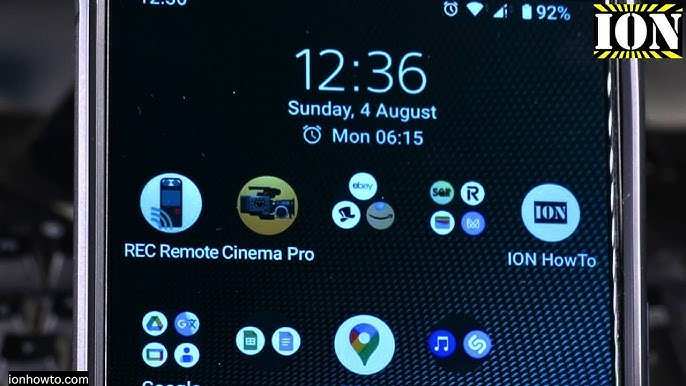

How to Make the Clock Bigger on Android
Making the clock larger on your Android device can be a great way to easily see the time at a glance, especially if you find the default size too small or if you have visual difficulties. Luckily, Android offers several options and customization features that allow you to increase the clock size, whether you’re using your home screen, lock screen, or the notification panel. In this guide, we’ll walk through different methods step-by-step, providing detailed instructions so you can choose what works best for your needs.Adjusting the Clock Size via Custom Wallpapers and Widgets
One of the easiest ways to make the clock appear larger on your Android device is by adding a customized clock widget to your home screen. Widgets are versatile tools that display information, like the time, in larger, more visible formats.Adding a Clock Widget to Your Home Screen
To increase the clock size, select a widget that supports customizing its size and appearance.- Tap and hold an empty space on your home screen. Depending on your device, this may open a menu or bring up options for editing the home screen.
- Choose Widgets from the menu options that appear.
- Scroll through the widget list to find a clock widget. Many Android devices offer basic clock widgets, but you can also download third-party clock widgets from the Google Play Store for more customization options.
- Press and hold your chosen clock widget, then drag it onto your home screen.
- Resize the widget by dragging the handles around its border. Larger widgets display bigger clocks.
Customizing the Widget for Better Visibility
Once the widget is placed, you can customize its appearance:- Tap on the widget to open its settings. Many widgets will have options for font size, color, and style.
- Increase the font size or select a bigger font style if available.
- Choose contrasting colors for better visibility – for example, white text on a black background.
- Adjust the widget’s size by dragging its edges to fit your preference.
Changing Font and Display Size through Accessibility Settings
Another effective method involves adjusting your device’s display settings, which can enlarge all elements, including the clock, making everything easier to see.Using Accessibility Features to Increase Font Size
Android’s accessibility options are designed specifically to help users with visual preferences.- Open your device’s Settings app.
- Scroll down and select Accessibility. On some devices, this might be under Accessibility & Interaction or similar.
- Look for options like Font Size or Display Size.
- Use the slider to increase the font size. As you move the slider, you’ll see a preview of how it will look.
- Press Apply to save your changes.
Adjusting Display Size for Larger Elements
Some Android devices also allow adjusting the overall display size, which makes icons, text, and system UI elements larger.- Navigate to Settings.
- Select Display.
- Tap on Display Size or Screen Size.
- Move the slider to increase the size of UI elements.
- Confirm your choice, and your screen elements, including the clock, will appear larger.
Using a Custom Launcher for More Control Over Clock Size
If you’re looking for more comprehensive control over how and where your clock appears, switching to a custom launcher can help. Many third-party launchers provide enhanced customization options, including larger font sizes, different clock styles, and flexible widget placement.Choosing a Custom Launcher
Some popular options include Nova Launcher, Action Launcher, or Microsoft Launcher.- Download your preferred launcher from Google Play Store.
- Follow the launcher’s setup instructions to set it as your default home screen app.
- Access the launcher’s customization settings.
- Add a clock widget that supports resizing or change your widget style to a larger clock.
- Adjust fonts and size within the launcher settings if available.
Modifying Lock Screen Clock Size
Your device’s lock screen might display a small clock that you want to enlarge. Depending on your Android version, you have different options.Using Built-in Lock Screen Customizations
Many Android devices come with options to change the style and size of the lock screen clock:- Go to Settings.
- Tap on Lock Screen or Security & Lock Screen.
- Select Clock Style or similar options.
- Choose a style that displays a larger clock or customize an existing style with bigger fonts.
- Preview the changes and confirm.
Installing Lock Screen Wallpapers or Apps for Custom Clocks
If your device limits customization, you can install third-party lock screen apps:- Download apps like “Always On AMOLED” or “Lock Screen Clock” from Google Play Store.
- Follow the app instructions to set a large clock on your lock screen.
- Many apps allow you to choose font size, style, and color, making the clock more prominent.
Using Screen Magnification for Temporary Enlargements
If you only need to temporarily see a larger clock without changing settings permanently, Android includes a magnification feature:Enabling Magnification
- Open Settings.
- Navigate to Accessibility.
- Tap on Magnification or Magnification gestures.
- Turn it on.
Using Magnification for Quick Viewing
Once enabled:- Triple-tap anywhere on the screen to zoom in.
- Pinch to zoom out when done.
Tips for Choosing the Best Method
To select the right approach, consider the following:- If you want a consistently larger clock that appears on your home screen, use clock widgets or a custom launcher.
- For enlarging all text and UI elements, accessibility settings are the best options.
- If lock screen visibility is your concern, explore lock screen customization options or third-party apps.
- For quick, temporary enlargements, use the magnification feature.
Frequently Asked Questions
How can I increase the size of the clock on my Android home screen?
To enlarge the clock display on your Android home screen, press and hold an empty area on the screen, then select the ‘Widgets’ option. Find the clock widget you are using, tap and hold it, and then drag it to an open space. In some cases, you can resize the widget by dragging its edges or corners, depending on the widget’s settings. Check if your widget supports resizing and adjust it accordingly to make the clock appear larger.
What steps should I take to change clock size within a third-party clock app?
Open the clock app you’ve installed and navigate to its settings menu. Look for display options, themes, or font size settings. Many apps let you customize the clock size directly within these options. Increase the font size or adjust the scaling settings until the clock appears larger and more visible on your screen. Save your changes and return to the main screen to see the updated clock size.
Is it possible to enlarge the clock on Android lock screen or notification panel?
Yes, some Android devices offer customization options for lock screen clocks through system settings or third-party apps. To do this, go to Settings > Lock Screen or Display, and look for clock style or font size options. If your device doesn’t have built-in options, you can install a lock screen customization app that allows you to increase the clock’s size. Always check the app’s permissions and reviews before installation.
Can I change the font size or style to make the clock more prominent on my Android device?
Adjusting the system font size can make the clock and other text more visible. To do this, go to Settings > Accessibility > Font Size or Display > Font Size, then drag the slider to increase the font size. Some devices also let you change the font style, which can make the clock easier to read. These changes apply system-wide, improving overall visibility of the clock.
Are there any specific apps that can help me customize the size of my Android clock?
Yes, several third-party apps are available for this purpose, like custom widget apps, clock skins, or launcher apps that allow extensive customization. Examples include KWGT Kustom Widget, Zooper Widget, or some launcher apps with built-in clock features. These apps often provide options to resize, style, and position the clock precisely to suit your preferences. Always review app details and permissions before installation.
Final Thoughts
Making the clock bigger on Android is simple with a few adjustments. You can change the widget size or use third-party apps for more customization. These options allow you to easily increase the clock size to fit your preferences. Adjusting font size in display settings or selecting a larger-themed clock widget makes a noticeable difference. These steps help you personalize your device for better visibility. In conclusion, learning how to make the clock bigger on Android improves usability. Whether through widgets or settings, enhancing clock visibility becomes quick and straightforward.
Similar Posts































