How To Make Text Font Bigger On Android For Better?
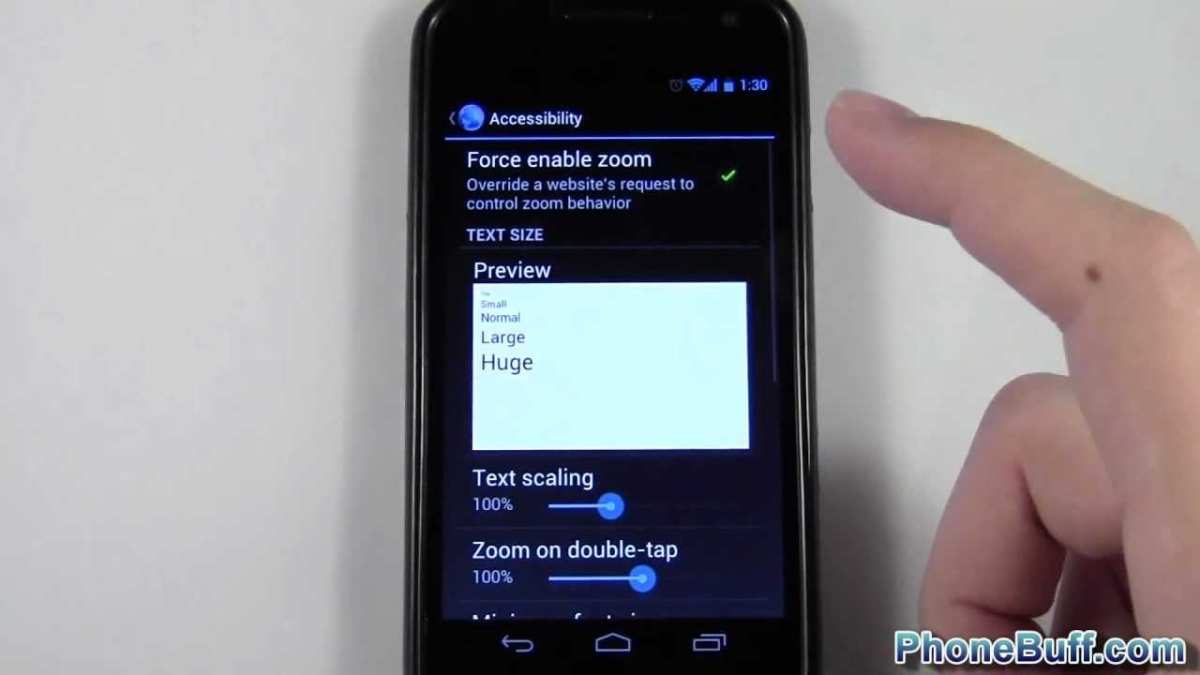
To make text font bigger on Android, simply go to Settings, then Display, and adjust the Font Size slider. This quick step helps you easily customize your screen for comfortable reading. Wondering how to make text font bigger on Android? It’s straightforward and saves you from straining your eyes. No need to navigate through complex menus—just a few taps, and your text becomes more legible. This simple adjustment improves your overall experience when using your device.

How to Make Text Font Bigger on Android
When using your Android device, sometimes the text appears too small to read comfortably, especially if you have difficulty seeing tiny fonts or just prefer larger text for ease of use. Fortunately, Android offers several ways to increase the font size so you can enjoy a more comfortable viewing experience. In this guide, we will explore different methods to make the text font bigger on Android devices, helping you customize your smartphone or tablet to suit your needs.
Adjusting Font Size Through Android Settings
One of the easiest and most direct ways to enlarge text on your Android device is by accessing the device’s core display settings. These settings control the overall size of text and other interface elements, affecting apps, menus, and system notifications.
Step-by-step Guide to Change Font Size
- Open the Settings app on your Android device. This app usually looks like a gear icon.
- Scroll down and tap on Display. On some devices, it might be labeled as Screen or Display & Brightness.
- Look for the option called Font Size or Font & Display Size. Tap on it.
- You will see a slider or a list of font size options such as Small, Default, Large, and Extra Large.
- Drag the slider to the right or select the larger options to increase the font size.
- Once you are satisfied with the size, tap Apply or just exit the menu. The font size will change immediately, affecting most apps and system screens.
Tips for Optimal Font Size Adjustment
- If you find the default options too limited, check if your device has an advanced display setting for even larger font sizes or a custom font option.
- Adjust the font size gradually to find the most comfortable reading size without disrupting the layout of your apps or menus.
- Some devices allow you to change the font style alongside size; experiment to find what suits you best.
Enlarging Text Using Accessibility Features
Android’s accessibility features offer additional ways to make text more visible, especially if standard font size adjustments are not enough. These options are designed to assist users with visual impairments, but they are beneficial for anyone wanting larger, clearer text.
Magnification Gestures
Magnification gestures allow you to zoom into any part of the screen quickly.
- Go to Settings > Accessibility.
- Tap on Magnification.
- Enable the toggle for Magnify with Triple Tap or Magnify with Button.
- Once enabled, triple-tap on the screen to zoom in, and double-tap or use pinch gestures to adjust zoom level.
This method temporarily enlarges text and other elements, making it easier to read without permanently changing font size settings.
Adjusting Display Size and Font with Accessibility
Many Android devices incorporate an overarching accessibility menu that combines display size and font size adjustment.
- Open Settings > Accessibility.
- Select Display & Text Size.
- Adjust sliders for both Display Size and Font Size to your liking.
- These changes affect overall interface scaling, making everything larger and easier to see.
Using Third-Party Apps to Make Text Bigger
If your device or Android version doesn’t support advanced text size customization, third-party apps can provide additional options.
Popular Apps for Text Enlargement
- Big Font: Offers customizable font sizes that work system-wide and across most apps.
- Font Size & Style: Allows you to increase font size and change fonts for a personalized look.
- Zoom Text & Screen Magnifier: Provides screen magnification features for quick enlargements.
How to Use These Apps Effectively
- Download from the Google Play Store and grant necessary permissions.
- Open the app and select the desired font size or magnification level.
- Follow the app’s instructions to apply changes system-wide or within specific apps.
- Combine app features with device settings for the best experience.
Adjusting Font Size in Specific Apps
Certain apps, such as browsers or e-readers, allow you to change font size independently of system settings.
Changing Text Size in Browsers
- Open your preferred browser (Chrome, Firefox, etc.).
- Look for the menu (three dots or lines) and tap it.
- Find the option labeled Settings or Zoom.
- Adjust the zoom level or font size slider to increase text readability on web pages.
Updating Font Size in E-Reader Apps
- Open your e-reading app, such as Kindle or Google Books.
- Go to the Font Size or Text Settings section within the app.
- Increase the font size slider to enhance readability.
- Save changes and enjoy reading with larger text.
Tips for Maintaining Comfort While Reading Larger Fonts
Making text bigger improves visibility, but it can sometimes affect how much information fits on the screen. Here are some tips:
- Adjust brightness along with font size to reduce eye strain.
- Use dark mode or night mode to make reading easier in low-light conditions.
- Customize font style if your device supports font choices for better clarity.
- Take frequent breaks during extended reading sessions to prevent eye fatigue.
Common Issues and How to Fix Them
Sometimes, enlarging text may cause layout issues or other display problems. Here’s how to troubleshoot:
Fonts Not Changing as Expected
- Ensure you have saved the changes after adjusting font size from settings.
- Restart your device if the new settings don’t apply immediately.
- Update your device software to the latest version for improved compatibility.
Text Overlapping or Clipping
- Reduce font size slightly if the display becomes cluttered or overlapping occurs.
- Adjust screen zoom or display size settings for a balanced layout.
- Use apps or features designed for accessibility to fine-tune display scaling.
Making text bigger on your Android device is straightforward and can significantly improve your user experience, especially when reading for long periods or if you have visual impairments. Whether you prefer adjusting the system settings, using built-in accessibility features, or employing third-party applications, there are numerous options to customize your device to your liking. By exploring these methods, you can find the perfect text size for your needs and enjoy your Android device with greater comfort and clarity.
Frequently Asked Questions
How can I increase the text size for notifications on my Android device?
To make notifications more readable, go to your device’s Settings, then tap on Notifications or Apps & Notifications. Look for a setting called Notification Settings or Notification Font Size. Adjust the slider or toggle to increase the size of notification text. Some devices may also allow you to customize notification appearance directly from the notification shade by long-pressing a notification and selecting options to change text size.
Is there a way to change font size for specific apps on Android?
Yes, certain Android devices offer per-app font size customization. Access Settings, then go to Display or Accessibility. Find the option for Font Size or Display Size. Some manufacturers provide specific settings to differentiate font sizes based on apps or allow you to set a global font size that affects supported applications. If your device doesn’t have this feature built-in, consider third-party apps that enable customized font scaling on a per-app basis.
Can I use accessibility features to make text larger across my Android phone?
Absolutely. Android offers accessibility options designed to improve readability. Navigate to Settings, then Accessibility. Enable features like Font Size, Display Size, or Magnification. Adjust the sliders to increase font size and display content more comfortably. Magnification gestures allow you to temporarily enlarge the screen content for better viewing. These tools help make text more accessible without altering individual app settings.
How do I quickly change the font size without navigating through menus?
You can add a shortcut to your quick settings panel for easier access. Swipe down from the top of your screen to open the notification shade, then swipe down again to expand quick settings. Look for an icon labeled Font Size, Display Size, or Accessibility, and tap on it to adjust the font size immediately. Some devices also allow you to customize your quick settings menu to include these controls for faster access.
Final Thoughts
To make text font bigger on Android, start by opening your device’s Settings. Tap on Accessibility or Display, depending on your Android version. Here, you can adjust the font size slider to your preferred level.
You can also increase font size directly through the display settings for specific apps. This quick change makes reading easier and more comfortable.
In summary, to make text font bigger on Android, adjust the font size via the Settings menu. This simple step improves readability and enhances your device experience.

Similar Posts