How To Make Text Message Font Smaller On Android
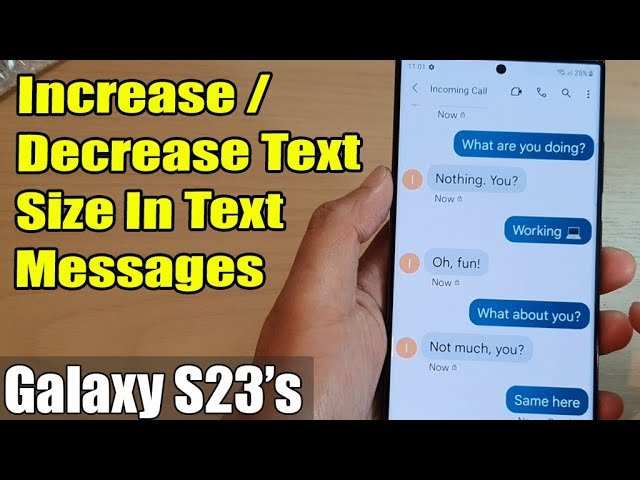
To make text message font smaller on Android, simply adjust the font size settings in your device options. **This is the quickest way to reduce text size for messaging.** If you want more control, you can change the font size within specific messaging apps or tweak display settings.
By customizing these options, you’ll easily find a comfortable reading size without hassle. No need for complicated steps—just a few taps, and your text will be easier to read on your Android device.

How to Make Text Message Font Smaller on Android
When your Android phone’s text messages appear too big or difficult to read comfortably, adjusting the font size can make a big difference. Whether you’re trying to see more messages on your screen or simply prefer smaller text for aesthetic reasons, knowing how to change the font size for messages is a helpful skill. In this guide, we will walk you through the various ways to make your text message font smaller on Android devices, ensuring you can customize your messaging experience to suit your preferences.
Understanding Why Font Size Matters in Messaging
Before diving into the technical steps, it’s useful to understand why adjusting font size can improve your messaging experience. Larger fonts can make reading easier, especially for those with visual impairments, but they can also limit the amount of information visible at once. Smaller fonts allow more messages to fit on the screen, creating a smoother and more efficient messaging experience.
By customizing font size, you can:
- Make reading messages easier or more comfortable based on your eyesight
- Fit more text on each message screen to avoid scrolling too much
- Personalize your device to match your preferences
Knowing these benefits helps you understand the importance of making precise adjustments to your device’s font size in your messaging app.
Adjusting Font Size Using Android Settings
One of the most straightforward ways to reduce the font size for your messages is through your Android device’s general display settings. Most Android phones allow you to change font size system-wide, which affects text in messages, menus, and other applications.
Step-by-step Guide to Change Font Size System-Wide
- Open the ‘Settings’ app from your home screen or app drawer.
- Scroll down to find the ‘Display’ option and tap on it.
- Look for ‘Font size’ or ‘Font size and style’ and select it.
- Use the slider to decrease the font size. Moving it to the left makes the font smaller.
- Preview the changes in real-time if your device shows a sample text.
- Once satisfied, exit the settings. Your messaging app and other apps will now display smaller text.
> **Tip:** If your device offers a ‘Font Style and Size’ menu, explore options for a more refined appearance, but keep in mind that system-wide changes will affect all apps.
Adjusting Font Size for Accessibility Settings
For users with specific visual needs, Android includes accessibility features that also control text size:
- Navigate to ‘Settings’ and tap on ‘Accessibility.’
- Find and select ‘Text and Display’ or a similar option.
- Choose ‘Font size’ and slide it to a smaller setting.
- Test the message app to see if the smaller font helps improve readability and viewing comfort.
Remember, changing accessibility settings affects more than just messaging, offering broader control over your device’s visual presentation.
Changing Font Size in the Messaging App Only
Sometimes, adjusting system-wide font size isn’t necessary, especially if you want the rest of your device to stay the same. Many messaging apps let you customize font size within their own settings.
Using Built-in Messaging App Settings
- Open your messaging app (such as Messages by Google or your default SMS app).
- Tap the menu icon (usually three dots or a gear symbol) in the upper corner.
- Select ‘Settings’ from the dropdown menu.
- Look for options labeled ‘Font size,’ ‘Text size,’ or similar.
- Adjust the slider to make the font smaller as desired.
- Confirm your choice and return to your messages to see the change in effect.
> **Note:** Not all messaging apps support font size changes within the app. If you don’t see such options, use the system-wide settings approach.
Using Accessibility Features for Text Size Adjustment
Android offers dynamic text resizing tools that can be toggled for a more personalized experience:
Enabling and Using ‘Font Size’ via Accessibility
- Open ‘Settings’ and navigate to ‘Accessibility.’
- Select ‘Font size’ or ‘Display size.’
- Move the slider toward the smaller end to reduce text size across the device.
- Once set, observe your messaging app and other apps to ensure the font size is comfortable for you.
This approach provides a quick way to decrease font size without navigating through multiple menus.
Using Third-Party Apps to Control Font Size
If your device lacks granular options for font resizing, or you want even more control, third-party apps are available. These apps can help you fine-tune your font size with greater flexibility.
Popular Apps for Font Management on Android
- Big Font: Simple app that offers easy options to increase or decrease font size across your device.
- Font Size for Android: Lets you set custom font sizes for specific apps or system-wide adjustments.
- OctoFont: Advanced font customization app that provides a wide array of font styles and sizes.
- Download and install your preferred app from Google Play Store.
- Follow the app’s instructions to set your desired font size or style.
- Apply the changes and check your messaging app for the new font size.
> **Important:** Always review app permissions and permissions policies before installation, especially for apps that modify system display settings.
Tips for Maintaining Readability with Smaller Fonts
While making fonts smaller helps you see more messages at once, it’s essential to ensure the text remains legible:
- Choose a font size that balances comfort and space. Don’t go too small if it strains your eyes.
- Use high-contrast themes or backgrounds to improve readability.
- Adjust screen brightness and font clarity settings if necessary.
- If your device supports it, enable ‘Dark mode’ to reduce eye strain and improve text contrast.
Remember, the goal is to find a size that’s comfortable for you without sacrificing clarity.
Additional Tips for Customizing Your Messaging Experience
- Explore different font styles and colors if your messaging app allows customization.
- Consider adjusting the display zoom or screen resolution for broader changes to how content appears.
- Keep your device updated to access new accessibility features and improvements.
By customizing these elements, you make your messaging experience tailored to your needs, making communication easier and more enjoyable.
Common Problems and Troubleshooting
Sometimes, adjusting font size doesn’t produce the expected results. Here are some tips to troubleshoot:
- If changes aren’t visible, double-check if the app has its own font settings and adjust accordingly.
- Restart your device after making changes to ensure they take effect.
- Update your messaging app and system software to the latest versions for optimal compatibility.
- If font size remains stubbornly large or small in specific apps, consult the app’s help resources or support channels.
Understanding these common issues can help you quickly resolve any problems that arise during customization.
—
Making your Android device’s text message font smaller can be a straightforward process once you understand the available options. Whether adjusting system settings, app-specific menus, or using third-party tools, you now have multiple ways to tailor your device’s display to your preferences. Remember to test different sizes to find the most comfortable reading experience, and don’t be afraid to revisit these settings as your needs change over time. With a little patience and experimentation, you can achieve a messaging setup that fits your style and enhances your overall device use.
Frequently Asked Questions
Can I change the font size for individual messages on my Android device?
Yes, some messaging apps allow you to adjust the font size for individual messages. Check the app’s settings or message options for font customization. If the app doesn’t support this feature, you can try adjusting the overall font size on your device, which will affect all messages.
What steps can I take to make the text in my messaging app appear smaller without changing system settings?
Use any built-in zoom or font size options within the messaging app itself, if available. Some messaging apps have their own accessibility or display settings where you can reduce text size. Additionally, consider changing the display zoom or font size from your device’s system settings to impact all apps, including messaging.
Does adjusting the display size on my Android phone affect the font size in messages?
Yes, changing the display size in your device’s settings will influence how text appears across most apps, including messaging. Reducing the display size makes elements on the screen smaller, which also decreases the font size in your messages, providing a more compact view.
Final Thoughts
To make text message font smaller on Android, start by opening the Settings app. Tap on Display, then select Font Size or Font Style. Adjust the slider to decrease the font size to your preference.
You can also customize font size within individual messaging apps, often through their settings menu. This allows for more precise control over your texting experience.
In summary, understanding how to make text message font smaller on Android helps improve readability and fits more messages on your screen.

Similar Posts