How To Make Text Messages Larger On Android: Simple Guide
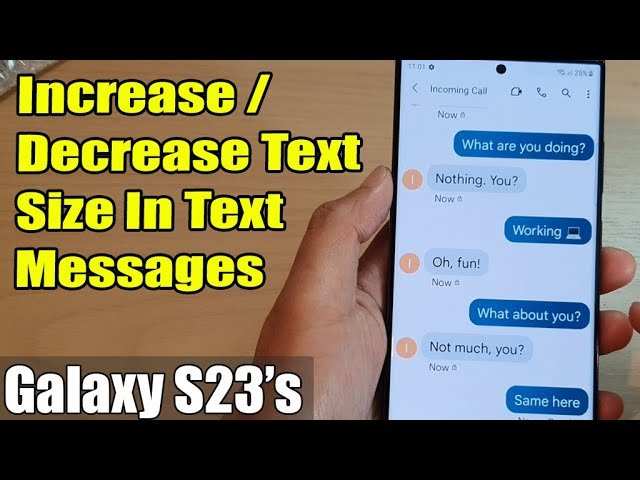
To make text messages larger on Android, simply adjust the display size in settings. **Go to Settings > Accessibility > Font size and style, then drag the slider to increase the font size.** When you ask how to make text messages larger on Android, increasing the font size makes reading easier. This quick change helps reduce eye strain and improves visibility. No need for extra apps or complicated steps—just a few taps, and your messages become clearer and more comfortable to read.

How to Make Text Messages Larger on Android
When your eyes start to strain while reading text messages on your Android device, it’s time to find a solution that makes your chats more comfortable. Luckily, making text messages larger on Android isn’t complicated. Whether you want to increase the size of your entire screen or just certain messages, there are various methods to help you view messages more clearly. In this guide, we’ll explore all the ways you can enlarge your text messages on Android, ensuring you can read your conversations with ease.
Understanding Why Text Size Matters on Android
Before diving into the steps, it’s useful to understand why adjusting text size is important. Small text can cause eye strain, especially if you read messages for long periods. Larger text improves readability, reduces eye fatigue, and makes texting more accessible if you have vision challenges. Plus, customizing text size allows you to personalize your device according to your comfort.
Changing Font Size System-Wide on Android
The most straightforward way to make all text, including messages, larger on an Android device is by adjusting the font size and display settings. This affects system text, apps, menus, and your messaging app.
Step-by-step guide to adjusting font size
- Open the Settings app on your Android device.
- Scroll down and select Display.
- Tap on Font size or Screen size, depending on your device. On some models, you might see Display size.
- Slide the bar to increase the font size. As you adjust, you’ll see a preview of how your text will look.
- Once you’re satisfied with the size, tap OK or Apply.
This change impacts many apps, including your messaging app, making all the text larger for easier reading.
Using Accessibility Features for Enhanced Text Size
If you need even larger text or additional readability options, Android offers accessibility features tailored for users with visual impairments or those who prefer bigger text.
Enabling Accessibility Font Size
- Head to Settings and select Accessibility.
- Look for options like Font size or Visibility enhancements. On some devices, accessibility options are found under Accessibility features.
- Adjust the slider to set the font size to your preferred level. Most devices show a real-time preview.
- Some Android devices have a toggle for High contrast text or Large text that can also help improve readability.
Using accessibility tools ensures that your text size is maximized effectively across all apps, including your text messaging app.
Adjusting Messages in Specific Messaging Apps
While system-wide settings are powerful, sometimes you want to change text size only within your messaging app. Different apps have their own settings for font size and text display.
Using Google Messages
Google Messages is the default SMS app on many Android devices. To make text larger here:
- Open the Messages app.
- Tap the three-dot menu icon in the top right corner and select Settings.
- Choose Chat features or Display & Sounds.
- Look for Font size or similar options. If available, slide to increase text size.
Note: Not all versions of Google Messages support in-app font size adjustments. If this feature isn’t available, rely on system settings instead.
Adjusting Text Size in Other Messaging Apps
Other messaging apps like WhatsApp or Facebook Messenger usually follow system font sizes. If they have their own settings:
- Open the app and navigate to Settings.
- Look for sections like Chat settings or Display.
- Adjust font size if the option exists.
If these apps do not have custom font size options, adjusting the system font size remains the best approach.
Pinch-to-Zoom for Temporary Text Size Adjustment
For quick, temporary adjustments when reading messages, you can use the pinch-to-zoom feature.
How to use pinch-to-zoom
- Open your messaging app and navigate to the message you want to read.
- Use two fingers to pinch outward on the screen. This enlarges the text temporarily.
- To zoom out, pinch inward.
This method doesn’t permanently change the font size but is great for quick reading.
Using Accessibility Magnification Features
For ongoing magnification, Android offers accessibility magnification.
Activating magnification gestures
- Go to Settings >Accessibility.
- Select Magnification or Magnification gestures.
- Turn it on and follow the prompts. Usually, triple-tapping the screen magnifies it.
This tool makes everything on the screen larger, including text messages, and is useful for those with serious visual impairments.
Adjusting Font Style and Weight for Better Readability
Beyond size, changing the font style or weight (boldness) can help make text more legible.
Changing font style
- Access Settings >Display.
- Select Font style.
- Choose from available fonts or download new ones.
Making text bold
Some Android devices have an option to make all text bold:
- Open Settings.
- Navigate to Display.
- Find and toggle on Bold text.
This can significantly improve readability, especially on larger screens.
Additional Tips for Comfortable Messaging
– Use high-contrast themes: Dark mode or high contrast themes can make texts easier to see.
– Keep your screen clean: Smudges or dirt reduce screen clarity, making small text harder to read.
– Adjust brightness: Brighter screens can enhance readability in bright environments.
Conclusion
Making text messages larger on Android is straightforward and can be achieved through system settings, accessibility options, or app-specific adjustments. You can increase font size for the entire device or just within your messaging apps. Using these methods, you’ll find reading messages more comfortable and less straining for your eyes. Remember, customizing your device to fit your visual needs helps you enjoy a more pleasant and accessible messaging experience every day.
Frequently Asked Questions
How can I increase the font size for text messages on my Android device?
To enlarge the font size for your text messages, go to your device’s Settings menu, tap on Display, then select Font Size or Font Size and Style. Adjust the slider to increase the text size to your preference. This change will make the text messages appear larger across compatible apps, including your messaging app.
Is there a way to enlarge only the text in my messaging app without affecting other apps?
Yes, many Android devices allow you to customize font size settings for specific apps. You can access this feature through the device’s Accessibility settings or the app’s display options. For example, some messaging apps offer built-in settings to increase text size directly within the app, enabling you to make text larger just for your messages.
How do I enable magnification gestures to see larger text when reading messages?
To use magnification gestures, head to Settings > Accessibility > Magnification. Enable the feature and follow the prompts to activate it. Once active, triple-tap the screen or use a specific gesture to zoom in on your messages, making the text easier to read without changing system-wide font sizes.
Can I change the font style or size through display settings for better readability?
Yes, you can modify both font style and size in your device’s Display settings. Navigate to Settings > Display > Font (Style) and Size. Here, you can select a different font and adjust the size slider to make all texts, including messages, more legible. These adjustments will apply system-wide, affecting all compatible apps.
Are there any third-party apps to make text messages larger on Android?
Yes, some third-party apps can help you customize text size and appearance solely within messaging or other apps. Look for options like custom launcher apps or accessibility tools available on the Google Play Store. Make sure to review user ratings and permissions to choose a reliable app that improves your messaging readability.
Final Thoughts
Making text messages larger on Android is simple. Start by opening your device’s Settings app. Tap on Accessibility or Display, depending on your device. Adjust the font size slider to increase the text size to your preference.
You can also increase text size directly within messaging apps by exploring their specific settings. Many apps allow customizing font size for easier reading. Combining these options ensures your messages are easily visible.
In summary, how to make text messages larger on Android involves adjusting both system-wide display settings and app-specific options. These adjustments improve readability, making communication more comfortable.

Similar Posts