How To Make Text Messages Pop Up On Android
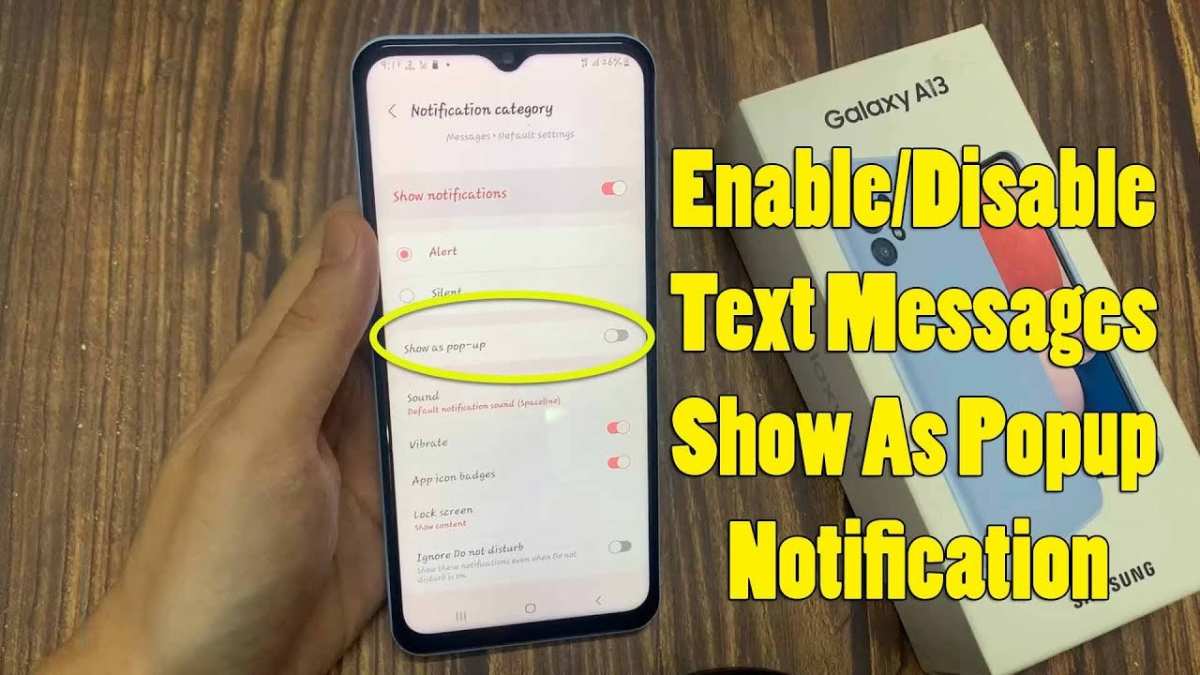
To make text messages pop up on Android, enable notifications in your settings and customize them for your apps. **It’s quick and straightforward.** Just head to your device’s settings, find the notification section, and activate pop-up alerts for your messaging apps.
Knowing how to make text messages pop up on Android keeps you connected without missing important messages. Adjusting these notifications ensures you stay informed and responsive throughout your day.

How to Make Text Messages Pop Up on Android
When someone sends you a message on your Android device, sometimes it’s hard to catch the notification right away. But what if you want your text messages to instantly appear on your screen without unlocking your phone? This feature is super handy, especially if you’re busy or expecting important messages. In this guide, you’ll learn exactly how to make text messages pop up on Android, so you never miss an important message again.
Understanding Why Text Message Pop-Ups Are Useful
Before diving into the how-to steps, it helps to understand why setting up message pop-ups on your Android device can make your life easier. Here are some benefits:
- Immediate Notification: See messages instantly, even when your screen is off or you’re in another app.
- Quick Responses: Reply to messages without navigating away from what you’re doing.
- Stay Organized: Prevent missing important updates from family, friends, or work.
- Enhanced Privacy Control: Customize which messages can appear as pop-ups, keeping sensitive info protected.
Now, let’s look at how you can set this up on your Android device easily.
Enabling Pop-Up Notifications for Messages in Default Messaging Apps
Most Android phones come with the Google Messages app or a manufacturer-specific app like Samsung Messages. The steps to enable message pop-ups depend on which app you use.
Using Google Messages
Google Messages is the most popular app on Android for texting. Here’s how to turn on pop-up notifications:
- Open the Google Messages app on your Android device.
- Tap the three dots in the top right corner to open the menu.
- Select Settings from the dropdown menu.
- Choose Notifications.
- Tap on Incoming Messages.
- Look for the Pop-up notification option and toggle it on.
- You might see a prompt to set the duration of the pop-up. Choose your preferred time, like Always show pop-up.
- Optionally, you can enable Notification dots to see unread message indicators on the app icon.
Once these steps are complete, your messages will appear as pop-ups whenever you receive a new text.
Enabling Pop-Up Notifications in Samsung Messages
If you own a Samsung device, the default messaging app is Samsung Messages. Here’s how to activate message pop-ups:
- Open the Samsung Messages app.
- Tap the three dots in the top right corner and select Settings.
- Go to Notifications.
- Tap on Notification categories (sometimes called Message notifications).
- Enable Pop-up display or similar options.
- If available, select the behavior, such as Always show as pop-up.
Your Samsung Messages app is now set to display message pop-ups.
Customizing Pop-Up Notification Settings for Better Control
While enabling pop-ups is straightforward, customizing their behavior ensures you only get notified when you want to.
Setting Priority and Lock Screen Display
– **Priority notifications** make sure messages show up above other alerts.
– You can decide whether message pop-ups appear on the lock screen or only when unlocked.
– On most Android devices, head to Settings > Apps & notifications > Notifications and adjust pop-up and lock screen options.
Controlling Which Contacts Send Pop-Ups
If you don’t want every message to pop up, you can set exceptions:
– In your messaging app, open the conversation.
– Tap on the contact’s name or number.
– Choose Notification preferences.
– Set the notification to High priority or Silent based on your needs.
– Some apps allow you to customize per contact whether to show pop-up notifications.
Using Do Not Disturb Mode for Focused Notifications
Sometimes, you may want to silence all notifications except those from specific contacts or apps. Here’s how:
- Open Settings.
- Tap on Sounds & vibration.
- Select Do Not Disturb.
- Customize the settings to allow notifications only from certain contacts or apps.
- Set scheduled times or enable manually when needed.
This way, you can keep important messages popping up while limiting distractions.
Installing Third-Party Apps for Advanced Customization
If the default features don’t meet your needs, there are third-party apps that enhance notification customization—for example:
– **Notification Manager:** Allows you to create custom notification rules.
– **Heads-up Notifications:** Provides more control over how and when pop-ups appear.
– **Quick Reply Apps:** Enable you to respond directly from the notification without opening the app.
Always check reviews and permission requirements before installing third-party apps to ensure privacy and security.
Tips for Troubleshooting Common Issues
Sometimes, message pop-ups might not work as expected. Here are a few tips:
- Ensure notifications are enabled for your messaging app in system settings.
- Check that your device isn’t in Silent or Do Not Disturb mode.
- Update your messaging app and system software to the latest version.
- Restart your device after making changes to notifications.
- If pop-ups still don’t appear, clear the app cache or reinstall the messaging app.
Additional Tips for a Better Messaging Experience
– Regularly update your Android OS and messaging apps.
– Customize notification tones to differentiate message sources.
– Use widgets or lock screen notifications for quick access.
– Avoid overloading your notification area with unnecessary alerts.
By following these steps and tips, you can make sure that your Android shows message pop-ups exactly how you want. This setup helps keep you aware of important messages without interrupting your daily activities, making your phone more useful and user-friendly.
Frequently Asked Questions
How can I enable pop-up notifications for incoming messages on my Android device?
Go to your device’s Settings, then select Apps & Notifications. Tap on Notifications, find your messaging app, and enable the toggle for Pop-up Notifications or Banners. This setting allows messages to appear on your screen instantly when they arrive.
What steps should I follow to customize message alert behavior on Android?
Open your messaging app and access its Settings menu. Look for Notification or Alerts options. Here, you can choose how you want to receive alerts, such as setting priority notifications, enabling sound, vibration, or pop-up previews, to ensure you don’t miss important messages.
How do I make sure message notifications appear on the lock screen?
Navigate to Settings > Apps & Notifications > Notifications. Find your messaging app and select Lock Screen. Choose “Show all notifications” or “Show content” to display message previews directly on your lock screen for quick access.
Can I set specific chat conversations to display pop-up notifications?
Yes, many messaging apps allow you to prioritize certain chats. Open the conversation, access its settings, and select the option to mark it as high priority or enable pop-up notifications specifically for that chat. This way, important conversations stand out with immediate alerts.
What should I do if pop-up notifications are not showing up on my Android?
Check if notifications are enabled for your messaging app in Settings > Apps & Notifications > Notifications. Also, ensure that Do Not Disturb mode is off and that specific notification categories are permitted to display pop-ups. Restart your device if necessary after making changes.
Final Thoughts
To make text messages pop up on Android, start by enabling the notification access for your messaging app. Adjust your notification settings to include pop-up alerts in the app’s settings menu. You can also customize notification banners and sounds to make messages more noticeable.
Ensuring your device settings allow notifications on the lock screen helps you see messages instantly. Regularly update your Android system and messaging app for the latest features and improvements.
In conclusion, by adjusting your notification settings and enabling pop-up alerts, you can make text messages pop up on Android easily. These steps ensure you don’t miss important messages and stay connected efficiently.

Similar Posts