How To Make My Text Smaller On Android Tips For Resizing?
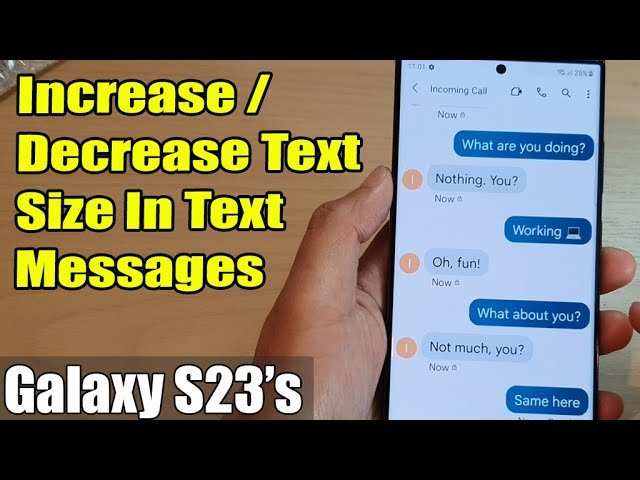

How to Make My Text Smaller on Android
Making text smaller on your Android device can significantly improve your experience, especially if you find the default text size too large or if you want to fit more information on your screen. Whether you want to customize your reading experience or make your device easier on your eyes, adjusting text size is a simple process. In this section, we’ll explore all the ways you can make your text smaller on Android, step by step, and highlight some helpful tips along the way.Understanding Why Text Size Matters on Android
Before we dive into the how-to, let’s understand why changing text size can be important. Different users have different needs, and sometimes default settings won’t suit everyone. For example, small text might be tricky for users with visual impairments, but if you prefer a more compact screen layout, reducing text size can help maximize your view. Adjusting text size can also improve how content appears in applications like browsers, messaging apps, and e-books. It ensures your screen isn’t cluttered, making it easier to focus on what you’re reading without unnecessary scrolling or zooming.How to Change Text Size on Android Devices
Adjusting text size on Android is straightforward and can be done in a couple of ways, depending on what exactly you want to change — system-wide text, app-specific text, or zoom settings.Using the Display Settings to Make Text Smaller
The easiest way to make your text smaller across your entire device is through the display settings. Here’s how you do it:- Open the Settings app on your Android device. This app usually looks like a gear icon.
- Scroll down to find and tap on “Display” or “Display & Brightness.”
- Look for the “Font size” or “Font size and style” option. Tap on it.
- You will see a slider that allows you to adjust the font size. Slide it to the left to make the text smaller.
- As you move the slider, you will see a preview of how the text will appear. Find the size that works best for you.
- Once satisfied, tap on the “Back” button or simply exit the settings. Your new text size will be applied immediately.
- If your device doesn’t have a “Font size” option, look for “Display size” or “Screen zoom.” Adjusting these can also change how text appears.
- Some Android devices may have different menu names, but the process is similar across most models from brands like Samsung, Google Pixel, or OnePlus.
Adjusting Display Size for Smaller Text
In addition to font size, you can modify the overall display size. This changes the size of everything on your screen, including icons, menus, and text:- Follow steps 1-2 from above to open Display settings.
- Tap on “Display size” or “Screen zoom.”
- Use the slider to make items smaller or larger. Moving it to the left makes everything, including text, smaller.
- Tap “OK” or just exit; the change happens instantly.
Using Accessibility Settings to Make Text Smaller
Android also includes accessibility options to customize text size beyond the default settings. These are helpful if you want precise control or if you experience certain visual difficulties.Changing Font Size via Accessibility
Follow these steps:- Open Settings and go to “Accessibility.”
- Tap on “Font size” or “Text and display.”
- Adjust the slider to decrease the font size. This option often provides a more granular control compared to general display settings.
- See the preview and set your preferred size. Exit once done.
Using Developer Options for Advanced Adjustments
For users who want more control, enabling Developer Options provides additional settings related to display and font sizes. However, this method is more advanced and usually not necessary for everyday adjustments.- Go to Settings > About phone.
- Tap “Build number” seven times to activate Developer Options.
- Return to Settings, then open “Developer options.”
- Scroll to find “Smallest width” or “Pointer location” – though, for font size, adjusting via standard settings is recommended.
Zooming In and Out in Specific Apps
Sometimes, you might only want smaller text in certain apps, like your web browser or e-books. Many apps allow you to zoom or change text size directly within the app.Adjusting Text Size in Browsers
Most Android browsers, like Chrome or Firefox, include zoom features:- Open your browser and go to the website you want to read.
- Tap the menu or settings icon (often three dots).
- Select “Zoom” or “Text scaling.”
- Reduce the zoom percentage or text scale to make the text smaller.
- Some browsers support a pinch gesture: place two fingers on the screen and pinch inward to zoom out.
Changing Font Size in Reading Apps
Many reading apps, like Kindle or Google Books, offer text size controls within their menu:- Open the app and open the book or document.
- Access the menu, usually via an icon with three dots or lines.
- Look for options like “Font size” or “Text size.”
- Decrease the size to your preference.
Managing Your Screen for Better Visibility
Changing text size is just one part of making your device easier to read. Combining font size adjustments with other screen settings can enhance your experience.Reducing Brightness and Enabling Night Mode
Lower brightness or activating night mode reduces glare and can make small text clearer. To do this:- Pull down the notification shade and locate the brightness slider.
- Drag it to a lower level or tap the “Night mode” or “Dark theme” option if available.
Using Screen Magnifiers or Readability Modes
Some Android devices include accessibility modes that enhance text readability, such as high contrast or magnification gestures. These are found in the Accessibility menu and can be enabled to help you see smaller text more clearly.Tips for Making the Most of Smaller Text on Android
– Always preview your changes before fully committing. Use the preview options available in settings. – Combine font size adjustments with screen brightness and contrast settings for optimal viewing comfort. – Remember that some app-specific settings override system-wide font size, so check individual app options if needed. – If you have trouble reading small text, consider using a magnifier app or enabling accessibility features like TalkBack for voice feedback. – Keep your device updated, as newer versions might offer improved customization options. Taking control of your display settings empowers you to customize your Android device to suit your needs. Whether you prefer very small text to see more content or just want to tweak the size slightly, these methods provide simple, clear steps to help you achieve the perfect viewing experience.Frequently Asked Questions
How can I change the text size in my Android messaging app?
Open the messaging app and go to its settings menu. Look for options like “Text size” or “Font size.” Adjust the slider or select a smaller size to make your text more compact and easier to read within your messages.
What steps should I follow to reduce text size across my Android device?
Navigate to your device’s Settings menu and select “Display.” Tap on “Font size” or “Screen zoom,” then slide the control to decrease the font size. Confirm your selection, and the text throughout your device will appear smaller.
Can I adjust text size specifically for certain apps on Android?
Yes, some Android devices allow you to customize font sizes per app. Access the device’s Accessibility settings, and under “Font size” or “Display size,” look for options to set different text sizes for individual apps or shortcuts. Alternatively, some apps have their own text size settings you can modify directly within the app.
Final Thoughts
To make my text smaller on Android, you can easily adjust the font size in your device settings. Navigate to Settings, then tap on Display, and select Font Size or Font Size and Style. Use the slider to decrease the size until it suits your preference. These steps allow quick customization for comfortable reading. Remember, changing font size helps improve readability and user experience on your device.
Similar Posts































