How To Make Nfc Payment On Android: Step-By-Step Guide
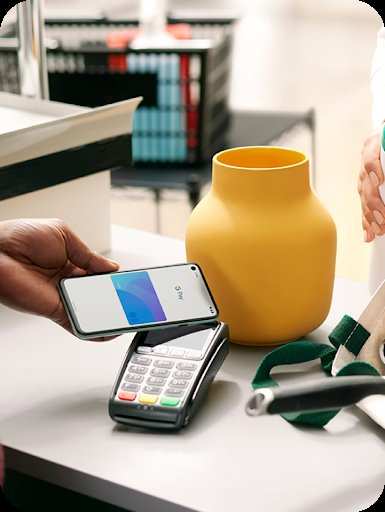

How to Make NFC Payment on Android
Making NFC payments on an Android device has become an easy and quick way to pay without carrying cash or cards. Whether you want to buy a coffee, pay for groceries, or settle a bill at a restaurant, NFC (Near Field Communication) allows you to do all of this with just a tap of your phone. In this guide, we’ll explore everything you need to know about making NFC payments on Android, from setting up your device to using different payment apps, ensuring you feel confident every time you pay with your phone.Understanding NFC and How It Works
Before diving into the steps, it’s helpful to understand what NFC is and how it makes contactless payments possible. NFC is a technology that allows two devices close to each other — typically within a few centimeters — to exchange data wirelessly. This technology powers contactless payments by enabling your Android device to communicate with payment terminals securely. **Key points about NFC:**- Works at short distances, usually less than 4 centimeters
- Uses electromagnetic radio fields to transmit data
- Designed with security features to protect your payment information
Checking If Your Android Device Supports NFC
Not all Android devices come with NFC capabilities, so the first step is to verify if your phone supports it. **How to check NFC support:**- Open your device’s **Settings** menu.
- Scroll down to **Connections** or **Wireless & Networks** (varies by device).
- Look for an option labeled **NFC**.
- If you see **NFC** listed, toggle it on. If not, your device may not support NFC, and you might consider upgrading or using an external NFC tag reader.
Enabling NFC and NFC Payment Features
Once you confirm that your device supports NFC, turn it on and set up your payment method. **Steps to enable NFC:**- Go to **Settings**.
- Select **Connections** or **Wireless & Networks**.
- Tap on **NFC** and enable it by toggling the switch.
Setting Up Google Pay or Other Payment Apps
Google Pay is the most popular app for NFC payments on Android, but other options exist, such as Samsung Pay or bank-specific apps. **How to set up Google Pay:**- Download **Google Pay** from the Google Play Store if it’s not pre-installed.
- Open the **Google Pay** app.
- Sign in with your Google account.
- Follow the prompts to add a payment method — this could be your credit or debit card, or linking your bank account.
- Verify your card through your bank or card issuer, which might involve entering a code sent via SMS or email.
- Ensure your card is marked as **eligible for contactless payments**.
Linking Your Debit or Credit Card to NFC Payment Apps
Adding your card is straightforward:- Open your payment app (Google Pay, Samsung Pay, etc.).
- Tap on **Add a Card** or **+** sign.
- Use your camera to scan your card details or manually enter information.
- Follow the verification steps to confirm ownership, which may include receiving a verification code via SMS or email.
- Once verified, your card is ready for NFC payments.
How to Make an NFC Payment with Your Android Phone
Now that everything is set up, you’re ready to make payments. **Step-by-step process:**- Unlock your Android device and wake the screen.
- Ensure NFC is turned on in your device settings.
- Open the payment app if required or make sure your default payment card is selected.
- Hold the back of your phone close to the payment terminal, usually where the NFC symbol is displayed.
- Wait for a confirmation sound, vibration, or a visual check on your screen indicating the payment was successful.
Common Issues and How to Troubleshoot
Even with proper setup, some problems can happen during NFC payments. Here are common issues and solutions: **Payment not going through:**- Ensure NFC is enabled on your device.
- Make sure your device has enough battery power.
- Check that your card isn’t expired or blocked.
- Verify that the payment terminal supports contactless payments.
- Try removing and re-adding your payment card in the app.
- Make sure your device is close enough to the terminal.
- Remove any screen protectors or cases that might block NFC signals.
- Restart your device and try again.
Best Practices for Safe and Effective NFC Payments
To ensure your contactless payments are both convenient and secure, keep these best practices in mind:- Use a screen lock — PIN, pattern, or fingerprint — to safeguard your device.
- Enable device tracking and remote wipe features in case of loss or theft.
- Update your payment apps and device software regularly.
- Be cautious when making payments in crowded places to prevent unwanted access.
- Review your transaction history periodically to catch any unauthorized activity.
Additional Tips for Using NFC Payment on Android
– **Switching between payment methods:** If you store multiple cards, open your payment app to select a different card before making a payment. – **Using NFC for transit:** Many transit systems support contactless payments. Simply hold your phone near the fare reader. – **Managing your payment options:** Access your app settings to update, add, or remove stored cards as needed. By following these detailed steps and tips, you can comfortably use your Android device for quick, secure NFC payments whenever you need to pay without cash or physical cards. Remember, NFC technology is designed to be simple and safe, making your everyday transactions faster and more convenient.Frequently Asked Questions
What steps should I follow to activate NFC on my Android device for payments?
To activate NFC, go to your device’s Settings menu. Tap on “Connected devices” or “Connections,” then select “NFC” or “Near Field Communication.” Toggle the switch to turn NFC on. Ensure that your device is close to the payment terminal and that the NFC feature remains enabled during the transaction.
How can I set up my payment app to use NFC for transactions?
Download and install a compatible payment app, like Google Pay, from the Play Store. Open the app and follow the on-screen instructions to add your credit or debit card details. During the setup, make sure NFC is enabled on your device. Once everything is set, the app will be ready to process payments via NFC.
What should I do if my Android device doesn’t recognize NFC when attempting a payment?
First, verify that NFC is activated in your device’s settings. Make sure your payment app is properly set up and that your card details are correctly entered. Keep your device close to the payment terminal, as NFC requires proximity. If issues persist, restart your device and test with a different payment terminal or update your device’s software and app to the latest versions.
Are there any security precautions I should take before making NFC payments?
Always keep your device’s screen locked when not in use to prevent unauthorized access. Use biometric authentication or a PIN within your payment app for added security. Avoid making payments in crowded or untrusted environments to reduce risks. Regularly update your device and payment apps to ensure you have the latest security features.
Can I make NFC payments with multiple bank cards on one device?
Yes, most payment apps allow you to add several bank cards and choose which one to use for each transaction. Within your payment app, navigate to the card management section and add or select the desired card before making a payment. This flexibility helps you switch between different accounts effortlessly during transactions.
Final Thoughts
To make nfc payment on android, ensure your device has NFC enabled in settings. Open your preferred mobile payment app and add your credit or debit card details. When ready, unlock your phone and hold it near the payment terminal. Wait for the confirmation signal, and your transaction completes quickly. Following these steps ensures a smooth and secure NFC payment process.
Similar Posts































