How To Know Which Version Airpods You Have For Accurate?
To quickly identify which AirPods version you own, check the model number on your device or in your device’s Bluetooth settings. You can also look at their design features, charging case, or the firmware version to find clues. Knowing the exact model helps you troubleshoot, update, or maximize your AirPods’ features.
If you want to discover which AirPods version you have, the easiest way is to look at the model number printed on the AirPods or their case. You can also find this info in your phone’s Bluetooth settings or AirPods case lid. Recognizing the right version ensures you get the most out of your earbuds, whether it’s for compatibility, features, or troubleshooting. AirPods have evolved considerably over time, so distinguishing between models like AirPods 1st Gen, 2nd Gen, AirPods Pro, or AirPods Max can be crucial for optimal use. This guide will walk you through simple and quick ways to identify your specific AirPods model, saving you time and confusion.

How to Know Which Version AirPods You Have
Knowing the exact version of your AirPods can help you troubleshoot issues, find compatible accessories, or understand new features. Identifying your AirPods version doesn’t have to be complicated; there are simple ways to do it quickly.
Check the Model Number on Your AirPods
The most straightforward way to identify your AirPods version is by looking at the model number engraved on the case or inside the lid. Each version has a unique model number that corresponds to specific features and release dates.
Finding the Model Number on the Charging Case
Open your AirPods case and look at the underside of the lid. You will see small text with the model number starting with ‘A’. This number can be cross-referenced with official Apple data.
Checking the Model Number on Your iPhone
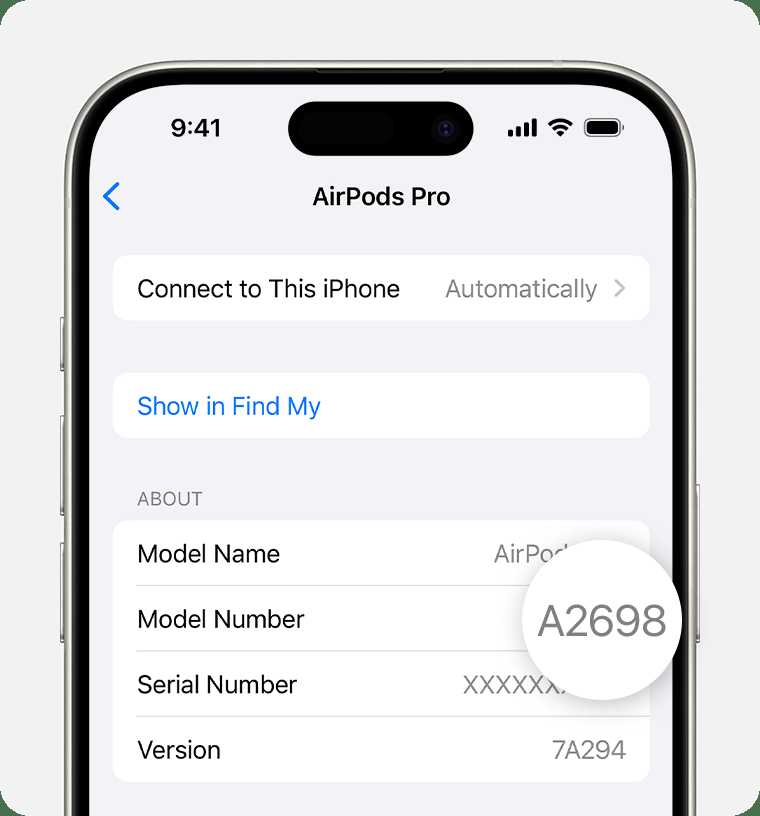
If your AirPods are connected to your iPhone, go to Settings, select Bluetooth, find your AirPods in the list, and tap the info icon. You will see the model number listed there, making identification easy without opening the case.
Compare Model Numbers with Official Apple Data
Apple maintains a list of model numbers linked to each AirPods version. Cross-check these numbers to determine your device’s generation and features.
- AirPods 1st Generation: Model numbers start with ‘A1523’ or ‘A1722’.
- AirPods 2nd Generation: Model numbers include ‘A2032’ and ‘A2031’.
- AirPods Pro: Model numbers are ‘A2084’ and ‘A2083’ for original, and later versions like ‘A2190’ for newer models.
- AirPods 3rd Generation: Model numbers are ‘A2565’ and ‘A2564’.
- AirPods Pro (2nd Generation): Model number is ‘A3048’.
Identify AirPods Version Through Design and Features
Different AirPods models have distinctive features and designs. Recognizing these can help you distinguish between versions without checking the model number.
Design Differences
Check the shape and size of your AirPods and their charging case. For example, AirPods 1st and 2nd generations look similar but differ slightly in size and weight.
Ear Tips and Fit
AirPods Pro and newer versions come with interchangeable ear tips, which are absent in earlier models. The shape of the earbuds also varies, with newer models featuring a more ergonomic design.
Button and Sensor Placement
Older models have physical buttons on the case, whereas newer ones feature touch-sensitive controls or force sensors, providing a different user interface.
Check Firmware Version for Precise Identification
Firmware updates are specific to AirPods models and can reveal your device’s generation. To find the firmware version:
- Connect your AirPods to your iPhone.
- Go to Settings and tap Bluetooth.
- Find your AirPods and tap the info icon.
- Look for the firmware version listed at the bottom.
Compare this number with Apple’s firmware update charts to pinpoint your AirPods version.
Use Apple’s Support Resources
Apple provides detailed guides and online tools to help identify your AirPods by model number or physical features. Visiting the official support website can streamline this process.
Accessing the Support Website
You can enter your model number or serial number into Apple’s check coverage page or search for your specific AirPods model to get detailed specs and release information.
Additional Tips for Accurate Identification
Always ensure your device is up to date when checking firmware. Use a flashlight to see engraved numbers clearly. Take a picture of your case or earbuds for easier comparison with images online.
Consider the Release Date
Knowing the approximate release date of your AirPods can help narrow down the model. For example, AirPods 3rd generation launched in late 2021, so devices released after that are likely newer models.
Compare with Online Images and Specs
Visit Apple’s official website or trusted tech review sites to compare images and specifications. Visual comparison often helps in identifying subtle design differences.
Summary Table for Quick Reference
| Model | Release Year | Key Features | Model Numbers |
|---|---|---|---|
| AirPods 1st Generation | 2016 | Standard wireless earbuds, no noise cancellation | A1523, A1722 |
| AirPods 2nd Generation | 2019 | H1 chip, hands-free ‘Hey Siri’, wireless charging case available | A2032, A2031 |
| AirPods Pro | 2019 | Active noise cancellation, customizable fit with ear tips | A2084, A2083 |
| AirPods 3rd Generation | 2021 | Spatial audio, shorter stems, MagSafe charging | A2564, A2565 |
| AirPods Pro 2nd Generation | 2022 | Improved noise cancellation, longer battery life, new H2 chip | A3048 |
Identifying your AirPods version is easy once you know where to look and what to compare. Using model numbers, physical features, firmware, and official resources, you can determine your device’s exact type quickly. Clear knowledge of your AirPods helps maximize their use and compatibility with your devices.
How To Check What AirPods You Have
Frequently Asked Questions
What physical features can help identify which AirPods version I have?
Inspect your AirPods carefully for design details. For example, AirPods Pro have silicone ear tips and a shorter stem, whereas AirPods 2 and 3 have a more elongated stem without silicone tips. The charging case size and shape can also provide clues; AirPods Pro case is more compact compared to the larger case of AirPods 2 and 3. Noticing these physical differences can help you determine your model quickly.
How can I check the model number on my AirPods to identify the version?
Find the model number printed on the inside of the AirPods case lid or on the stem of each AirPod. Once you locate the model number, visit Apple’s official support page or search online to match it with the specific AirPods version. This method provides an accurate way to confirm your model regardless of external similarities.
Can software settings reveal which AirPods version I am using?
Yes, connecting your AirPods to your iPhone and navigating to the Bluetooth settings can help. Tap the ‘i’ icon next to your AirPods name; certain options may vary depending on the model, and sometimes firmware details can hint at the version. However, verifying the model number remains the most reliable method.
What are the differences in features that indicate which AirPods version I have?
Compare features like active noise cancellation, spatial audio, or water resistance. For instance, AirPods Pro support noise cancellation and have silicone tips, while AirPods 2 and 3 do not. These features help identify your AirPods model based on the capabilities they offer.
Is there a quick way to differentiate between AirPods 1st, 2nd, and 3rd generation?
Yes. AirPods 3rd generation have a more contoured shape and shorter stems compared to 1st and 2nd generations. They also support spatial audio. AirPods 2nd generation lack some advanced features like ‘Hey Siri’ and have a different design. Recognizing these differences helps distinguish among the three models efficiently.
Final Thoughts
Knowing which version of AirPods you have helps you understand their features and compatibility. Check the model number on the charging case or earbuds. Refer to Apple’s official website or your device’s settings for precise information.
How to know which version AirPods you have is straightforward with these simple steps. Confirming your model ensures you enjoy the right features and updates.

Similar Posts