How To Get Tips On Using Icloud More Efficiently For Better?


How to get tips on using iCloud more efficiently
Understanding iCloud’s Core Features
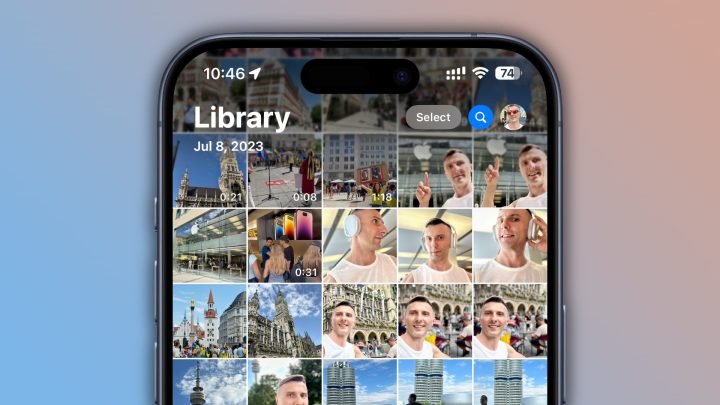
Getting the most out of iCloud starts with understanding its main functions. iCloud helps you store photos, documents, backups, and settings in one place. Knowing what features are available allows you to focus on the tools that will save you time and keep your data safe. Photos and Videos are automatically uploaded and stored, making them accessible on all your devices. Contacts, Calendars, and Reminders sync seamlessly across devices, so you never miss an update. Device Backups save your settings and app data, simplifying device setup.How to Access Tips for Using iCloud Effectively
The first step is to explore official resources. Apple provides comprehensive guides and tutorials on their website. You can also access the Tips app on your iPhone or iPad for quick advice. Additionally, online communities, forums, and technology blogs regularly share helpful iCloud tips. Subscribing to newsletters or following Apple-related social media accounts can keep you updated on new features and best practices.Utilizing Apple Support and Community Forums
Apple’s support pages have detailed articles on maximizing iCloud. They include step-by-step instructions for common tasks and troubleshooting. These resources are valuable for quick solutions and new tips. Community forums like Apple Discussions or Reddit offer real-user advice. Here, you can ask questions and learn from others’ experiences. Often, members share tips not found in official guides, such as hidden features or shortcuts.Optimizing iCloud Storage Usage
One common challenge is managing storage space effectively. Regularly reviewing what app data and backups are stored can prevent running out of space. To do this, go to Settings > [your name] > iCloud > Manage Storage, and identify large files or unnecessary backups. Consider enabling Optimize iPhone Storage for photos. This feature keeps smaller versions on your device while full-resolution images are stored in iCloud. Also, delete old backups and unused app data to free up space.Choosing the Right iCloud Storage Plan
Depending on your storage needs, choosing a suitable plan is key. Apple offers plans ranging from 50GB to 2TB. If you primarily store photos and backups, a larger plan may be worth the investment. Compare your current usage with available plans. Upgrading is simple through Settings > [your name] > iCloud > Manage Storage. Occasionally reviewing and adjusting your plan can prevent costly overage fees.Enhancing Data Security and Privacy in iCloud
Keeping your data secure is crucial when using cloud services. Enable two-factor authentication for your Apple ID. This adds an extra layer of security by requiring a code from a trusted device when signing in. Regularly review your account’s security settings and update your password. Using strong, unique passwords minimizes the risk of unauthorized access. Consider activating Find My iPhone to locate missing devices and remotely erase data if needed.Managing Your iCloud Account Privacy Settings
Check your privacy options under Settings > [your name] > Privacy & Security. Limit apps’ access to your data and disable unnecessary sharing options. You can selectively control what gets stored or shared with iCloud. Review third-party app permissions periodically. Restrict or revoke access if you notice unfamiliar apps or activities, ensuring only trusted apps have access to your cloud data.Automating Tasks to Save Time with iCloud
Automation helps reduce manual effort. Use built-in features like Automatic iCloud Backup, which can be scheduled to run overnight. This way, your data stays updated with minimal effort. Create custom workflows with apps like Shortcuts to automate repetitive tasks. For example, set up a shortcut to automatically upload new photos to a specific album or to back up specific folders regularly.Syncing Data Across Devices
Ensure that iCloud syncing is enabled for all essential apps. Go to Settings > [your name] > iCloud and toggle on options like Photos, Contacts, Calendars, and Files. Regularly check syncing status to make sure all devices are up to date. This prevents data discrepancies and keeps your information consistent everywhere.Using Third-Party Tools and Apps
Many third-party apps can enhance your iCloud experience. Data management tools help you analyze and clean your storage, such as showing large files or duplicate photos. Some backup apps offer more flexible options than iCloud alone. Research reputable options and verify their security features before integrating them with your iCloud account.Best Apps to Optimize iCloud Use
Popular apps include Cleaner Pro for storage cleanup, Rewind Backup for automated backups, and MagiCapture for managing iCloud Photo Library more efficiently. These tools often offer tutorials to guide your use. Be cautious when choosing apps. Always check reviews and privacy policies to ensure data security, especially since these apps handle sensitive information stored in your iCloud account.Keeping Up-to-Date with iCloud Features and Updates
Apple regularly releases updates that add new features or improve existing ones. Keep your devices updated to access the latest iCloud capabilities. Subscribe to Apple news and follow updates from technology blogs. Participating in webinars or online courses can also help you stay informed about new tips and best ways to use iCloud.Taking Advantage of Beta Programs and New Releases
Join Apple’s beta programs to test upcoming iCloud features early. This allows you to learn new tips and provide feedback that can shape future updates. Always back up your device before installing beta versions, as they may contain bugs. Use beta software on secondary devices to avoid disrupting your main setup.Personalizing Your iCloud Experience
Customize your settings for an experience tailored to your needs. Change your iCloud photo sharing preferences, notification settings, and file sharing options to suit your workflow. Use iCloud Drive for seamless document collaboration. You can create shared folders for family, friends, or colleagues, making teamwork easier.Creating Custom iCloud Albums and Shared Spaces
Organize photos and videos into custom albums for easier browsing. Share these albums with friends or family using iCloud Shared Albums. This feature allows real-time updates and comments, making it perfect for event planning or collaborative projects without needing third-party apps. Gaining tips on using iCloud more efficiently involves a blend of understanding its core features, managing storage wisely, and staying updated with new tools and options. Regularly exploring Apple resources and third-party apps can also improve your experience. By applying these strategies, you can make your iCloud usage more streamlined, secure, and customized to your needs, saving time and reducing frustration.iCloud EXPLAINED! Here's what you need to know!
Frequently Asked Questions
What are some shortcuts for managing iCloud storage more effectively?
Using keyboard shortcuts can save time when managing your iCloud storage. For example, pressing Command + I in Finder opens the information window for selected files, allowing you to check their size and manage storage settings quickly. Additionally, setting up automation through macOS Shortcuts can help you organize backups and delete unnecessary files without manual effort. Regularly reviewing your storage usage in the Settings app helps identify large files and apps that consume most space, enabling you to make informed decisions about what to delete or optimize.
How can I automate backups to make iCloud storage management easier?
Configure automatic backups for your devices within the Settings app by selecting your device and enabling iCloud Backup. For computers, set up scheduled backups using Time Machine with iCloud Drive integration. You can also use third-party apps to automate photo uploads or document synchronization, reducing manual steps. Regularly reviewing backup contents ensures only essential data is stored, preventing unnecessary consumption of your iCloud storage space.
Are there specific settings I should tweak to optimize photo and file storage in iCloud?
Yes, adjusting your photo and file settings can free up significant storage. Enable ‘Optimize iPhone Storage’ in the Photos app to store full-resolution images on your device while keeping optimized versions on iCloud. For files, utilize the ‘Selective Sync’ feature or move seldom-used documents to an external drive or other cloud services. Regularly deleting duplicates and unnecessary files from iCloud Drive also helps maintain a manageable storage level.
What tips can help me organize my iCloud Drive more efficiently?
Create a clear folder structure by categorizing documents into folders based on type or project. Use consistent naming conventions to find files quickly. Take advantage of tags or labels to mark important or urgent files. Periodically review your iCloud Drive contents and delete outdated or duplicate files. Additionally, utilizing the search feature effectively can help locate specific documents faster, especially when your folders contain numerous files.
How can I monitor my iCloud activity to prevent unexpected storage issues?
Regularly check your iCloud usage through the Settings app on your devices or via iCloud.com. Keeping an eye on the storage graph helps identify when you approach your limit. Review the ‘Manage Storage’ section to see which apps or data types consume the most space. Setting alerts or reminders to review storage periodically supports proactive management, helping you avoid sudden restrictions or additional charges.
Final Thoughts
To get tips on using iCloud more efficiently, start by exploring Apple’s official support resources and tutorials. Join online forums or communities where users share practical shortcuts and tricks. Practice regularly to become familiar with features like optimizing storage and setting up backups. By actively seeking out these tips, you improve your overall experience with iCloud.
Similar Posts