How To Fix Macbook Pro Not Turning On Or Charging Quickly
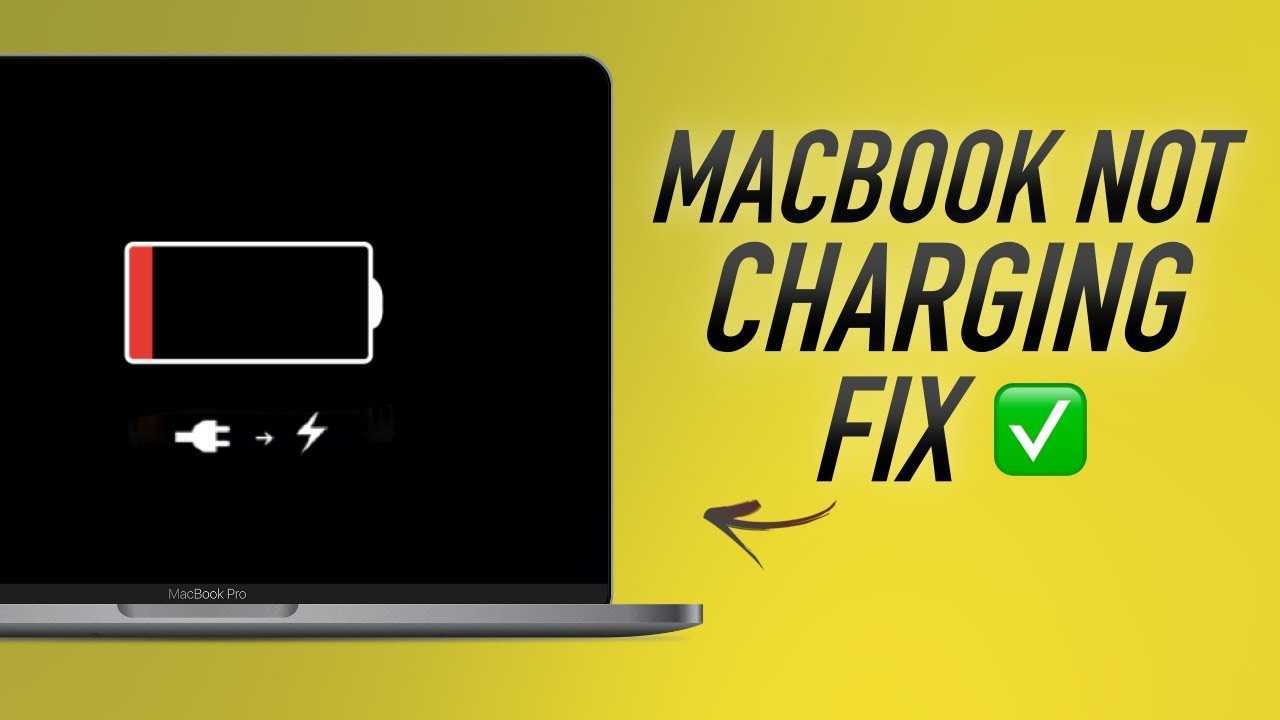
If your MacBook Pro refuses to turn on or isn’t charging, don’t panic—there are simple steps you can try before seeking professional help. First, check the power source, reset the SMC, and perform a force restart. If these don’t work, inspecting the charging cable and port or visiting an Apple store might be necessary.
To fix a MacBook Pro that won’t turn on or charge, start with basic troubleshooting like checking your power connection and resetting system management. If problems persist, examine hardware issues or seek professional repair. These quick tips can often revive your device without much hassle.
When your MacBook Pro suddenly stops responding or refuses to charge, it can be incredibly frustrating—especially if you rely on it daily. Usually, these issues stem from minor software glitches, power supply problems, or hardware hiccups. The good news is, many of these problems are easy to diagnose and fix at home with some simple steps. This guide will walk you through effective solutions to get your MacBook Pro back to life quickly, so you can return to work or play without stress.

How to Fix MacBook Pro Not Turning On or Charging
Understanding the Common Causes
If your MacBook Pro isn’t turning on or charging, several issues might be at play. It could be a simple power connection problem or a more complex hardware malfunction. Identifying the root cause is the first step toward fixing the issue and getting your device back to normal.
Checking the Power Connection
Start by inspecting your power adapter and cable. Ensure the cable is securely plugged into your MacBook Pro and power outlet. Look for any visible damage on the cable or connector. Sometimes, a loose or damaged connection prevents your MacBook from charging properly.
Verify the Power Outlet
Test the outlet with another device to make sure it supplies power. If the outlet isn’t working, try plugging your charger into a different socket. Using a different outlet can sometimes fix charging issues caused by electrical problems.
Inspect the Charging Cable and Adapter
Examine the entire length of your charging cable for cuts, frays, or bends. Check the adapter for any signs of damage or overheating. If you notice damage, replacing the cable or adapter is essential to charge your MacBook properly.
Resetting the SMC (System Management Controller)
The SMC controls power functions on Intel-based Macs. Resetting it can resolve issues related to charging and power. The process varies depending on your MacBook Pro model.
Resetting SMC on MacBook Pro with T2 Chip (2018 and later)
- Shut down your MacBook Pro.
- Press and hold the power button for 10 seconds.
- Release the button and wait a few seconds.
- Press the power button again to turn on your MacBook.
Resetting SMC on Older MacBook Pro Models
- Shut down your MacBook Pro.
- Press and hold the Shift, Control, and Option keys on the left side of the keyboard simultaneously.
- While holding these keys, press and hold the power button.
- Hold all keys for 10 seconds, then release them.
- Press the power button to turn on your MacBook.
Performing a NVRAM/PRAM Reset
Resetting the NVRAM or PRAM can fix issues related to startup. This process resets certain system settings stored in memory.
Steps to Reset NVRAM/PRAM
- Turn off your MacBook Pro.
- Press the power button, then immediately press and hold Option, Command, P, and R keys together.
- Keep holding these keys for about 20 seconds. Your Mac may restart during this process.
- Release the keys and allow your Mac to boot normally.
Checking for Physical Damage or Hardware Failures
Physical damage like drops or spills can cause internal hardware issues. Open your MacBook carefully to look for loose connections or visible damage. If you’re unsure, consult a professional technician.
Inspect RAM and Internal Components
In some models, you can reseat the RAM sticks. Loose RAM modules may prevent your MacBook from booting. Follow the manufacturer’s guidelines carefully if attempting this step.
Replace or Repair Damaged Components
If you find damaged parts such as the battery, logic board, or display, visiting an authorized service provider is the best course. Repairing or replacing faulty hardware can restore power and charging functionalities.
Trying a Safe Boot and Recovery Mode
Booting your Mac in safe mode can help diagnose software conflicts that prevent startup.
Start in Safe Mode
- Press the power button and immediately hold the Shift key.
- Release the Shift key when you see the login window.
- Log in and see if the Mac boots successfully.
Using macOS Recovery Mode
- Turn off your MacBook Pro.
- Press and hold Command and R, then press the power button.
- Keep holding Command and R until the Apple logo appears.
- In recovery mode, run Disk Utility to check your drive or reinstall macOS if necessary.
Updating Your MacBook Pro’s Firmware and Software
Outdated software can cause power issues. Check for available updates once your Mac can turn on. Installing the latest firmware can fix bugs related to charging and power management.
How to Check for Updates
- Go to the Apple menu, then select System Preferences.
- Click on Software Update.
- If updates are available, follow the prompts to install them.
Seeking Professional Assistance
If you’ve tried all troubleshooting steps and your MacBook Pro still won’t turn on or charge, professional help is needed. Authorized service providers can diagnose hardware faults and offer repairs.
When to Contact Apple Support
– If your device is under warranty or AppleCare.
– If the Mac shows signs of physical damage or liquid exposure.
– If troubleshooting steps haven’t resolved the issue after several attempts.
Preparing for a Service Visit
– Back up any important data if possible.
– Note down any unusual behaviors or error messages.
– Bring your device and proof of purchase to the appointment.
Preventive Tips to Avoid Future Power Issues
Regular maintenance prolongs your MacBook Pro’s lifespan and reduces the risk of power-related problems.
General Care Tips
- Avoid exposing your MacBook to extreme temperatures.
- Use the original charging accessories for best results.
- Keep your device clean, especially charging ports.
- Update your software regularly to include the latest fixes.
Battery Maintenance
– Avoid letting the battery completely drain frequently.
– Charge the battery periodically even if not in use.
– Store your MacBook in a cool, dry place when not in use for extended periods.
Incorporating these steps and tips can help resolve common issues when your MacBook Pro refuses to turn on or charge. Patience and careful troubleshooting often lead to a quick fix, but remember that professional help is available for more severe cases. Proper maintenance and cautious handling will extend the life of your device and keep it functioning smoothly.
MacBook won’t Turn on problem Fixed
Frequently Asked Questions
What steps can I take to troubleshoot if my MacBook Pro isn’t responding at all?
If your MacBook Pro shows no signs of power, connect it to a power adapter and verify that the outlet works. Then, perform a force restart by holding down the power button for at least 10 seconds. If it still doesn’t turn on, check the charging cable and port for damage or debris. Reset the System Management Controller (SMC) following Apple’s instructions for your model, as this often resolves power issues.
How can I identify if the issue is with the battery or the charging port?
To determine if the battery or charging port causes the problem, try connecting your MacBook Pro to a different known-good power adapter and cable. Observe if the charging indicator light turns on or if it starts charging. If possible, check if the battery status shows any errors in macOS or if the MacBook responds to an external display. If the device still doesn’t power on, it’s likely an internal hardware issue, and visiting a service center may be necessary.
What should I do if my MacBook Pro turns on but immediately shuts down?
This behavior often points to hardware or software problems. Start by resetting the NVRAM/PRAM and SMC, which can resolve boot-related issues. Check for any macOS updates or corrupted system files that could cause instability. If the problem persists, run Apple Diagnostics to identify hardware faults. In some cases, you might need to reinstall macOS or seek professional repair services.
Is there a way to verify if the display is causing the MacBook Pro not to show anything?
Yes, connect your MacBook Pro to an external display using an appropriate cable. If the external monitor shows your desktop, the issue might be with the built-in display or its connection. If there’s still no output, it could indicate a logic board or graphics hardware problem. Checking for signs like backlit keyboard or blinking sleep indicator can also help identify if the Mac is powering on but having display issues.
How can I ensure that my MacBook Pro’s charging port is clean and free of damage?
Carefully inspect the charging port for dirt, dust, or debris. Use a soft brush or compressed air to gently clean the port, avoiding any metal objects that could cause damage. Check the port for bent or broken pins and ensure that the cable fits securely. If you notice physical damage, replacing the port or seeking professional repair becomes necessary to restore proper charging functionality.
Final Thoughts
To fix macbook pro not turning on or charging, start by checking the power connection and trying a different outlet or charger. Reset the SMC and PRAM to resolve hardware glitches. If these steps don’t work, inspect the battery status or seek professional assistance. Addressing these issues can restore your MacBook’s functionality quickly. Remember, troubleshooting is often simple and effective. Following these guidelines will help you resolve the problem efficiently and get your MacBook back in working condition.

Similar Posts































