How To Fix Iphone Not Charging Properly Effectively
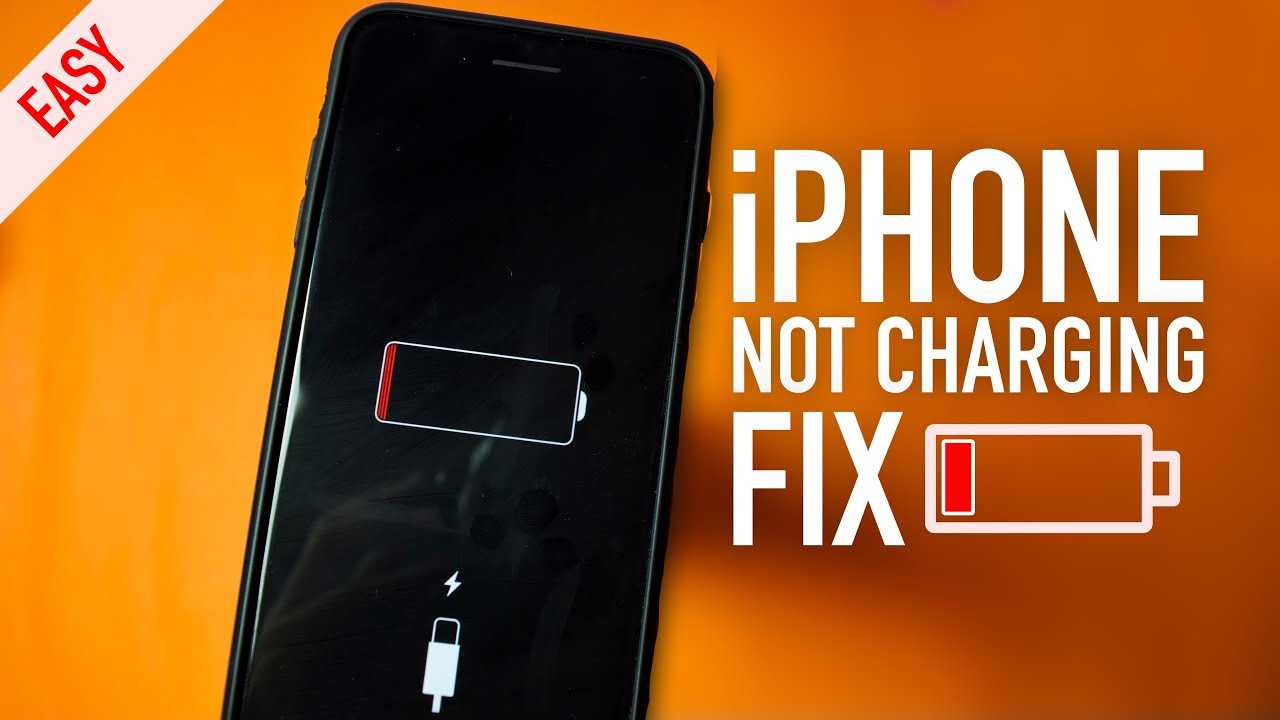

How to fix iPhone not charging properly
Check Your Charging Cable and Power Source
The first step if your iPhone isn’t charging properly is to examine your charging cable and power source. Often, the problem is as simple as a faulty cable or an outlet that isn’t working. Try plugging your charger into a different wall socket and see if your iPhone starts charging. Additionally, inspect your cable for any visible damage like frays, bends, or exposed wires.Test with a Different Charger and Cable
Using a different charger and cable can help determine if your original accessories are the cause. Borrow a compatible charger from a friend or family member and connect it to your iPhone. If your phone charges normally with another set, then your original charger might be broken or damaged.Check the Power Outlet
Sometimes, the issue isn’t with your device or accessories but with the power source itself. Ensure the outlet is working by plugging in another device, such as a lamp. If it’s not working, try a different outlet or reset your circuit breaker.Inspect the Charging Port for Debris and Damage
Your iPhone’s charging port can collect dirt, lint, and dust over time, which can block the connection. Carefully examine the port using a flashlight to look for any debris. If you see anything inside, gently remove it using a toothpick or a small, soft brush.How to Clean Your Charging Port Safely
Use a soft-bristled brush, a toothpick, or a small burst of compressed air to clear out debris without damaging the port. Avoid using metal objects or excessive force, as this can harm the internal components.Check for Physical Damage
If the port appears bent, cracked, or damaged, it may need professional repair. Physical damage can prevent proper connection and charging, requiring a visit to an authorized service provider.Update iOS and Restart Your Device
Software glitches can sometimes cause charging issues. Make sure your iPhone is running the latest iOS version. To check for updates, go to Settings, tap General, then Software Update.Perform a Soft Reset
Restart your iPhone to clear temporary glitches. For most models, press and hold the power button and volume down button until the Apple logo appears. This simple step can resolve minor software-related charging problems.Check Battery Health and Usage
A battery that has deteriorated significantly may cause charging issues. You can check your iPhone’s battery health within Settings. If the battery health is below 80%, it might be time to replace the battery.How to Assess Your Battery’s Condition
Navigate to Settings, tap Battery, then Battery Health & Charging. Here, you’ll see the maximum capacity percentage and whether your battery needs replacement. A lower percentage indicates diminished battery performance.Reduce Battery Drain
Limit background app activity, turn off unnecessary features like Bluetooth or Wi-Fi when not needed, and reduce screen brightness to extend battery life. This can also improve charging efficiency.Reset Settings and Restore Your iPhone
If you suspect a software hiccup, resetting your settings might help. Go to Settings, then General, tap Reset, and select Reset All Settings. This won’t erase your data but will reset system preferences.Restore via iTunes or Finder
As a last resort, connect your iPhone to a computer and perform a factory reset. This can eliminate persistent software problems impacting charging. Remember to back up your data before restoring.Seek Professional Repair for Hardware Issues
If all else fails, hardware problems could be the cause. Damaged charging ports, battery issues, or internal circuitry faults might need professional diagnosis and repair. Visit an authorized service center or Apple Store for assistance.Consider Battery or Port Replacement
Replacing the battery or charging port can resolve persistent charging issues. Certified technicians have the tools to safely perform these repairs and restore your device’s charging capability.Related Topics
- How long does an iPhone battery last?
- Signs you need a new iPhone battery
- How to extend battery life
- Differences between fast charging and regular charging
- Understanding iPhone charging indicators
iPhone Not Charging? How To Fix It! [2023]
Frequently Asked Questions
What steps can I take if my iPhone isn’t charging at all?
If your iPhone isn’t charging, first check the charging cable and adapter for damage. Make sure you connect the cable securely to both your device and the power source. Try using a different wall outlet or charging cable to rule out issues with the accessories. Also, clean the charging port gently to remove any dust or debris that might block the connection. If these steps don’t work, restart your iPhone or try charging in a different environment to rule out environmental factors.
How do I identify if a faulty charging port is causing charging problems?
Inspect your iPhone’s charging port for dirt, lint, or signs of damage. Use a flashlight to look inside and see if anything is obstructing the connection. Gently clean the port with a toothpick or a soft brush to remove debris; avoid using metal objects that could damage it. If cleaning doesn’t improve charging, consider visiting a professional technician for a detailed check or potential repair, as a damaged port often requires expert attention.
Can software issues affect my iPhone’s ability to charge properly?
Yes, software glitches can interfere with charging. Ensure your iPhone’s software is up to date by navigating to Settings > General > Software Update. Sometimes, restarting your device can resolve temporary bugs that prevent proper charging. If issues persist, perform a factory reset after backing up your data, or try resetting settings to eliminate software conflicts. These steps can help your device recognize the charger correctly.
What should I do if my iPhone heats up while charging?
When your iPhone heats up during charging, disconnect it from the power source immediately. Avoid charging in hot environments or direct sunlight. Check the charging cable and adapter for any damage and replace them if necessary. Using a genuine Apple charger can also prevent overheating. Allow your device to cool down before attempting to charge again, and if overheating continues, seek professional assistance to ensure there’s no underlying hardware issue.
Final Thoughts
To fix iPhone not charging properly, start by checking your charging cable and adapter for damage. Clean the charging port carefully to remove dust and debris that may block the connection. If these steps don’t work, try restarting your phone or resetting settings. If problems persist, consider updating your iOS or visiting an Apple Store for professional help. Addressing these common issues can restore your iPhone’s charging function efficiently. In summary, knowing how to fix iPhone not charging properly helps ensure your device stays functional and reliable.
Similar Posts































