How To Cast Ipad On Tv Best Methods And Tips
To cast your iPad onto your TV effortlessly, simply use Apple’s AirPlay feature with an Apple TV or compatible smart TV. Alternatively, you can connect via an HDMI adapter for a wired connection or use third-party apps if needed. These methods make sharing your iPad’s content quick and easy.
Casting your iPad onto a TV has become a common way to enhance your viewing experience, whether you’re watching movies, giving a presentation, or sharing photos. With multiple options available, like wireless streaming through AirPlay or wired connections via HDMI, it’s easier than ever to enjoy content on a bigger screen. No matter which method you choose, the process is straightforward and designed to be user-friendly so you can get started right away. In this guide, we’ll walk through the simplest steps to cast your iPad to your TV, ensuring you can make the most of your device’s display in no time.

How to Cast iPad on TV: A Complete Guide
Casting your iPad screen to your TV can be a big help when you want to watch videos, show photos, or give a presentation. There are different ways to do this, depending on the type of TV and devices you own. This guide will walk you through all the options so you can choose the best method for your setup.
Understanding the Different Casting Options
Before jumping into steps, it’s helpful to know the main ways you can connect your iPad to your TV. There are wired options, wireless solutions, and device-specific methods. Each has its own benefits and requirements.
Wired Connections
Using a cable is straightforward and provides a reliable connection. You’ll typically use an Apple Digital AV Adapter and an HDMI cable. This method is ideal for high-quality video and audio transmission.
Wireless Connections
Wireless casting is popular because it doesn’t require cables. Techniques include Apple’s AirPlay, third-party apps, or screen mirroring through smart TV apps. Wireless options are convenient but may depend on Wi-Fi stability.
Device Compatibility
Not all TVs support casting directly from an iPad. Smart TVs with built-in AirPlay 2 are the easiest to use. Older TVs may need additional devices like Apple TV or Chromecast for casting. Knowing your device type helps determine the best method.
How to Cast iPad to TV Using an HDMI Cable
This method provides a dependable connection with minimal latency. You will need a few simple items to get started.
Required Equipment
- Apple Digital AV Adapter
- HDMI Cable
- TV with HDMI Input
Steps to Connect
- Connect the Apple Digital AV Adapter to your iPad’s charging port.
- Plug one end of the HDMI cable into the adapter.
- Insert the other end into the HDMI port on your TV.
- Switch your TV to the correct HDMI input using the remote control.
- Your iPad screen should automatically appear on the TV. If not, check the connections.
How to Cast iPad on TV Using AirPlay
AirPlay offers a wireless way to mirror your iPad screen to compatible devices. It’s simple and seamless with supported hardware.
Requirements for AirPlay
- Apple TV or a smart TV that supports AirPlay 2
- Both devices connected to the same Wi-Fi network
Step-by-Step Guide
- Ensure your TV or Apple TV is turned on and connected to Wi-Fi.
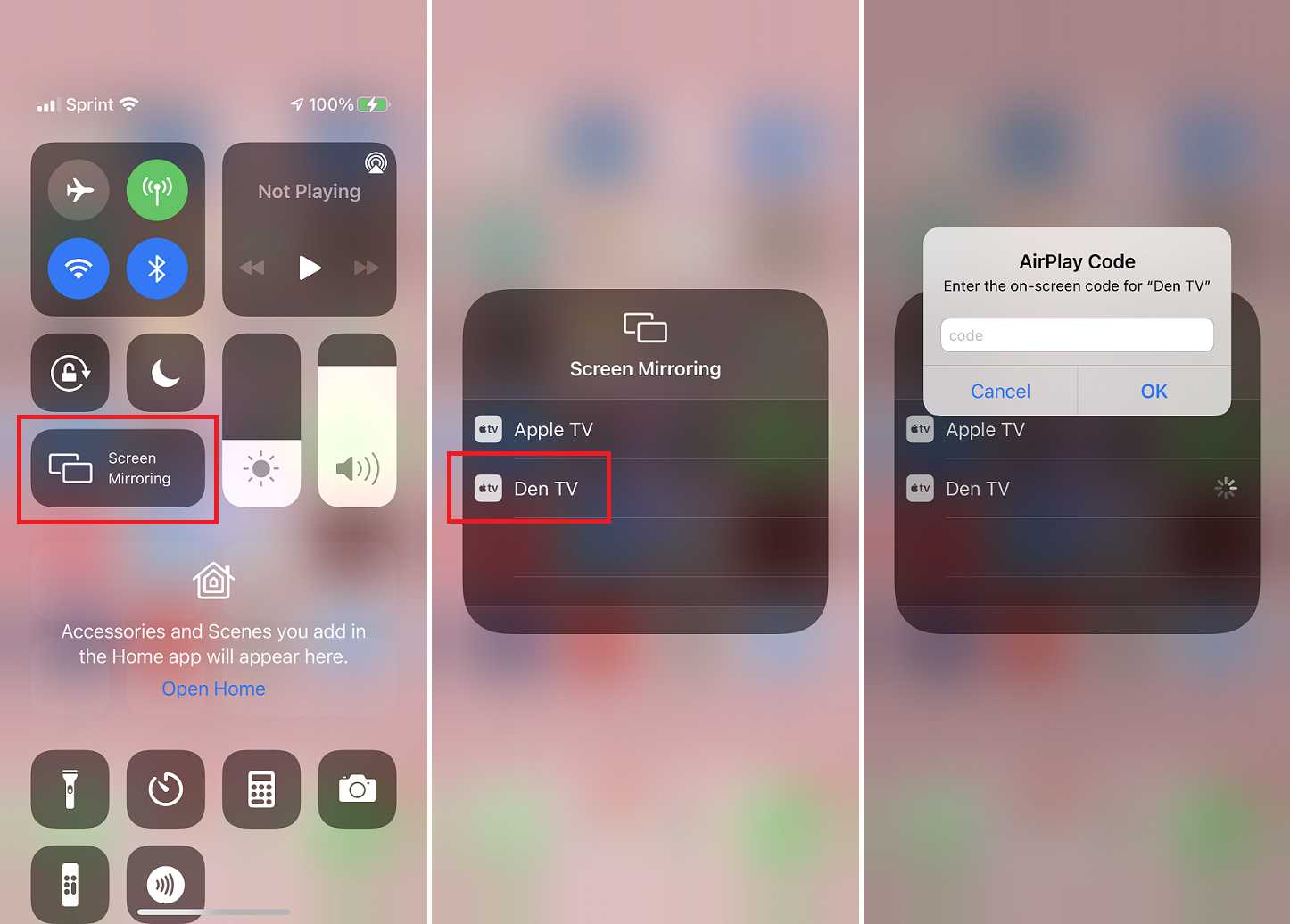
- Open the Control Center on your iPad by swiping down from the top right corner.
- Tap the Screen Mirroring icon.
- Select your Apple TV or AirPlay 2-enabled TV from the list.
- Enter the AirPlay code if prompted, displayed on your TV.
- Your iPad screen will now be mirrored on your TV. To stop, open Control Center again and tap Stop Mirroring.
Using Third-Party Apps for Casting
If your TV isn’t compatible with AirPlay, third-party apps can help. They work over Wi-Fi and can connect your iPad to non-AirPlay TVs.
Popular Apps for Casting
- LetsView
- ApowerMirror
- Mirror for Samsung TV
How to Use Third-Party Apps
- Download and install the app on your iPad and your smart TV or streaming device.
- Connect both devices to the same Wi-Fi network.
- Open the app on your iPad and follow the instructions to scan for your TV or device.
- Select your TV from the list to start casting.
- Adjust settings within the app if needed for better quality or latency.
Using Chromecast with Your iPad
Chromecast is another popular device for casting. While it’s designed primarily for Android, you can still cast from an iPad with the right apps.
Steps for Casting via Chromecast
- Set up your Chromecast device and connect it to your TV.
- Download a Chromecast-compatible app such as Google Home or compatible streaming apps on your iPad.
- Open the app and look for the Cast icon, usually represented by a rectangle with Wi-Fi waves.
- Tap the icon and select your Chromecast device.
- Your content will now play on your TV. Use your iPad to control the playback.
Tips to Improve Your Casting Experience
For the best viewing, consider the following tips:
- Use a stable Wi-Fi network for wireless casting.
- Keep your devices updated to the latest software versions.
- Close other apps that may slow down your iPad or Wi-Fi connection.
- If your video streams lag, lower the quality settings if possible.
- Ensure your TV or streaming device is within a good Wi-Fi range.
Common Troubleshooting Tips
If you encounter issues, try these quick solutions:
- Restart your iPad and the casting device or TV.
- Check that all devices are connected to the same Wi-Fi network.
- Use a different HDMI port or cable if you’re using a wired connection.
- Update your device firmware and software to the latest version.
- Reset network settings on your iPad if Wi-Fi issues persist.
Summary of Options and Their Best Uses
| Method | Best For | Requirements | Pros | Cons |
|---|---|---|---|---|
| HDMI cable | High-quality video, low latency | HDMI cable, Apple Digital AV Adapter | Reliable, simple setup | Limited mobility, cables needed |
| AirPlay | Wireless, seamless mirroring on compatible TVs | Apple TV or AirPlay 2-supported smart TV | Wireless, easy to use | Requires compatible hardware, Wi-Fi dependency |
| Third-party apps | Connecting to non-AirPlay TVs | Apps like LetsView or Mirror for Samsung TV | Flexibility, broader device compatibility | Possible lag, app stability varies |
| Chromecast | Android users or Google ecosystem | Chromecast device, compatible apps | Works with multiple apps, versatile | Limited native iPad support, setup required |
Choosing the right method depends on your devices, setup preferences, and the quality you require. Each option has its unique benefits, enabling you to cast your iPad content to your TV quickly and easily. Whether you prefer a wired connection for stability or a wireless option for convenience, you have plenty of choices to enjoy content on a bigger screen.
How To Screen Mirror iPad To TV – Full Guide
Frequently Asked Questions
What are the steps to connect an iPad to a smart TV using AirPlay?
To connect your iPad to a smart TV via AirPlay, ensure both devices are on the same Wi-Fi network. On your iPad, swipe down from the top right corner to access the Control Center. Tap the Screen Mirroring icon and select your compatible TV from the list. Once connected, your iPad screen will appear on your TV. You can now share content or mirror your display seamlessly.
Can I cast my iPad content to a TV using a wired connection?
Yes, you can connect your iPad to a TV with a wired connection by using an HDMI adapter designed for iOS devices. Plug the adapter into your iPad’s charging port, then connect an HDMI cable from the adapter to your TV. Switch your TV to the correct HDMI input, and your iPad display will be mirrored onto the TV screen. This method provides a stable connection without relying on Wi-Fi.
What should I do if my iPad is not detected when trying to cast to my TV?
If your iPad doesn’t detect your TV, first verify that both devices are connected to the same Wi-Fi network. Restart your iPad and TV to refresh network settings. Make sure your TV supports the casting protocol you’re using, such as AirPlay. Updating your TV’s firmware or resetting network settings on your iPad can also resolve connectivity issues. Check for any restrictions or security settings that might block the connection.
Are there third-party apps that assist in casting an iPad to a TV?
Yes, several third-party applications can help you cast your iPad to a TV, especially if your TV doesn’t support AirPlay. Apps like Chromecast, Mirror for Samsung TV, or Reflector allow you to mirror your device’s screen over Wi-Fi. Install the app on your iPad and follow the provided instructions to connect to your compatible TV or streaming device. These options often offer additional features like recording or enhanced multi-device support.
Is it possible to cast specific apps from my iPad to the TV without mirroring the entire screen?
Some apps support direct casting to compatible smart TVs or streaming devices without mirroring your whole screen. For example, streaming services like Netflix or YouTube offer in-app cast options. Look for the Cast icon within the app and select your device to cast just the content. This approach saves bandwidth and avoids displaying notifications or other private content while sharing media from specific applications.
Final Thoughts
To sum up, knowing how to cast iPad on TV ensures seamless media sharing. Use AirPlay for easy wireless connection if your TV supports it, or connect via Apple TV or Chromecast. Make sure both devices are on the same Wi-Fi network for a smooth experience. Following these steps will help you conveniently display your iPad content on a larger screen.

Similar Posts































