How To Ask For Screen Timeout Settings To Improve Battery?
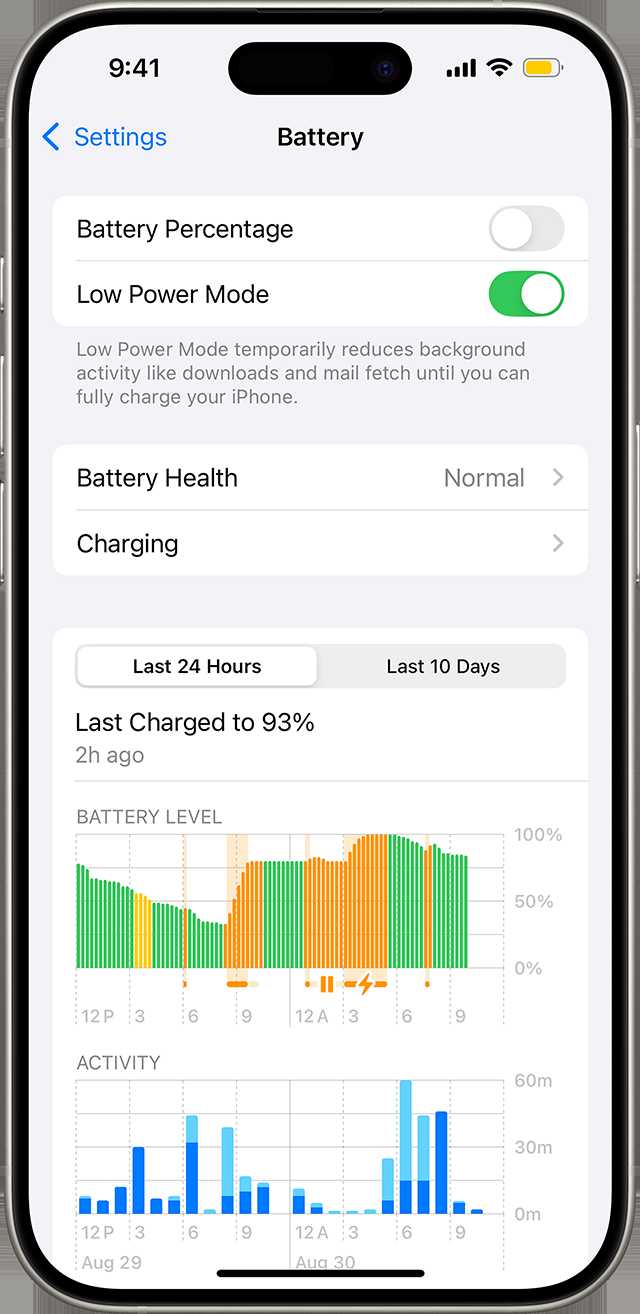

How to ask for screen timeout settings to improve battery performance
Adjusting screen timeout settings can significantly extend your device’s battery life. Many people overlook this simple step, yet it plays a crucial role in conserving power throughout the day. Knowing how to ask for or change these settings ensures your phone uses less energy when you’re not actively using it.
Understanding Screen Timeout and Its Impact on Battery Life
Screen timeout is the duration your device waits before turning off the display automatically. When the screen stays on longer, your battery drains faster. Conversely, shorter timeout durations can save substantial power, especially if you tend to forget to turn off your screen manually.
Adjusting this setting is straightforward, but it’s important to find a balance between convenience and battery conservation. Setting the timeout too short might cause frustration, while too long can drain the battery unnecessarily.
How to Find and Access Screen Timeout Settings
On Android Devices
To change the screen timeout on Android, open the Settings app. Navigate to the “Display” or “Screen” section. Tap on “Screen timeout” or “Sleep,” and select a shorter duration such as 30 seconds or 1 minute.
On iPhone Devices
For iOS, go to Settings. Select “Display & Brightness” and then tap on “Auto-Lock.” Choose a shorter time frame like 30 seconds or 1 minute for better battery conservation.
Asking for Assistance with Screen Timeout Settings
If you aren’t familiar with your device or prefer help, you can ask someone for assistance. Here are some polite and clear ways to request help:
- “Could you show me how to change the screen timeout on my phone?”
- “Can you help me set my device to turn off the screen quicker to save battery?”
- “Would you mind guiding me through adjusting the sleep time on my tablet?”
Communicating Effectively When Requesting Help
When asking for support, be specific about your goal—to improve battery life by adjusting the screen timeout. Mention the device model if needed, and express your preference for a shorter timeout duration. Doing so helps the helper understand exactly what you want.
Example Phrases for Asking for Assistance
- “I’m trying to save battery. Could you help me reduce the time my screen stays on?”
- “I want to change the screen timeout to 1 minute. Can you show me how?”
- “My phone drains the battery quickly because the screen stays on too long. Can you help me set it to turn off sooner?”
The Benefits of Adjusting Screen Timeout for Battery Optimization
Reducing your screen timeout helps prolong your device’s battery life, especially during the day when you might forget to turn off your screen manually. Shorter timeouts mean less energy consumption per usage, making your battery last longer.
This simple change can be particularly helpful when you’re traveling or away from charging sources. It also reduces the risk of screen burn-in and extends the overall lifespan of your display.
Additional Tips to Improve Battery Performance
Combine Screen Timeout Adjustments with Other Settings
- Lower screen brightness
- Disable Wi-Fi, Bluetooth, or mobile data when not in use
- Enable power-saving or battery saver modes
- Close unused apps running in the background
Using Battery Optimization Features
Many smartphones come with built-in battery optimization features. Enabling these options can automatically limit background activity and improve battery lifespan without much effort.
Customizing Screen Timeout Based on Usage Patterns
Adjust your screen timeout based on how you use your device. For instance, set a shorter duration when you’re mostly stationary or working, and a slightly longer timeout if you’re reading or watching videos. This balance helps you save power without sacrificing convenience.
Tools and Apps to Help Manage Screen Timeout
Several third-party apps can automate screen timeout adjustments depending on your location, time of day, or activity. These tools can help optimize power saving strategies seamlessly.
Popular Apps for Managing Screen Settings
- “Greenify” for background app management
- “Auto Screen On/Off” apps that toggle screen timeout based on conditions
- Device-specific battery saver apps built into many smartphones
Adjusting your device’s screen timeout is a simple yet effective way to improve battery performance. Whether you do it yourself or ask for help, making this change ensures your device conserves energy efficiently. Remember to balance convenience with power saving, and combine this setting with other battery-friendly practices for the best results.
Screen Keeps Turning Off? #ScreenTimeout: Quick Fix for a Persistent Problem
Frequently Asked Questions
What steps can I take to set an appropriate screen timeout duration for better battery life?
To optimize your device’s battery, adjust the screen timeout to a shorter period that still suits your usage style. Navigate to your device’s display settings, locate the screen timeout option, and select a duration such as 15 or 30 seconds. This change ensures the screen turns off quickly when not in use, reducing unnecessary power consumption.
How can I customize the screen timeout for different scenarios to save more battery?
Many devices allow you to set different timeout durations based on your activity. For example, you can set a shorter timeout when the battery is low or when using battery-intensive apps. Explore your device’s advanced display or power settings to create tailored timeout profiles that help conserve power during specific situations.
Are there specific settings or apps that help me automatically adjust screen timeout based on my habits?
Some smartphones include features that modify screen timeout automatically. For instance, adaptive brightness or smart stay functions adjust the screen based on your activity and ambient light. Additionally, third-party apps can offer customizable rules to change timeout settings dynamically, helping you maximize battery efficiency without sacrificing convenience.
How do I ensure that reducing the screen timeout won’t interfere with my everyday activities?
Set the screen timeout to a duration that balances power saving with your typical usage patterns. If you frequently read or scroll through content, choose a slightly longer timeout. Test different durations to find the best compromise where your screen turns off quickly enough to save power but remains active long enough for your needs.
What should I consider before lowering the screen timeout to improve battery life?
Before decreasing the timeout, evaluate your daily activities. Shorter timeouts may require you to wake your device more often, which could be inconvenient. Consider your comfort and productivity, and find a setting that minimizes power drain without causing excessive interruptions or inconvenience during your routine.
Final Thoughts
To ask for screen timeout settings to improve battery performance, be clear and specific about your needs. Explain how shorter timeouts can extend battery life and enhance device efficiency. Approach your tech support or device settings team confidently, emphasizing the importance of optimizing screen duration. Remember, the key is to communicate your goal effectively. Asking for screen timeout settings to improve battery performance helps ensure your device remains efficient and reliable throughout the day.
Similar Posts