Improve Your Android Battery Percentage Display Settings
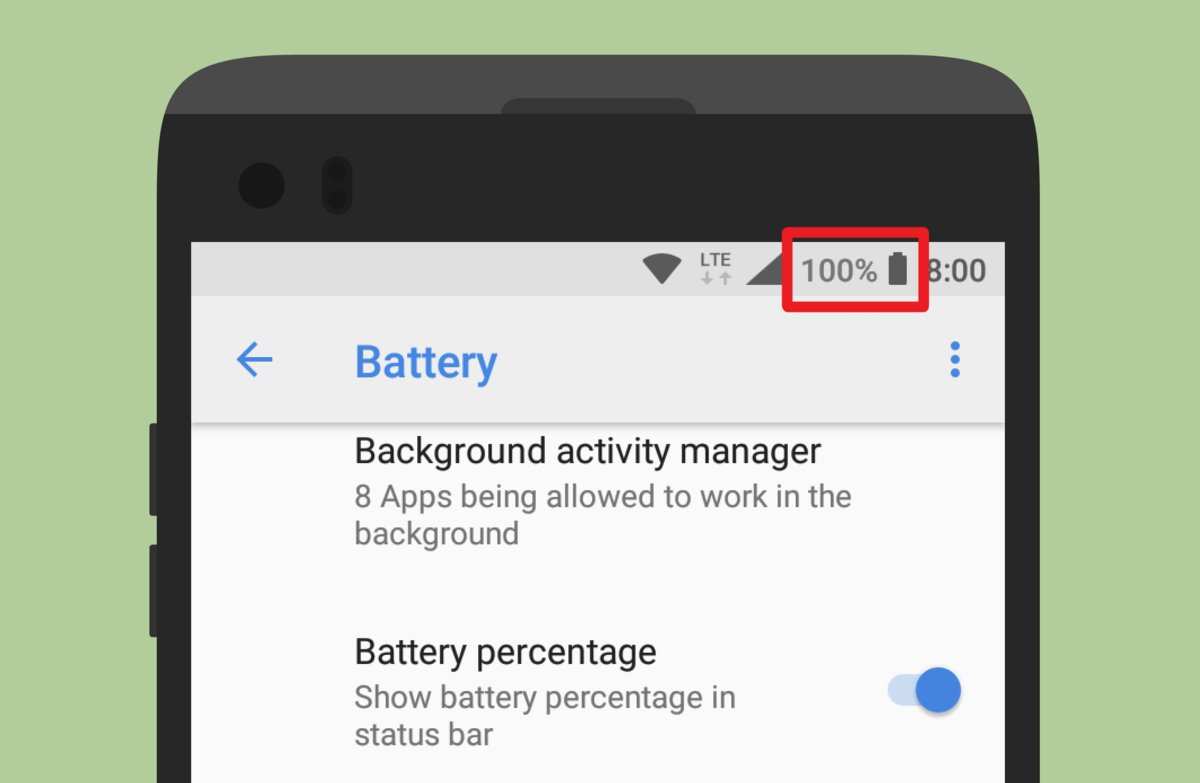

Understanding Android Battery Percentage Display: Everything You Need to Know
If you’ve ever looked at your Android phone and wondered why your battery percentage is sometimes visible and other times hidden, you’re not alone. The Android battery percentage display is a simple yet important feature that helps you keep track of your device’s power level. It’s a small number that tells you exactly how much battery life remains, allowing you to manage your usage wisely. In this comprehensive guide, we’ll explore all the ins and outs of Android battery percentage display—what it is, why it matters, how to enable or disable it, and tips to optimize your battery life.
What Is the Battery Percentage Display?
The battery percentage display is a visual indicator that shows the precise amount of charge left in your device’s battery. Unlike a simple icon that indicates the battery is charging or draining, the percentage provides a numerical value, such as 85%, 50%, or 10%. This feature is particularly useful because it helps you understand exactly how much power you have remaining, rather than just a rough estimate based on the icon.
Many Android phones have a battery icon in the status bar, which can be set to show just an icon or an icon along with the battery percentage. When the percentage is visible, you can better judge when to plug in your charger or conserve power. In some devices, the percentage is always shown, while in others, you need to turn it on manually.
Why Is the Battery Percentage Display Important?
Knowing your battery percentage makes it easier to plan your day and avoid unexpected shutdowns. Here are several reasons why it’s helpful:
- Prevent sudden power loss: By knowing how much battery remains, you can decide whether to save power or find a charger.
- Manage app usage: Understanding your battery drain helps you identify which apps consume the most power.
- Extend your device’s lifespan: Regularly monitoring battery health allows you to take steps to preserve battery life over time.
- Better user experience: Seeing an exact percentage feels more reliable and less guesswork-based than just looking at a battery icon.
How to Show or Hide the Battery Percentage on Your Android Device
The process of enabling or disabling the battery percentage display varies depending on your device model and Android version. Below are some common methods to adjust this setting:
Using the Settings Menu
This is the most straightforward way to control the battery percentage display:
- Open the Settings app on your device.
- Scroll down and tap on Battery or Battery & performance.
- Look for an option labeled Show battery percentage or Battery percentage.
- Toggle the switch to On or Off as desired.
Note: On some phones, this setting might be located under a section called Status Bar or Display.
Using Quick Settings or Notification Bar
Many Android devices allow you to toggle the battery percentage directly from the quick settings menu:
- Swipe down from the top of the screen to access quick settings.
- Look for the icon or toggle related to battery percentage.
- Tap it to enable or disable the display.
For Devices with Custom UI or Manufacturer Settings
If your phone has a custom interface (such as Samsung’s One UI, Xiaomi’s MIUI, or others), the steps may differ slightly. Usually, you can find the option in the device’s Settings under sections like Display or Status Bar. Alternatively, you may need to access the device’s specific control center or use manufacturer-provided apps to adjust this feature.
Enabling Battery Percentage on Different Android Versions
Android’s interface and options have evolved over the years. Here’s a quick overview of how to enable battery percentage on various Android versions:
| Android Version | Method to Show Battery Percentage |
|---|---|
| Android 9 (Pie) and newer | Settings > Battery > Show battery percentage (toggle switch) |
| Android 8 (Oreo) | Settings > Battery > Battery Percentage > Show |
| Android 7 (Nougat) and earlier | Settings > Display > Status Bar > Show Battery Percentage |
Customizing the Battery Icon and Percentage Display
In some cases, you might want to customize how the battery icon looks or where the percentage appears. Here are some options:
- Changing the icon style: Many Android launchers allow you to choose from different battery icon styles, such as a simple icon, a circular battery, or a more detailed view.
- Position of the percentage: Depending on your device, you can often shift the percentage from the right side of the status bar to the left or center.
- Additional tools or apps: Some third-party apps can offer advanced customization options for the battery indicator and percentage display.
Common Troubleshooting Tips
If the battery percentage isn’t showing up even after enabling it, try these steps:
- Restart your device to refresh the system settings.
- Update your device’s software to the latest version.
- Clear the cache of the Settings app or the System UI app, if possible.
- Ensure no third-party apps are hiding or overriding the battery display settings.
Enhancing Battery Life While Monitoring Usage
Once you can see your battery percentage clearly, you might want to extend your device’s battery life. Here are some practical tips:
- Lower screen brightness or enable adaptive brightness.
- Turn off Bluetooth, Wi-Fi, or mobile data when not in use.
- Close or uninstall apps that drain battery in the background.
- Use battery saver modes provided by your device.
- Disable unnecessary notifications and location services.
Monitoring battery percentage regularly helps you make informed decisions about your device usage. Knowing exactly how much power remains lets you avoid surprises and keeps your smartphone running smoothly throughout your day.
Overall, managing the battery percentage display on your Android device is a simple yet effective way to stay in control of your phone’s power and improve your overall experience. Whether you want to keep it always visible or hide it for a cleaner look, adjusting these settings is quick and easy. Keep an eye on that percentage, and your device will thank you by lasting longer and performing better.
Frequently Asked Questions
How can I enable the battery percentage on my Android device’s status bar?
To display the battery percentage, go to your device’s Settings, select ‘Battery’ or ‘Battery & performance,’ then tap on ‘Battery percentage’ or ‘Show battery percentage.’ Toggle the switch on to make the percentage visible in the status bar.
Why does the battery percentage sometimes disappear from my Android screen?
The battery percentage may disappear if the device’s settings are reset or if a software update changes default options. Additionally, certain power-saving modes or custom themes might hide the percentage. Check your settings to ensure the toggle remains enabled and verify whether any power-saving options are affecting its display.
Can I customize the location or appearance of the battery percentage indicator?
Many Android devices allow some customization of the battery percentage display, such as showing it inside the icon or alongside it. To modify these settings, explore your device’s battery or display options. If built-in options are limited, consider using third-party apps that offer advanced customization of status bar elements.
Will enabling the battery percentage affect my device’s performance or battery life?
Enabling the battery percentage display does not impact your device’s performance or battery life significantly. It is a small feature that primarily involves the software interface. You can turn it on or off based on your preferences without worrying about adverse effects.
Is the process to show the battery percentage different on various Android brands?
Yes, the steps can vary slightly depending on the manufacturer and Android version. Generally, Android users access the settings menu, but some brands like Samsung, Google Pixel, or OnePlus may have unique options or place the setting in different menu sections. Refer to your device’s user guide if you encounter difficulties locating the setting.
Final Thoughts
The android battery percentage display feature enhances user convenience by providing real-time battery status. It allows users to monitor their device’s power levels accurately and make informed decisions. Customizing this feature is simple and varies across Android versions and devices. In conclusion, the android battery percentage display improves user experience and device management. It keeps you aware of your battery life at all times, preventing unexpected shutdowns. Make sure to enable this feature for a seamless and efficient smartphone usage.
Similar Posts































