How To Increase Android Battery Life Tips And Tricks

How to Increase Android Battery Life
When your Android phone’s battery doesn’t last as long as it used to, it can be frustrating. The good news is, there are many simple and effective ways to boost your device’s battery life without needing to compromise on how you use your phone. In this section, we’ll explore clear, easy-to-understand tips that can help your Android device stay powered throughout the day. Let’s look at what you can do to make your battery last longer.Understand What Drains Your Battery
Before you start changing settings, it’s helpful to know what uses the most power on your phone. Common culprits include:- Screen brightness and screen time
- Background apps running without your knowledge
- Connectivity features like Wi-Fi, Bluetooth, and GPS
- Notifications and updates that refresh in the background
- High-performance apps such as games and video streaming
Adjust Screen Brightness and Timeout Settings
Since the display consumes a large portion of battery power, controlling how bright and how long your screen stays on is one of the easiest ways to extend battery life.Lower Screen Brightness
Many Android devices have auto-brightness, which adjusts brightness based on ambient light. Turning this feature on ensures your screen isn’t brighter than necessary. You can also manually reduce brightness:- Open the Settings app
- Tap on Display
- Adjust the Brightness slider to a lower level
- Enable Auto-brightness for convenience and efficiency
Reduce Screen Timeout Duration
The screen timeout setting determines how quickly your phone turns off when not in use. Shortening this time helps save power:- Go to Settings
- Select Display
- Tap Screen timeout or Sleep
- Choose a shorter duration, like 30 seconds or 1 minute
Turn Off Unnecessary Connectivity Features
Your Android phone is always trying to connect to various networks, but sometimes you don’t need all of them active at once.Disable Wi-Fi and Bluetooth When Not Needed
If you’re not using Wi-Fi or Bluetooth, turning them off can save a significant amount of power:- Swipe down from the top of your screen to access quick settings
- Tap the Wi-Fi icon to turn it off
- Tap the Bluetooth icon to disable Bluetooth
Turn Off GPS/Location Services
Using GPS constantly can drain your battery quickly. Only turn it on when needed for navigation or location-based apps:- Open Settings
- Tap Location
- Switch it off or set it to “Device only” or “Battery saving” mode
Manage Background Apps and Notifications
Many apps continue running in the background even after you finish using them. This can drain your battery without you realizing it.Close Unused Apps
Regularly closing apps you’re not using helps reduce background activity:- Access Recent Apps (usually by pressing the square or overview button)
- Swipe away or close apps you don’t need
Restrict Background Data
You can prevent apps from updating or syncing in the background, saving battery and data:- Go to Settings
- Select Apps & notifications
- Choose individual apps
- Tap Data usage and disable Background data
Enable Battery Saver Mode
Most Android devices come with a built-in battery saver mode that adjusts various settings to conserve power:- Open Settings
- Tap Battery
- Activate Battery saver or Power saving mode
Optimize App Settings and Usage
Specific apps can consume more power than others. Managing app behavior helps extend your battery life.Limit or Uninstall Power-Hungry Apps
Identify apps that drain your battery the most:- Go to Settings > Battery
- Review the list of apps with the highest usage
- Limit usage or uninstall those you don’t need
Use Dark Mode
If your phone features an OLED or AMOLED display, switching to dark mode can save energy:- Open Settings
- Tap Display
- Select Dark or Night Mode
Keep Your Software and Apps Up to Date
Developers frequently release updates that optimize battery performance and fix bugs that cause excessive power drain.- Open Google Play Store
- Tap your profile picture
- Select Manage apps & devices
- Update all apps with available updates
Manage Battery-Intensive Features and Settings
Some features should be used sparingly, especially if your battery is low.Limit Video Playback and Heavy Gaming
These activities tend to drain the battery rapidly. Opt for shorter sessions or reduce video quality when possible.Turn Off Vibrations and Haptic Feedback
Vibrations use more power than silent alerts. Disable vibrations for notifications and keyboard feedback:- Settings > Sound & vibration
- Disable Vibrate on touch and other vibration options
Disable Automatic Sync
Syncing emails, contacts, and other data automatically can drain batteries. You can set sync to manual:- Settings > Accounts
- Select an account
- Disable automatic sync
Additional Tips to Save Power
Beyond settings adjustments, some practical habits help prolong your battery:- Avoid exposing your device to extreme temperatures, which can harm the battery
- Turn off your phone when not in use for extended periods
- Remove unused accessories, like unnecessary USB devices or external modules
- Use airplane mode in areas with poor signal to prevent your device from constantly searching for a network
Frequently Asked Questions
What settings can I adjust to extend my Android device’s battery life?
Lowering screen brightness, decreasing screen timeout duration, turning off Wi-Fi, Bluetooth, and GPS when not in use, and disabling background data for unnecessary apps can significantly improve battery longevity. Additionally, enabling battery saver modes can help optimize power consumption without sacrificing essential functionality.
How can managing app usage help conserve my Android’s battery?
Monitor which applications consume the most power using your device’s battery usage settings. Close or uninstall apps that run in the background and are not necessary. Restrict background activity for apps that do not require constant updates to prevent unnecessary drain on your battery.
Are there any best practices for charging my Android phone to maximize battery health?
Charge your device before it drops below 20% and avoid keeping the battery at 100% for extended periods. Use the original charger or certified charging accessories, and avoid exposing your phone to extreme temperatures during charging. These habits help maintain the overall health of your battery over time.
What role does software update management play in battery performance?
Regularly updating your device’s software ensures you have the latest optimizations and bug fixes that can improve battery efficiency. Manufacturers often release updates that address power management issues, so installing these updates can help your device run more smoothly and conserve energy better.
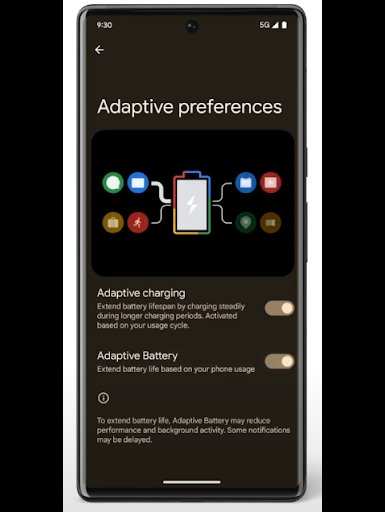
Can enabling adaptive or intelligent battery features improve power efficiency?
Yes, activating adaptive or smart battery features allows your device to learn usage habits and optimize performance accordingly. These features limit background processes and adjust app activity, resulting in better battery management and longer usage between charges.
Final Thoughts
To increase android battery life, start by reducing screen brightness and shortening screen timeout duration. Turn off Wi-Fi, Bluetooth, and mobile data when not in use to conserve power. Enabling battery saver mode also helps extend usage. Avoid frequent app background activity and uninstall unused applications to prevent unnecessary power drain. Keeping your software updated ensures optimal battery management. In conclusion, learning how to increase android battery life involves simple adjustments in settings and app management, leading to longer device usage and better performance.
Similar Posts































