Optimize Your Android Battery Life Effectively
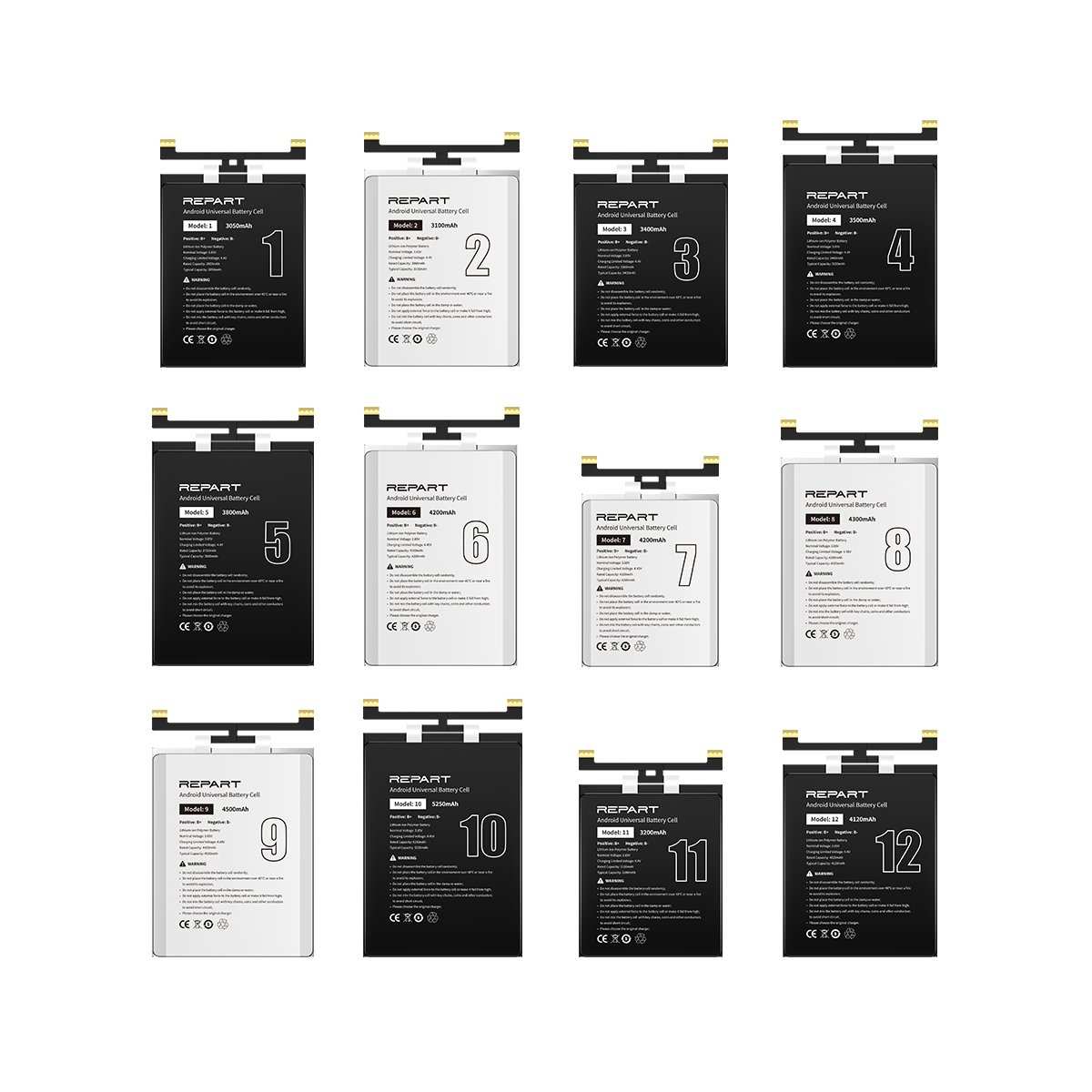

Understanding Android Battery: Tips to Keep Your Phone Running Longer
What Is an Android Battery?
Android batteries are the power sources that keep your smartphones and tablets functioning throughout the day. Most Android devices use lithium-ion or lithium-polymer batteries, which are lightweight and capable of holding a lot of energy. These batteries store electrical energy and supply it to your device’s components—such as the screen, processor, camera, and sensors—so you can use your device without constantly needing to plug it in. Understanding how your Android battery works is crucial for managing its lifespan and optimizing your device’s performance. Batteries have a limited number of charge cycles, meaning they can only be charged and discharged a certain number of times before their capacity starts to decline. The better you understand how to care for your battery, the longer it will perform at its best.How Android Batteries Are Designed
Android batteries come with sophisticated technology that helps monitor their health and performance. Modern devices include built-in sensors that keep an eye on temperature, voltage, and current to prevent overcharging or overheating. When your device’s battery gets too hot or is charged improperly, it can reduce its lifespan or even damage the battery. Manufacturers also include software features to help extend battery life. These features detect when your device isn’t in use and dim the screen or disable background apps to conserve energy. They also provide insights into which apps use the most power, so you can manage your usage better.Why Battery Health Declines Over Time
Every battery has a limited number of charge cycles. A charge cycle happens when you drain a battery from 100% to zero and then recharge it back to 100%. Doing this repeatedly causes the battery’s capacity to decrease gradually. Factors that affect battery health include:- Frequency of charging: Constantly charging to 100% and discharging to low percentages can accelerate wear.
- Heat: Excessive heat from external sources or heavy device usage during charging damages the battery.
- Age of the device: Over time, chemical reactions inside the battery reduce its ability to hold charge.
Signs That Your Android Battery Needs Attention
Knowing when your battery isn’t performing well can save you from unexpected device shutdowns. Here are some common signs:- Rapid battery drain: Your device loses power faster than usual, even with minimal use.
- Overheating: The device gets unusually hot during use or charging.
- Swelling or bulging: The battery physically expands, which can be dangerous.
- Device shutting down unexpectedly: Your phone turns off without warning, even with some remaining charge.
- Longer charging times: It takes longer than usual to fill up the battery.
How to Optimize Battery Usage on Your Android Device
Reducing power consumption is essential to extend your device’s battery life. Here are some practical tips:Adjust Screen Brightness
The screen consumes the most energy on an Android device. Lowering the brightness or enabling adaptive brightness helps save power. You can do this by:- Going to Settings
- Selecting Display
- Adjusting Brightness or turning on Adaptive Brightness
Manage Background Apps
Many apps run in the background and drain battery without your knowledge. To manage this:- Open Settings
- Tap on Apps or Application Manager
- Close or restrict apps that aren’t needed
Enable Battery Saver Mode
Most Android devices offer a battery saver mode that limits background activity and reduces performance to extend battery life. Turn it on by:- Going to Settings
- Clicking on Battery
- Activating Battery Saver
Turn Off Unnecessary Features
Disabling features you don’t need can make a big difference, such as:- Bluetooth
- Wi-Fi
- GPS
- NFC
Best Practices for Charging Your Android Battery
Proper charging habits can considerably impact your battery’s lifespan. Consider these guidelines:Avoid Full Discharges
Refrain from letting your battery completely drain to zero. Instead, try to recharge it when it reaches around 20-30%. This reduces stress on the battery and prolongs its life.Don’t Overcharge
While most devices have built-in safeguards, continuously charging your device to 100% can accelerate battery wear. Once it hits full charge, unplug the device.Use the Right Charger
Always use chargers and cables recommended by your device manufacturer. Using incompatible or cheap chargers can cause overheating or damage.Keep Your Device Cool
Avoid exposing your phone to high temperatures during charging or use. Charging in a cool, ventilated place helps preserve battery health.Understanding Battery Calibration
Sometimes, Android batteries can display inaccurate charge levels. Calibrating your battery helps ensure your device shows a more precise charge status. To calibrate:- Drain the battery completely until the device turns off
- Charge it uninterrupted to 100%, preferably without using the device
- Repeat this process once or twice for better accuracy
Replacing Your Android Battery
If your battery no longer holds a charge or shows signs of swelling, it’s time for a replacement. Many manufacturers offer official replacement services, or you can choose a trusted third-party repair shop. When replacing:- Opt for genuine batteries for safety and performance
- Have the replacement done by trained technicians to avoid damage
- Regularly inspect your device for signs of battery issues
Innovations in Android Battery Technology
Technology keeps evolving, and so do batteries. Some of the latest advancements include:- Fast charging: Reduces the time needed to recharge your device.
- Wireless charging: Adds convenience but usually charges at a slower rate.
- Battery management software: Optimizes charging cycles and monitors health.
- Solid-state batteries: Promising longer life and improved safety in future Android devices.
Frequently Asked Questions
How can I improve my Android battery life through settings?
Adjusting specific settings on your Android device can help extend battery life. Reduce screen brightness, turn off Bluetooth, Wi-Fi, and location services when not in use, and enable battery saver mode. Limiting background app activity and disabling notifications for non-essential apps also contribute to conserving power. Regularly reviewing app usage helps identify and restrict apps that consume excessive battery resources.
What are the common causes of rapid battery drain on Android phones?
Several factors can lead to quick battery depletion, including running high-performance apps, keeping the screen on for extended periods, and using GPS or mobile data continuously. Outdated software or apps running in the background may also cause unnecessary power drain. Additionally, battery age and physical damage can reduce battery efficiency over time, resulting in faster depletion.
What steps should I take to diagnose and fix battery issues on my Android device?
Start by checking battery usage in your device settings to identify apps or services that consume the most power. Close or uninstall unnecessary apps, and disable background activity for power-hungry applications. Perform a software update to ensure your device has the latest optimizations. If problems persist, consider recalibrating your battery or visiting a service center for a hardware assessment. Replacing an aging battery may be necessary if it no longer holds a charge efficiently.
Final Thoughts
Android battery performance depends on how well you manage your device settings and usage habits. Adjusting screen brightness and closing unused apps can extend battery life significantly. Using power-saving modes offers an immediate boost when needed. Regular updates and monitoring app permissions also play a vital role in maintaining battery health. Being mindful of background activity prevents unnecessary drain, keeping your device running smoothly. In conclusion, caring for your Android battery ensures longer usage and better device performance. By adopting simple strategies, you can maximize your battery life effortlessly.
Similar Posts