How To Extend Android Battery Life For Better Performance

How to Extend Android Battery Life
Taking care of your Android device’s battery is essential to keep it running smoothly throughout the day. The good news is that you don’t need to be a tech expert to make your battery last longer. By understanding how your phone uses power and making some simple changes, you can extend your Android device’s battery life significantly. In this guide, we’ll explore effective ways to optimize your phone, prevent unnecessary drain, and enjoy longer usage between charges.Understanding How Your Android Battery Works
Before diving into tips and tricks, it helps to know how your Android device’s battery operates. Your phone’s battery is a rechargeable cell that stores electrical energy. When you use apps, browse the internet, or play games, your device draws power from this battery. Several factors influence how fast the battery drains, including screen brightness, running background apps, network connectivity, and even device age. Knowing what consumes the most power allows you to prioritize which settings or habits to change. For example, the display often uses the most energy, followed by network connections like Wi-Fi, Bluetooth, and mobile data. By managing these components wisely, you can make a noticeable difference.Adjusting Screen Brightness and Timeout Settings
The screen is the biggest power guzzler on your Android phone. Keeping it at a high brightness level or letting it stay on for long periods causes significant battery drain. Here are steps to control this:- Lower the Screen Brightness: Use the quick settings panel to reduce brightness or enable automatic brightness. Automatic brightness adjusts screen illumination based on ambient light, which helps save power.
- Set a Short Screen Timeout: Reduce the time your screen stays on when inactive. For example, set it to 30 seconds or 1 minute. Go to Settings > Display > Screen timeout to adjust this setting.
Managing Apps and Background Processes
Apps are fundamental to your experience, but many run in the background without you realizing it. These background processes can drain battery life unnecessarily. Here’s how to manage them effectively:Close Unnecessary Apps
Regularly review and close apps that you aren’t actively using. To do this:- Open the recent apps button (usually a square or three-line icon).
- Swipe away or tap “Close All” to exit apps that aren’t needed.
Limit Background Activity
Android allows you to restrict app activity when not in use:- Go to Settings > Apps > [App Name] > Data usage.
- Disable background data access or restrict app activity altogether.
Uninstall or Disable Unused Apps
If you have apps you rarely use, consider uninstalling or disabling them. They can still consume resources even when not in active use.Enable Power Saving Modes
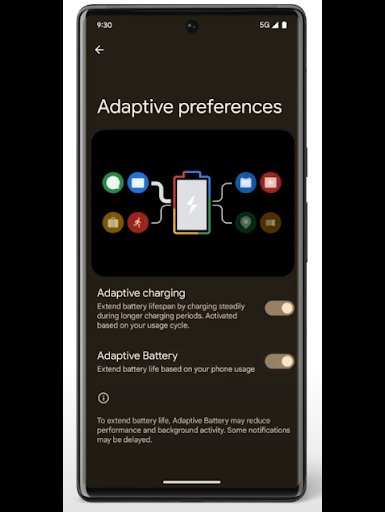
Most Android devices come with built-in battery saver modes designed to extend usage time when your battery gets low. These modes generally reduce performance, limit background activity, and turn off non-essential features.- Access Power Saving Mode through the quick settings panel or Settings > Battery > Power Saving.
- Activate it when you notice your battery level dropping below 20% or 10%.
- Customize the Power Saving Mode to turn off Wi-Fi, Bluetooth, or background activity as needed.
Control Network Connectivity
Your device constantly searches for network signals, which uses power. To optimize this:- Turn off Wi-Fi and Mobile Data when not in use: If you’re in an area without Wi-Fi or won’t need internet for a while, turn off these features.
- Use Airplane Mode in Low Signal Areas: If your signal is weak, your device works harder to connect, draining more battery. Turning on Airplane Mode stops all wireless connections and conserves power.
- Disable Bluetooth and NFC: Turn off Bluetooth and NFC if you’re not using wireless peripherals or contactless payments.
Optimize Location Settings
GPS services are powerful tools but consume a lot of battery power. To manage this:- Use “Device Only” Location Mode: Instead of high-accuracy mode, choose “Battery Saving” or “Device Only” in Settings > Location. This reduces the power needed for location tracking.
- Turn Location Off When Not Needed: Disable location services when you’re not using navigation apps or location-based services.
- Configure App Permissions: Only allow essential apps to access your location.
Update Your Apps and Software
Developers often release updates that optimize performance and fix bugs, including issues that cause increased battery consumption.- Check for updates regularly in Google Play Store and your device settings.
- Install the latest firmware updates for your device, as manufacturers often improve power management in newer versions.
Turn Off Unnecessary Features and Sensors
Modern smartphones are loaded with sensors and features that could be turned off to save power:- Disable Wi-Fi Hotspot: Use it only when necessary.
- Turn off Vibrations and Haptic Feedback: Vibration can consume additional power.
- Disable Automatic Updates: Schedule downloads and updates for times when your device is charging.
- Turn off NFC and Ultra-Wideband: Disable them if you don’t use contactless payments or device-to-device communication.
Use Dark Mode and Save Battery with Display Settings
Switching to dark themes can help save battery on OLED displays because black pixels turn off completely. Many apps now support dark mode:- Enable system-wide dark mode in your device settings.
- Turn on dark mode in individual apps like YouTube, Twitter, and Facebook.
- Adjust display timeout and reduce screen resolution if options are available.
Monitor Battery Usage and Set Limits
Android offers tools to see which apps consume the most power:- Go to Settings > Battery > Battery Usage.
- Identify apps that drain the battery quickly.
- If an app uses excessive power, consider limiting its background activity or uninstalling it.
Summary of Key Tips for Longer Battery Life
Here’s a quick overview of the most effective tips:| Tip | What to Do |
|---|---|
| Reduce Screen Brightness | Enable automatic brightness or manually lower it |
| Limit Background Apps | Close apps and restrict background data |
| Activate Power Saving Mode | Use built-in battery saver when needed |
| Manage Connectivity | Turn off Wi-Fi, Bluetooth, NFC when unused |
| Optimize Location Services | Limit GPS use and set location mode |
| Update Software | Regularly check for app and firmware updates |
| Disable Unnecessary Features | Turn off vibrations, auto-sync, and sensors |
Frequently Asked Questions
What settings can I adjust to minimize battery consumption on my Android device?
To reduce battery drain, begin by lowering screen brightness or enabling adaptive brightness. Turn off Bluetooth, Wi-Fi, and mobile data when you’re not using them. Additionally, disable location services for apps that don’t need GPS and restrict background activity for apps to prevent unnecessary power usage.
How does limiting background app activity help extend battery life?
Restricting background activity prevents apps from running processes when you’re not actively using them, which conserves power. You can manage this by going into your device’s settings and manually closing apps or setting restrictions for specific applications to prevent them from consuming energy while running in the background.
What role does using airplane mode play in conserving battery during low power situations?
Enabling airplane mode cuts off all wireless communications, including cellular, Wi-Fi, and Bluetooth signals. This prevents your device from constantly searching for network signals, significantly reducing battery consumption. Use it when you have limited connectivity or want to conserve battery during extended periods without charging.
How can adjusting display settings contribute to better battery life?
Lowering the screen brightness, shortening screen timeout duration, and turning off auto-rotation can significantly decrease power usage. Since the display is one of the largest power consumers, managing these settings helps prolong battery life during your device’s use.
Are there any built-in features or modes on Android that help optimize battery usage?
Yes, most Android devices include a Battery Saver or Power Saving mode. Activating this mode limits background activity, reduces performance, and disables certain visual effects to extend battery life. You can access and customize these settings in your device’s battery menu to suit your needs.
Final Thoughts
To extend Android battery life, start by reducing screen brightness and limiting background activities. Turn off unnecessary Bluetooth, Wi-Fi, and location services when not in use. Use battery saver mode to optimize power consumption. Regularly close unused apps to prevent battery drain. By implementing these simple steps, you can significantly improve your device’s battery longevity. Knowing how to extend Android battery life helps you stay connected longer without frequent charging. Small adjustments make a substantial difference in everyday device performance.
Similar Posts