Optimize Battery Life With Android Battery Saver Mode
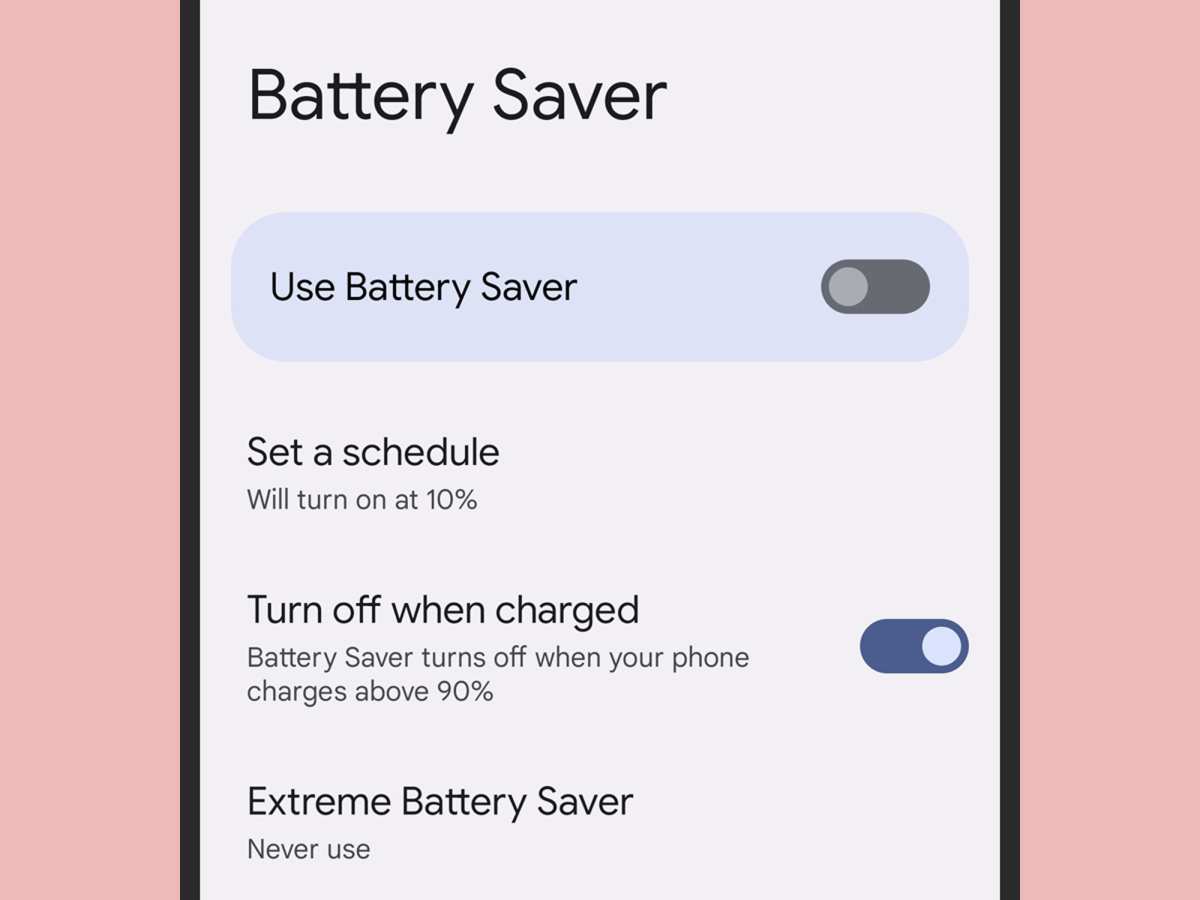

Understanding Android Battery Saver Mode and How to Use It Effectively
Many Android users notice that their devices run out of battery quickly, especially during busy days or when they forget to charge their phones overnight. To help extend battery life, Android devices come equipped with a feature called **Battery Saver Mode**. This mode is designed to reduce power consumption by limiting some background activities and adjusting device settings. In this section, we’ll explore what Android Battery Saver Mode is, how it works, and why it can be a game-changer for your device’s longevity.What Is Android Battery Saver Mode?
Android Battery Saver Mode is a built-in feature that limits power-draining functions when your phone’s battery drops below a specific percentage or when you manually turn it on. When activated, the mode adjusts various settings to reduce energy consumption, helping your device last longer when you need it most. This mode can be turned on manually or scheduled to activate automatically at certain battery percentages or times. Once enabled, it minimizes activities that drain power, such as syncing data, background app refreshes, and visual effects, allowing you to use your device for a longer period.How Does Android Battery Saver Mode Work?
When you activate Battery Saver Mode, your device makes several smart adjustments to conserve energy. Here are some key changes that happen in this mode:- Reduces screen brightness automatically, which is one of the biggest battery consumers on a smartphone.
- Limits background activity, like app updates and data syncs, to prevent unnecessary battery drainage.
- Disables or minimizes visual effects such as animations and transitions that require extra power.
- Restricts location services, GPS, and Bluetooth to only work when needed.
- Temporarily disables non-essential features like auto-start of some apps and push notifications to save power.
Benefits of Using Battery Saver Mode
Using Battery Saver Mode provides several advantages beyond just saving power:- Prevents your phone from dying unexpectedly during trips, meetings, or errands when charging isn’t available.
- Helps boost overall device longevity by reducing wear on your battery caused by deep discharges.
- Allows for longer use of essential apps and features when you need them most, such as navigation or communication tools.
- Provides peace of mind knowing that your device can last longer during critical moments.
How to Enable Android Battery Saver Mode
Enabling Battery Saver Mode on your Android device is straightforward. Here is a simple step-by-step guide:From Quick Settings Panel
- Swipe down from the top of your screen to access the quick settings menu.
- Locate the battery icon or the “Battery Saver” icon.
- Tap on it to activate Battery Saver Mode immediately.
Through Settings Menu
- Open the Settings app on your device.
- Scroll down and select “Battery” or “Battery & performance.”
- Tap on “Battery Saver” or “Power Saving Mode.”
- Toggle the switch to turn it on.
Customizing Battery Saver Settings for Better Efficiency
While the default Battery Saver Mode offers a good start, customizing its settings can make it even more effective. Here are some tips to optimize battery savings:- Set an automatic trigger: Choose the battery percentage where your device will automatically activate Battery Saver Mode.
- Limit background activity: In the battery settings, you can select specific apps that are allowed or restricted from running in the background.
- Adjust screen brightness manually or set it to adaptive brightness to always use the lowest comfortable level.
- Disable location services unless necessary, because GPS is a significant energy drain.
- Turn off Bluetooth, Wi-Fi, or mobile data when not in use, especially in Battery Saver Mode where these are often restricted anyway.
When to Use Android Battery Saver Mode
Knowing when to activate Battery Saver Mode can make a substantial difference. Consider turning it on in these situations:- When your battery drops below 20%, and you need your device to last longer.
- During long trips or outdoor activities where charging options are limited.
- If you notice your device overheating, as limiting background activity can reduce heat generation.
- When you’re in a hurry and can’t charge your device soon, ensuring it stays operational longer.
- On days with limited access to charging stations, like travel days or outdoor adventures.
Android Battery Saver Mode and App Management
Apps are often the biggest drain on your device’s battery. When Battery Saver Mode is active, it restricts background activity for most apps, but managing these apps can give you even better results:- Close unused apps regularly to prevent unnecessary battery drain.
- Disable or uninstall apps that consume excessive power and aren’t essential.
- Use the built-in battery usage tool to identify which apps are using the most power and adjust their settings accordingly.
- Limit notifications from non-essential apps to prevent them from waking your device unnecessarily.
Limitations of Android Battery Saver Mode
While Battery Saver Mode offers many benefits, it isn’t a perfect solution. It has some limitations:- It restricts background activity, which might delay notifications or updates.
- It can affect app performance when certain features are disabled or limited.
- It doesn’t repair the battery — it only extends the current charge’s life temporarily.
- Some features may be disabled or limited until you turn off Battery Saver Mode again.
Additional Tips for Extending Battery Life
Battery Saver Mode is a useful tool, but combining it with other habits can maximize your device’s battery life:- Keep the screen brightness low or use adaptive brightness.
- Turn off Wi-Fi, Bluetooth, and mobile data when not needed.
- Enable airplane mode when you’re in areas with no service.
- Reduce screen timeout duration so your screen turns off faster.
- Keep your apps and device software up to date to benefit from improvements in power efficiency.
Frequently Asked Questions
How can I customize which apps are restricted when battery saver mode is active?
You can control which apps are affected by battery saver mode by navigating to your device’s settings. Go to the ‘Battery’ section and select ‘Battery Saver’ or ‘Power Saving Mode.’ From there, you can choose to allow certain apps to run in the background or disable restrictions for specific applications, ensuring essential apps function normally while conserving battery.
Will enabling battery saver mode affect my device’s performance?
Enabling battery saver mode can slightly reduce your device’s performance because it limits background activity and reduces system processes. However, this typically leads to improved battery life. If you notice a slowdown, you can disable the feature temporarily to restore full performance, especially during intensive tasks.
Does battery saver mode turn off automatically, and can I schedule it?
Many Android devices automatically activate battery saver mode when your battery drops below a certain percentage, such as 15% or 20%. Some phones allow you to schedule this mode to turn on and off at specific times through the settings. Check your device’s battery options to set up automatic activation or scheduling based on your preferences.
Final Thoughts
In summary, android battery saver mode offers a practical way to extend your device’s battery life. By reducing background activity and optimizing settings, it helps you stay connected longer. Using this feature allows you to manage power consumption effectively. Ultimately, enabling android battery saver mode ensures your device remains functional when you need it most.
Similar Posts