How To Turn Off Battery Saver On Android Effectively
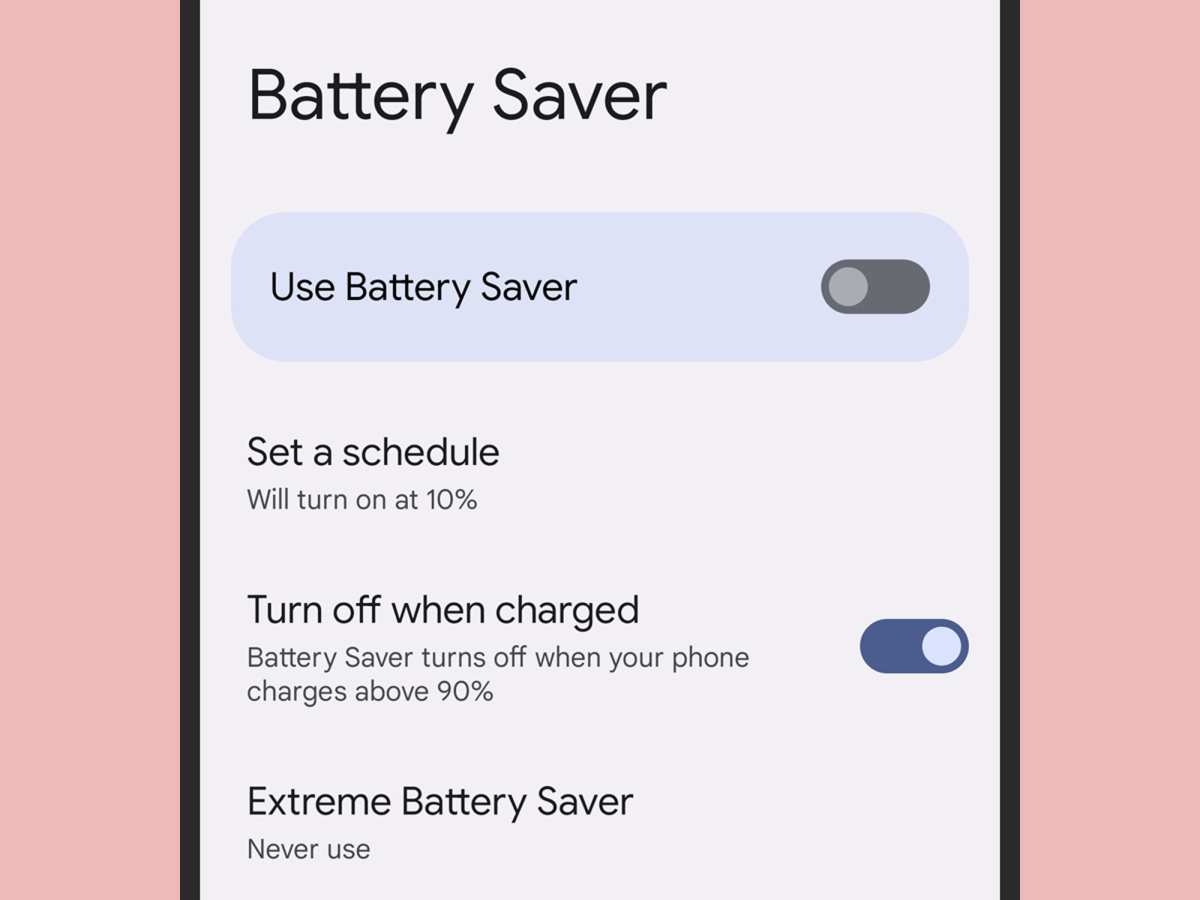
To turn off battery saver on Android, you simply swipe down from the top of your screen and tap the battery icon or go into Settings > Battery > Battery Saver and toggle it off. **Turning off the battery saver can help your device run at full capacity.** If the feature is active, it limits background activity, which can affect app performance. Knowing how to turn off battery saver on Android ensures your phone stays responsive whenever you need maximum power.

How to Turn Off Battery Saver on Android
When your Android phone switches into Battery Saver mode, it helps conserve power by limiting background activity, reducing performance, and turning off certain features. While this mode can be very helpful when your phone’s battery is running low, there are times when you might want to turn it off to enjoy full functionality, better performance, or to run apps without restrictions. Knowing exactly how to disable Battery Saver on your Android device will ensure that your phone performs at its best whenever you need it.
In this guide, we’ll walk you through step-by-step instructions to turn off Battery Saver on various Android devices, explain why and when you might want to disable it, and share helpful tips so you can manage your device’s power settings more effectively. Whether you use a Samsung, Google Pixel, OnePlus, or any other Android phone, this comprehensive guide will help you navigate your device’s settings with ease.
Understanding Battery Saver Mode on Android
Before diving into the process of turning off Battery Saver, it’s important to understand what it does and why it activates. Battery Saver is a built-in feature designed to extend your device’s battery life, especially when it’s running low. When enabled, it performs several actions:
- Limits background activities for apps
- Reduces screen brightness and display timeout
- Slows down device performance
- Disables or restricts location services and certain notifications
- Turns off automatic email sync and other background processes
While these measures can help your phone last longer on a single charge, they can also make your device feel sluggish or restrict access to some features. That’s why you may want to turn off Battery Saver mode once your phone is sufficiently charged or if you need full access to all functionalities.
How to Turn Off Battery Saver on Different Android Devices
The steps to disable Battery Saver can vary depending on the device manufacturer and the Android version, but generally, the process is quite similar across most devices. Below, you’ll find detailed instructions for popular Android brands.
Turning Off Battery Saver on Stock Android Phones (Google Pixel, Android One)
1. **Open the Settings App**
Tap the gear-shaped icon in your app drawer or notification shade to access Settings.
2. **Navigate to Battery**
Scroll down and select the “Battery” option.
3. **Locate Battery Saver Mode**
You’ll see a toggle switch labeled “Battery Saver.” If it’s on, it will be highlighted.
4. **Disable Battery Saver**
Tap the toggle to switch it off. The icon in the notification bar will disappear, indicating that Battery Saver mode is no longer active.
**Tip:**
You can also turn off Battery Saver quickly from the notification shade by pulling it down twice and tapping the Battery Saver icon to disable it.
Turning Off Battery Saver on Samsung Devices
1. **Access Settings**
Open the Settings app from your home screen or app drawer.
2. **Tap ‘Battery and Device Care’**
Scroll down and select “Battery and device care” or just “Battery,” depending on your device.
3. **Select ‘Battery’**
Tap on “Battery” to view more options.
4. **Switch Off Power Saving Mode**
Locate “Power saving mode” and toggle it off. If it’s on, it will be highlighted or colored.
**Quick Access:**
Swipe down from the top of your screen to open the notification shade. Look for the Power Saving icon or option, and tap it to toggle off.
Turning Off Battery Saver on OnePlus Devices
1. **Open Settings**
Tap the Settings icon.
2. **Go to Battery**
Scroll down and tap “Battery.”
3. **Disable Battery Saver Mode**
Find the “Battery Saver” option and toggle it off.
**Shortcut Tip:**
Use the quick settings panel by pulling down from the top and tapping the Battery Saver icon to disable it instantly.
Using Quick Settings for Fast Access
Most Android phones allow you to toggle Battery Saver directly from the quick settings menu. Here’s how:
– Swipe down twice from the top of your screen to fully expand the quick settings panel.
– Look for the Battery Saver or Power Saving icon.
– Tap the icon to turn it off immediately.
This method is fast and convenient, especially when you’re in a hurry.
Additional Tips for Managing Battery Settings
While turning off Battery Saver, there are other options and tips you can consider to optimize your device’s power management:
- Set a Battery Limit or Schedule: Some devices allow you to schedule Battery Saver to turn on or off at specific times or battery percentages.
- Monitor Battery Usage: Use the battery usage feature to see which apps consume the most power. Restrict or uninstall unnecessary apps.
- Adjust Display Brightness: Lower screen brightness manually or enable adaptive brightness to conserve power without activating Saver mode.
- Disable Unnecessary Features: Turn off Bluetooth, Wi-Fi, or Location Services when not needed.
Common Troubleshooting Issues
Sometimes, you might find that Battery Saver remains enabled even after trying to turn it off, or the option isn’t visible. Here are some solutions:
- Restart Your Device: A simple reboot can resolve glitches in settings.
- Update Your Software: Ensure your device runs the latest firmware, as updates often fix bugs.
- Check for Manufacturer-Specific Settings: Some devices have customized power management options that may override standard settings.
Understanding When to Keep Battery Saver Enabled
While turning off Battery Saver improves performance and access to all features, there are situations where keeping it enabled benefits you:
– When your battery level is very low and you need more time to reach a charger.
– During long trips or times when charging isn’t available.
– To reduce distractions from notifications and background activities.
Conversely, disable it when you need your device to perform at its best, especially if you’re working, gaming, or using demanding apps.
Managing your Android device’s power settings effectively ensures you get the most out of your phone without unnecessary interruptions. Knowing how to turn off Battery Saver mode gives you full control over your device’s performance and functionality. Whether you prefer quick toggles via the notification panel or detailed settings through the device menu, mastering these steps allows you to customize your experience according to your needs.
Remember, regularly monitoring your battery usage and adjusting your settings can help extend your device’s lifespan and improve overall usability. Take a few moments to familiarize yourself with your specific device’s options so you can switch between conserving power and enjoying full performance seamlessly.
Frequently Asked Questions
What steps should I follow to disable Battery Saver during an active power-saving mode?
To turn off Battery Saver while it’s active, swipe down from the top of your screen to access the notification panel. Look for the Battery Saver icon or notification. Tap on it to open the settings menu, then toggle the switch off to disable Battery Saver mode immediately.
How can I prevent Battery Saver from activating automatically in the future?
Open the Settings app on your device and navigate to the Battery section. Find the Battery Saver options, then check if there’s an automatic activation setting. If available, disable the automatic toggle so Battery Saver doesn’t turn on without your consent.
Is there a quick way to disable Battery Saver from the quick settings menu?
Yes, pull down the notification shade to access the quick settings panel. Look for the Battery Saver icon; it usually appears as a battery with a plus sign or a similar symbol. Tap on this icon to toggle Battery Saver off instantly.
Can I turn off Battery Saver when my device isn’t charging?
Yes, you can. Typically, Battery Saver can be disabled regardless of whether your phone is charging. Simply follow the usual steps: access the notification panel or Settings app, then toggle off the Battery Saver mode whenever you prefer to maximize performance or app functionality.
What should I do if I can’t find the Battery Saver toggle on my device?
If you can’t locate the toggle, go to Settings > Battery or Device Maintenance. Look for Battery Saver under the battery options and disable it from there. Sometimes, manufacturer-specific interfaces may place this setting in different sections, so exploring the Battery menu can help locate it.
Final Thoughts
To turn off battery saver on Android, simply open the Settings app on your device. Navigate to the Battery section, where you will see the Battery Saver option. Tap on it and toggle the switch to disable the feature.
Remember, turning off battery saver can help improve device performance if you’re not concerned about battery life.
In conclusion, knowing how to turn off battery saver on android ensures you maximize your phone’s capabilities when needed.

Similar Posts