How Ipad And Iphone Sync For Seamless Device Integration
To sync your iPad and iPhone effortlessly, just use Apple’s iCloud or connect them via Bluetooth or Wi-Fi with the latest settings. This way, your data, apps, and media stay seamlessly updated across both devices without any hassle. Syncing is straightforward once you understand the right tools and steps to ensure your devices are connected smoothly.
Syncing your iPad and iPhone is easier than you think. By leveraging Apple’s built-in features like iCloud, Bluetooth, or Wi-Fi, you can keep your data consistent and always up to date across both devices. In this article, you’ll learn simple methods to synchronize your devices, whether it’s for contacts, photos, apps, or settings, so you enjoy a unified Apple experience without stress.
If you’re wondering how to keep your iPad and iPhone perfectly aligned, you’re in the right place. These devices are designed to work together seamlessly, and with just a few taps, you can ensure everything from your messages to your media is in sync. Read on for quick, easy solutions to synchronize your Apple devices effortlessly.

How iPad and iPhone Sync: A Complete Guide
Syncing your iPad and iPhone is a simple process that keeps your data consistent across both devices. Whether you want your messages, photos, or apps to match, understanding how to sync them makes your digital life easier. In this guide, we’ll explore all the ways you can sync your iPad and iPhone effectively.
Understanding the Basics of iPad and iPhone Syncing
Syncing means sharing data between your iPad and iPhone so that everything stays up to date. Both devices use Apple’s iCloud or a computer to transfer information. It’s important to choose the right method based on what data you want to sync.
There are two main ways to sync: through wireless methods like iCloud and over a wired connection using iTunes or Finder. Each method has its own advantages and is suitable for different sync needs.
Using iCloud to Sync Your Devices
What is iCloud?
iCloud is Apple’s cloud storage service that automatically syncs your data across all Apple devices logged into the same Apple ID. It makes data sharing simple and hands-free.
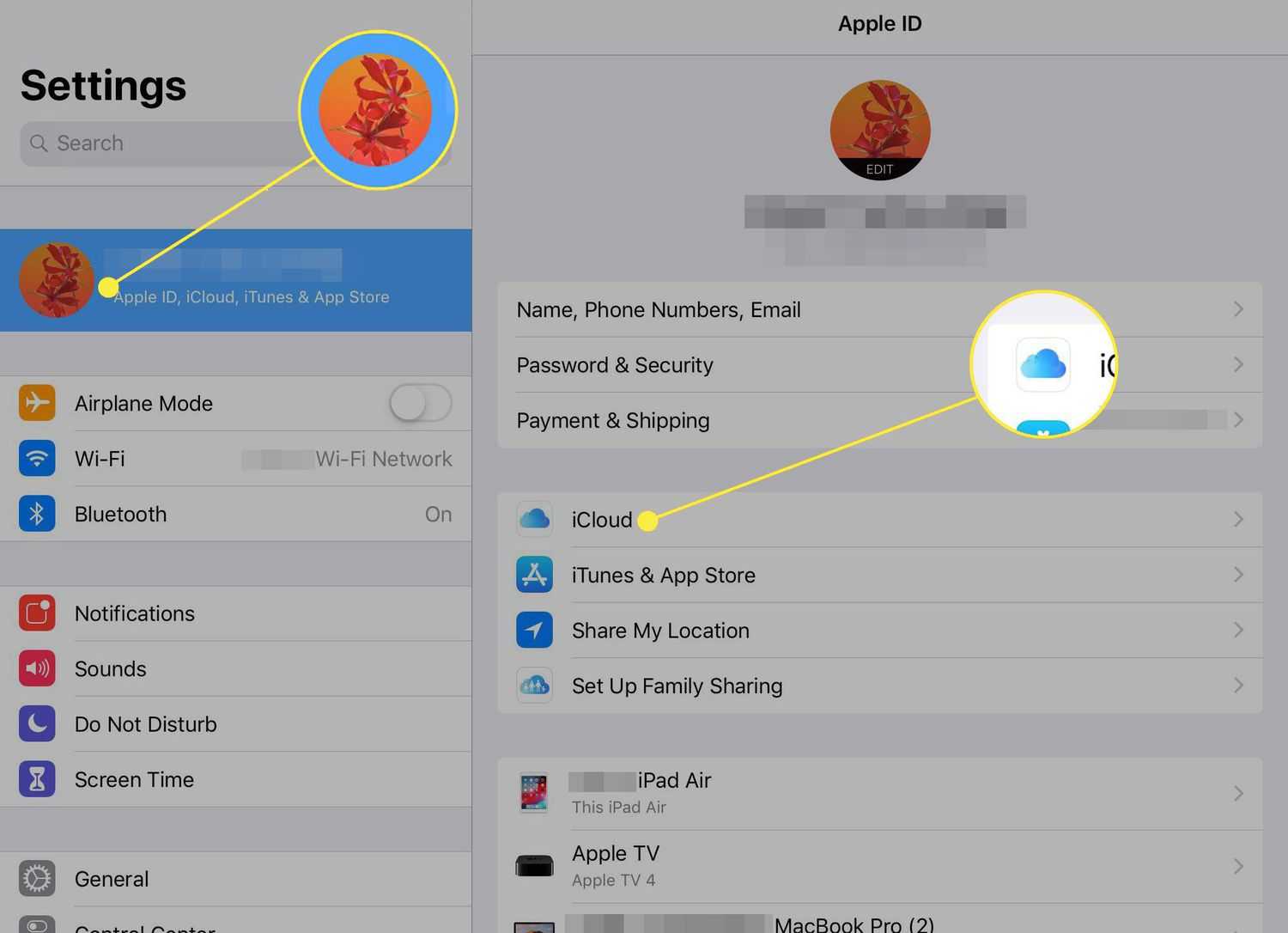
How to Enable iCloud Syncing
- Open the Settings app on your iPhone or iPad.
- Tap your Apple ID at the top of the menu.
- Select “iCloud” from the list.
- Toggle the switches next to the data types you want to sync, such as Photos, Contacts, Calendars, Notes, and Safari.
Benefits of Using iCloud
- Automatic Updates: Changes made on one device instantly appear on the other.
- Easy Backup: iCloud automatically backs up data, so nothing is lost.
- Access Anywhere: Your data is available on any device logged into your Apple ID.
Syncing via iTunes or Finder on a Computer
Connecting Your Devices with a Cable
Using a USB cable provides a stable connection for syncing large files like music and videos. Connect your iPad or iPhone to your computer using the appropriate cable.
Syncing through iTunes or Finder
- Open iTunes on Windows or older Macs; on macOS Catalina or later, open Finder.
- Select your device in iTunes or Finder.
- Choose the types of data you want to sync, such as Music, Photos, or Contacts.
- Click “Sync” to start transferring data.
Advantages and Disadvantages of Cable Syncing
- Pros: Faster data transfer; better control over what gets synced.
- Cons: Requires physical connection; less convenient for frequent updates.
Syncing Specific Data Types
Contacts and Calendars
Sync contacts and calendars easily via iCloud or your computer. For iCloud, activate contacts and calendars in the iCloud settings. On a computer, select to sync these data types under your device settings.
Photos and Videos
Photos can be synced through iCloud Photos, ensuring that images on your iPad and iPhone stay identical. Alternatively, use AirDrop or a cable for manual transfers.
Apps and App Data
Apps can be re-downloaded from the App Store using the same Apple ID. App data can sync via iCloud if supported or through backups in iTunes/Finder.
Managing iCloud Settings for Optimal Syncing
Selecting What to Sync
Decide what data should sync by reviewing your iCloud settings. Turn off unnecessary items to save storage space or improve performance.
Storage Considerations
iCloud offers limited free storage. If you need more space, consider upgrading your plan to ensure all data can sync without issues.
Syncing Notes, Reminders, and Messages
Notes and Reminders
Sync notes and reminders using iCloud by toggling them on in the iCloud settings. This keeps your lists updated on both devices.
Messages (iMessage)
Enable Messages in iCloud to sync conversations automatically. This feature keeps your messages current on iPad and iPhone, including photos and attachments.
Syncing Files and Documents
Using iCloud Drive
iCloud Drive makes your documents accessible across devices. Save files to iCloud Drive to keep them synchronized seamlessly.
Third-Party Apps
Many apps offer their own sync options, often through cloud storage services. Connect these apps to iCloud or their respective services for consistent data sharing.
Troubleshooting Sync Issues
Common Problems
- Sync not working after updates.
- Data not appearing on one device.
- Slow or interrupted syncing process.
Fixing Sync Problems
- Ensure your devices are updated to the latest iOS version.
- Check your internet connection, especially for iCloud sync.
- Log out and back into your Apple ID.
- Restart your devices.
- Verify that the appropriate sync options are enabled in settings.
Security and Privacy When Syncing
Protect Your Data
Use strong passwords and enable two-factor authentication for your Apple ID. This helps keep your synced data safe and secure.
Managing What Gets Shared
You can control which apps and data types sync through your device settings. Disable any sync options that you do not wish to share across your devices.
Additional Tips for Seamless Syncing
- Keep your devices charged and connected during syncs for smooth transfers.
- Regularly review your iCloud storage to prevent sync interruptions.
- Use Wi-Fi whenever possible to avoid excessive cellular data use during syncing.
Understanding how to sync your iPad and iPhone ensures that your data remains consistent and accessible. By choosing the right methods and managing your settings carefully, you can enjoy a seamless experience across all your Apple devices. Keep your software updated, check your sync options regularly, and stay aware of storage limits to maintain perfect harmony between your iPad and iPhone.
How to Sync iPhone and iPad
Frequently Asked Questions
How can I ensure that my iPad and iPhone are using the same Apple ID for synchronization?
To keep your devices synced, verify that both your iPad and iPhone are signed into the same Apple ID. Open the Settings app on each device, tap your name at the top, and check the Apple ID displayed. If they are different, sign out of one device and sign in with the same account to enable seamless data sharing across both devices.
What steps should I follow to sync my contacts and calendars between iPad and iPhone?
Make sure iCloud is enabled for contacts and calendars on both devices. Go to Settings, tap your Apple ID, select iCloud, and toggle on Contacts and Calendars. Once activated, any changes you make on one device automatically update on the other through iCloud synchronization.
How do I troubleshoot if my iPad and iPhone are not syncing certain data like messages or photos?
First, check your internet connection, as synchronization requires a stable connection. Make sure that iCloud backups and sync options are enabled for messages and photos. Also, ensure that both devices are running the latest iOS or iPadOS version. If issues persist, sign out and back into iCloud, restart your devices, or reset network settings to resolve sync problems.
Can I sync my apps and app data between my iPad and iPhone?
Yes, apps and their data sync through iCloud and the App Store. To do this, enable iCloud backups and app sync options in Settings. When you install apps on one device and sign in with the same Apple ID, your app data, preferences, and progress can transfer automatically, especially when using apps that support iCloud syncing.
Final Thoughts
“how ipad and iphone sync” allows seamless sharing of data and settings, making device management effortless. iCloud plays a key role by automatically syncing contacts, photos, and apps between devices. Users can also synchronize via Wi-Fi or USB using iTunes or Finder.
Understanding these sync methods helps users keep their devices up-to-date effortlessly. Consistent syncing ensures a smooth experience across iPad and iPhone. Keeping both devices synchronized simplifies daily tasks and enhances productivity.

Similar Posts































