How Do I Sync Iphone To Ipad For Seamless Data Transfer

How Do I Sync iPhone to iPad?
Syncing your iPhone and iPad helps you keep your data consistent across both devices. This way, you can access your photos, contacts, emails, and apps anywhere. Getting everything to match up can seem tricky at first, but with the right steps, it becomes simple and quick.
Understanding the Benefits of Syncing Your iPhone and iPad
Syncing ensures your information stays up-to-date on both devices. It saves you time by avoiding manual updates and guarantees data consistency. Additionally, it helps you back up important files and keeps your preferences aligned across your gadgets.
Prerequisites for Syncing: What You Need
Before starting, make sure you have the latest version of iOS installed on both devices. Also, check that you have a reliable Wi-Fi connection. You will need your Apple ID and, optionally, a computer or cloud service depending on the syncing method.
Using iCloud to Sync iPhone and iPad
Enabling iCloud on Your Devices
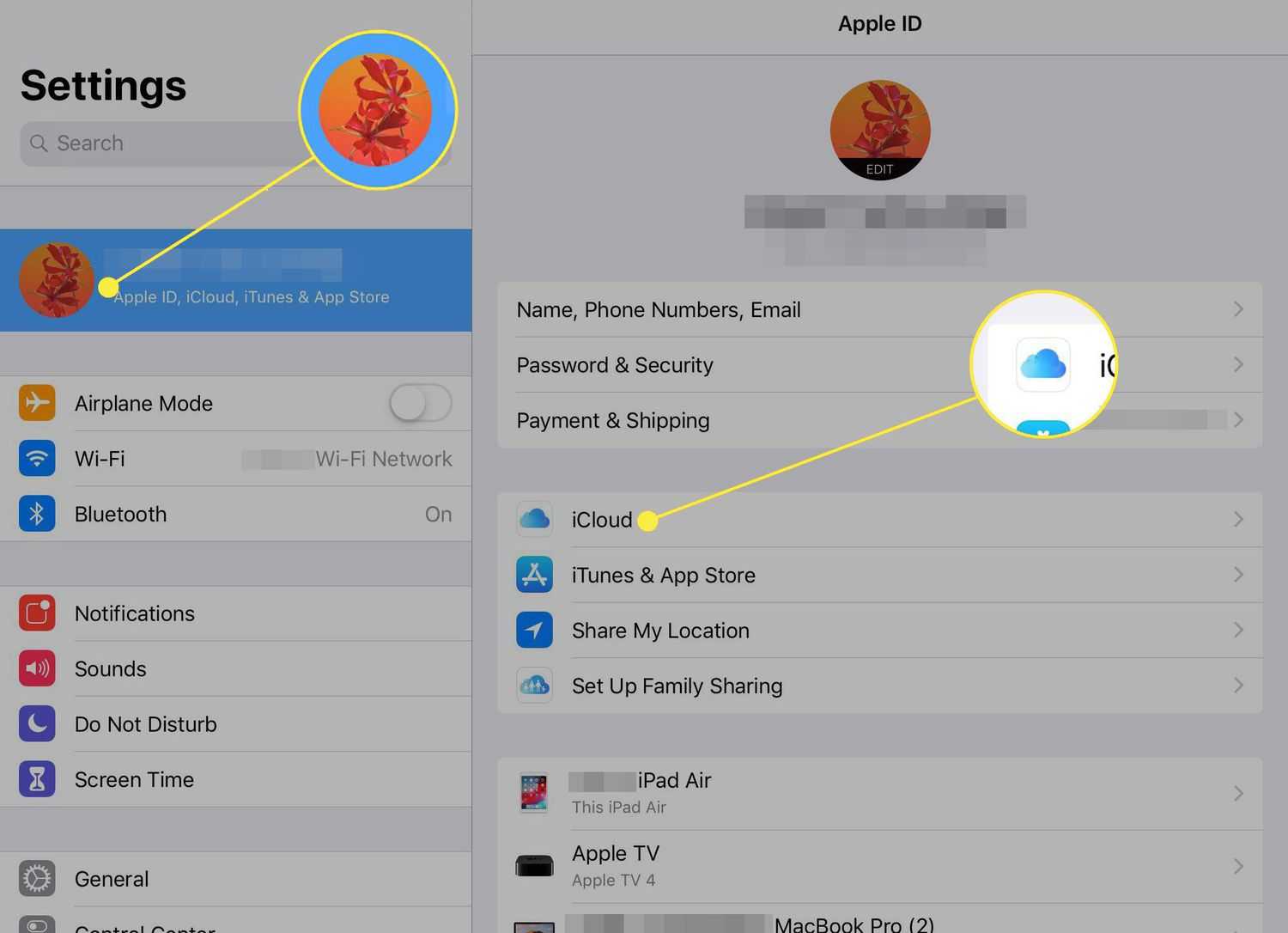
Go to Settings on both devices. Tap your name at the top to access Apple ID settings. Turn on iCloud for the data you want to sync, such as Contacts, Photos, and Calendar. This ensures your data updates automatically across devices when connected to the internet.
Choosing What Data to Sync with iCloud
Within iCloud settings, you can select specific types of data to sync. For example, toggling Photos uploads your images to iCloud, making them available on both devices. Remember, syncing large files might take time depending on your internet speed.
Managing Storage for iCloud
iCloud offers limited free storage. If you have lots of data, consider upgrading your plan. Check your storage in Settings under iCloud and manage your data to prevent syncing issues.
Using iTunes or Finder for Manual Syncing
Connecting Your Devices to a Computer
Use a Lightning or USB-C cable to connect your iPhone and iPad to your Mac or PC. Open iTunes (on Windows or older macOS) or Finder (on macOS Catalina and later). Ensure that your computer recognizes your devices.
Syncing Data via iTunes or Finder
In iTunes or Finder, select your device. Choose the types of data you want to sync, like Music, Photos, or Contacts. Click the “Sync” button to transfer data manually between your devices.
Advantages and Limitations of Manual Syncing
Manual syncing gives you control over specific data. However, it requires a computer and cable connection each time. For continuous updates, iCloud may be more convenient.
Using AirDrop to Share Files Quickly
Enabling AirDrop on Both Devices
Swipe down from the top right corner of your screen to access the Control Center. Press and hold the network settings box, then tap AirDrop. Set it to “Contacts Only” or “Everyone” for easier sharing.
Sharing Files via AirDrop
Select the file, photo, or document you want to share. Tap the Share icon and choose your target device from the AirDrop list. Confirm the transfer on your receiving device and enjoy quick sharing without cables.
Syncing Apps and Content Between iPhone and iPad
Using Automatic Downloads
Go to Settings > App Store. Enable “Apps” and “App Downloads” under Automatic Downloads. This ensures your purchased apps and updates download automatically on both devices.
Syncing Music, Movies, and Books
In iTunes or Finder, you can sync media content by selecting the respective tabs. Check the boxes for the content you want to transfer. Click “Apply” or “Sync” to complete the process.
Handling Photos and Videos
- Use iCloud Photos for seamless access across devices.
- Alternatively, connect your devices to a computer and transfer media manually through iTunes or Finder.
Syncing Contacts, Calendars, and Notes
Using iCloud for Contacts, Calendars, and Notes
Ensure Contacts, Calendars, and Notes toggles are on in Settings > [Your Name] > iCloud. This keeps your schedules and contact info identical on both devices.
Managing Conflicts and Duplicates
If you notice duplicate contacts or calendar events, review your sync settings. Merging or deleting duplicates can help keep your data clean.
Troubleshooting Common Syncing Issues
Sync Not Working? Here’s What to Do
First, check your internet connection. Restart your devices and ensure you’re signed in to the same Apple ID. If issues persist, log out and back into iCloud or reset your network settings.
Resolving Data Conflicts
Sometimes, conflicting data may appear. To fix this, disable syncing for affected data types, delete duplicates, and then re-enable syncing to refresh your data.
Best Practices for Maintaining Syncing Efficiency
- Regularly update your devices to the latest iOS version.
- Back up your data before making major changes.
- Use iCloud for automatic and hands-free syncing.
- Maintain a strong Wi-Fi connection for seamless updates.
Additional Tips for Syncing Multiple Apple Devices
Using Family Sharing to Sync Data
Family Sharing allows sharing of purchases, calendars, and more among family members. Set it up in Settings > [Your Name] > Family Sharing for broader data access.
Syncing via Third-Party Apps
Apps like Google Drive, Dropbox, and Microsoft OneDrive provide alternative options for syncing documents and media. Install the apps, upload your data, and access it across all your devices.
Security and Privacy During Syncing
Always enable two-factor authentication for your Apple ID. Limit what you sync if privacy is a concern, and review app permissions regularly to keep your data safe.
Syncing your iPhone and iPad involves choosing the right method for your needs, understanding how to manage your data, and troubleshooting issues as they arise. With these tips, keeping your devices aligned becomes straightforward, making your digital life more organized and accessible.
How to Sync iPhone and iPad
Frequently Asked Questions
How can I sync my iPhone contacts with my iPad?
To sync your contacts, ensure both devices are signed in with the same Apple ID. Enable iCloud Contacts on both devices by going to Settings > [Your Name] > iCloud and toggling the Contacts option on. Your contact information will then automatically sync across your iPhone and iPad, keeping both updated.
What steps should I follow to sync my apps between iPhone and iPad?
Make sure iCloud is enabled for App Sync by visiting Settings > [Your Name] > iCloud, then toggle on Apps that you want to sync. Once activated, your app data and layout settings will sync across devices. Additionally, if you download an app on one device, it will appear on the other if you have Automatic Downloads enabled in Settings > App Store.
How do I sync my Safari bookmarks and browsing data on my iPhone and iPad?
Activate iCloud for Safari by navigating to Settings > [Your Name] > iCloud and toggling on Safari. This will sync your bookmarks, reading list, and browsing history across both devices, enabling seamless browsing experiences regardless of which device you’re using.
Is there a way to sync my photos from iPhone to iPad without using iCloud?
Yes, you can use a USB cable and the Photos app on your computer to transfer images directly. Connect your iPhone to your computer, import photos via iTunes or Finder, then disconnect and connect your iPad to import the same photos. Alternatively, use AirDrop to transfer photos directly between devices if they are nearby and compatible.
Can I sync my calendar events between my iPhone and iPad? How is this done?
Yes, syncing calendar events is simple with iCloud. Enable Calendars in Settings > [Your Name] > iCloud on both devices. When turned on, all your scheduled appointments and events will automatically sync, ensuring that you stay updated no matter which device you use.
Final Thoughts
To sync your iPhone to your iPad, start by ensuring both devices are signed in with the same Apple ID. Turn on iCloud sync for apps and data you want to share, such as Photos, Contacts, and Notes. Use AirDrop for quick file transfers or set up Wi-Fi sync through iTunes or Finder on your computer. In summary, how do I sync iPhone to iPad? By using the same Apple ID, enabling iCloud, and utilizing AirDrop or Wi-Fi sync, you can keep both devices updated effortlessly.
Similar Posts































