How Do You Know If Airpods Pro Is Charging


How Do You Know If AirPods Pro Is Charging
Checking the Battery Status on Your iPhone
One of the easiest ways to see if your AirPods Pro are charging is by checking the battery widget on your iPhone. When your AirPods are connected, a small icon appears showing the current battery level of both the AirPods and the charging case.
To access this widget, swipe right on your home screen or lock screen until you see the notifications and widgets. If you see the AirPods icon with a lightning bolt, it means they are charging or have sufficient power.
This method provides real-time information, letting you know if your AirPods Pro are actively charging when inside the case or connected to power.
Using the Control Center to Monitor Charging Status
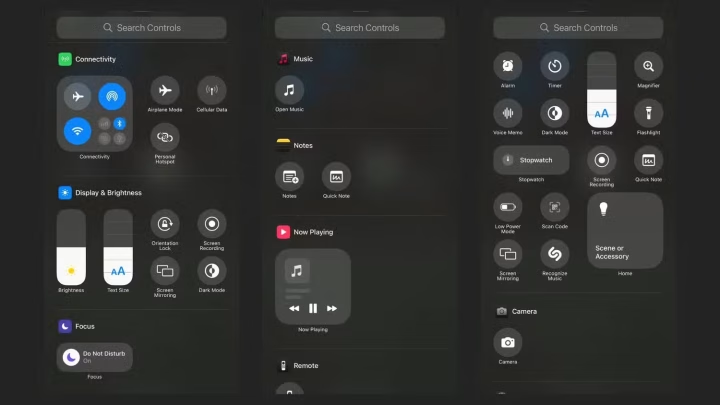
The Control Center on your iPhone gives quick access to device information, including the charging status of your AirPods Pro. Swipe down from the top right corner of your iPhone screen to open the Control Center.
If your AirPods Pro are connected, you’ll see their battery percentage alongside the battery icon. When the case is connected to power and the AirPods are inside, the battery indicator will reflect their charging state.
This feature makes it simple to verify whether your AirPods Pro are charging without navigating through multiple menus.
Inspecting the Charging LED on the Case
The AirPods Pro charging case has an LED indicator that provides visual cues about the charging status. When you open the case, the LED light is visible inside or on the front of the case depending on the model.
The color of this light shows the current status: a green light indicates fully charged or charged, while an amber or orange light means still charging or less than 80% battery.
For ongoing charging confirmation, connect your case to a power source and observe the LED color to determine if charging is active.
How to Confirm Charging When the Case Is Closed
If your AirPods Pro case is closed, you might wonder how to tell if they’re charging. The LED indicator on the case remains active even when closed, providing the same color-based status updates.
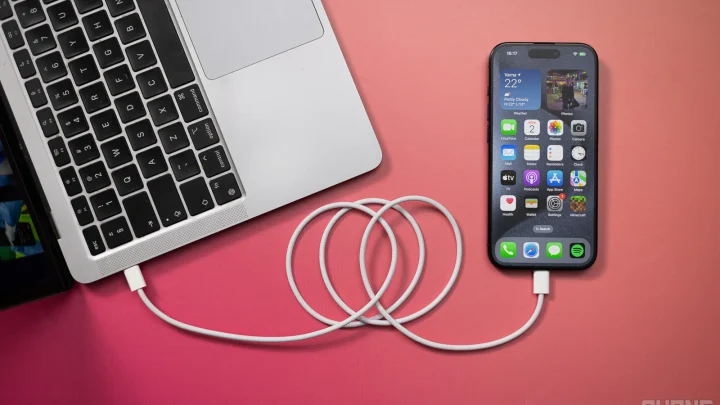
Additionally, plugging the case into a power source or connecting it to a computer via a Lightning cable will trigger the LED to show its charging status.
Remember, the LED might glow briefly when the case starts or stops charging, offering visual confirmation of activity.
Using Your AirPods Pro While Charging
To confirm if your AirPods Pro are charging, connect them to your device and listen for the charging sound or check the battery widget. When they are charging inside the case, the connection should be active, and the battery indicator will reflect this.
Ease of use improves when both the AirPods and case are charged and connected to a power source, ensuring uninterrupted listening.
Monitoring the connection status on your device helps verify that charging is happening correctly.
What to Do When Your AirPods Pro Aren’t Charging
If you suspect your AirPods Pro are not charging, try cleaning the charging contacts inside the case and on the AirPods. Dirt or debris can prevent proper contact and charging.
Check that the charging cable and power source are functioning properly by testing with another device or charger.
If problems persist, reset your AirPods Pro or contact Apple Support for assistance.
Related Topics: Maximizing Your Charging Experience
Using Wireless Charging with AirPods Pro (2nd Generation)
If you own the latest model, you can charge your AirPods Pro using a compatible wireless charger. Place the case with the status light facing upward on the pad, and watch for the LED to light up, indicating charging.
Monitoring Battery Health Over Time
Battery performance can decline with repeated charges. Regularly check the battery status and replace your AirPods Pro if battery life becomes insufficient for your daily use.
Extending Battery Life
- Keep your AirPods Pro and case clean and free of debris.
- Avoid exposing your devices to extreme temperatures.
- Charge them regularly, avoiding full discharges when possible.
Using Third-Party Apps to Check Battery Status
Several apps are compatible with iOS devices that can display detailed battery information for your AirPods Pro. These may provide more precise data, helping you track charging cycles and health.
Summary of Key Indicators Showing Your AirPods Pro Are Charging
| Method | Indicator | Expected Result |
|---|---|---|
| Battery Widget on iPhone | Battery icon with lightning bolt | Charging or sufficient battery level |
| Control Center | Battery percentage with AirPods icon | Active charging status |
| Charging LED on Case | Green or amber/orange light | Charging completed or in progress |
| Connecting AirPods | Listening to audio without interruptions | AirPods inside case are charging or charged |
Final Tips for Ensuring Your AirPods Pro Charge Properly
Always use the original Lightning cable or certified accessories to ensure safety and proper charging. Keep the charging contacts clean for optimal contact points.
Regularly update your iPhone and AirPods Pro firmware for the latest features and charging improvements. If you experience persistent charging issues, consider visiting an Apple Store or authorized service provider.
Double tap to show charging | AirPods Pro 2 | 🔋
Frequently Asked Questions
How can I tell if my AirPods Pro are charging when they are in the case?
If your AirPods Pro are placed correctly inside the charging case, the LED indicator on the front of the case will light up briefly. A white light means they are charging or fully charged, while an amber light indicates a charging issue or that they are not charging. Checking the status light provides a simple way to confirm charging activity.
What visual cues indicate that my AirPods Pro are charging while connected to my device?
When you connect your AirPods Pro to your device, a pop-up window appears on your screen displaying the battery status of both the earbuds and the case. If the battery percentage shows decreasing or increasing, it confirms that the AirPods Pro are actively charging. Additionally, a small battery icon in the status bar or widget can give you a quick view of the charging status.
Can I check charging status using my iPhone or other device?
Yes, you can verify the charging status through your iPhone or compatible device. Open the Bluetooth settings or the Battery widget to see the current battery levels of your AirPods Pro. If the battery level is increasing or maintains a high percentage after being connected to the charger, it indicates that the earbuds are charging properly.
What should I do if my AirPods Pro are not showing signs of charging?
If your AirPods Pro don’t display indicators of charging, first ensure they are properly seated in the case and that the case has power. Try charging the case with a different cable or power source. If the problem persists, reset the AirPods and check for any firmware updates. If none of these steps work, contact Apple Support for further assistance.
Final Thoughts
To know if your AirPods Pro is charging, check the LED indicator on the case. When placed inside, the light should turn amber briefly then white. Additionally, open the Bluetooth settings on your device and verify the battery level. You can also see the battery status on your iPhone or iPad if the AirPods Pro are connected. A visual cue confirms charging progress and helps you manage usage effectively. How do you know if AirPods Pro is charging? Simply observe the LED light or check the device’s battery widget. These signs ensure your AirPods Pro are charging properly and ready for your next use.
Similar Posts