How Do You Delete Cookies On Ipad For Privacy
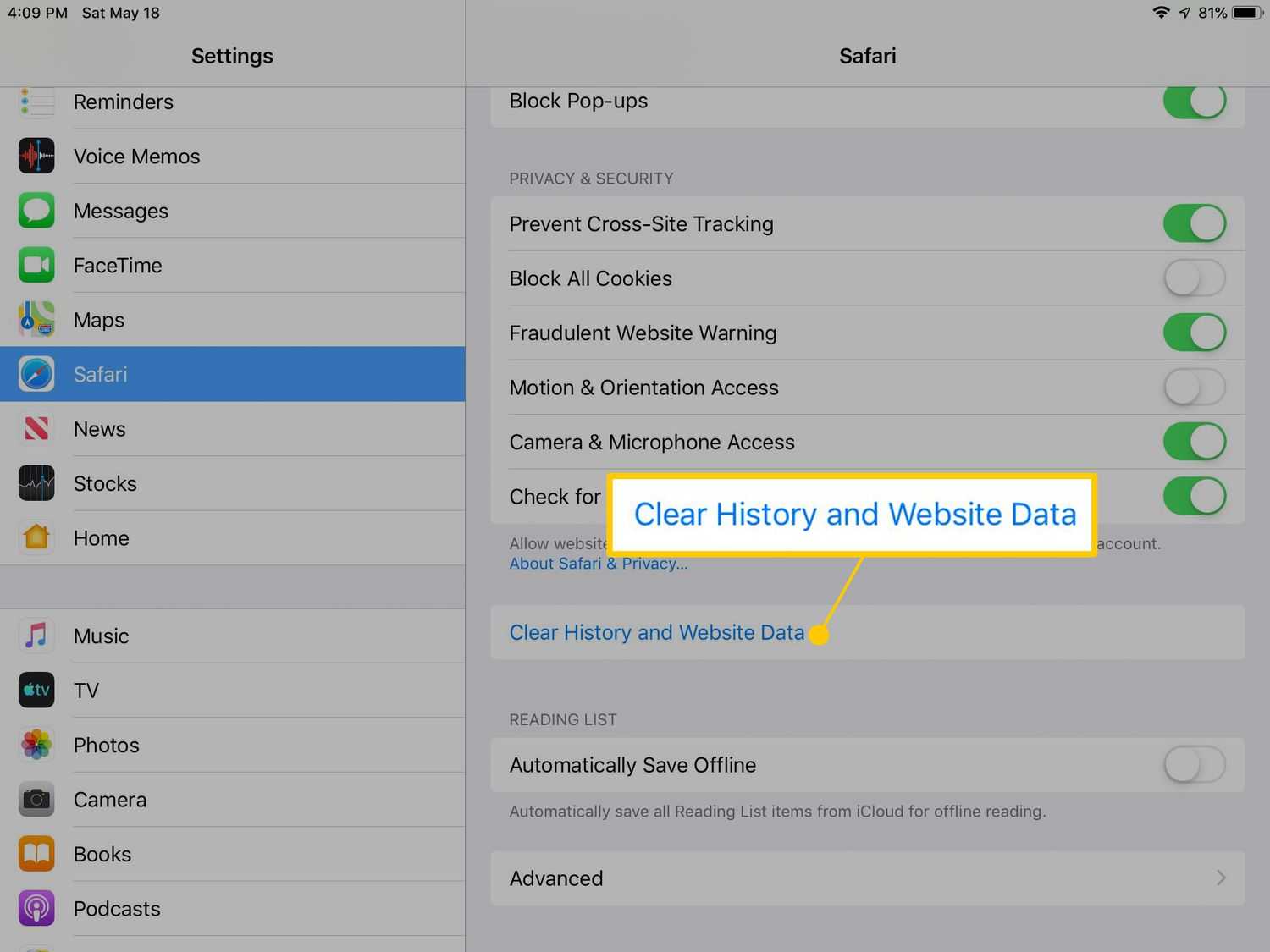
To quickly delete cookies on your iPad, go to Settings, then Safari, and tap “Clear History and Website Data.” Confirm your choice, and all cookies along with browsing history will be cleared in seconds. This simple step helps protect your privacy, free up storage, and troubleshoot browsing issues.
Deleting cookies on your iPad might seem tricky at first, but it’s actually quite straightforward once you know where to look. Cookies are small files stored by websites to remember your preferences and login details, but over time they can slow down your browsing experience or compromise your privacy. Whether you’re troubleshooting a website or just want to start fresh, knowing how to remove these files is essential. In this guide, I’ll walk you through the quick and easy steps to delete cookies from your iPad so you can browse more securely and efficiently. Let’s get started and take control of your browsing data in just a few taps!

How Do You Delete Cookies on iPad?
Cookies are small files stored on your iPad that help websites remember your preferences and login details. While cookies can improve browsing experience, they can also cause privacy concerns or slow down your device. Deleting cookies regularly can help protect your privacy and keep your iPad running smoothly. In this guide, we will walk you through the process of removing cookies from your iPad in simple steps.
Understanding Cookies and Why You Might Want to Delete Them
Cookies are pieces of data saved by websites you visit. They store information such as login details, site preferences, and browsing history. Sometimes cookies can accumulate and cause issues like slow page loading or problems with website logins. If you’re concerned about privacy or want to free up storage space, deleting cookies is a good idea.
How Cookies Impact Your Privacy and Security
Cookies can track your browsing habits across different sites, which some users find invasive. Removing cookies can prevent websites from monitoring your activity and protect your personal data. Additionally, deleting cookies can fix issues caused by outdated or corrupted cookie data.
Differences Between Clearing Cookies and Browsing Data
Clearing cookies is part of a broader process called clearing browsing data. This action also removes cache files, history, and saved passwords in some cases. Depending on your needs, you might choose to delete only cookies or all browsing data at once.
Preparing to Delete Cookies on Your iPad
Before removing cookies, ensure your iPad has the latest iOS update for optimal privacy features. Also, consider which browsers you use, as the process differs between Safari, Google Chrome, and other apps.
How to Delete Cookies from Safari on iPad
Step-by-step Guide to Clearing Safari Cookies
- Open the Settings app on your iPad.
- Scroll down and tap Safari.
- Within Safari settings, select Clear History and Website Data.
- A confirmation prompt will appear. Tap Clear to confirm.
Additional Options for Managing Cookies in Safari
If you want more control, you can choose to delete cookies for specific websites instead of clearing all data. Scroll down in Safari settings and tap Advanced. Then, tap Website Data to see a list of stored cookies. Here, you can delete cookies for individual sites.
How to Delete Cookies in Google Chrome on iPad
Steps to Clear Cookies in Chrome
- Launch the Google Chrome app.
- Tap the three-dot menu icon at the top right corner.
- Select Settings from the menu.
- Scroll down and tap Privacy.
- Tap Clear Browsing Data.
- Choose Cookies, Site Data, and any other data you want to delete.
- Tap Clear Data to finish.
Managing Cookies in Chrome Settings
In Chrome, you can also set preferences for how cookies are handled, such as blocking third-party cookies or preventing sites from saving data. These options help improve your privacy without needing frequent manual deletions.
Managing Cookies in Other Browsers on iPad
Other browsers like Firefox or Edge also allow cookie management, usually through their settings menus. Typically, you will find options similar to Safari and Chrome for clearing browsing data or cookies. Check your specific browser’s settings for detailed instructions.
Using Private or Incognito Mode to Avoid Cookies
Instead of deleting cookies regularly, consider browsing in private or incognito mode. This mode prevents your browser from saving cookies after you close the window, giving you a cleaner browsing experience each time.
Automatically Deleting Cookies on iPad
Some browsers offer options to automatically delete cookies after each session. For Safari, enable ‘Block All Cookies’ or ‘Prevent Cross-Site Tracking’ for better privacy. For Chrome and others, explore their privacy settings to set automatic data clearance.
Common Issues When Deleting Cookies and How to Fix Them
If you encounter problems deleting cookies, ensure your device’s software is up to date. Restart your iPad and repeat the process. Sometimes, clearing cookies may require closing and reopening your browser for changes to take effect.
Additional Tips for Managing Cookies and Privacy on iPad
- Regularly clear your browsing data to protect your privacy.
- Use content blockers and privacy extensions if available.
- Adjust browser settings to restrict third-party cookies.
- Review website permissions to control data sharing.
Why Clearing Cookies Can Improve Your Browser Performance
Over time, cookies and cached data can slow down your browser’s performance. Removing them can lead to faster load times, fewer glitches, and a smoother browsing experience.
How Clearing Cookies Affects Your Saved Settings and Logins
Deleting cookies may log you out of websites and remove saved preferences. Be prepared to log in again or reconfigure settings after clearing cookies to avoid inconvenience.
Summary of Best Practices for Managing Cookies on iPad
- Clear cookies periodically to enhance privacy.
- Use private browsing for sensitive sessions.
- Adjust browser settings to limit cookie storage.
- Keep your device and browser updated for the latest privacy features.
Remember, managing cookies helps you stay in control of your online privacy while keeping your iPad running efficiently. Regular maintenance ensures a safer and more comfortable browsing experience on your device.
How To Clear Cookies on an iPad
Frequently Asked Questions
What steps should I take to clear cookies from my iPad’s browser?
To clear cookies on your iPad, open the Settings app, scroll down to find Safari (or the browser you’re using). Tap on Safari, then select “Clear History and Website Data.” Confirm the action when prompted. This process deletes cookies, browsing history, and other website data from your device.
How can I prevent cookies from being stored on my iPad in the future?
In Safari settings, toggle the switch next to “Block All Cookies” to enable this feature. Keep in mind that blocking cookies may impact your browsing experience, as some websites might not function properly without them. Regularly managing your cookie settings helps maintain your privacy and device performance.
Is there a way to delete cookies for a specific website on my iPad?
Yes, you can remove cookies for individual sites. Go to Settings > Safari > Advanced > Website Data. Tap on “Edit” or directly select the website you want to remove data for, then choose “Delete” or swipe left to delete the specific data. This method helps you manage cookie data for specific sites without affecting others.
Final Thoughts
To delete cookies on your iPad, open the Settings app and scroll down to Safari. Tap on Safari and select “Clear History and Website Data.” Confirm by tapping “Clear” to remove cookies.
Knowing how do you delete cookies on iPad helps protect your privacy and free up storage. Regularly clearing cookies can improve your browsing experience. Follow these simple steps to maintain your device efficiently.

Similar Posts































