Disabling Bluetooth And Wifi When Not In Use For Better

Disabling Bluetooth and WiFi When Not in Use
Understanding Why It’s Important to Turn Off Bluetooth and WiFi
Many devices have Bluetooth and WiFi features that are always ready to connect. Leaving them on can drain your battery faster and might expose your device to security risks. Turning off these features when you do not need them helps save power and keeps your device more secure. It also prevents unwanted connections from other devices.How Bluetooth and WiFi Work
Bluetooth uses short-range radio waves to connect devices like headphones, speakers, and keyboards. WiFi enables your device to connect to the internet through a wireless network. Both features operate by broadcasting signals that can be detected by other devices nearby.The Impact of Leaving Bluetooth and WiFi On
Prolonged use of Bluetooth and WiFi can cause your device to consume more power, leading to faster battery drain. Each time your device searches for available networks or devices, it uses energy even if it doesn’t connect. Additionally, keeping these features active increases the chances of security breaches or data theft.How Turning Off Bluetooth and WiFi Enhances Security
Disabling these features reduces the chances of unauthorized access. Hackers often target devices with active wireless connections. By turning off Bluetooth and WiFi when not needed, you close potential entry points for cyber threats.Steps to Disable Bluetooth and WiFi on Different Devices
On Smartphones and Tablets
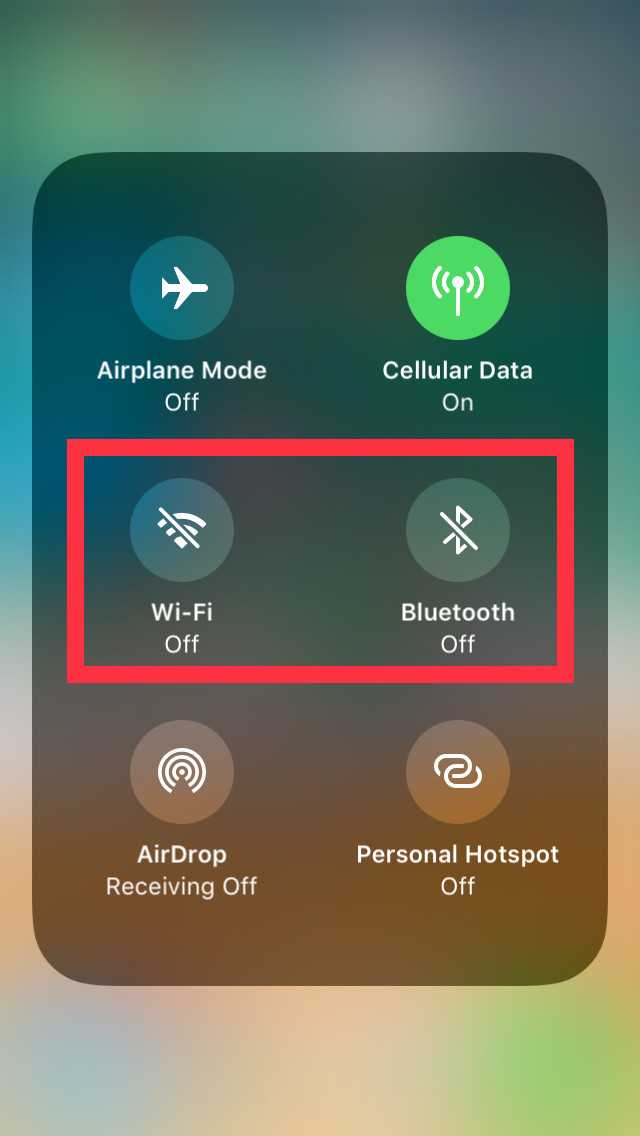
Most smartphones have quick access panels to toggle Bluetooth and WiFi. Simply swipe down or up to open the quick settings. Tap the Bluetooth icon to turn it off. Do the same for WiFi by tapping the WiFi icon. For more control, go into the device settings menu.On Windows Computers
Click the Start menu and select Settings. Choose Network & Internet. You will see options for WiFi and Bluetooth. Toggle each switch to off when you do not need them. You can also use the Action Center by clicking the notification icon in the taskbar.On Mac Devices
Click the WiFi icon in the menu bar and select Turn WiFi Off. To disable Bluetooth, click the Bluetooth icon on the menu bar and select Turn Bluetooth Off. Alternatively, go to System Preferences to toggle these features manually.Using Settings for Automated Control
Many devices allow you to automate turning off Bluetooth and WiFi based on your schedule. For example, setting a timer or using apps can disable these features during nighttime or when you are at work. This approach helps maintain energy efficiency without manual intervention.Benefits of Regularly Disabling Bluetooth and WiFi
Turning off these features consistently can improve your device’s battery life significantly. It also minimizes exposure to potential security threats from nearby devices. Additionally, it helps maintain your privacy by reducing unnecessary data broadcasts.Additional Tips for Managing Wireless Connections
- Always update your device’s software to ensure security patches are installed.
- Use strong passwords when connecting to WiFi networks.
- Avoid connecting to unknown or unsecured networks.
- Regularly review your paired Bluetooth devices and remove any unknown connections.
Best Practices for Disabling Bluetooth and WiFi
Always disable Bluetooth and WiFi when you are in a safe environment or do not need internet access. Use the device’s quick toggle features for easy and fast control. Remember to re-enable these features when you need to connect to new devices or networks.Advanced Options for Power Saving
Some devices offer power-saving modes that automatically disable Bluetooth and WiFi. Explore your device’s settings for such options, especially if you want to maximize battery life. These modes can also limit background activity to save energy.The Role of Cybersecurity and Privacy
Keeping Bluetooth and WiFi off when not in use adds a layer of security. Cybercriminals often scan for active wireless signals to compromise devices. Preventing your device from broadcasting signals altogether reduces these risks. Turning off Bluetooth and WiFi when they are not needed is a simple yet effective way to extend your device’s battery life, protect your data, and prevent security threats. Incorporate this habit into your daily routine by using quick toggles or automation settings. Staying mindful of your device’s wireless connections ensures healthier, more secure usage. This practice benefits everyone by conserving energy, safeguarding personal information, and maintaining device performance. Remember, a little effort in disabling these features can make a significant difference in your device’s efficiency and your online safety.Don't switch off Bluetooth and WiFi!
Frequently Asked Questions
How can I quickly turn off Bluetooth and WiFi on my device to save battery life?
Most devices allow you to disable Bluetooth and WiFi through quick settings or control center options. On smartphones, swipe down from the top of the screen to access the quick settings panel, then tap the Bluetooth and WiFi icons to turn them off. Doing this when not in use prevents unnecessary battery drain and improves device performance.
Is it necessary to disable Bluetooth and WiFi when I’m in a secure environment?
Disabling Bluetooth and WiFi in secure environments enhances your privacy and reduces potential security risks. By turning these features off, you prevent unauthorized access or data interception. Always ensure these connections are disabled if you’re concerned about maintaining strict security protocols in sensitive areas.
What are the steps to automate turning off Bluetooth and WiFi during specific times or locations?
Many devices offer automation options through built-in settings or third-party apps. You can set schedules for Bluetooth and WiFi to disable automatically during certain hours. Alternatively, use location-based settings to turn off these features when you’re in specific areas. Check your device’s settings or app store for automation tools that suit your needs.
Can disabling Bluetooth and WiFi improve device performance aside from saving battery?
Yes, turning off Bluetooth and WiFi reduces background activity, which can lead to a smoother device experience. It minimizes potential interference, decreases data usage, and can help your device run more efficiently, especially if you don’t need these connections at the moment.
Are there any risks associated with leaving Bluetooth and WiFi enabled when not in use?
Leaving Bluetooth and WiFi active exposes your device to potential security vulnerabilities, including unauthorized access or data breaches. It also causes unnecessary battery consumption. Disabling these features when they’re not needed helps protect your device and extend battery life.
Final Thoughts
Disabling Bluetooth and WiFi when not in use helps conserve battery life and protect your privacy. Turning them off reduces the risk of unauthorized access and minimizes unnecessary exposure to signals. Simply toggle these settings off when you don’t need them, and turn them back on only when necessary. This small habit can make a significant difference in device longevity and security. Disabling Bluetooth and WiFi when not in use is a simple yet effective step. It keeps your device safe and efficient, offering peace of mind and better battery performance.
Similar Posts































