
Can a curved monitor truly replace the productivity and versatility of dual monitors? This guide delves deep into the capabilities of curved displays, examining their advantages in terms of immersion and desk space compared to traditional multi-monitor setups. We’ll help you understand the trade-offs and determine if a single, expansive curved monitor is the right upgrade for your workflow. Make an informed decision about whether to embrace the curve.
So, you’re staring at your desk setup, perhaps with two monitors flanking your primary view, and you’re wondering: can a curved monitor replace dual monitors? It’s a question many tech enthusiasts and productivity seekers grapple with as curved displays become more sophisticated and prevalent. The allure of a single, seamless, expansive display is undeniable, promising a cleaner look and potentially a more immersive experience.
But does it deliver on the promise of dual-monitor productivity? The truth is, it’s not a simple yes or no answer. It heavily depends on your specific needs, your workflow, and what you prioritize in a display setup. This guide will break down the intricacies of curved monitors versus dual monitor setups, helping you understand the pros and cons of each and ultimately decide if a curved monitor is the right upgrade for you.
Contents
- 1 Key Takeaways
- 2 Understanding Curved Monitors
- 3 The Dual Monitor Advantage: Why Two is Often Better Than One
- 4 The Rise of the Curved Monitor: Where Does it Shine?
- 5 Can a Curved Monitor Really Replace Dual Monitors? The Verdict
- 6 How to Choose: Curved Monitor vs. Dual Monitors
- 7 Setting Up Your Curved Monitor for Success (If You Choose the Curve)
- 8 Troubleshooting Common Issues
- 9 Conclusion: Embracing the Curve or Sticking with the Familiar
Key Takeaways
- Curved Monitors Offer Immersion: The wraparound effect of a curved monitor can significantly enhance immersion, especially for gaming and media consumption, drawing you deeper into the content.
- Desk Space Efficiency: A single curved monitor can often occupy less physical desk space than two separate monitors, offering a cleaner and more organized aesthetic.
- Ultrawide vs. Dual: Ultrawide curved monitors excel at mimicking the horizontal screen real estate of dual monitors, but they don’t always replicate the vertical separation and multitasking flexibility.
- Task-Specific Suitability: For tasks requiring extensive side-by-side comparisons or distinct application windows, dual monitors often maintain an edge in direct comparison and ease of window management.
- Ergonomics and Viewing Angles: The curve can reduce eye strain and distortion at the edges, potentially offering a more comfortable viewing experience for some users compared to flat dual setups.
- Cost Considerations: While prices are dropping, a high-quality, large curved ultrawide monitor can sometimes be more expensive than a budget-friendly dual monitor setup.
- Software and Window Management: Effective use of a curved monitor to replace dual monitors often relies on good window management software and adapting your workflow to the ultrawide aspect ratio.
Understanding Curved Monitors
Before we dive into the comparison, let’s establish what a curved monitor is and why it’s gained popularity. Unlike traditional flat screens, curved monitors feature a subtle arc. This curvature is designed to wrap around your field of vision, aiming to create a more immersive and comfortable viewing experience. The degree of curvature is measured in “R” values, with a lower “R” number indicating a more pronounced curve (e.g., 1800R is more curved than 3000R).
The Dual Monitor Advantage: Why Two is Often Better Than One
Visual guide about Can a Curved Monitor Replace Dual Monitors
Image source: img.global.news.samsung.com
Dual monitor setups have been the workhorse for productivity for years, and for good reason. Here’s why they shine:
Maximum Screen Real Estate and Separation
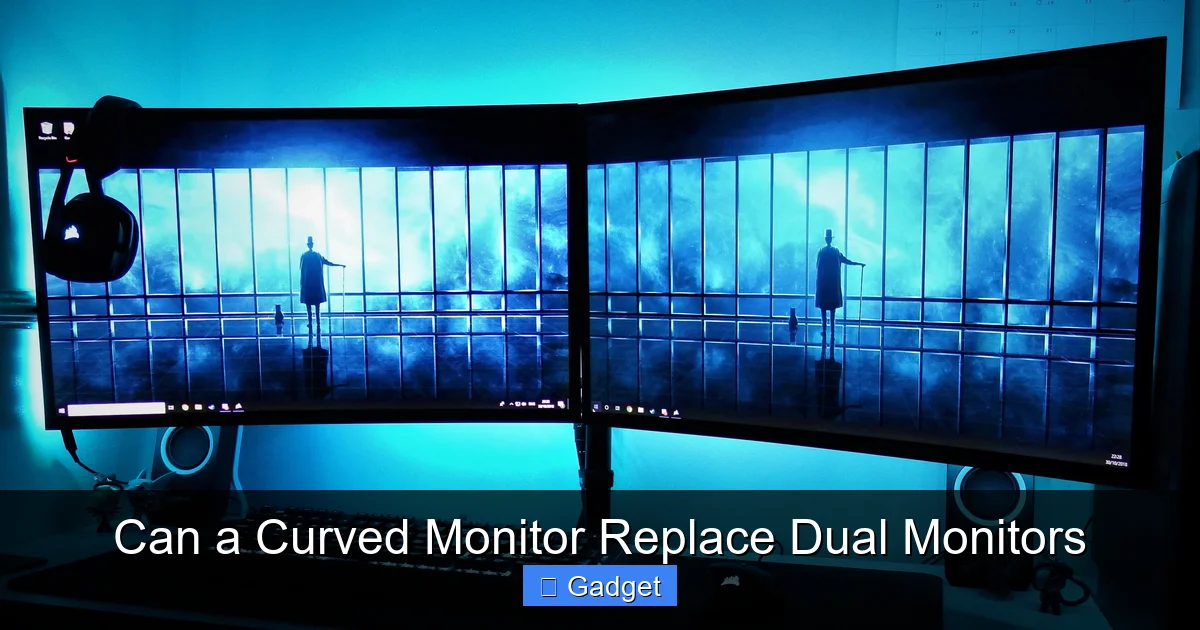
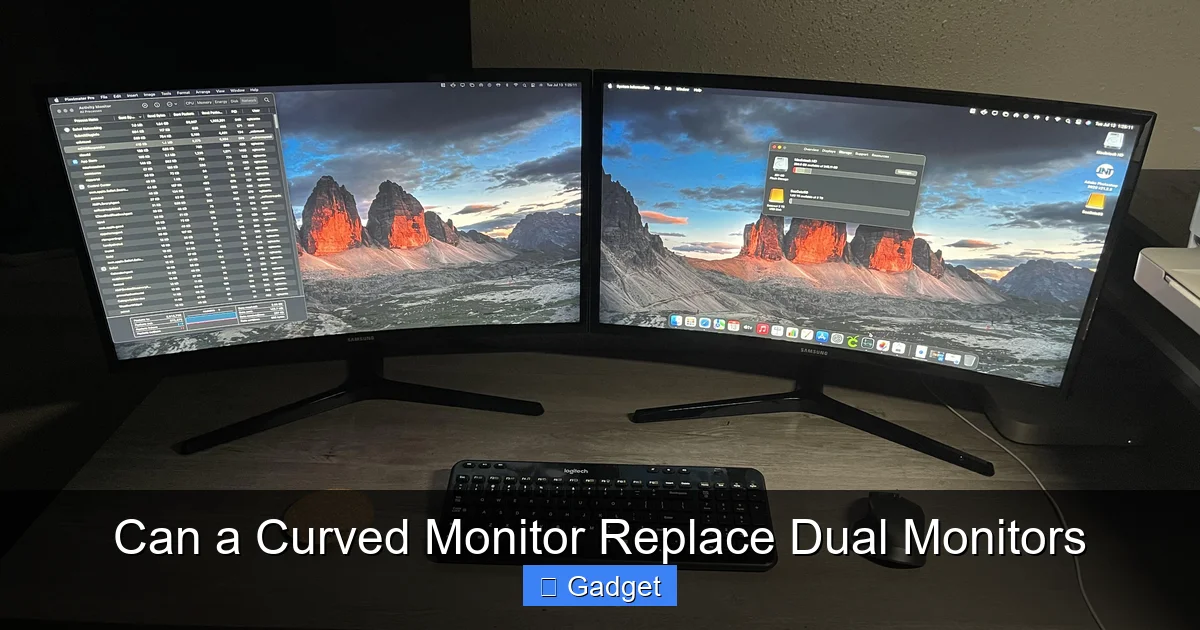
The primary benefit of dual monitors is the sheer amount of screen real estate they offer. You can have multiple applications open simultaneously and positioned distinctly. For example, you might have your primary work document on one screen, your email and calendar on the other, and perhaps a web browser for research in between. This physical separation allows for quick glances and easy switching between tasks without overlapping windows.
Unparalleled Multitasking Flexibility
This separation is key for multitasking. Imagine you’re a programmer: you can have your code editor on one screen and the compiled application or documentation on the other. A graphic designer might have their design canvas on one and their color palettes, layers, and reference images on the other. The ability to keep entirely different applications or views open and accessible without any overlap is a significant advantage.
Ease of Window Management
Windows operating systems and most applications are inherently designed with multi-monitor setups in mind. Dragging and dropping windows between screens is intuitive, and snapping windows to fill half of a screen on each monitor is a common and efficient workflow. Most users find it very straightforward to manage their digital workspace across two displays.
Cost-Effectiveness for Basic Needs
For users who need more screen space but aren’t necessarily chasing the absolute highest resolution or refresh rates, building a dual monitor setup can be very budget-friendly. You can often find excellent value in two smaller, less expensive monitors compared to one large, high-end curved ultrawide.
The Rise of the Curved Monitor: Where Does it Shine?
Visual guide about Can a Curved Monitor Replace Dual Monitors
Image source: i.pinimg.com
Curved monitors aren’t just a gimmick; they offer distinct advantages that make them compelling alternatives, especially for certain use cases.
Enhanced Immersion and Depth Perception
The most talked-about benefit of a curved monitor is immersion. The wraparound effect pulls you into the content, making it feel more expansive and engaging. This is particularly noticeable in gaming, where a curved display can significantly enhance the sense of being “in the game.” For movies and media consumption, it can also create a more cinematic experience.
Reduced Eye Strain and Distortion
With a flat monitor, especially a large one, the edges can be further away from your eyes than the center. This can lead to focusing issues and potential eye strain. A curved monitor brings the edges closer to your line of sight, theoretically reducing the need for your eyes to readjust focus. It also helps minimize the distortion you might see on the extreme edges of a very wide, flat display.
Aesthetic Appeal and Desk Space Saving
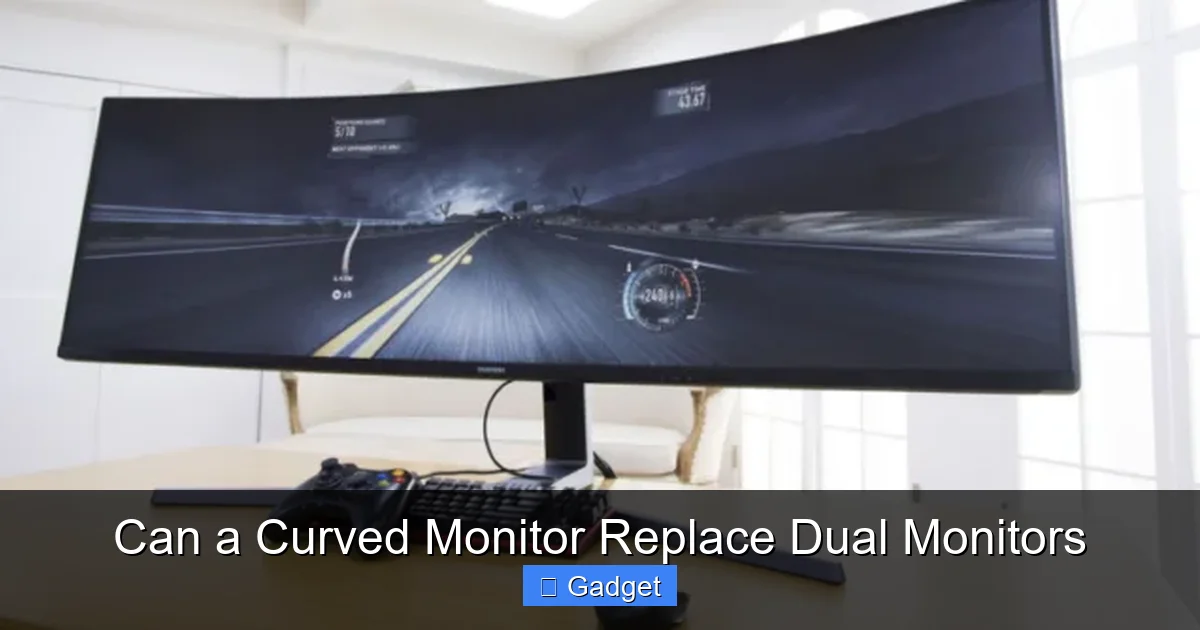
Let’s face it, a single, sleek curved monitor often looks fantastic on a desk. It can create a cleaner, more minimalist aesthetic by eliminating the bezels and stands of two separate monitors. In terms of physical space, a large ultrawide curved monitor might actually take up less depth on your desk than two monitors side-by-side, especially if you have limited desk real estate.
Simplicity of Setup and Cables
Fewer monitors mean fewer cables to manage, fewer power outlets needed, and less time spent aligning two screens perfectly. This simplicity can be a significant draw for those who dislike cable clutter or find monitor setup a hassle.
Can a Curved Monitor Really Replace Dual Monitors? The Verdict
Visual guide about Can a Curved Monitor Replace Dual Monitors
Image source: i.redd.it
Now, to the million-dollar question. Can a curved monitor, specifically a large ultrawide curved monitor, step into the shoes of a dual-monitor setup and perform just as well, if not better?
For Immersive Gaming and Media Consumption: Yes, likely.
If your primary use case is gaming or watching movies, a curved ultrawide monitor often excels. The increased field of view in games is a game-changer, and the immersive nature of the curve is hard to beat for entertainment. For these tasks, it’s not just a replacement; it’s often an upgrade.
For Productivity and Multitasking: It’s Complicated.
This is where the debate gets interesting. For many productivity tasks, a curved ultrawide *can* work effectively, but it requires a shift in workflow and often relies on specific software.
Mimicking Horizontal Space
A large ultrawide (e.g., 34-inch or 49-inch) provides a vast horizontal canvas. You can effectively split this space into virtual “monitors” using software. For example, a 34-inch 21:9 monitor can be mentally divided into two ~17-inch screens, or even three ~11-inch sections. This works well for tasks where you need to see related information side-by-side, like a spreadsheet next to a report, or a coding window next to a browser.
The Vertical Separation Challenge
The key difference is the lack of physical vertical separation. With dual monitors, you have two distinct vertical planes. This makes it easier to keep entirely different applications completely separate and at eye level. With an ultrawide, while you can split the screen, you’re still looking at one continuous surface. This can sometimes lead to windows feeling “too close” or a less distinct separation for very different tasks.
Window Management is Crucial
To truly get the most out of a curved ultrawide as a dual-monitor replacement, you’ll need good window management tools.
- Built-in OS Features: Windows 10/11 offer snapping features, allowing you to quickly tile windows to fill halves or quarters of the screen.
- Third-Party Software: Tools like DisplayFusion, AquaSnap, or PowerToys FancyZones are invaluable. They allow you to create custom zones on your ultrawide display, assigning specific keyboard shortcuts or drag-and-drop behaviors to snap windows into place. This lets you define your own “virtual monitors” precisely where you want them.
Learning Curve and Workflow Adaptation
It takes time to adapt your workflow to an ultrawide. You might find yourself instinctively trying to drag a window to a non-existent second monitor, or you might need to adjust how you arrange your most frequently used applications. The curved aspect, while immersive, can also subtly change your perception of space, which some users find takes getting used to.
For Specific Professional Workflows: Dual Monitors Might Remain Superior
Certain professions and workflows still benefit significantly from the absolute separation and distinct physical planes that dual monitors offer.
- Video Editing: Having a timeline on one screen and the preview window on another, or control panels on one and raw footage on the other, is highly efficient and often preferred.
- CAD/3D Modeling: Similar to video editing, having multiple complex control panels, reference views, and the primary workspace on separate screens can be crucial for complex projects.
- Trading/Financial Analysis: Keeping numerous charts, data feeds, and order entry screens clearly delineated across multiple physical monitors is a common and effective strategy.
For these power users, the physical separation and independent scaling of two monitors often provide a more direct and less cumbersome experience than trying to replicate it on a single ultrawide.
How to Choose: Curved Monitor vs. Dual Monitors
To make the best decision, ask yourself these questions:
What are your primary uses?
- Gaming/Media: Curved ultrawide likely a winner.
- General Productivity (writing, browsing, office apps): Both can work, curved might be more aesthetically pleasing and comfortable for some.
- Intensive Multitasking (coding, design, video editing, trading): Dual monitors often offer more straightforward efficiency, but a well-configured ultrawide can be a strong contender.
What is your desk space like?
- Limited Depth: A curved ultrawide might actually save you space compared to two monitors.
- Ample Width: Dual monitors can spread out comfortably.
What is your budget?
- Budget-conscious: Two decent flat monitors are often cheaper than a large curved ultrawide.
- Willing to invest: High-end curved ultrawides offer premium features and immersion.
How comfortable are you with adapting your workflow?
- Prefer established methods: Stick with dual monitors.
- Open to learning new software and spatial arrangements: A curved ultrawide offers an exciting new way to work.
Setting Up Your Curved Monitor for Success (If You Choose the Curve)
If you decide to go the curved route, here’s how to optimize it for productivity:
1. Choose the Right Size and Resolution
For replacing dual monitors, you’ll likely want a large ultrawide. Common sizes are 34-inch (21:9 aspect ratio) and 49-inch (32:9 aspect ratio, essentially two 16:9 monitors side-by-side). Resolution is also key: QHD (3440×1440) is great for 34-inch, while 4K equivalent (5120×1440 or similar) is ideal for 49-inch displays to maintain sharpness.
2. Invest in Window Management Software
As mentioned, this is non-negotiable for productivity. Download and experiment with PowerToys FancyZones, DisplayFusion, or similar tools.
3. Create Custom Zones
Use your chosen software to define zones on your screen that mimic the layout of your previous dual monitors, or create new, optimized layouts. For example, on a 34-inch ultrawide, you might create three equal vertical zones, or two larger zones for primary applications and a smaller one for background tasks.
4. Adjust Monitor Settings
Experiment with brightness, contrast, and color temperature to find settings that are comfortable for long work sessions. Many curved monitors have built-in picture-in-picture (PIP) or picture-by-picture (PBP) modes, which can allow you to treat different sections of the screen as separate inputs, similar to having multiple monitors.
5. Ergonomics Matter
Ensure the monitor is at the correct height and distance from you. The curve helps with viewing angles, but proper desk ergonomics remain essential.
Troubleshooting Common Issues
* “My windows feel too cramped.”
* Solution: Re-evaluate your zone setup in your window management software. You might be trying to fit too much into one zone, or your zones might be too small. Consider larger, fewer zones.
* “I miss the physical separation.”
* Solution: This is a common hurdle. Some users find that using PBP mode (if available) can create a visual “split” that helps. Alternatively, some users opt for a dual-monitor setup with a large curved monitor in the center for immersion and two smaller flat monitors on the sides.
* “Text looks blurry in the corners.”
* Solution: Ensure your resolution is set correctly in your OS. For ultrawide monitors, it’s crucial that your graphics card drivers are up-to-date. The curvature is designed to mitigate this, but sometimes calibration or software rendering can be an issue.
* “My games don’t support ultrawide resolutions.”
* Solution: While most modern games support ultrawide, older or niche titles might not. Many games offer options to run in windowed mode or allow aspect ratio adjustments, though this can sometimes result in stretched or letterboxed images. Check game forums for specific ultrawide support tips.
Conclusion: Embracing the Curve or Sticking with the Familiar
So, can a curved monitor replace dual monitors? Yes, for many people, it absolutely can, offering a more immersive, aesthetically pleasing, and potentially more comfortable experience, especially for gaming and media. However, for those who rely on the distinct physical separation and immediate multitasking flexibility of traditional dual-monitor setups, especially in highly specialized professional workflows, the answer might be no, or at least, not without significant workflow adaptation.
The key is to understand your own needs. If you’re seeking a cleaner desk, a more immersive visual experience, and are willing to adopt new window management strategies, a curved ultrawide monitor is a fantastic option and a worthy successor to a dual-monitor setup for many. If, however, you find comfort and maximum efficiency in the distinct separation that two screens provide, then sticking with dual monitors remains a perfectly valid and highly effective choice. The future of displays is diverse, and the “best” setup is ultimately the one that best serves *you*.


