Optimize Your Screen: Blue Light Iphone Setting Tips
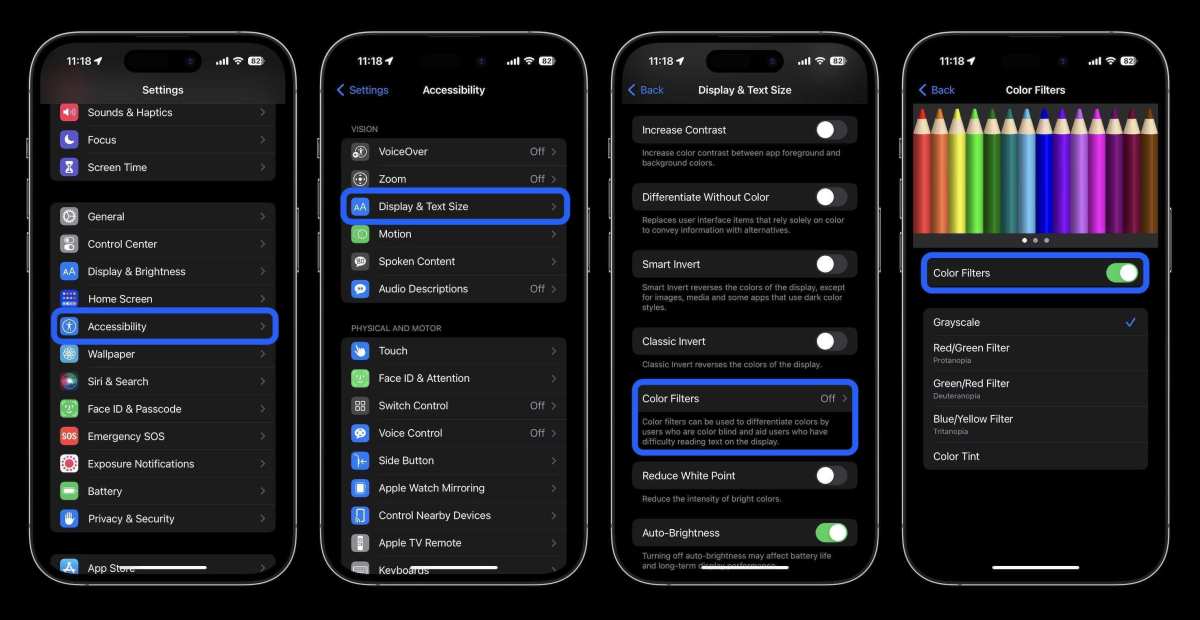
If you want to reduce eye strain and improve your sleep, adjusting the blue light iPhone setting is a simple fix. **Switching to Night Shift or True Tone can make a noticeable difference.** These features adjust your screen’s color temperature, calming your eyes during late-night use.
Finding the right blue light iPhone setting helps you stay comfortable, even after hours of screen time. A quick change in settings can boost your overall experience and protect your vision.

Understanding the Blue Light iPhone Setting: Everything You Need to Know
Many iPhone users have heard about blue light and its effects on eye health, but not everyone understands how to manage blue light using their device settings. This feature, often called “Night Shift” or “Blue Light Filter,” helps reduce the amount of blue light emitted from your screen. Knowing how to activate and customize this setting can make a big difference in your daily comfort, especially if you spend long hours on your phone. Let’s explore what blue light is, how it affects your eyes, and how to manage it effectively on your iPhone.
What Is Blue Light and Why Is It Important?
Blue light is a type of high-energy visible (HEV) light that comes from natural sources like the sun, but also from electronic devices such as iPhones, tablets, and computer screens. The wavelength of blue light is short, meaning it contains more energy compared to other colors in the visible spectrum.
Why does this matter? High levels of blue light exposure, especially during the evening, can interfere with your sleep cycle and cause eye strain. Over time, excessive blue light exposure might contribute to digital eye strain, which can cause discomfort, headaches, or difficulty focusing.
Some key points about blue light include:
- It penetrates deep into your eyes, reaching the retina.
- Natural blue light helps regulate your circadian rhythm, which influences sleep and wake cycles.
- Too much blue light exposure at night can suppress melatonin production, making it harder to fall asleep.
- Prolonged exposure can cause digital eye strain, leading to dryness, headaches, and blurred vision.
Understanding these points helps justify why managing blue light exposure on your iPhone is crucial, especially during evening hours.
How Does Blue Light Affect Your Sleep and Eyes?
Using your iPhone late at night exposes your eyes to blue light, which blocks melatonin, the hormone that helps you feel sleepy. When melatonin levels decrease, it becomes harder to fall asleep, and your sleep quality may decline. Poor sleep affects overall health, mood, and focus.
Eye strain is another concern. When you stare at your screen for extended periods, especially in dim lighting, your eyes work harder. Blue light enhances contrast, making text and images sharper, but it also increases eye fatigue. Common symptoms include:
- Dry, irritated eyes
- Headaches
- Blurred vision
- Difficulty focusing
Adjusting your iPhone’s blue light settings can alleviate these issues and promote healthier screen habits.
How to Activate and Use Blue Light Settings on Your iPhone
Apple has made it easy to control blue light exposure by incorporating features like Night Shift. Here’s a step-by-step guide to turning it on and customizing the settings:
Enabling Night Shift
- Open the Settings app on your iPhone.
- Scroll down and tap on Display & Brightness.
- Tap on Night Shift.
- Choose how you want Night Shift to turn on:
- Scheduled: Set a custom time, such as from sunset to sunrise or specific hours.
- Manually Enable Until Tomorrow: Turn it on immediately and keep it active until the next day.
Adjusting Color Temperature
Once Night Shift is activated, you can customize the color temperature:
- Use the slider to make the screen warmer (more yellow/orange) or less warm (closer to natural light).
- Warmer settings reduce blue light more effectively and are easier on your eyes at night.
Controlling Blue Light via Brightness Adjustments
While Night Shift primarily reduces blue light, adjusting your overall screen brightness also helps reduce eye strain:
- Go to Settings >Display & Brightness.
- Adjust the brightness slider to a comfortable level.
Additional Tips for Managing Blue Light on iPhone
Beyond Night Shift, consider these practices to protect your eyes and improve sleep quality:
Use True Tone Display
- Navigate to Settings >Display & Brightness.
- Toggle on True Tone.
This feature adjusts the display’s color and brightness based on ambient lighting, creating a more natural viewing experience that can reduce eye fatigue.
Enable Dark Mode
- Open Settings.
- Tap on Display & Brightness.
- Switch to Dark Mode.
Dark Mode uses darker backgrounds and text, which can make viewing more comfortable, especially in low-light environments.
Limit Screen Time Before Bed
Reducing screen time at least an hour before sleeping can make a big difference. Set specific hours to disconnect from devices, or use built-in features like Screen Time to monitor and control usage.
Impact of Blue Light Management on Eye Health and Sleep
Using blue light settings effectively improves your overall well-being by:
- Decreasing eye discomfort during prolonged device use.
- Reducing the likelihood of headaches caused by eye strain.
- Improving sleep quality by allowing melatonin production to occur naturally.
- Creating healthier habits for nighttime device usage.
In addition, adopting good habits like taking regular breaks from screens, practicing the 20-20-20 rule (looking 20 feet away for 20 seconds every 20 minutes), and ensuring proper lighting in your environment can enhance these benefits.
Comparing Blue Light Settings Across Different iPhone Models
While most recent iPhones support Night Shift and related features, some older models may have limited options. Here’s a quick overview:
| iPhone Model | Supported Features | Notes |
|---|---|---|
| iPhone 8 and later | Night Shift, True Tone, Dark Mode | Full feature support |
| iPhone 7 and earlier | Limited or no Night Shift | May require third-party apps for blue light filtering |
Knowing your device’s capabilities helps you optimize blue light management.
The Role of Third-Party Blue Light Filtering Apps
Although iPhone’s built-in features are effective, some users prefer additional customization or more aggressive filtering. Several third-party apps are available:
- f.lux
- Blue Light Filter
- Night Shift Plus
However, ensure these apps are reputable and compatible with your device before installation.
The Benefits of Consistent Blue Light Management
Regularly using your iPhone’s blue light settings provides long-term benefits:
- Reduced eye discomfort over time
- Better sleep patterns and quality
- Less eye fatigue during frequent device use
- Improved overall health and wellness
Making these adjustments part of your daily routine can make a noticeable difference in how you feel.
Summary of Best Practices for Blue Light Control on iPhone
- Activate Night Shift during evening hours or when using your device in low-light settings.
- Adjust color temperature slider to a warmer setting at night.
- Use True Tone for a more natural viewing experience.
- Switch to Dark Mode to reduce glare and eye strain.
- Limit screen time before bed and take frequent breaks.
By following these steps, you can protect your eyes and improve your sleep quality, making your iPhone experience more comfortable and health-conscious.
Managing blue light on your iPhone is a simple yet effective way to safeguard your eye health and support better sleep habits. Whether you turn on Night Shift, adjust display settings, or develop good digital habits, taking control of blue light exposure benefits your overall well-being. Remember, small changes in how you use your device can lead to healthier, more restful nights and less eye fatigue during the day.
Frequently Asked Questions
How can I enable Night Shift to reduce blue light on my iPhone?
To activate Night Shift, go to Settings > Display & Brightness. Tap on Night Shift, then turn on the scheduled option or enable it manually by toggling the switch. You can also adjust the color temperature slider to make the screen warmer or cooler according to your preference.
Does adjusting blue light settings affect my iPhone’s overall display quality?
Adjusting blue light settings like Night Shift slightly changes the display’s color tone, making it warmer. This reduces eye strain without affecting the overall clarity or resolution of the screen. The feature is designed to be gentle on your eyes while maintaining good display quality.
Can I set a custom schedule for blue light reduction on my iPhone?
Yes, you can create a custom schedule for blue light reduction through the Night Shift settings. Navigate to Settings > Display & Brightness > Night Shift, then turn on Scheduled. Choose specific times, such as sunset to sunrise or set custom start and end times that fit your daily routine.
Is there an option to manually toggle blue light reduction without entering settings?
Yes, you can quickly enable or disable Night Shift via the Control Center. Swipe down from the top-right corner of your screen (or swipe up from the bottom on older models), then press and hold the brightness control. Tap the Night Shift icon to toggle it on or off instantly.
Will reducing blue light impact the colors of my photos or videos?
Reducing blue light through Night Shift slightly alters the display’s color balance, which might make photos and videos appear warmer or less vibrant. However, it doesn’t distort the content significantly. If you need to view images in true color, you can disable the feature temporarily in the control center.
Final Thoughts
The blue light iphone setting helps reduce eye strain and improves sleep quality by limiting blue light exposure. Adjusting this setting allows you to customize your screen for comfort, especially during nighttime use.
Focusing on this feature makes a significant difference in your daily device habits. Incorporate the blue light iphone setting into your routine to protect your eyes and enhance overall well-being.

Similar Posts































