Best Way To Use Airpods With Android: Effective Tips

Best Way to Use AirPods with Android
Introduction to AirPods and Android Compatibility
AirPods are known for their impressive sound quality and sleek design, but they are designed primarily for Apple devices. However, using AirPods with Android is quite possible and can be very convenient. Understanding how to connect and optimize AirPods on an Android device helps you enjoy good audio quality without switching platforms.Connecting AirPods to Your Android Device
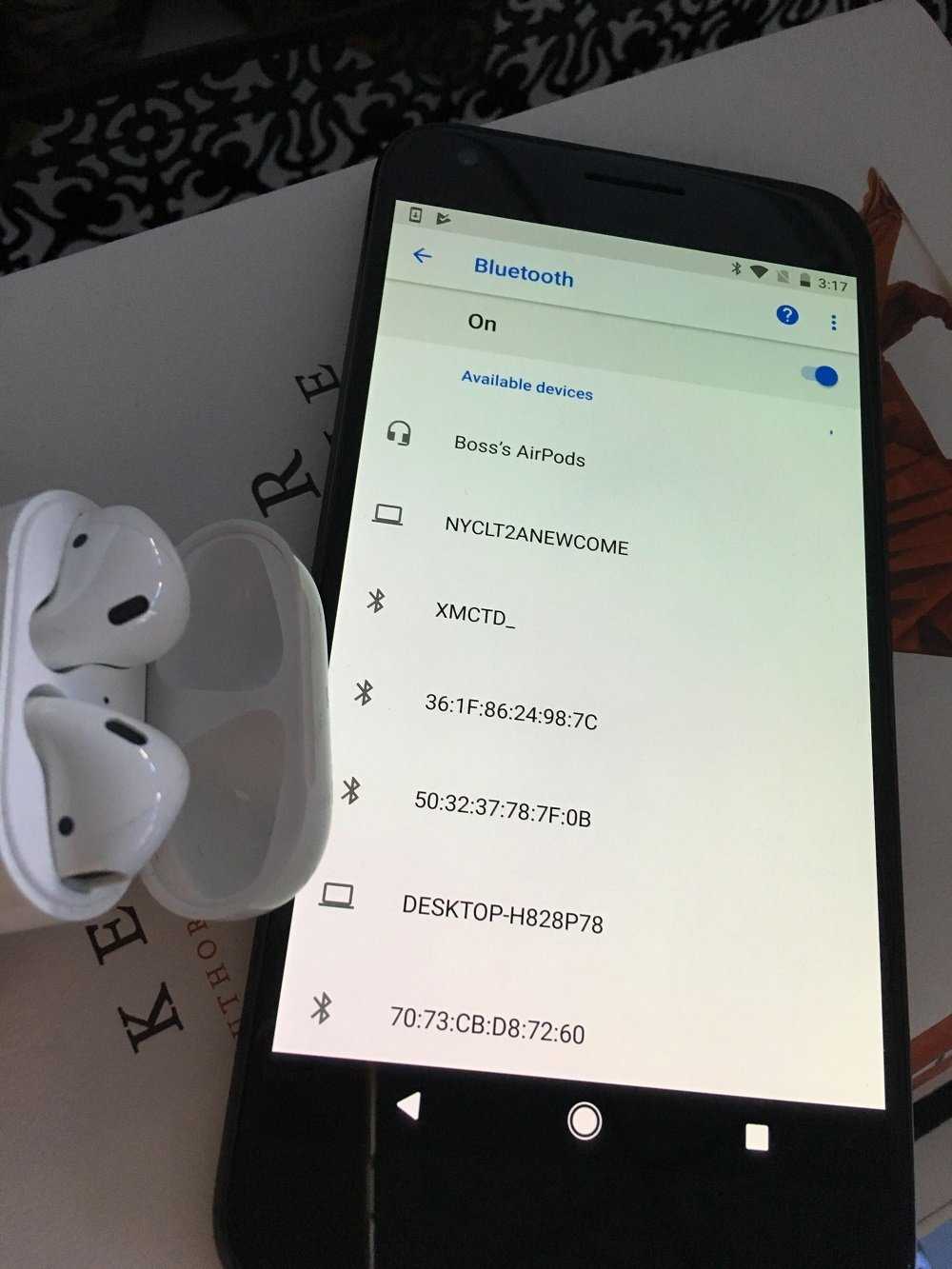
Connecting AirPods to an Android device is simple. First, enable Bluetooth on your Android phone or tablet. Then, open the AirPods case and press the pairing button on the back until the LED flashes white. On your device, go to Bluetooth settings and select “AirPods” from the list of available devices. Once connected, your AirPods are ready to use with your Android device.Troubleshooting Connection Issues
Sometimes, AirPods may not connect smoothly. Restart your Bluetooth on your Android device or reset your AirPods by holding the setup button until the LED flashes amber. Make sure your AirPods are within close range, and ensure no other devices are interfering.Using AirPods with Android: Essential Features
While AirPods work well with Android, some features are limited compared to Apple devices. You can enjoy basic functionalities such as listening to music, making calls, and controlling volume, but advanced features like automatic device switching or customizing double-tap actions require extra steps or third-party apps.Playing and Pausing Audio
Playing or pausing music with AirPods is straightforward. Tap once on the AirPods stem to play or pause. If you have separate AirPods, tap on the right or left one, depending on your preference.Controlling Volume
Controlling volume on AirPods directly isn’t possible on Android. Instead, use the volume controls on your device or earphone controls if available. Alternatively, some apps allow in-ear volume control.Making and Ending Calls
You can answer or end calls by tapping once on either AirPod. To reject an incoming call, hold the tap for a second. Be aware that call quality depends on your device’s microphone and speaker setup, which might differ from Apple’s optimized system.Maximizing AirPods Performance on Android
To get the best sound and usability, consider some additional tips. Properly cleaning your AirPods, ensuring your device’s Bluetooth is up to date, and managing battery life can improve your experience.Battery Management
Android devices don’t display AirPods battery status by default. Use third-party apps like “AirBattery” or “Assistant Trigger” to monitor your AirPods’ battery life. Regularly charging your AirPods in their case also helps maintain battery health.Improving Sound Quality
For better audio performance, ensure your AirPods are clean and free of earwax. Also, check your Android device’s sound settings; disabling equalizers or sound effects may improve clarity.Enhancing Connectivity and Stability
Keep your AirPods and Android device within close proximity. Remove other active Bluetooth devices that might interfere. Restart your device if you experience frequent disconnections.Using Third-Party Apps for Advanced Features
Since Android doesn’t natively support all AirPods features, third-party apps can fill the gaps. These apps can customize gestures, show battery levels, and enable better controls.Popular Apps for AirPods on Android
- AirBattery: Displays battery status and provides quick connection options.
- Assistant Trigger: Adds voice assistant support to AirPods.
- PodsControl: Offers gesture customization and connection enhancements.
Additional Tips for Optimal Use
Properly caring for your AirPods extends their lifespan and enhances your experience. Avoid exposing them to moisture, keep them in a safe place, and regularly update your Android device’s software for compatibility improvements.Maintaining Connection Stability
Turn off Bluetooth on other devices when not in use. Reset Bluetooth settings if problems persist. Use a Bluetooth signal booster if necessary in environments with high interference.Customizing Use with Widgets and Shortcuts
Some Android launchers support widgets or shortcuts that enable quick access to Bluetooth settings or toggle AirPods connection. This makes managing your audio devices easier and faster.Related Topics to Improve Your AirPods Experience on Android
- Best Android headphones for seamless compatibility
- Top third-party apps for Bluetooth device management
- How to extend battery life of Bluetooth earbuds
- Differences between AirPods models and their Android support
Conclusion
Using AirPods with an Android device offers a lot of flexibility and convenience, despite some limitations. Connecting them is simple, and with the right apps and tips, you can maximize their features. Whether for listening to music, taking calls, or managing your audio settings, AirPods can be a great choice even outside the Apple ecosystem. Proper care, troubleshooting, and customization will ensure you get the most out of your earbuds while enjoying high-quality sound on your Android device.Frequently Asked Questions
How can I connect AirPods to my Android device effectively?
To connect your AirPods to an Android device, open the lid of the AirPods case and press the pairing button on the back until the LED starts flashing white. Then, go to your Android device’s Bluetooth settings, turn Bluetooth on, and select your AirPods from the list of available devices. Once paired, your AirPods should automatically connect whenever you open the case near your Android device.
What should I do if my AirPods don’t appear in the Bluetooth list on Android?
If your AirPods do not show up in the Bluetooth list, make sure they are in pairing mode by pressing the setup button until the LED flashes white. Ensure your Android device’s Bluetooth is active and close to the AirPods. Try restarting Bluetooth or rebooting your device. If necessary, reset your AirPods by holding the setup button for about 15 seconds until the LED flashes amber and then white, and then attempt the pairing process again.
Are there any apps that can improve AirPods functionality on Android?
Yes, several apps can enhance your experience with AirPods on Android. Apps like “AirBattery” provide battery level information for your AirPods and case, while “Assistant Trigger” allows you to customize tap controls. These tools can help you manage your AirPods more efficiently and add functionalities that are limited on Android compared to iOS devices.
Can I customize tap or press controls on AirPods when using Android?
Since AirPods are designed primarily for Apple’s ecosystem, customizing tap or press controls on Android is limited. However, certain apps allow you to assign functions to single, double, or triple taps, such as play, pause, or skip. Using these apps, you can personalize some controls, but the full range of gestures available on iOS may not be supported.
Is it possible to use AirPods for calls and voice commands on Android?
Yes, you can use AirPods for calls and voice commands on Android devices. They work as standard Bluetooth headphones, allowing you to answer calls and activate voice assistants if supported. Keep in mind that some features like automatic ear detection or seamless switching may not work due to compatibility limitations with Android.
Final Thoughts
The best way to use airpods with android is to pair them via Bluetooth and manually select them in your device’s Bluetooth settings. Enable automatic ear detection in the airpods’ settings for better experience. Use third-party apps to customize controls and improve device compatibility. By following these tips, you ensure seamless audio playback and call management. Remember, the best way to use airpods with android combines simple setup and smart customization. This approach guarantees optimal use without unnecessary hassle.
Similar Posts































