To keep your Mac running smoothly, monitoring system performance with Activity Monitor is essential. It provides real-time insights into how your CPU, memory, disk, and network resources are being utilized, helping you identify and troubleshoot issues quickly. In just a few clicks, you can spot problematic processes draining your system’s power and take action to optimize performance. Activity Monitor is a powerful tool built into macOS that allows you to track your system’s health effortlessly. By opening it, you can see which apps and processes are consuming the most resources, end unnecessary tasks, and keep your Mac running at its…
Author: Hanna
To speed up your computer’s boot time, managing startup items effectively is the key. Disabling unnecessary programs that launch at startup can significantly reduce the time it takes for your system to become fully operational. Using built-in tools or third-party applications to control these startup processes allows you to streamline your boot sequence without compromising essential functions. In just a few clicks, you can identify and disable non-essential programs that slow your startup, making your computer ready to use faster. Regularly managing your startup items ensures your device remains quick and responsive, saving you time and frustration. If your computer…
To quickly check for malware and security threats, run a trusted antivirus scan, monitor unusual system behavior, and keep your software updated. Regularly scanning your device with reliable security tools and staying alert to signs like slow performance or strange pop-ups can help detect threats early. In short, the best way to check for malware is to use reputable antivirus programs to scan your system, stay vigilant for odd activity, and keep your software current. These steps can help identify and eliminate potential security risks before they cause serious damage. If you’re concerned about malware or security threats on your…
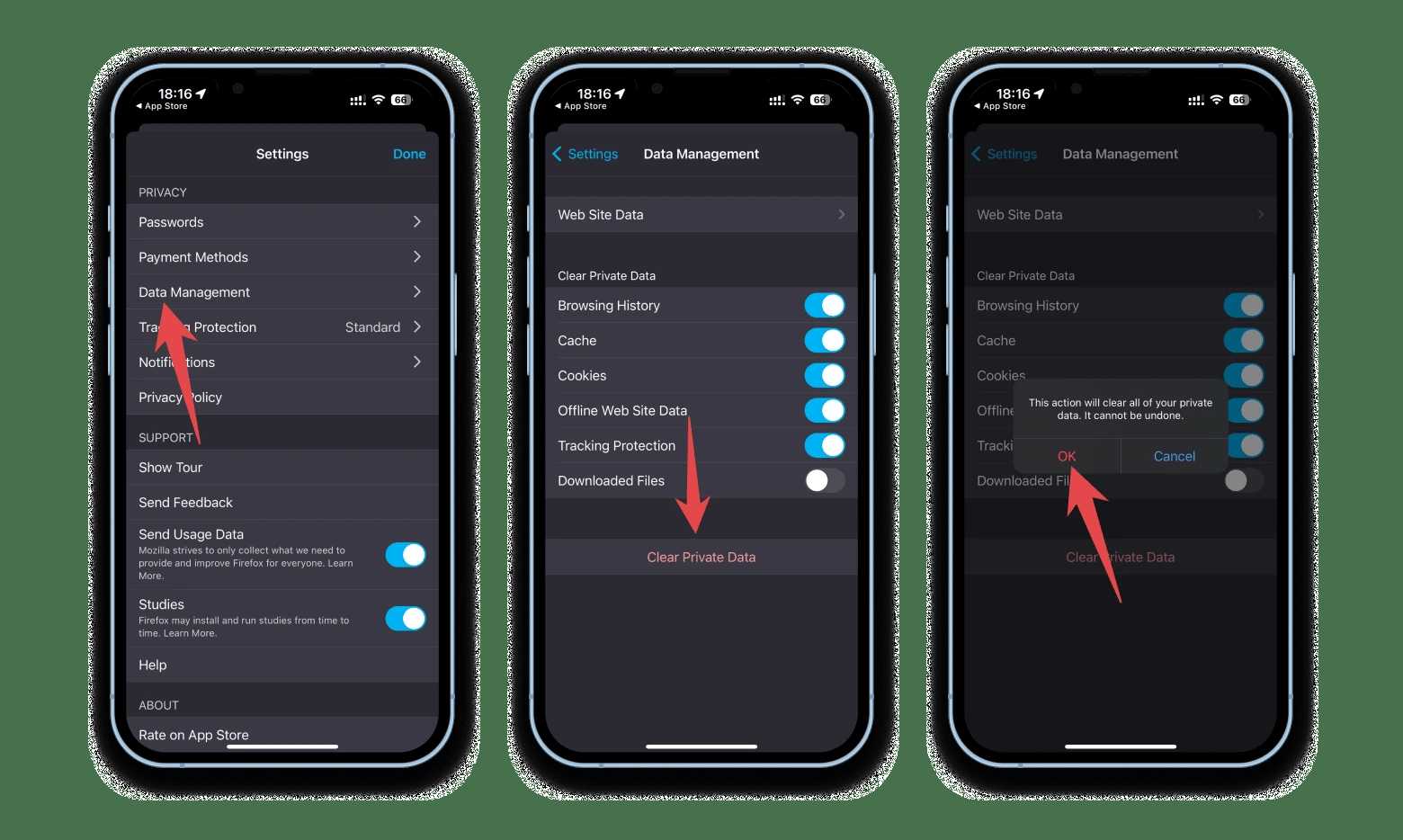
Clearing cache files and temporary data is like giving your device a fresh start, speeding up performance and fixing glitches. If your apps or browser are running slowly or acting up, a quick cache clearance can make all the difference. The good news is that it’s simple to do and can often be done in just a few minutes. In essence, clearing cache files involves deleting stored data that your devices and apps use to load information faster. This process helps free up space and resolve issues caused by outdated or corrupt cache. Whether you’re on a smartphone, computer, or…
To keep your MacBook running smoothly, restarting it weekly is a simple but effective trick. It clears out temporary files, refreshes system resources, and can significantly boost performance. Just a quick restart can prevent slowdowns and glitches, ensuring your MacBook stays in top shape for longer. Restarting your MacBook weekly is easy and can make a noticeable difference in speed and responsiveness. By closing all apps, saving your work, and choosing the restart option from the Apple menu, you’ll give your device a fresh start that helps maintain optimal performance. Plus, it’s a good habit to prevent issues before they…
To keep your important files safe, setting up regular backups with Time Machine is a game-changer. It’s easy to automate, ensuring your data is always protected without hassle. Just connect an external drive, turn on Time Machine, and let it do the rest—your MacBook will stay backed up effortlessly. In short, to back up your MacBook regularly using Time Machine, connect an external hard drive, enable Time Machine in System Preferences, and choose your backup disk. Then, let it automatically perform backups daily so you won’t have to think about it again. Keeping your MacBook backed up is crucial, especially…
Optimize your storage space effortlessly by using built-in tools already available on your device. These tools can clean up unnecessary files, manage your data efficiently, and free up valuable space without the need for extra software. Just a few clicks can make a huge difference in keeping your device running smoothly and keeping your storage in check. To quickly free up space, utilize your operating system’s built-in cleanup and management tools, such as disk cleanup utilities and storage management features. Regularly deleting temporary files, old backups, and unused apps can significantly improve your device’s performance and ensure you have room…
To clean your MacBook screen and keyboard safely, gently use a soft, lint-free cloth slightly dampened with water or a 70% isopropyl alcohol solution, avoiding excessive moisture. For stubborn spots, apply a small amount of cleaner directly onto the cloth rather than the device. Regularly dust and clean your MacBook to prevent buildup, but always handle it with care to avoid damage. Keeping your MacBook spotless doesn’t have to be complicated or risky. A simple, gentle cleaning routine can keep your device looking fresh and functioning properly. In this guide, you’ll learn easy and safe methods to refresh your screen…
To keep your MacBook running smoothly and securely, staying current with software updates is essential. Updating your MacBook’s software ensures you have the latest features, bug fixes, and security patches, protecting your device from vulnerabilities. The process is simple: enable automatic updates and manually check for updates regularly. By doing so, you’ll experience optimal performance and peace of mind knowing your MacBook is up to date. Keeping your MacBook software up to date is straightforward and crucial for maintaining its performance and security. To do so, activate automatic updates in your System Preferences, and periodically check for new updates manually.…