Scheduling Automatic Power Saving Mode Activation For

Scheduling Automatic Power Saving Mode Activation
Understanding Power Saving Mode and Its Benefits
Power saving mode helps extend your device’s battery life by reducing background activity and limiting certain functions. When enabled, it turns off non-essential features and conserves energy, allowing your device to last longer on a single charge. This feature is especially useful during long days away from charging sources or when your battery runs low unexpectedly. By scheduling automatic activation of this mode, you ensure your device switches to power saving without manual input. This automation helps you avoid sudden shutdowns and keeps your device functioning smoothly throughout the day. It also allows you to focus on important tasks without worrying about draining your battery prematurely.How Scheduling Power Saving Mode Improves Battery Management
Scheduling automates when your device enters power saving mode, giving you control over your battery life. You can set it to activate during specific hours, such as nighttime or when you typically run low on battery. This way, your device conserves energy during periods of low activity or when you don’t need full performance. This approach also minimizes the need to manually toggle settings multiple times a day. It offers a seamless experience, ensuring your device is always optimized for energy efficiency. Consequently, your battery lasts longer, reducing the frequency of charges and extending your device’s overall lifespan.Steps to Schedule Automatic Power Saving Mode Activation
Setting up scheduled activation varies slightly across devices, but the basic steps are similar. The following guide covers general procedures for Android and iOS devices.For Android Devices:
- Open the Settings app on your device.
- Scroll to find Battery or Battery & Performance options.
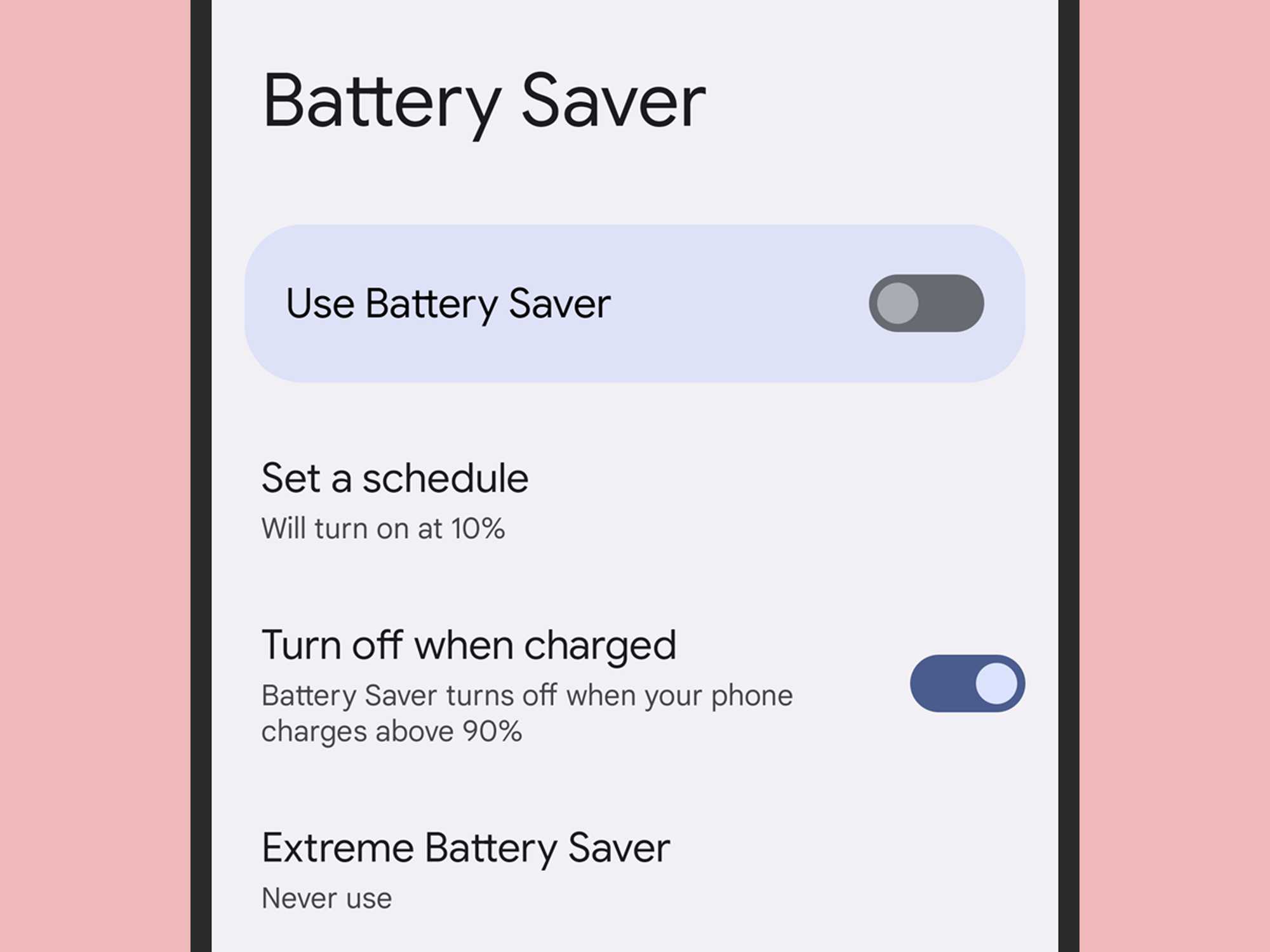
- Select the Power Saving or Battery Saver section.
- Tap on Schedule or Set Schedule option.
- Choose the start and end times for the power saving mode to activate automatically.
- Confirm your selections and activate the schedule.
For iOS Devices:
- Go to the Settings app and tap Battery.
- Enable Low Power Mode by toggling it on.
- Tap on Battery Health & Charging, then Schedule (if available). Note that scheduling may require a shortcut setup or third-party app.
- Use the Shortcuts app to automate Low Power Mode activation at specific times.
Using Automation Apps for Advanced Scheduling
Apps like Google Assistant, IFTTT, or Tasker on Android offer advanced scheduling capabilities. They enable setting specific triggers for power saving mode based on time, location, or device activity. These tools give you more flexibility compared to default settings. For example, with Tasker, you can create profiles that automatically turn on power saving when you arrive home or during certain hours. This granular control helps optimize your device’s energy use based on your routine.Factors to Consider When Scheduling Power Saving Mode
While scheduling provides convenience, you should keep in mind a few factors:- Battery Usage Patterns: Analyze when your device consumes the most power to set effective schedules.
- Device Performance Needs: Avoid scheduling power saving if you require high performance during certain times.
- Background Activities: Some apps may need to run in the background; ensure scheduling doesn’t disrupt critical tasks.
- Connectivity Features: Wi-Fi, Bluetooth, and mobile data may be limited during power saving; plan your schedules accordingly.
Related Topics for Better Device Management
Beyond scheduling power saving mode, consider exploring:Managing App Notifications and Background Data
Reducing unnecessary notifications and background data usage can significantly save battery. Turning off auto-sync and restricting background activities contribute to better energy management.Utilizing Dark Mode and Screen Brightness Settings
Enabling dark mode and lowering screen brightness helps reduce power consumption, especially on OLED screens. Scheduled activation of these features enhances overall battery efficiency.Regular Update Checks and App Management
Keeping your device and apps updated ensures optimal performance and energy efficiency. Removing unused apps prevents background resource drain. Scheduling automatic power saving mode activation is an effective way to prolong your device’s battery life without constant manual intervention. By understanding the setup process and optimizing schedules based on your usage pattern, you can keep your device running longer each day. Combining scheduling with other energy-saving techniques maximizes efficiency and ensures your device remains reliable whenever you need it most.Google Pixel 9a: How to Schedule Battery Saver (Automatic Power Saving Mode)
Frequently Asked Questions
How do I set a specific schedule for automatic power saving mode activation?
You can configure a specific schedule by accessing your device’s settings menu. Navigate to the power management section and look for the auto power-saving options. From there, select the time frames during which you want the mode to activate automatically. Ensure you save your settings to enable the schedule.
Can I customize different power saving schedules for weekdays and weekends?
Yes, many devices allow you to create separate schedules for weekdays and weekends. You can set different activation and deactivation times based on your routine. Check your device’s scheduling options and customize each schedule accordingly to optimize power management throughout the week.
Is it possible to disable automatic power saving mode temporarily without deleting the schedule?
Most devices offer a quick toggle to temporarily disable automatic power saving mode without removing the entire schedule. This feature allows you to pause the schedule when needed, such as during heavy usage periods, and re-enable it later without reconfiguring your settings.
What should I do if the automatic power saving mode doesn’t activate as scheduled?
If the mode does not activate as planned, first verify that your schedule settings are correct and saved properly. Check for any device updates or software bugs that might affect scheduling. Restart your device and test the schedule again. If issues persist, consider resetting your power management settings or consulting the device’s support resources.
Are there any recommendations for optimizing power saving schedules for better device performance?
To optimize your power saving schedules, set activation times during periods of low device activity, such as nighttime or when you are away. Avoid overusing manual overrides that conflict with the schedule. Regularly review and adjust your schedules based on your usage patterns to maintain a balance between power saving and device functionality.
Final Thoughts
Scheduling automatic power saving mode activation ensures devices conserve energy efficiently without manual intervention. This feature helps extend battery life and reduces electricity costs. By setting specific times for activation, users gain better control over power management. Incorporating this practice creates a more sustainable and cost-effective routine.
Similar Posts































