Clearing Cache And Data Of Power Hungry Apps For Better
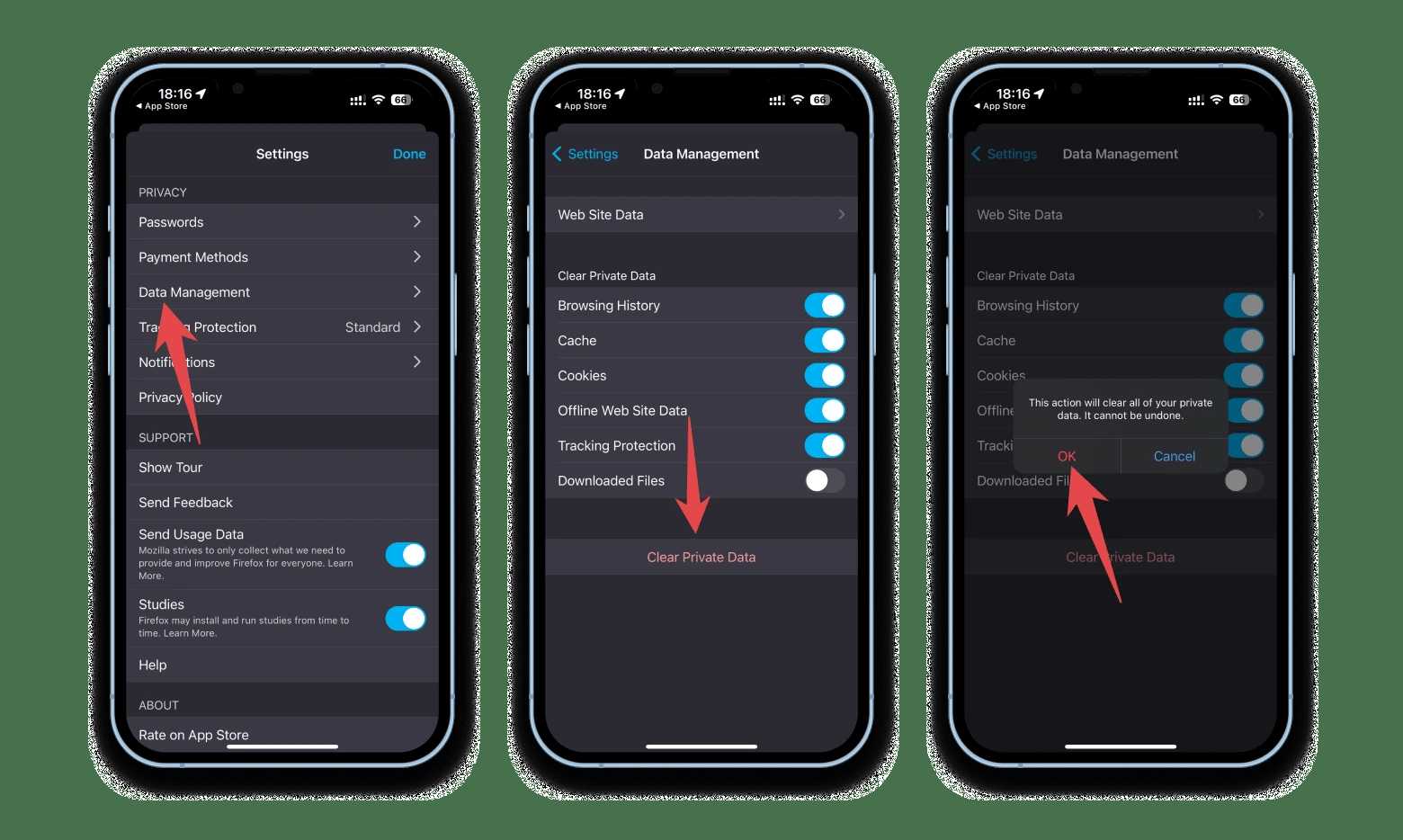

Clearing cache and data of power hungry apps
Many smartphones and tablets run slower or drain battery faster because certain apps consume too much power. Clearing cache and data of these power-hungry apps can improve device performance and extend battery life. This process removes unnecessary files and resets app data that may be causing problems. Let’s explore why some apps use too much power and how clearing their cache and data can help.
Understanding what makes apps consume excessive power
Apps that run constantly or perform multiple background tasks tend to drain more battery. Some common culprits include social media apps, streaming services, and navigation tools. These apps often update content in real time or use GPS, making them power intensive.
Additionally, outdated or poorly optimized apps can mismanage system resources. When an app is buggy or encounters errors, it may keep running in the background, increasing power consumption. Recognizing these signs helps in deciding when to clear cache and data.
Difference between cache and app data
Cache holds temporary files that apps create to load content faster. These files include images, scripts, and other data stored locally to improve performance.
App data, on the other hand, includes settings, login information, and other personal preferences stored within the app. Clearing data resets the app to its original state, which can fix certain issues but requires reconfiguration afterwards.
Benefits of clearing cache and data of power hungry apps
- Reduces battery drain: Clearing unnecessary files stops apps from running unnecessarily in the background.
- Improves device speed: Removing cache speeds up app loading times and overall device responsiveness.
- Fixes app glitches: Clearing corrupted data can resolve bugs and errors.
- Saves storage space: Removing cache files frees up valuable internal storage.
How to identify power-hungry apps
Using device settings to find energy-consuming apps
Most smartphones display battery usage details. Check the battery section in device settings to see which apps consume the most power over a set period.
Look for apps listed with high percentages of battery use, especially those active in the background. This information helps identify apps that need clearing or reinstallation.
Monitoring app activity with third-party tools
Some apps and tools provide detailed insights into app activity and power consumption. Examples include Greenify or AccuBattery. These tools help monitor real-time app behavior and suggest actions to save power.
Step-by-step guide to clearing cache of power hungry apps
For Android devices
- Open your device’s Settings app.
- Navigate to Apps & Notifications or Applications.
- Select the app you want to optimize.
- Tap on Storage & Cache.
- Choose Clear Cache.
For iOS devices
iOS doesn’t have a direct cache clearing option for individual apps. To clear cache, you often need to delete and reinstall the app or clear app data through specific app settings if available.
How to clear app data safely
Precautions before clearing data
- Make sure to back up important data or login credentials.
- Note that clearing data will reset the app to its default state.
- Be aware that some apps may require you to re-enter preferences or log in again.
Step-by-step process
- Go to Settings on your device.
- Open Apps & Notifications or Applications.
- Select the app with high power consumption.
- Tap on Storage & Cache.
- Choose Clear Storage or Clear Data.
When and why to clear cache and data
Signs that suggest clearing cache or data
- App is crashing or freezing frequently.
- Battery drains faster than usual.
- App is slow to load or unresponsive.
- Storage space is rapidly filling up.
Best practices for clearing cache and data
- Clear cache regularly to maintain app speed.
- Use data clearing for troubleshooting persistent issues.
- Avoid clearing data unless necessary, as it resets app settings.
- Combine clearing cache with app updates for optimal results.
Additional tips to reduce power consumption of apps
Adjust app and device settings
- Disable background app refresh for apps that don’t need to update constantly.
- Reduce screen brightness and timeout duration.
- Turn off location services for apps that don’t require GPS access.
Use built-in power saving modes
Activate your device’s power saving mode to limit background activity and extend battery life during critical times. These modes often restrict app activity and optimize device functions automatically.
Update apps regularly
Developers frequently release updates to fix bugs and improve efficiency. Updating apps can reduce unnecessary power drain caused by outdated software.
Related topics and further considerations
- Optimizing device performance: Regular maintenance and cleaning storage help overall device health.
- Managing app permissions: Limiting app permissions can prevent unnecessary background activity.
- Using third-party cleaning apps: Be cautious and choose reputable apps to avoid security risks.
By understanding how apps consume power and following these steps to clear cache and data, you can keep your device running smoothly. Regular maintenance not only prolongs battery life but also enhances overall device responsiveness and storage management. Be mindful of app behavior and optimize settings for a better, longer-lasting mobile experience.
Control Apps Battery usage in background | one ui 5.1 | Galaxy A14 5G ❤️ #shorts
Frequently Asked Questions
How can clearing cache improve the performance of power-hungry apps?
Removing cached data from apps can reduce their background activity and decrease unnecessary resource usage. This process helps the app function more efficiently, which can lead to better overall device performance and longer battery life.
What steps should I follow to clear data for multiple apps that drain battery quickly?
Navigate to your device’s settings, select “Apps” or “Application Manager,” then choose the app you want to adjust. Tap on “Storage” and select “Clear cache” or “Clear data.” Repeat this for each app that consumes excessive power to optimize resource use across your device.
Does clearing cache delete important data or login information?
Clearing cache removes temporary files that apps store to load data faster. It does not delete personal data, login credentials, or settings. However, clearing app data resets the app to its default state, so you may need to log in again or reconfigure certain settings.
How frequently should I clear cache and data to maintain optimal device performance?
It’s advisable to clear cache periodically, such as once a month, especially for apps that tend to be resource-heavy. Regular maintenance helps prevent apps from consuming excessive resources and ensures your device runs smoothly.
Are there any risks associated with clearing app data for power-hungry applications?
While clearing cache poses minimal risk, deleting app data can remove stored information like preferences or login details. Make sure to back up important data if needed before clearing app data, especially for apps where data loss could affect usage.
Final Thoughts
Clearing cache and data of power hungry apps helps extend your device’s battery life and improve performance. Regularly doing this prevents apps from consuming excessive resources in the background. It’s a simple step that can make a noticeable difference in your device’s efficiency. By removing unnecessary app data, you free up storage space and reduce background activity. This process ensures your device runs smoothly and conserves battery power. In conclusion, regularly clearing cache and data of power hungry apps is an effective way to maintain optimal device performance and battery life.
Similar Posts































