Limiting Background Data Usage For Selected Apps For Better

Limiting Background Data Usage for Selected Apps
Understanding Background Data Usage
Background data refers to the internet activity that apps perform when you are not actively using them. Many apps update content, sync data, or receive notifications in the background, which can consume a significant amount of data over time. Limiting this data helps conserve your mobile data plan and improves device performance.Why Control Background Data Is Important
Controlling background data can prevent unexpected data overages and reduce battery drain. It also enhances privacy by limiting apps from transmitting data without your knowledge. For those with limited data plans, managing background data becomes essential to avoid extra charges and ensure smooth device operation.How to Limit Background Data for Specific Apps
The process varies depending on whether you use an Android or an iOS device. Below, you’ll find step-by-step instructions for both platforms.For Android Devices
Many Android phones offer straightforward features to restrict background data.- Open your device’s Settings app.
- Tap on “Network & Internet” or “Connections” depending on your device.
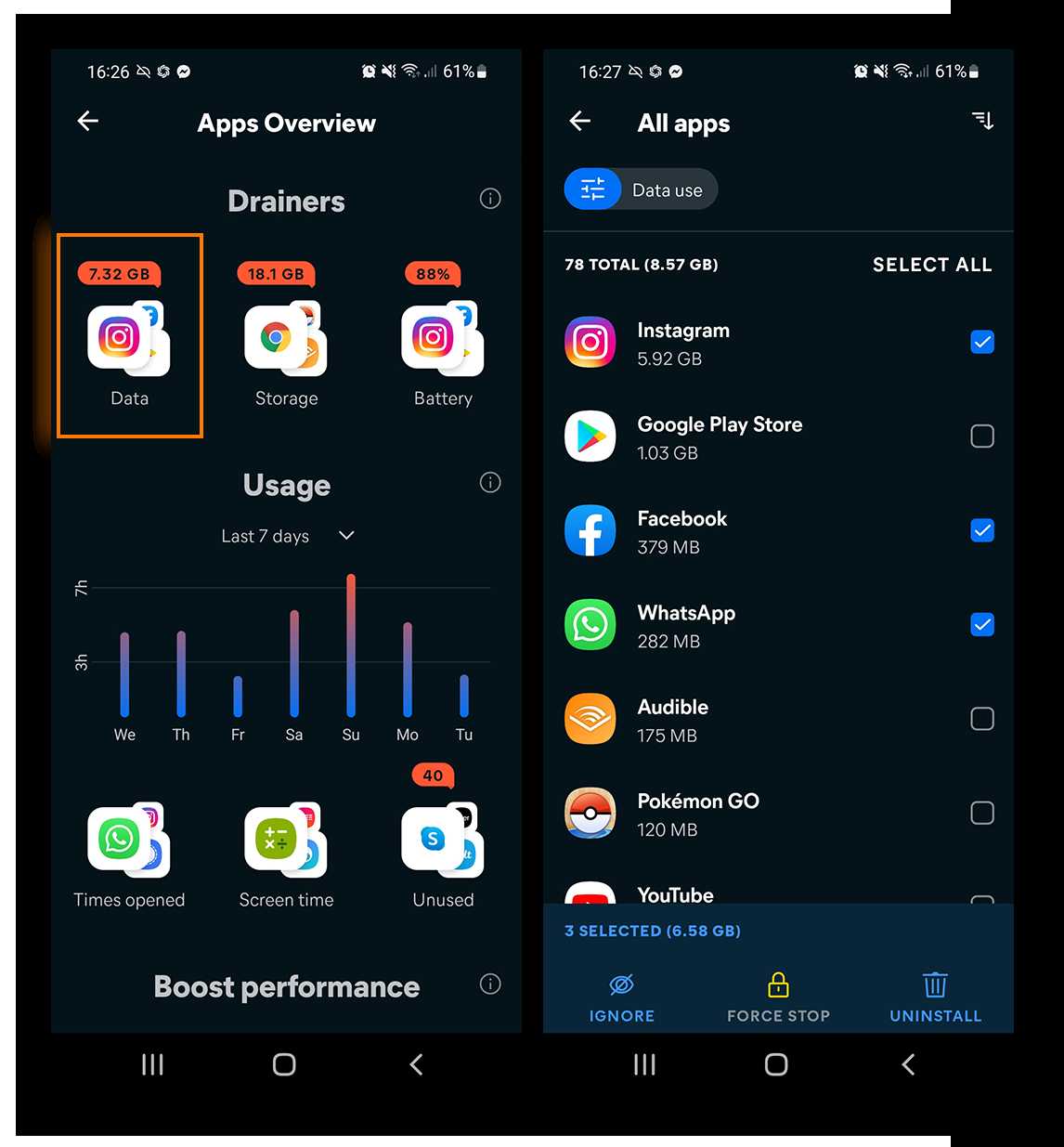
- Select “Data Usage.” Here, you can see the total data consumed by each app.
- Tap on the app you want to restrict.
- Toggle the switch labeled “Background data” off or select “Restrict background data.”
- This prevents the app from using data when you are not actively using it.
- In “Settings,” go to “Data Saver.”
- Turn on “Data Saver.”
- Tap on “Allowed apps” and select the apps you want to enable background data for, leaving others restricted.
For iOS Devices
iPhone users can control background data through specific app settings.- Open “Settings” on your iPhone.
- Scroll down to find the app you want to restrict.
- Tap the app, then disable “Background App Refresh.”
- This stops the app from updating or transmitting data in the background.
- Navigate to “Settings” > “Cellular” or “Mobile Data.”
- Toggle “Mobile Data” off to temporarily disable all background data, or
- Manage individual app access by toggling the switch next to each app’s name.
Best Practices for Managing Background Data
To optimize your data usage:- Regularly review your app data consumption in your device settings.
- Disable background data for apps that don’t require real-time updates.
- Use Wi-Fi whenever available to perform data-heavy tasks.
- Update apps only over Wi-Fi to prevent unnecessary data use.
Additional Tips for Saving Data and Battery
Besides restricting background data, consider these tips:- Enable “Low Data Mode” on your device to limit background activity automatically.
- Turn off automatic app updates unless connected to Wi-Fi.
- Close apps completely when not in use to stop background processes.
- Monitor your data usage regularly through your device’s data monitor or carrier app.
Tools and Apps to Help Manage Data Usage
Several third-party apps can assist you in tracking and limiting background data:- Data Manager apps that give detailed insights into app-specific data use.
- Firewall apps that allow you to block apps from accessing the internet in the background.
- Built-in parental controls or device management features for enterprise control.
Benefits of Limiting Background Data for Selected Apps
Reducing background data usage can lead to:- Lower data costs, especially on limited plans.
- Extended battery life by reducing unnecessary background activity.
- Better device performance with less CPU and memory load.
- Improved privacy by controlling what data each app transmits without your interaction.
Common Challenges and How to Overcome Them
Some apps may stop functioning properly if background data is restricted.- Identify critical apps that require background data, like messaging or email apps.
- Restrict background data selectively, allowing essential apps to sync in the background.
- Adjust app settings to manually update content when needed instead of automatic updates.
Monitoring and Adjusting Your Data Settings
Regular review of data consumption ensures you stay within your plan.- Check your usage weekly using your device settings or carrier app.
- Adjust restrictions as you notice which apps consume the most data.
- Stay updated with new device features or OS updates that can improve data management.
Related Topics to Explore
Managing background data is part of broader device and data optimization strategies.- Optimizing Wi-Fi usage and securing your network.
- Understanding mobile data plans and choosing the right one.
- Enhancing privacy and security on your smartphone.
Disable Background Data Usage Android
Frequently Asked Questions
How can I prevent specific apps from using data in the background?
You can prevent apps from consuming background data by adjusting your device’s settings. Navigate to the data usage or network section, select the particular app, and disable background data access. This stops the app from updating or syncing when you are not actively using it, saving your data allowance and extending battery life.
What are the steps to restrict background data for apps on Android devices?
On Android devices, go to Settings > Network & Internet > Data Usage. Tap on Mobile Data Usage, select the app you want to restrict, and toggle off the option for background data. Some devices may have a different path, but generally, you find these options under data or app management settings.
Will limiting background data affect how apps function during regular use?
Limiting background data mainly affects how apps operate when you’re not actively engaging with them. It prevents automatic updates, notifications, and background processes, which can reduce overall app responsiveness. However, apps will still work normally when you open them, ensuring you can use essential features without interruption.
Can I allow certain apps to use background data while restricting others?
Yes, most device settings allow you to customize background data permissions for individual apps. You can choose to restrict background data on some apps while permitting others to access data as needed. This selective control helps you manage your data consumption efficiently.
What impact does restricting background data have on app notifications?
Restricting background data may delay or prevent notifications from appearing immediately. Since notifications often rely on background data to sync, some alerts might not arrive in real-time. If timely notifications are essential, consider allowing background data for specific apps that send important updates.
Final Thoughts
Limiting background data usage for selected apps helps conserve mobile data and improve device performance. Adjust app settings to prevent unnecessary data consumption when apps run in the background. This simple step prolongs battery life and ensures you stay within your data limits. Focusing on controlling background data makes your device more efficient and reduces unexpected data charges. In conclusion, limiting background data usage for selected apps provides better control over data consumption and enhances overall device performance.
Similar Posts































