Turning Off Auto Brightness And Setting Screen Manually For
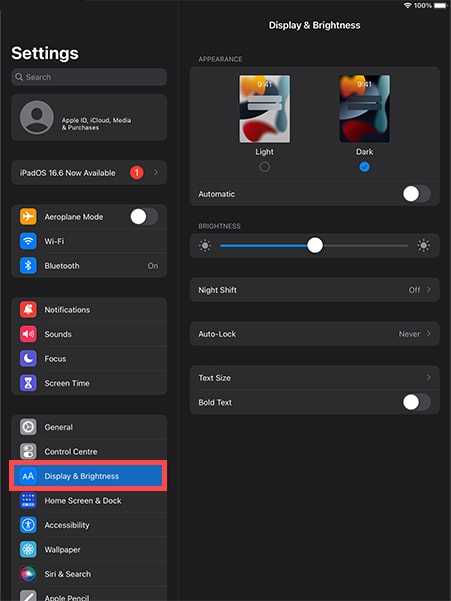
If you find auto brightness making your screen fluctuate unexpectedly or draining your battery faster, turning it off and setting your screen brightness manually might be the perfect solution. This gives you full control over how bright or dim your screen stays, ensuring a consistent display suited to your preferences. To do this, simply disable the auto brightness feature and adjust the brightness slider to your desired level. This way, you avoid sudden changes and can optimize your device’s battery life while making your screen easier to see in different lighting conditions. Whether you want a brighter display for outdoor use or a dimmer screen for nighttime, managing brightness manually can greatly improve your user experience and make your device more personalized.
Turning off auto brightness involves navigating to your device’s display settings, disabling the automatic adjustment, and then setting the screen brightness manually using the slider. This allows you to customize your screen brightness precisely to your liking and maintain it consistently across different environments.

Turning off auto brightness and setting screen manually
Understanding Auto Brightness and Why It Matters
Auto brightness is a feature on smartphones and tablets that adjusts the screen brightness automatically based on ambient light. It uses the device’s light sensor to detect the environment and make adjustments for optimal viewing. This feature helps save battery life and reduces eye strain in well-lit or dark conditions.
However, auto brightness can sometimes be unpredictable. It might dim the screen too much in dim environments or brighten it excessively outdoors. These inconsistencies cause frustration for users who prefer control over their device’s display. Turning off auto brightness gives you the ability to set your preferred screen brightness manually, ensuring a consistent viewing experience.
Benefits of Turning Off Auto Brightness
- Complete control over screen brightness
- Prevents sudden brightness changes that disrupt usage
- Helps save battery by setting an optimal brightness level
- Reduces eye strain by customizing brightness to comfort level
- Improves reading experience in specific environments
By disabling auto brightness, you can customize your device for comfort, efficiency, and personal preference. This option is especially useful when working for long periods or in environments where the automatic adjustment is less effective.
Steps to Turn Off Auto Brightness on Different Devices
Turning Off Auto Brightness on Android Devices
Most Android devices follow similar steps, but slight variations might exist among brands. Here are general instructions:
- Open the Settings app on your device.
- Scroll to find and tap Display or Screen.
- Look for the Auto brightness or Adaptive brightness option.
- Toggle the switch to Off.
- Adjust the brightness slider to your preferred level manually.
Once auto brightness is disabled, your screen will maintain the set brightness level until you change it again.
Turning Off Auto Brightness on iOS Devices (iPhone & iPad)
For Apple devices, the process is similar:
- Open the Settings app.
- Tap Display & Brightness.
- Find the Auto-Brightness option.
- Toggle the switch to Off.
- Adjust the brightness manually by dragging the slider below.
Your device now maintains a constant brightness level that you find most comfortable.
How to Manually Set Screen Brightness for Optimal Viewing
Adjusting Brightness on Android Devices
After disabling auto brightness, setting the right level becomes simple:
- Access the quick settings panel by swiping down from the top of the screen.
- Find the brightness slider, usually represented with a sun icon.
- Drag the slider left for dimmer or right for brighter settings.
- Test different levels to find the most comfortable brightness for your environment.
Some devices also allow setting brightness through the Settings app under Display options.
Adjusting Brightness on iOS Devices
For iPhone and iPad:
- Open Settings.
- Select Display & Brightness.
- Use the brightness slider to set your preferred level.
- Observe how the screen looks and make adjustments as needed.
Remember that you can also adjust brightness quickly from the Control Center by swiping down from the top right corner (for newer models) or swiping up from the bottom (older models).
Best Practices for Manually Managing Screen Brightness
To make the most of your manual brightness settings:
- Adjust brightness based on environment—darker rooms require less light, brighter environments may need more.
- Remember that higher brightness consumes more battery, so set it as low as comfortable.
- Use auto brightness temporarily if you’re unsure, then switch back to manual to fine-tune.
- Test different settings during different times of day to find what works best.
- Keep in mind visibility—avoid extreme dimming or brightening that could strain your eyes.
Applying these tips helps optimize your device use and prolong battery life.
Related Topics and Additional Tips
Beyond turning off auto brightness, consider these related tips:
Adjust Brightness for Different Applications
Some apps allow specific brightness adjustments independent of system settings. Use these for reading or gaming to optimize your experience.
Using Night Mode or Blue Light Filters
Combine manual brightness with night modes to reduce eye strain during evening use.
Maintaining Battery Life
Lowering screen brightness when possible extends battery life, especially during long trips or power-saving situations.
Enabling Dark Mode
Dark mode reduces flickering and eye fatigue, working well with manual brightness settings for a comfortable display.
Troubleshooting Common Issues
If your device keeps auto-adjusting despite turning off auto brightness, check for software updates or restart your device. Sometimes, resetting display settings helps fix persistent problems.
Turning off auto brightness and setting your screen manually enhances your control over display quality and energy consumption. It allows you to customize your device to suit your personal preferences and environmental needs. Remember, finding the right brightness level can make your device more comfortable to use and help extend battery life. Experiment with different settings to discover what feels best during your daily activities.
How to disable the auto brightness function on the iPhone display
Frequently Asked Questions
How can I disable auto-brightness on my device?
To turn off auto-brightness, navigate to your device’s display or settings menu. Locate the auto-brightness or adaptive brightness option and toggle it off. This action allows you to manually control the screen brightness without it changing automatically based on ambient light conditions.
What steps should I follow to set my screen brightness manually?
First, access the display or brightness settings on your device. Use the brightness slider to adjust the screen to your preferred level. Once you set the desired brightness, ensure that auto-brightness remains disabled so your settings stay consistent.
Does turning off auto-brightness affect battery life?
Turning off auto-brightness can impact battery life depending on how you set the brightness. Manually setting the brightness to a high level may drain the battery faster, whereas keeping it at a lower level conserves power. Adjust the brightness according to your needs to balance visibility and battery usage.
Can I revert to auto-brightness after manually setting the screen brightness?
Yes, you can switch back to auto-brightness at any time. Simply go to your display settings and toggle the auto-brightness option on again. Your device will then automatically adjust the screen brightness based on ambient lighting conditions.
Final Thoughts
Turning off auto brightness and setting screen manually helps improve your device’s battery life and provides better control over display settings. Manually adjusting brightness allows you to customize your viewing experience based on your environment. It also prevents the screen from constantly changing brightness levels, which can be distracting.
By turning off auto brightness, you gain consistent screen visibility and reduce unnecessary battery drain. Simple adjustments save energy and improve device performance. Making this change is quick and enhances your overall user experience.

Similar Posts































