Avoiding High Performance Mode When Not Gaming For Better

Avoiding High Performance Mode When Not Gaming
Understanding High Performance Mode
High performance mode is designed to maximize your computer’s speed and power. It allows your CPU and GPU to run at their full potential, which is great for gaming or demanding tasks. However, when you’re not gaming, this mode can cause unnecessary energy consumption and equipment wear.Why You Should Turn Off High Performance Mode When Not Gaming
Leaving high performance mode active during regular use leads to increased power bills. It also causes your computer to generate more heat, which can impact its long-term health. Turning off this mode helps conserve energy and extends your device’s lifespan.Effects of High Performance Mode on Power Consumption
When high performance mode is enabled, your device consumes significantly more power. This results in shorter battery life on laptops and higher electricity bills for desktops. For example, a laptop may see a 25-30% reduction in battery life when running in this mode.Impact on Hardware Longevity
Running your hardware at maximum capacity continuously adds stress to components like your CPU, GPU, and power supply. This excessive strain can lead to overheating or early hardware failure over time. Maintaining lower performance levels during non-gaming activities helps prevent unnecessary wear.Balancing Performance and Energy Efficiency
Choosing the right balance between performance and energy use is essential. Windows and Mac OS both offer settings to limit performance modes. Adjusting these settings ensures your device runs smoothly without wasting energy.How to Adjust Power Settings on Windows
- Click the battery icon in the taskbar or go to Settings.
- Select Power & Sleep, then Additional Power Settings.
- Choose a balanced or power-saving plan instead of high performance.
- Click Change plan settings, then Adjust plan brightness and other options.
How to Adjust Power Settings on Mac
- Open System Preferences from the Apple menu.
- Click Battery or Energy Saver.
- Select the battery icon and move the slider to lower performance or sleep sooner.
- Disable any settings that allow the Mac to run at maximum performance unnecessarily.
Managing Performance Settings via Software
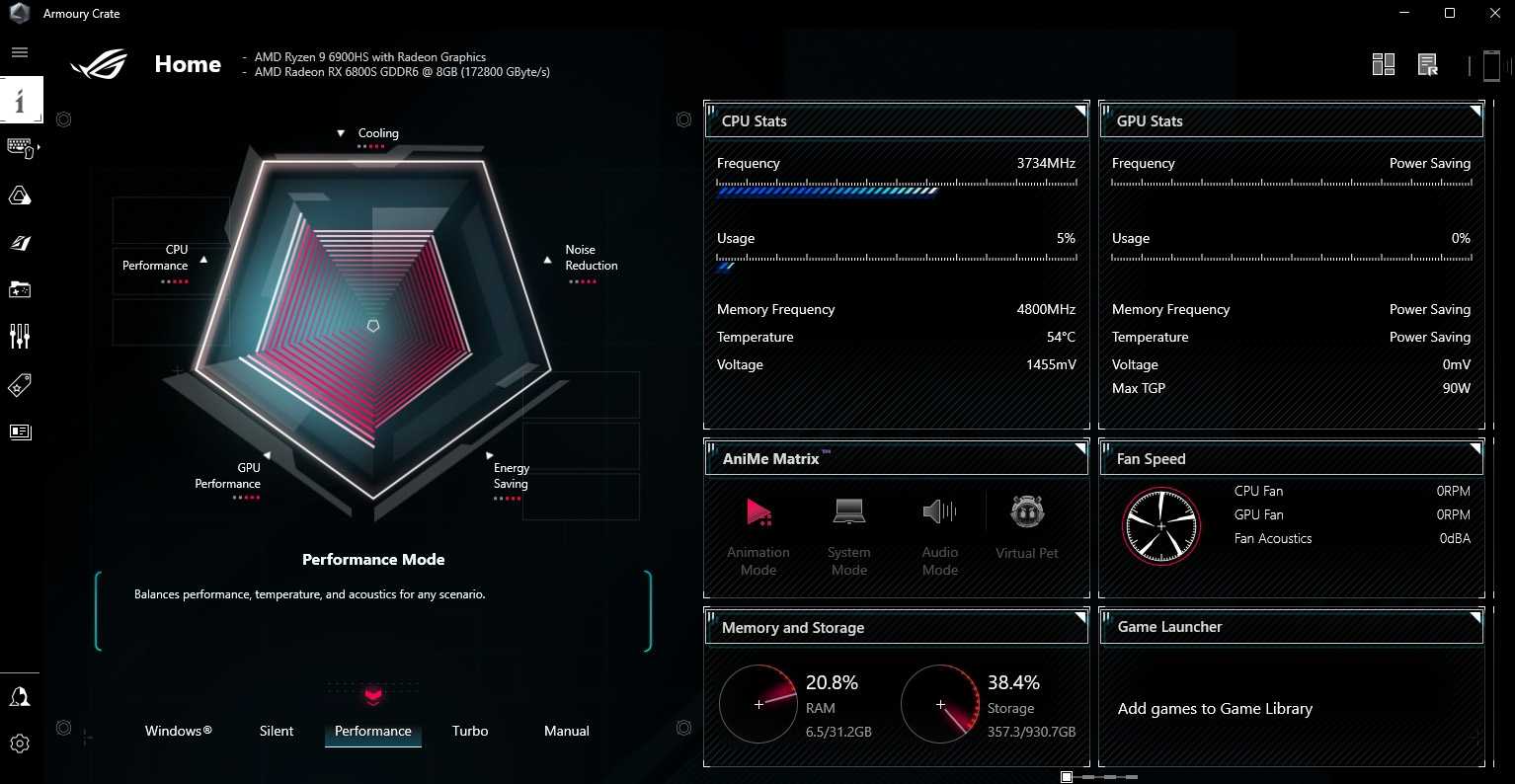
Many laptops and desktops come with manufacturer-specific software to manage performance. Utilities like Dell Power Manager or ASUS Armoury Crate let you customize performance profiles. Setting these profiles to balanced or power-saving modes reduces energy use.Using Windows Power Plans Effectively
Windows offers different power plans such as Balanced, Power Saver, and High Performance. The Balanced plan automatically adjusts hardware performance based on activity. Switching to this plan during regular tasks can save energy without sacrificing usability.Third-Party Applications for Performance Control
Some programs enable finer control of hardware settings. Tools like ThrottleStop or Intel XTU allow you to tweak CPU performance limits. Using such software can help lower performance levels when high power is unnecessary.Disabling High Performance Mode Manually
Disabling high performance mode is simple and immediate. You can do this through your system settings or hardware management software. This helps reduce unnecessary energy consumption and heat.Steps for Windows Users
- Open the Control Panel or Settings.
- Go to Power Options.
- Select the ‘Balanced’ or ‘Power Saver’ plan.
- Click Change plan settings, then Change advanced power settings.
- Expand Processor power management and set Minimum and Maximum processor state to lower values such as 5% and 80%.
Steps for Mac Users
- Enter System Preferences.
- Select Energy Saver or Battery.
- Adjust settings to optimize energy use, like turning off ‘High Power Mode’ if available.
- Use third-party applications if needed to limit performance further.
Additional Tips to Reduce Unnecessary Performance Boosts
To keep your device running efficiently, disable unnecessary background applications. These programs can force your system to run at higher performance levels. Regularly cleaning your device and updating drivers also helps maintain optimal performance without needing high power modes.Close Background Applications
Close any apps running in the background that you don’t need. This reduces CPU load and helps prevent automatic performance escalation. For example, file-sharing or chat programs can consume resources unnecessarily.Update Hardware Drivers
Ensure your graphics card and chipset drivers are current. Outdated drivers can cause hardware to run inefficiently, prompting the system to activate high performance settings unnecessarily.Use Power Management Tools
Invest in power management utilities that monitor and optimize your device’s energy use dynamically. These tools can automatically switch between performance modes based on activity, saving power when high performance isn’t needed.Related Topics: Effective Cooling and Hardware Maintenance
Proper cooling is crucial for maintaining performance without overheating. Dust buildup and poor airflow can lead to overheating, which might force your system into high performance mode to compensate. Regular cleaning and ensuring good ventilation help keep your device cool.How Cooling Affects Performance
When your device overheats, it may throttle performance to prevent damage. Keeping your system cool allows it to run at normal speeds without needing to activate high performance modes constantly.Hardware Maintenance Tips
Cleaning fans and vents regularly prevents dust buildup. Replacing thermal paste on CPUs and GPUs can improve heat transfer. Maintaining your hardware ensures it runs efficiently at lower performance levels when high power isn’t necessary.In Summary
Turning off high performance mode when not gaming helps save energy, prolongs your device’s life, and reduces heat. Adjust your power settings, manage background programs, and keep your hardware cool to strike a balance between performance and efficiency. By making these small changes, you keep your device operating smoothly while conserving energy and reducing wear.[Enhanced speed] Activate High Performance Power Plan
Frequently Asked Questions
How can I prevent my PC from automatically switching to high performance mode during non-gaming tasks?
Adjust your power settings in the operating system to prioritize balanced or power-saving modes. On Windows, go to Control Panel > Power Options and select a balanced plan or customize your current plan to reduce performance levels when high performance isn’t necessary. This prevents your PC from unnecessarily consuming energy and resources during everyday use.
What steps should I take to optimize my system for everyday activities without the high performance setting?
Start by lowering the maximum processor state in your power management settings, and disable any background processes that are only relevant during gaming. Keep your graphics drivers updated, and avoid keeping resource-intensive applications open when not needed. These actions help your system run efficiently without relying on high-end performance modes.
Are there specific software tools that can assist in managing performance modes when not gaming?
Yes, several system utility tools allow you to manage power profiles easily. For example, Intel’s Extreme Tuning Utility or third-party applications like ThrottleStop provide options to customize CPU performance settings. These tools enable you to switch between performance profiles quickly, ensuring your system conserves energy during casual use.
Does running in high performance mode affect the lifespan of my hardware components?
Running your system in high performance mode consistently can generate more heat and put additional stress on hardware components, potentially reducing their lifespan over time. To prevent this, switch to a balanced or power-saving mode when high performance isn’t necessary, and ensure your cooling solutions are adequate to maintain optimal temperatures.
How can I customize my power plan settings to better suit my non-gaming activities?
Access your operating system’s power plan settings and adjust options such as display timeout, sleep mode, and processor power management. Set the maximum processor state lower to save energy and reduce wear on hardware. Customizing these settings helps create a more efficient environment tailored to your everyday usage needs.
Final Thoughts
Avoiding high performance mode when not gaming helps conserve energy and reduces wear on your hardware. It prevents unnecessary power consumption and keeps your system cooler. By switching to balanced or power-saving modes, you extend your device’s lifespan. Staying in high performance mode only when needed ensures optimal system efficiency and longevity.
Similar Posts































