Android How To Make Sd Card Default Storage

Android How to Make SD Card Default Storage
Making your SD card the default storage on your Android device can be a game-changer, especially if you’re running out of internal storage or want to keep your data organized. This guide walks you through everything needed to set your SD card as the primary storage location for photos, videos, apps, and more. We’ll explore different methods, key settings, and tips to make the process smooth and successful.Understanding the Basics of Storage on Android Devices
Before diving into how to set your SD card as default storage, it’s helpful to understand how Android manages internal storage and external SD cards. When you buy a device, it usually comes with a fixed amount of internal storage, which contains system files, apps, and user data. An SD card provides additional space and is portable, making it ideal for storing media files and sometimes apps. However, Android’s ability to treat an SD card as the default storage varies based on the device model, Android version, and manufacturer customizations. For example, some devices support adoptable storage, which formats the SD card and integrates it fully with internal storage, while others allow only for media storage. Knowing these distinctions helps you choose the right method for your needs, whether it’s simply moving files or setting the SD card as the primary location for new data.Check if Your Device Supports Making SD Card Default Storage
Not all Android devices allow you to set the SD card as the default storage for everything. Here’s how to verify if your device supports this feature:- Navigate to your device’s Settings.
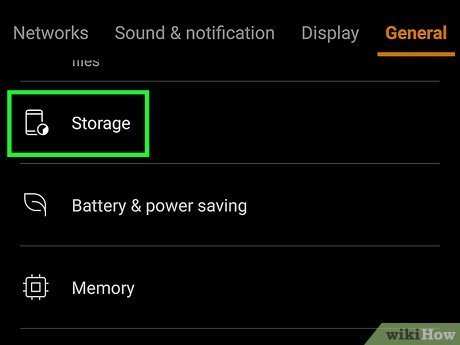
- Go to Storage.
- Check if there’s an option titled Default Storage. If you see it, you can change the primary storage location directly.
- Otherwise, look for options under Storage Settings related to Adoptable Storage.
Preparing Your SD Card for Use as Default Storage
To set the SD card as the default storage, especially when using adoptable storage, you’ll need to prepare the card correctly:Backing Up Data
Before formatting your SD card, ensure you back up all important data. Formatting erases all content, and losing data can be frustrating.Formatting the SD Card
Follow these steps to format your SD card:- Insert the SD card into your Android device.
- Open Settings >Storage.
- Select the SD card from the list of storage options.
- Tap Format or Erase & Format.
- Confirm your choice and wait for the process to complete.
Enabling Adoptable Storage on Android Devices
If you want your SD card to act seamlessly as internal storage, enabling adoptable storage is the way to go:Steps to Enable Adoptable Storage
- Insert and format the SD card as described above.
- Go to Settings.
- Navigate to Storage.
- Select the SD card.
- Tap on the menu icon (usually three dots in the top right corner).
- Choose Format as internal or Adopt storage.
- Follow prompts to confirm and wait for the process to finish.
Configuring Your Device to Use the SD Card for App Storage
Many Android devices let you move apps to the SD card after formatting it as internal storage. This process reduces internal space usage and keeps your device running smoothly.Moving Apps to the SD Card
Here’s how to move supported apps:- Open Settings.
- Tap Apps & notifications or just Apps.
- Select the app you want to move.
- Tap Storage & cache.
- Tap Change (if available).
- Choose SD card.
- Confirm the move. Repeat for other apps as needed.
Automating Storage for Photos, Videos, and Files
If you want your media to automatically save to your SD card, you can change camera and file manager settings:Changing Camera Settings
- Open your camera app.
- Go to Settings (usually represented by a gear icon).
- Look for Storage location or similar.
- Select SD card.
Changing Download and Save Locations
For your browsers, file managers, or apps:- Open the app settings.
- Navigate to Download or Save to options.
- Select your SD card as the default save location.
Handling Common Challenges and Troubleshooting
Sometimes, setting SD card as the default storage isn’t straightforward, especially on older or customized devices. Here’s what to do if you encounter issues:SD Card Not Recognized
- Remove and reinsert the SD card.
- Restart your device.
- Check for physical damage or dirt in the SD card slot.
- Try formatting the SD card again.
Cannot Format as Internal Storage
- Ensure your device supports adoptable storage; some manufacturers disable this feature.
- Check for system updates that may add or improve storage options.
- Try formatting via a computer if necessary, but be cautious to select the correct device and format type.
Apps Won’t Move to SD Card
- Only supported apps can be moved; check the app details for move options.
- Update your device’s software, as newer systems improve app mobility.
- If move options are missing, consider clearing cache or resetting app preferences.
Additional Tips for Managing Storage Effectively
To get the most out of your SD card as default storage, consider these tips:- Regularly back up your SD card data to prevent loss.
- Format your SD card periodically to maintain speed and health.
- Use high-quality SD cards compatible with your device to avoid issues.
- Keep your device’s software up to date for improved storage management features.
Frequently Asked Questions
How can I set my SD card as the default storage for downloads on my Android device?
To set your SD card as the default storage for downloads, go to your device’s Settings, then tap on Storage. Select the SD card as the preferred storage location if the option is available. Some devices automatically switch downloads to SD card when it’s inserted, but others require you to manually change the storage settings within specific apps like the browser or file manager. Check app-specific settings for default download locations and set them to your SD card to ensure files save there by default.
Is it possible to make all new photos and videos save directly to the SD card?
Yes, most Android devices allow you to set the SD card as the default location for photos and videos. Open the Camera app, go to its settings, and find the option labeled “Save location” or similar. Select the SD card as the destination. Additionally, some devices might have a general setting under Storage settings to save media files automatically to the SD card. If not, you can manually move existing media to the SD card and set apps to save new content there for easier management.
What steps should I follow to transfer existing data from internal storage to the SD card?
To move data, start by opening your device’s Settings and selecting Storage. Choose Files or My Files, then select the files or folders you want to move. Tap the Move or Copy option and select your SD card as the destination. You may also use a file manager app to facilitate this process. For apps and app data, you might need to uninstall and reinstall the app, choosing the SD card as the storage location during setup, if supported. Always back up important data before transferring.
Can I set my SD card as the default storage for app installations?
Some Android devices permit you to set the SD card as the default location for app installations. To do this, go to Settings, then choose Storage or Apps & Notifications. If available, select the SD card as the preferred install location. Keep in mind that not all devices support this feature natively, and some apps may still install on internal storage. For specific apps, you might need to move them manually after installation via the Application Manager.
How do I troubleshoot if my device is not recognizing the SD card as default storage?
If your device doesn’t recognize the SD card as the default storage, start by ejecting and reinserting the card to ensure proper connection. Check your device’s Storage settings to see if the SD card is formatted correctly and recognized. Format the card if necessary, but back up your data beforehand since formatting erases all content. Update your device’s software to the latest version. If the problem persists, try using a different SD card or consult your device manufacturer’s support for further assistance.
Final Thoughts
Pour faire de la carte SD le stockage par défaut sur Android, accédez à Paramètres. Sélectionnez Stockage, puis choisissez l’option pour définir la carte SD en stockage par défaut. Ce processus facilite la gestion de vos fichiers et optimise l’espace interne de votre appareil. Vérifiez également si votre téléphone permet cette modification, car certains modèles limitent cette fonctionnalité. En suivant ces étapes, vous pouvez configurer votre Android pour que la carte SD devienne le stockage principal, ce qui simplifie le processus de sauvegarde et d’organisation.
Similar Posts