How To Make Sd Card Default Storage On Android Phone

How to Make SD Card Default Storage on Android Phone
Setting your SD card as the default storage on your Android phone can give you more space for your apps, photos, videos, and other files. Many Android users face the challenge of their devices automatically saving data to internal storage, which quickly fills up. Luckily, there’s a way to change that, so your SD card becomes the primary place for saving new content. Let’s walk through everything you need to know about how to make your SD card default storage on Android.Understanding Default Storage and Its Importance
Before diving into the steps, it’s helpful to understand what default storage is and why it matters. Default storage is the location where your device automatically saves new files and data. When you take photos, download apps, or save documents, Android decides where to keep those files unless you specify otherwise. Using an SD card as the default storage has many benefits:- More space on your internal storage, making your phone run smoothly.
- Better organization of files by keeping media and apps on the SD card.
- Allows you to store more apps, photos, and videos without worrying about your internal storage filling up quickly.
Check if Your Device Supports Moving Apps and Files to SD Card
Not all Android phones support making the SD card the default storage for all apps and new files. It’s important to verify this before proceeding.Supported Devices
Some devices come with built-in features that make this process simple. For example:- Most recent Samsung Galaxy phones
- Google Pixel devices
- Many Motorola or OnePlus smartphones
Limitations
On some phones, especially with newer Android versions, you might face restrictions:- Apps may not automatically save to the SD card unless moved manually.
- Some system functions may still save data internally.
- Formatting or partitioning the SD card might be necessary for optimal performance.
Preparing Your SD Card for Use as Default Storage
Before setting your SD card as the default storage, make sure it is ready:Formatting Your SD Card
Formatting a new or existing SD card ensures it’s clean and compatible with your device.- Insert the SD card into your phone.
- Go to Settings.
- Select Storage.
- Find your SD card and tap on it.
- Choose Format as portable storage or Format as internal storage depending on your needs.
Partitioning the SD Card (Optional)
Sometimes, partitioning your SD card can improve performance and make management easier:- Use a computer with SD card reader or special apps to partition the card.
- Create a partition for the operating system and another for storage, if needed.
- Follow detailed guides based on your device to avoid data loss or errors.
Setting SD Card as Default Storage in Android
The process varies based on your Android version and device model. Here are common methods to set your SD card as default storage:Using Built-in Settings (For Supported Devices)
Many Android phones have a straightforward way to change default storage:- Open the Settings app on your device.
- Tap on Storage & USB or just Storage.
- Look for an option called Preferred storage location or Default storage.
- Select SD card to set it as your default place for saving new apps, photos, and videos.
- Confirm your choice, and your device will adapt accordingly.
Moving Existing Apps and Data to SD Card
While some Android devices don’t let you automatically set new files to SD card, you can manually move existing apps and media:- Go to Settings.
- Select Apps & notifications.
- Tap on the app you want to move.
- Choose Storage.
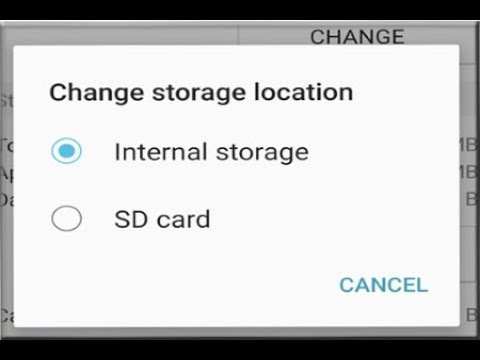
- Tap Change and select SD card.
Using Android’s Developer Options (Advanced Method)
For more control, you can enable developer options:- Go to Settings > About phone.
- Tap Build number seven times to unlock developer options.
- Navigate back to Settings > Developer options.
- Look for Force allow apps on external and enable it.
Using Third-Party Apps
In case your device doesn’t support full SD card as default storage natively, you can try third-party apps:- Apps like Link2SD or Apps2SD can help move apps and data to SD card.
- Download from trusted sources and follow the app-specific instructions.
Managing Storage Post-Setup
After setting the SD card as default storage, keep an eye on how your device manages space.Regularly Moving Media and Files
Even after making the SD card primary storage, some apps may store data internally. Regularly check and move files:- Use the file manager app to transfer photos, videos, and documents to the SD card.
- Delete unnecessary files to free up space.
Keeping Your SD Card Organized
Organize your files in folders for easy access:| Folder | Purpose |
|---|---|
| Photos | All images taken or downloaded |
| Videos | Movies, clips, recordings |
| Documents | PDFs, Word files, etc. |
| Apps | Moved apps and files |
Troubleshooting Common Issues
Sometimes, setting the SD card as default storage can cause unexpected problems. Here’s what to do if you encounter issues:SD Card Not Recognized
- Remove and reinsert the SD card.
- Format the SD card and set it up again.
- Ensure the SD card is compatible with your device.
Apps Not Moving to SD Card
- Check if the app supports being moved.
- Update the app to the latest version.
- Try clearing the cache or reinstalling the app.
Slow Performance or Errors
- Use a high-speed SD card (Class 10 or higher).
- Format the SD card to optimize performance.
- Remove and reinsert the SD card if errors persist.
Frequently Asked Questions
How do I change the default storage location for new downloads on my Android device?
To set your SD card as the default storage for new downloads, open the Settings app and navigate to Storage or Storage & USB. Look for an option labeled Default Storage or similar, then select your SD card. Some devices may not support this setting directly; in such cases, choose the storage location within individual apps like your browser or file manager before downloading files.
Can I move existing apps to the SD card to free up internal storage?
Yes, you can transfer compatible apps to your SD card. Go to Settings > Apps & Notifications > App Info. Select the app you wish to move, then tap Storage. If the option is available, tap Change and select SD Card as the new storage location. Keep in mind that not all apps support being moved to an SD card, and some functions might be limited when running from external storage.
What steps should I follow if my device doesn’t automatically recognize the SD card as default storage?
If your device doesn’t set the SD card as default, first ensure the card is properly inserted and formatted correctly. Restart your phone and check Storage settings again. If the issue persists, try removing and reinserting the card, or formatting it via your device’s storage settings. Some phones require manual selection of storage options within individual apps or in the file manager for storing new files on the SD card.
Final Thoughts
To set your SD card as the default storage on your Android phone, start by inserting the SD card and formatting it if necessary. Navigate to Settings > Storage, then select ‘Default storage’ and choose the SD card. Some devices may require you to move existing data to the SD card manually. Remember, not all Android devices support changing default storage easily. Follow specific instructions for your model, and restart your phone to apply changes. Across different devices, the process may vary slightly. In conclusion, how to make SD card default storage on android phone involves selecting the SD card in storage settings and moving data accordingly. This simple adjustment can help free up internal space and better organize your files.
Similar Posts